Domains
Email domains
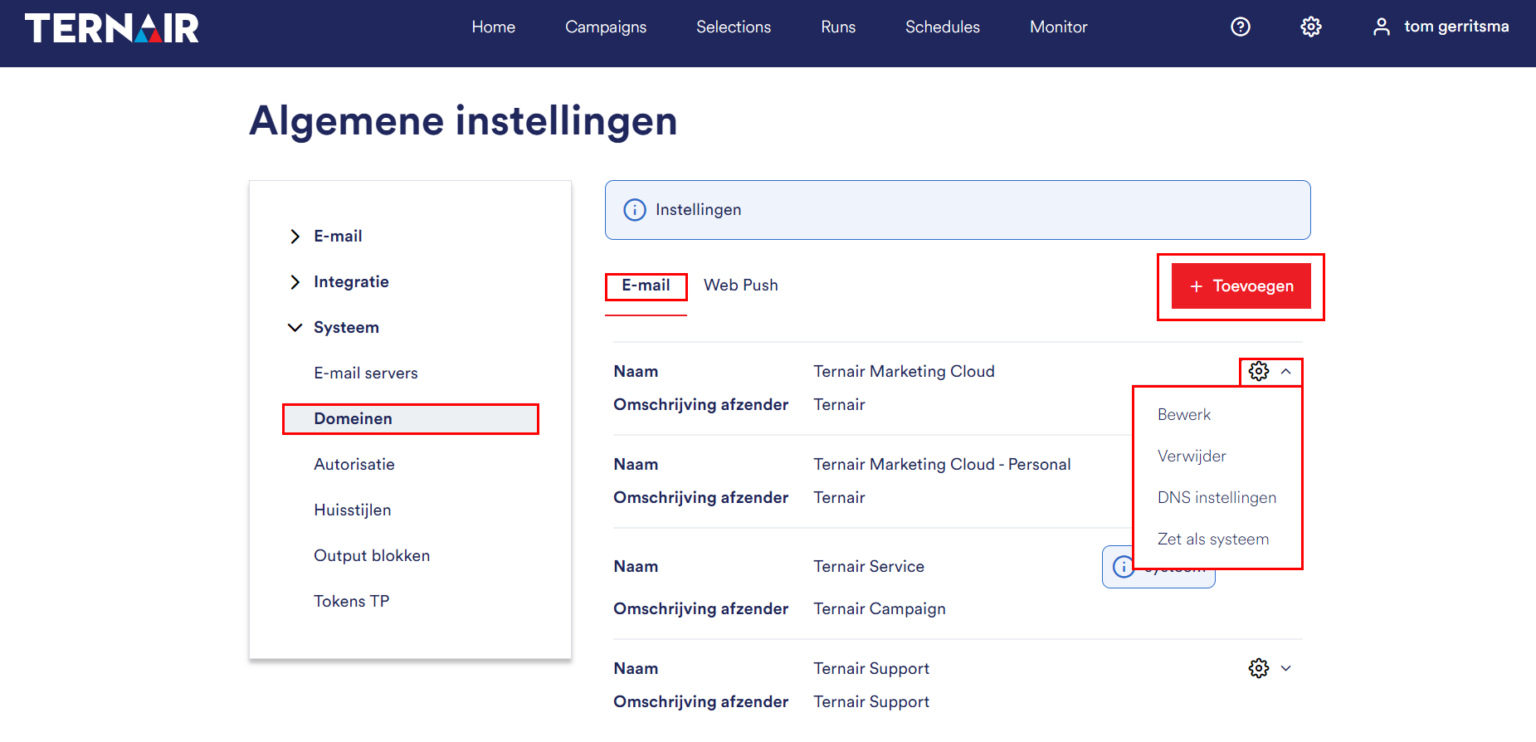
Add new email domain
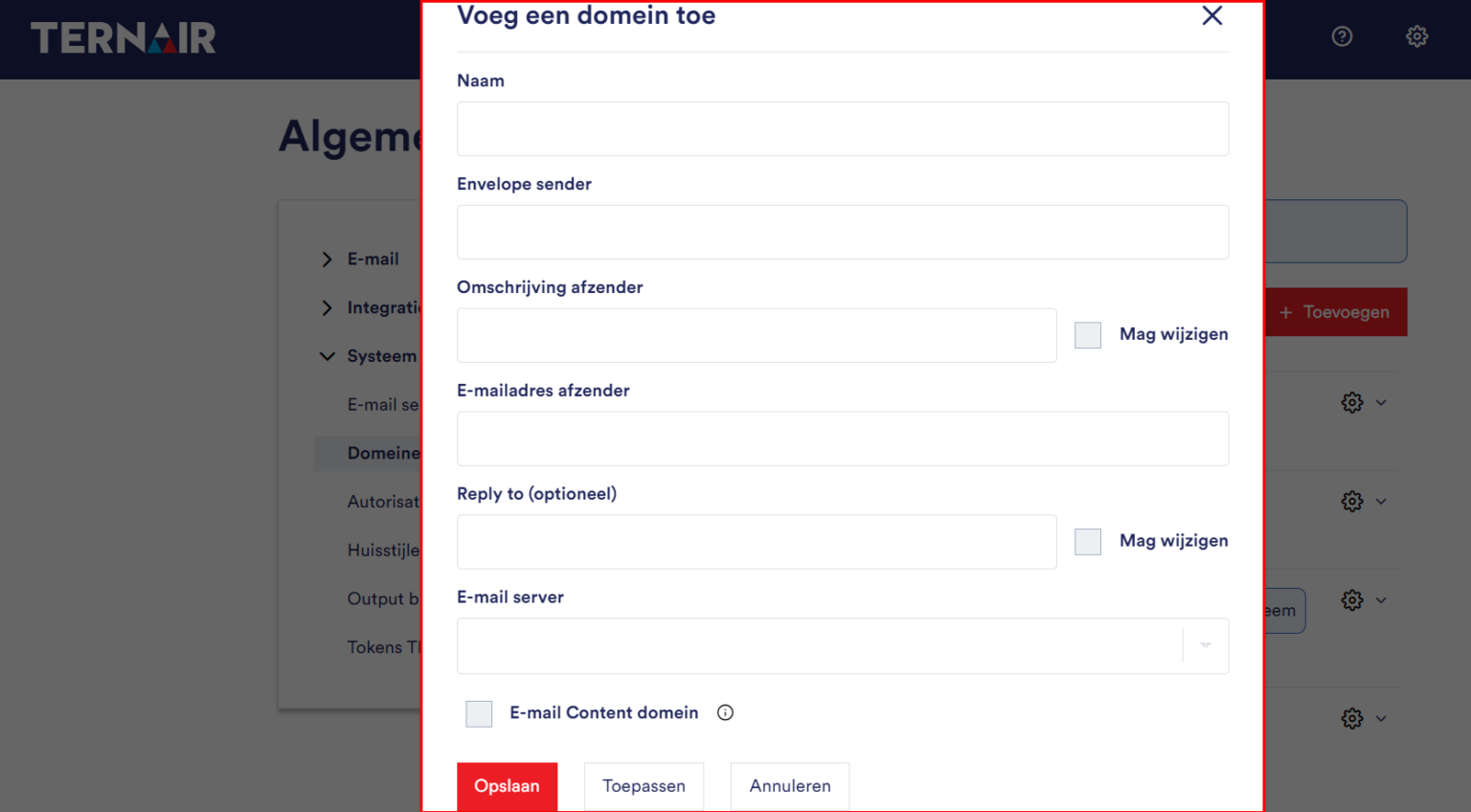
Item | Description | Customer | Ternair |
|---|---|---|---|
Name | Description of domain (used in email block to select settings for a specific domain). | X | |
Envelate sender | Where computers should respond (in the case of bounce messages or error messages) | X | X |
Description sender | Description of email sender | X | |
Sender email address | Email address of the sender | X | X |
Reply to (attional) | E-mail address to which email responses will be sent. | X | |
E-mail server (attional) | Shipping configuration. | X | |
Email Content Domain | The domain used to send the email URL and images from. | X | X |
DNS Settings
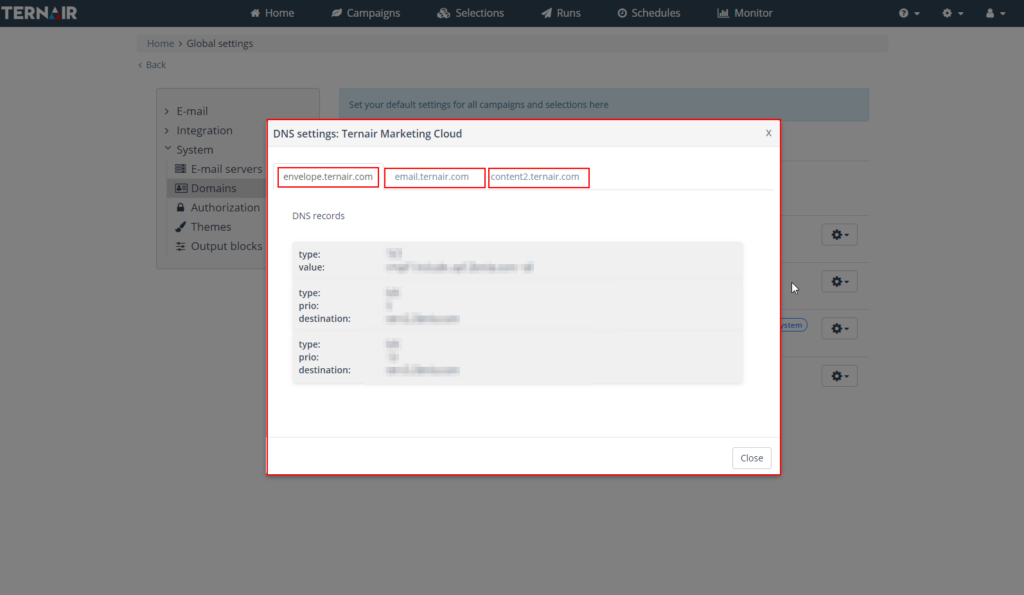
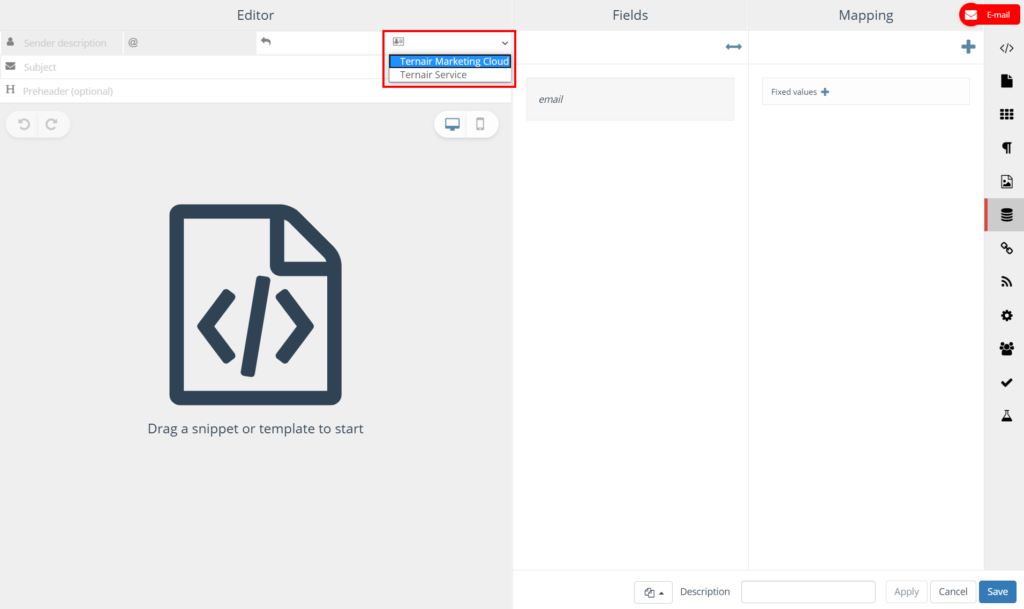
Select domain
Webpush domains
Add new web push domain
Webpush
Script
Allow notifications
Validation
Webpush
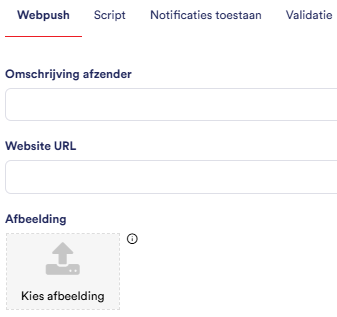
Field | Description |
Sender name | The name recipients see as the sender of the push notification |
Website URL | The URL of the website on which Webpush notifications are displayed |
Image | Upload an image to be displayed next to the title and message |
Ratio1:1 or 2:1
Minimum120 × 120 pixels
Script
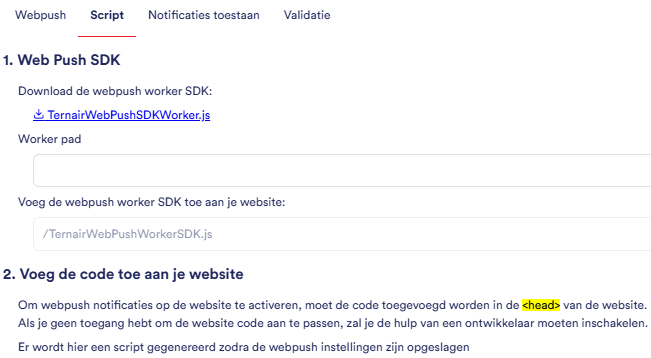
Download the fileTernairSDKWorker.js via the download link
Place this file on your website
Fill theWorker Pad in: the path on your website where the SDK file is placed
Add theWebpush Worker SDK Add to your website via the code snippet shown
Don't have access to website code? Then enable aweb develater or administrator in to add the script.
Allow notifications
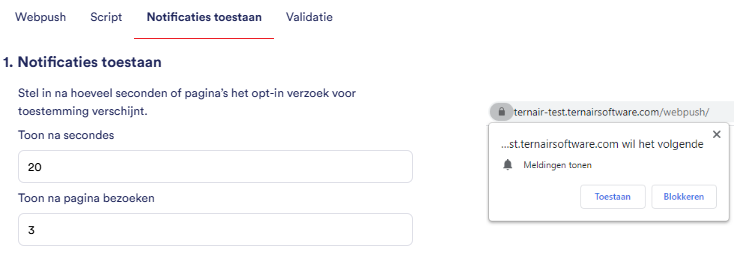
Setting | Description |
Show after seconds | The number of seconds a visitor is on the page before the att-in request appears |
Display after page visits | The number of pages a visitor must view before the att-in request appears |
Allow
Block
Validation
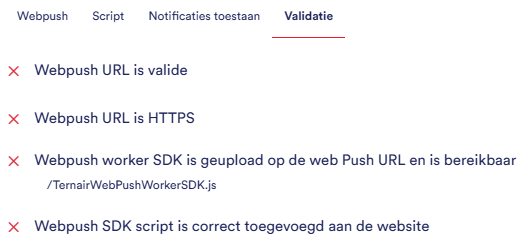
Check | Description |
Webpush URL is valid | Verifies that the website URL provided is valid |
Webpush URL is HTTPS | Verifies that the website uses a secure HTTPS connection |
Webpush Worker SDK has been uploaded and accessible | Verifies that the SDK file is correctly located on the website and accessible via the specified path |
Webpush SDK script was added correctly | Verifies that the script code is correctly added to the <head> of the website |