The "Snapshot" feature allows you to create internal tables in Ternair that record output details from a selection. The snapshot can then be used as input for other selection or output blocks.
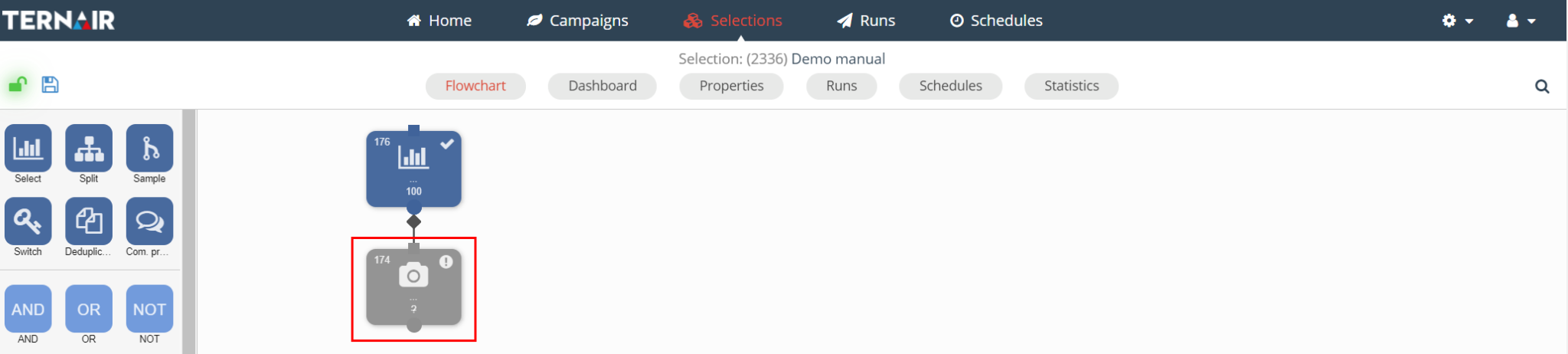
Drag a snapshot block onto the workspace and connect it to an input block.
You can only use the snapshot block if the selection has been saved.
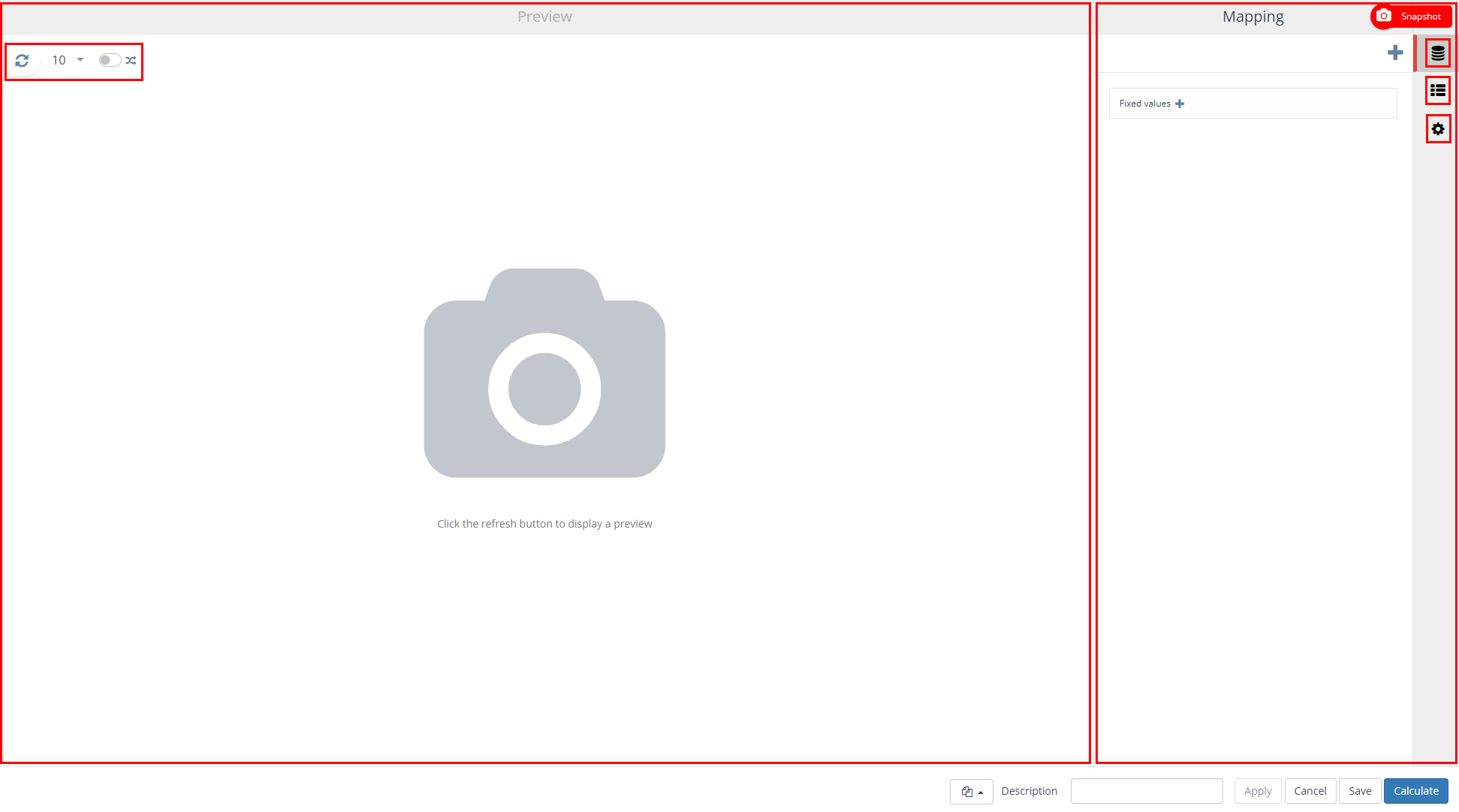
Double-click the snapshot block to open the settings.
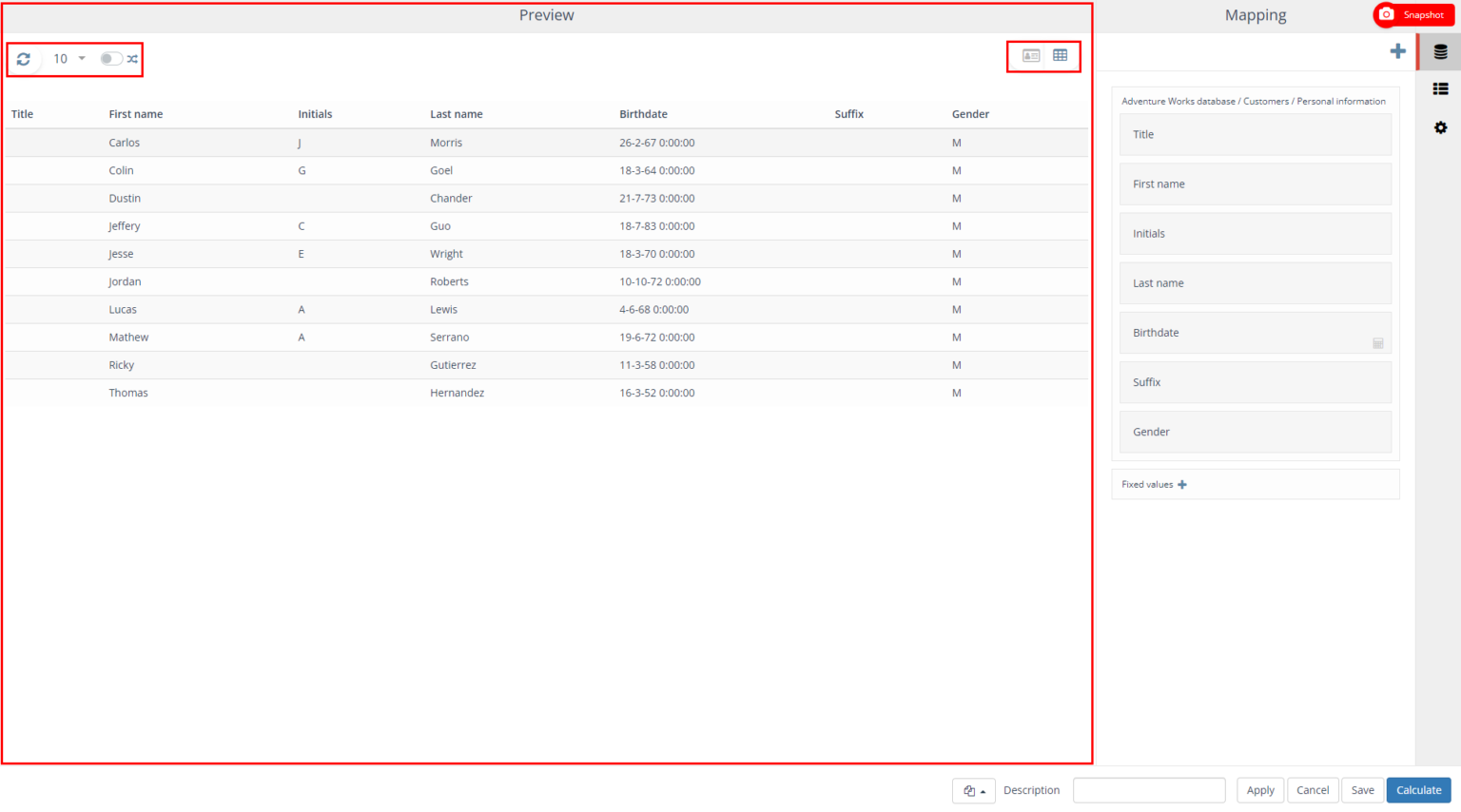
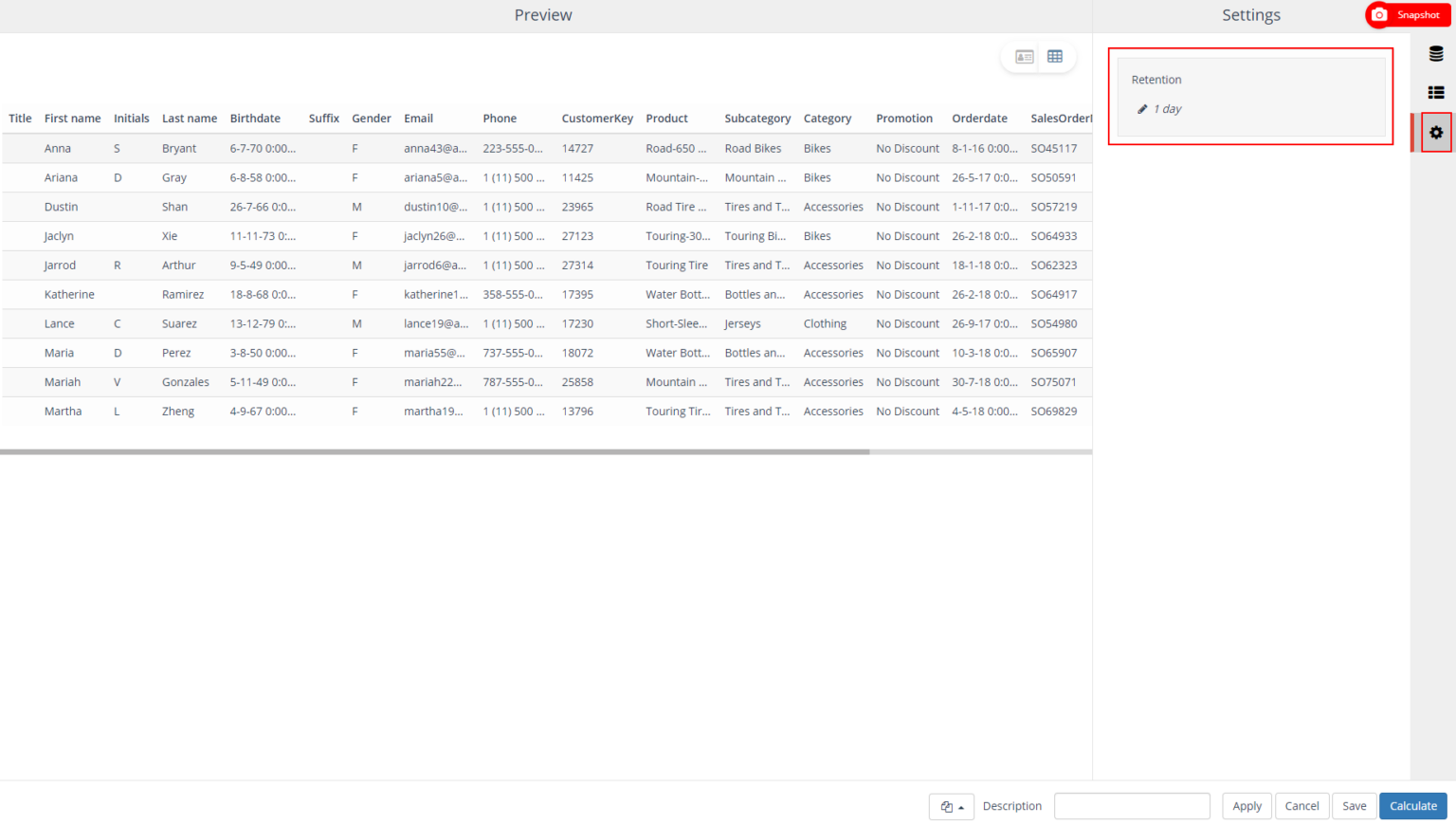
An example of the internal table is shown on the left.
You'll find the settings on the right.
This section focuses on the following options; each option consists of a tab in the settings (on the right) of the snapshot block.
Icon
Option
Description
Mapping
Mapping of Personalized Snapshot Fields
Changes to Dates
Ability to edit fields
Settings
Select a retention period
Filling out the tabs Mapping and Settings is required, Changes "in data" is optional.
Preview
The preview (on the left side of the screen) is always visible.
In the upper-left corner, you can customize the preview data using the following options:
Refresh data.
Please note: If an existing snapshot block is reopened, the previously saved data will be displayed. Click the button to display the most recent data.
Show 10, 25, 50, or 100 records
Show random data
In the upper-right corner, you can switch the preview mode from a single record to a table view showing X records in the selection.
Creating the mapping for a snapshot consists of three steps:
Add Columns
Select the desired fields
Settings
Rename/Edit Column Header
Determine the keys for the relevant fields
Determining Aggregations
Edit Field
The ability to customize, transform, or combine columns
1. Add Columns
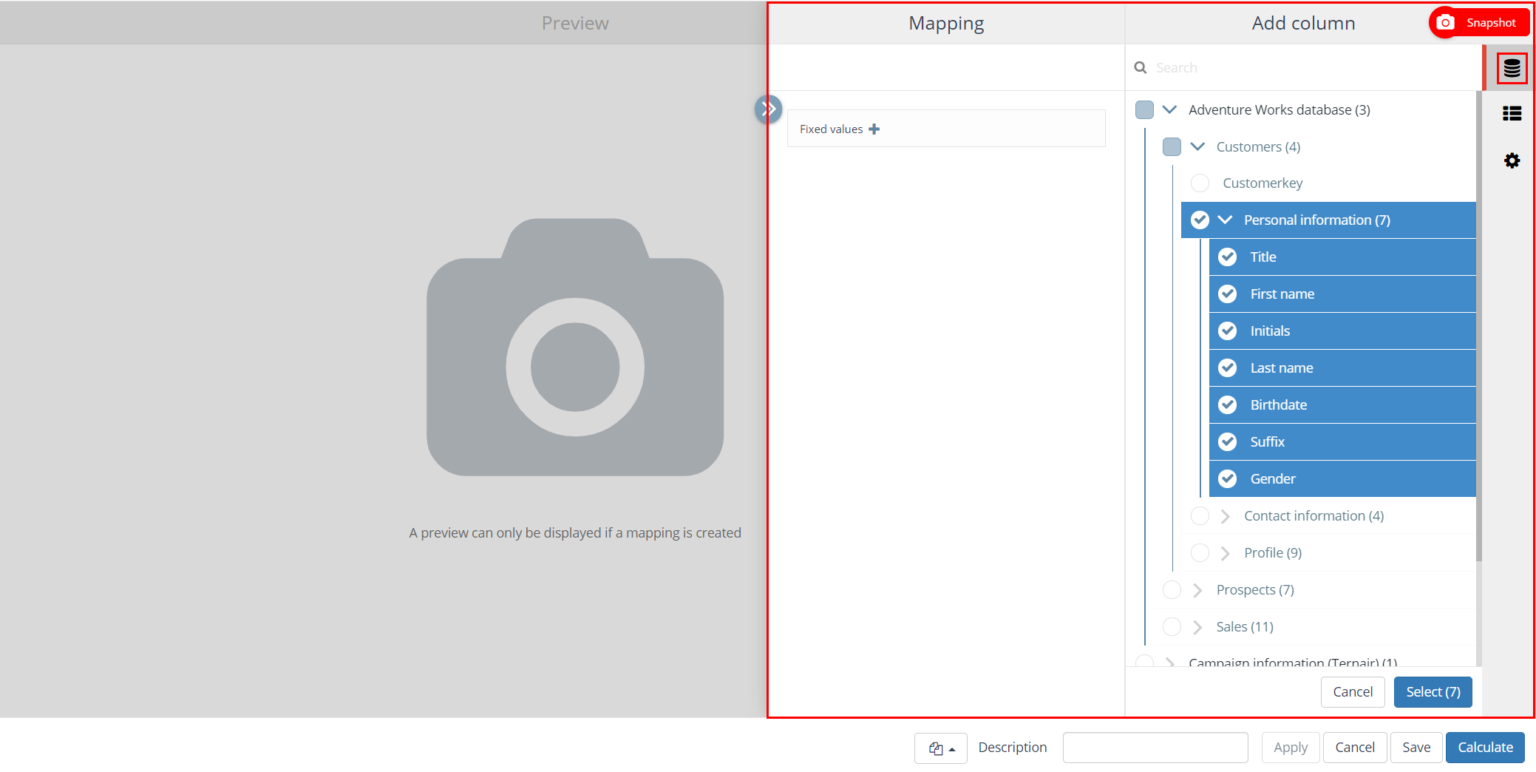
As a first step, select the field(s) you want to include in the snapshot.
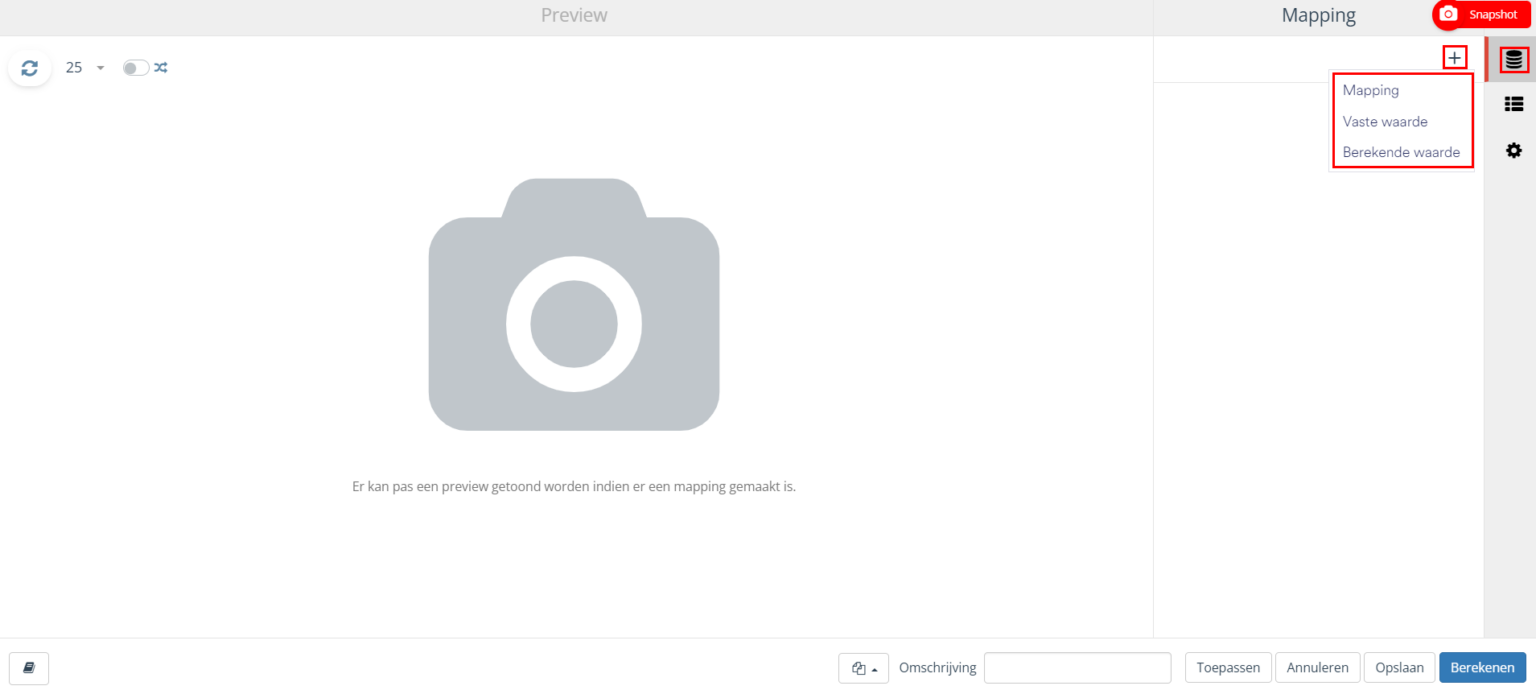
When you click the "+" icon, you'll now see a menu with three options.
With the "Mapping"You can add one or more fields to the mapping."
In addition to the fields available in the database, you can also add fields with a fixed text value. Click the “Fixed Values +” field to add a text field with a fixed value. Both the header and the value of the field must be specified.
With the "Calculated value"You can create a calculated field based on Scriban. For example, you can use this to generate the current date."
Select an item to move it to the preview on the left.
Using Scriban, you can generate calculated fields in a Snapshot—for example, to derive an initial from a first name or to calculate the number of days until a birthday. An overview of common examples can be found on the page Scriban.
Please note: Selecting the entity type selects all (underlying) entities at once (up to 25 fields at a time).
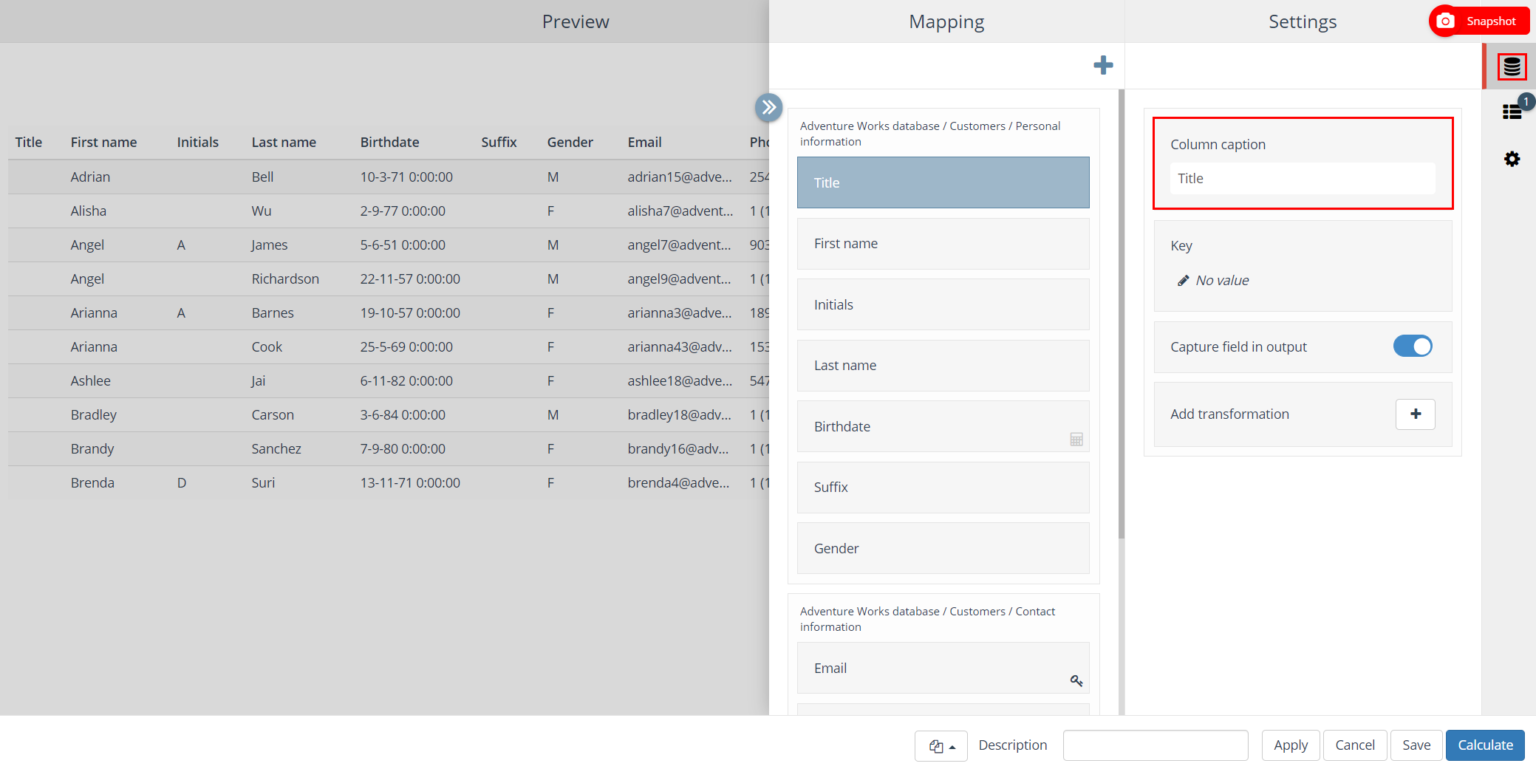
After adding an item, you can edit the column header in the snapshot. You can change a column's name by clicking on the item.
Key
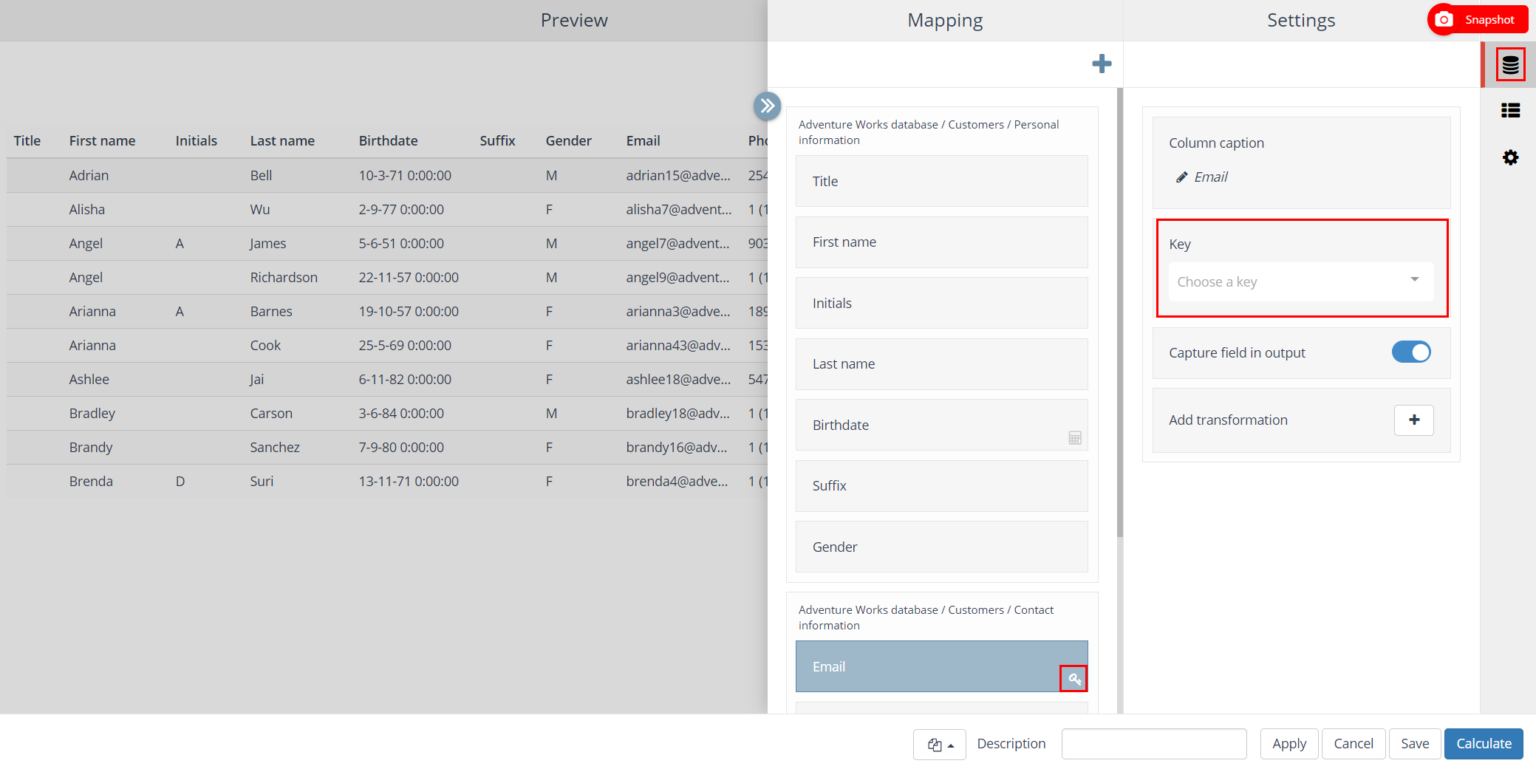
A key must be assigned to the field(s) that contain a key value. Clicking on the key field displays a drop-down menu with the available keys. The key icon indicates that a key has been assigned.
Example: Select the "email" key for the email address field. By assigning the "email" key, you can combine the snapshot with all other sources that also contain the "email" key.
The "Unique Key (Non-Dividable)" key can be used for an entity that contains a key value that cannot be found anywhere else in Ternair.
Please note: Each key must be assigned to at least one field, and at least one key must be designated as required.
Aggregations
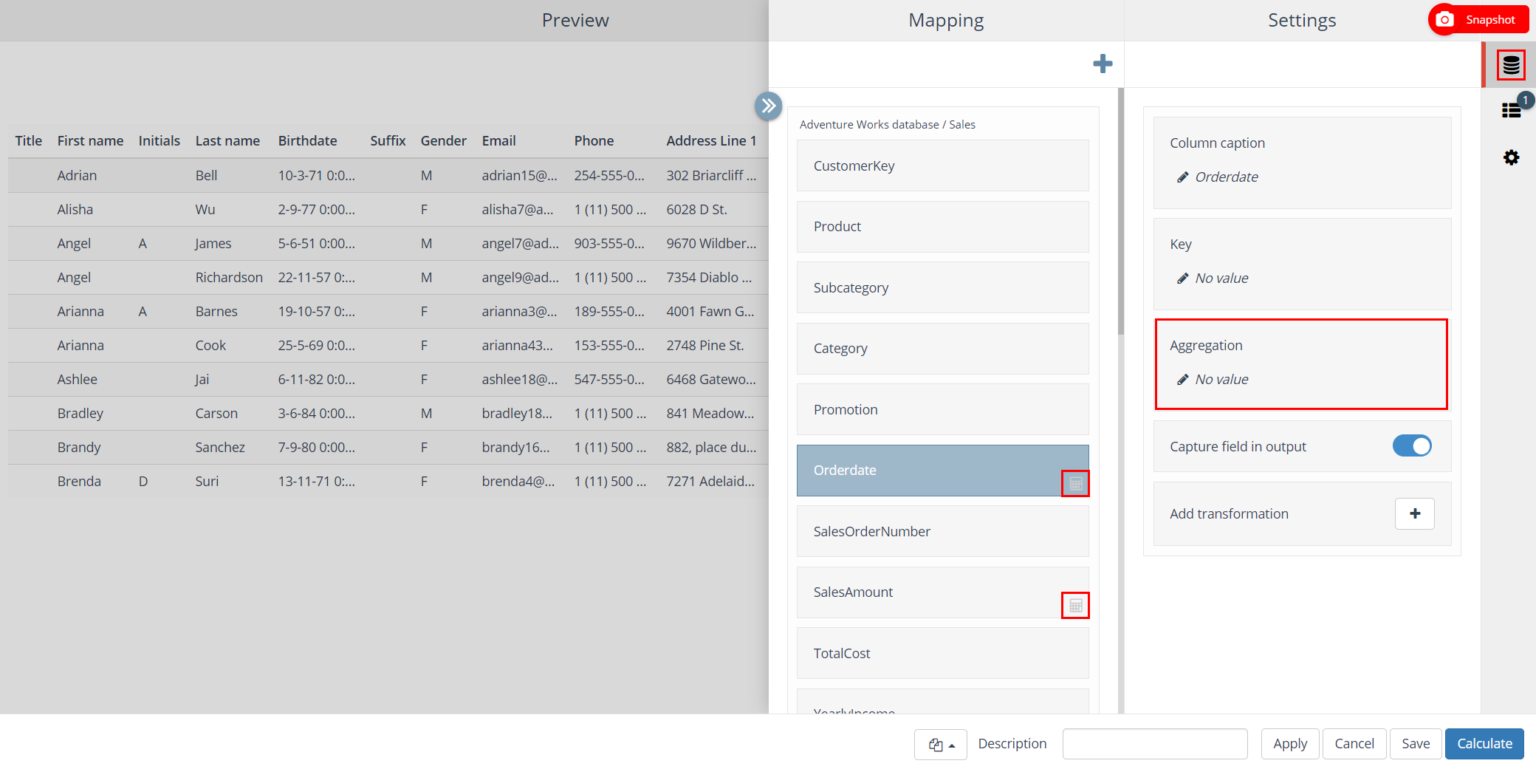
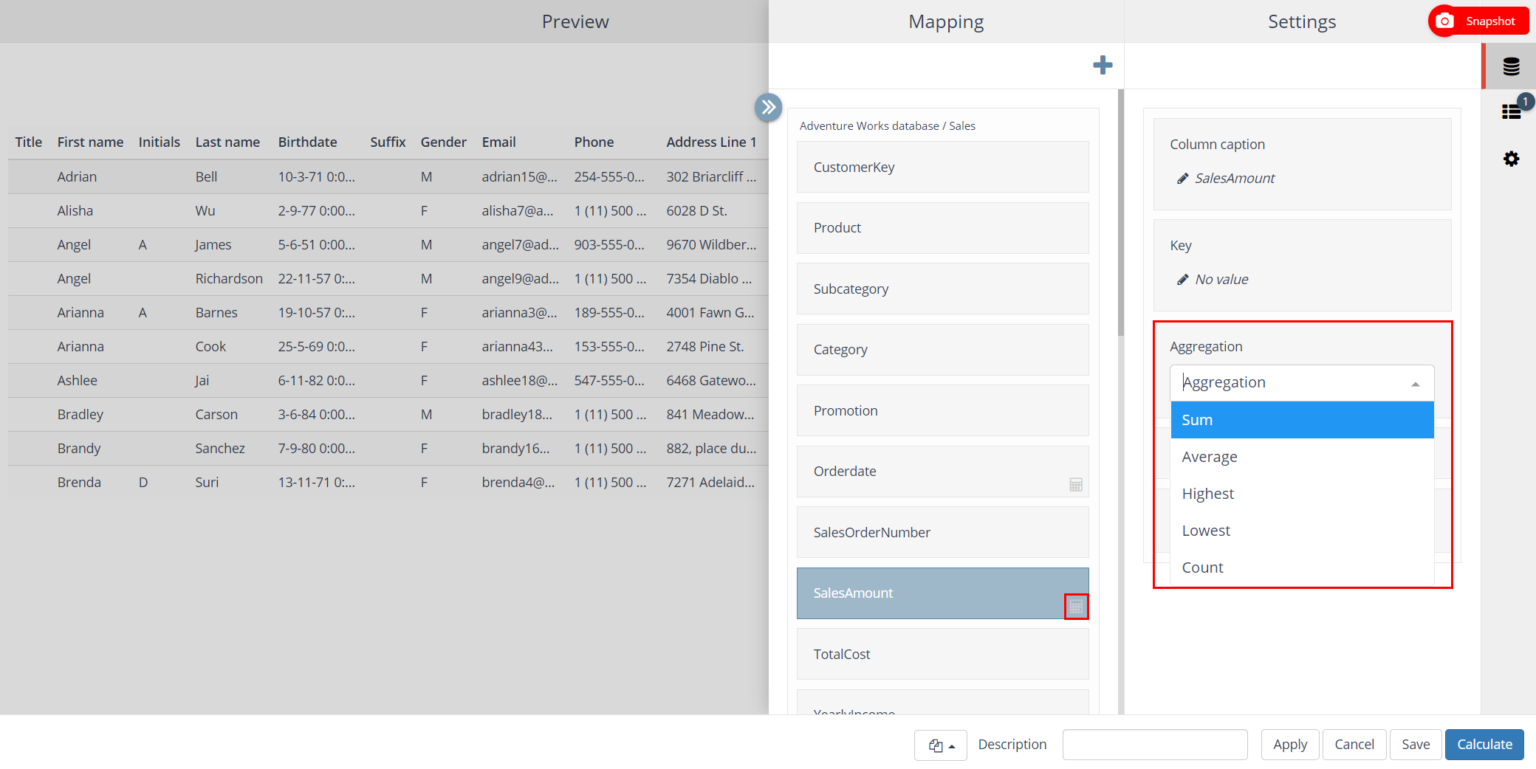
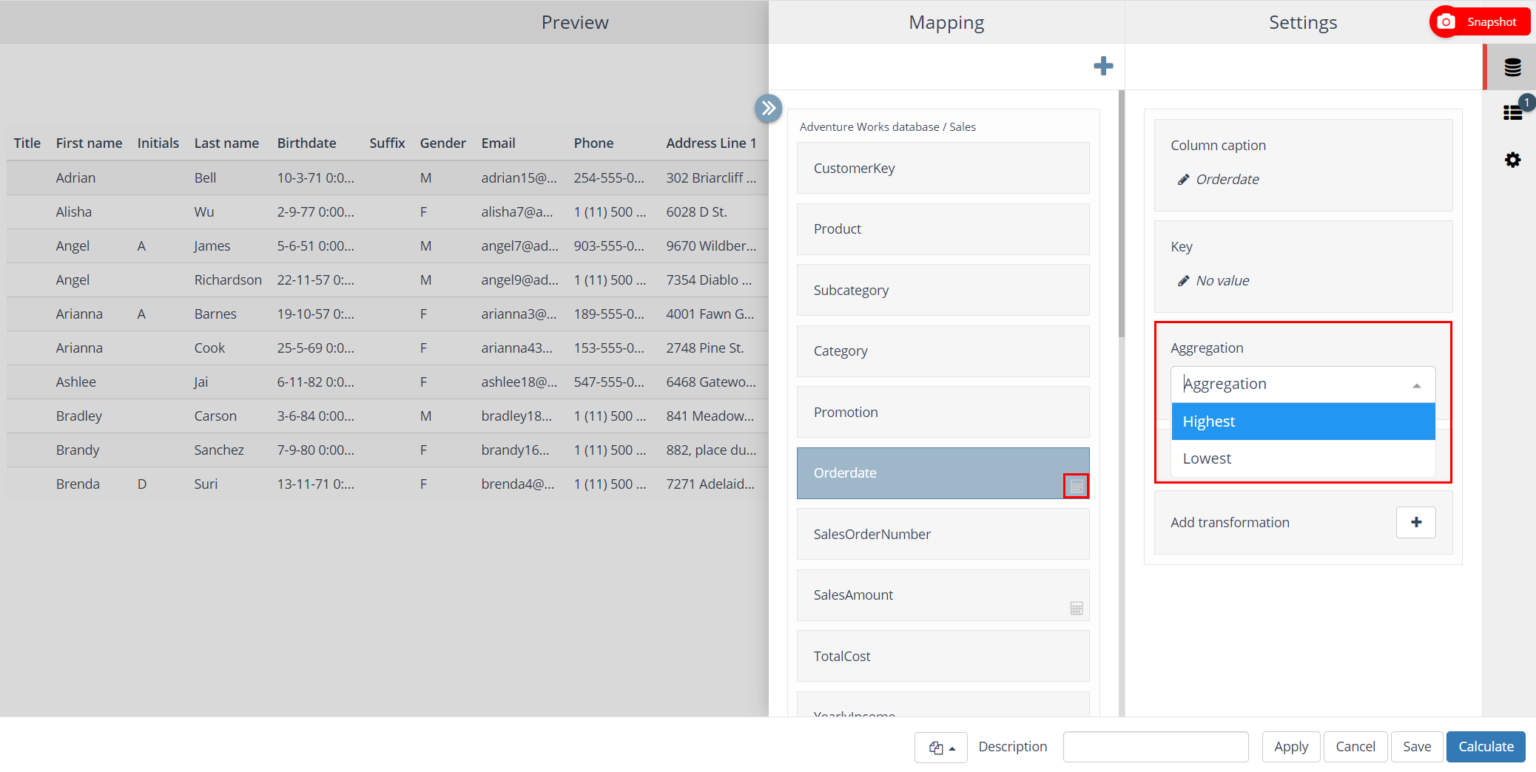
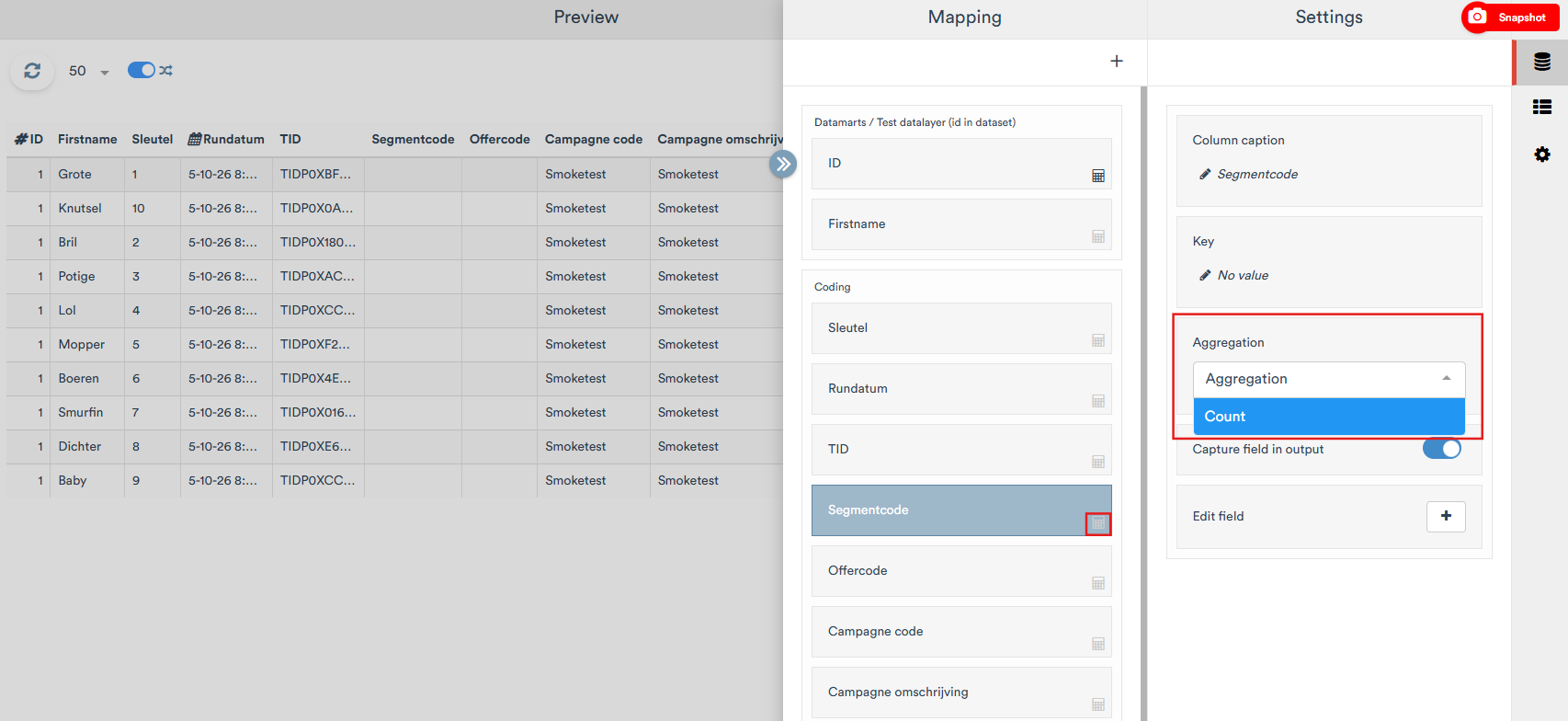
Aggregations are available depending on the type of (field) data. The calculator icon indicates that you can apply an aggregation.
You can select aggregations for numeric, date, and text fields in snapshots. No aggregation is applied if none is selected (default setting).
You can select aggregations for numeric and date fields in snapshots. No aggregation is applied if none is selected (default setting).
Numerical fields
The following types of aggregations are available for numeric fields:
Notice
Average
Highest
Lowest
Number
Date Fields
The following types of aggregations are available for date fields:
Highest
Lowest
Text Fields
The following aggregation type is available for text fields:
Number
Please note: For a text field, "Count" tracks how often a text value appears in another source. This works because the field is designated as a primary or secondary key. For example, you can count how often a license plate number or name appears when you want to verify it against other sources.
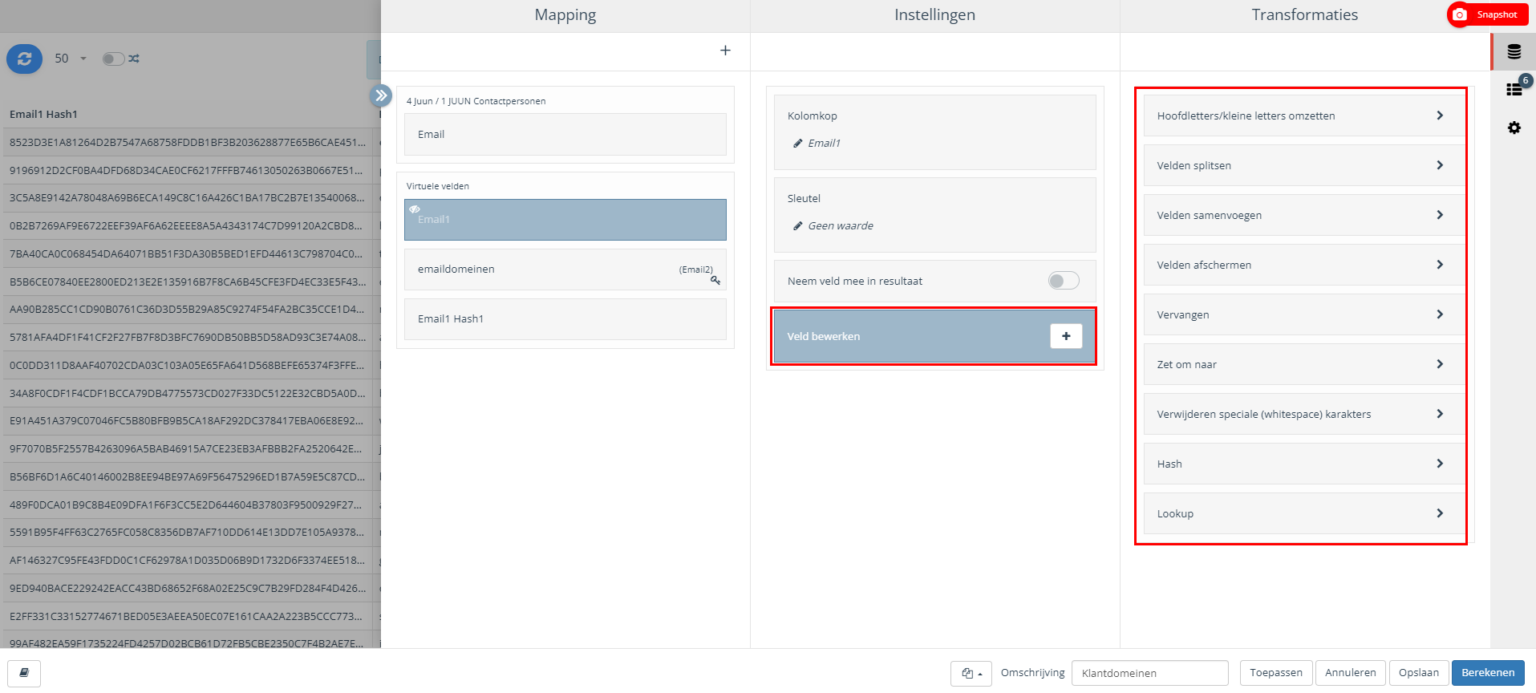
3. Edit Field
In step 3, you can customize the fields.
Converting uppercase to lowercase and vice versa
Split Fields
Merge Fields
Isolate fields
Replace
Convert to a numeric field, which allows you to perform calculations for selection criteria, such as a minimum order value
Remove special (whitespace) characters
Hashing Fields/Columns
Lookup
One-to-many
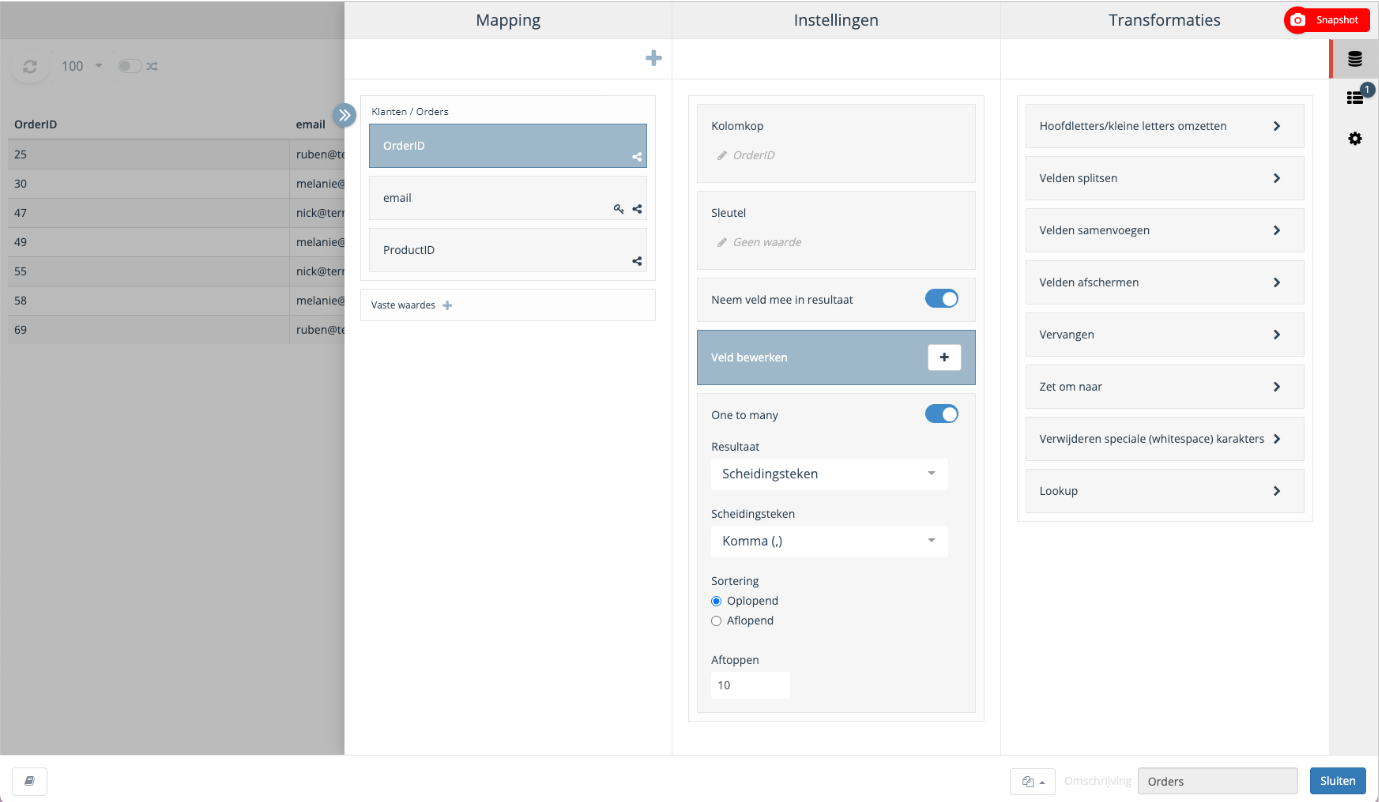
Within a Snapshot block, you can retrieve and save data. This data is retrieved based on the selected key. It is possible for a single key to have multiple values. By default, you receive the first value found. If this is not what you want, you can select the desired value(s) using the one-to-many functionality.
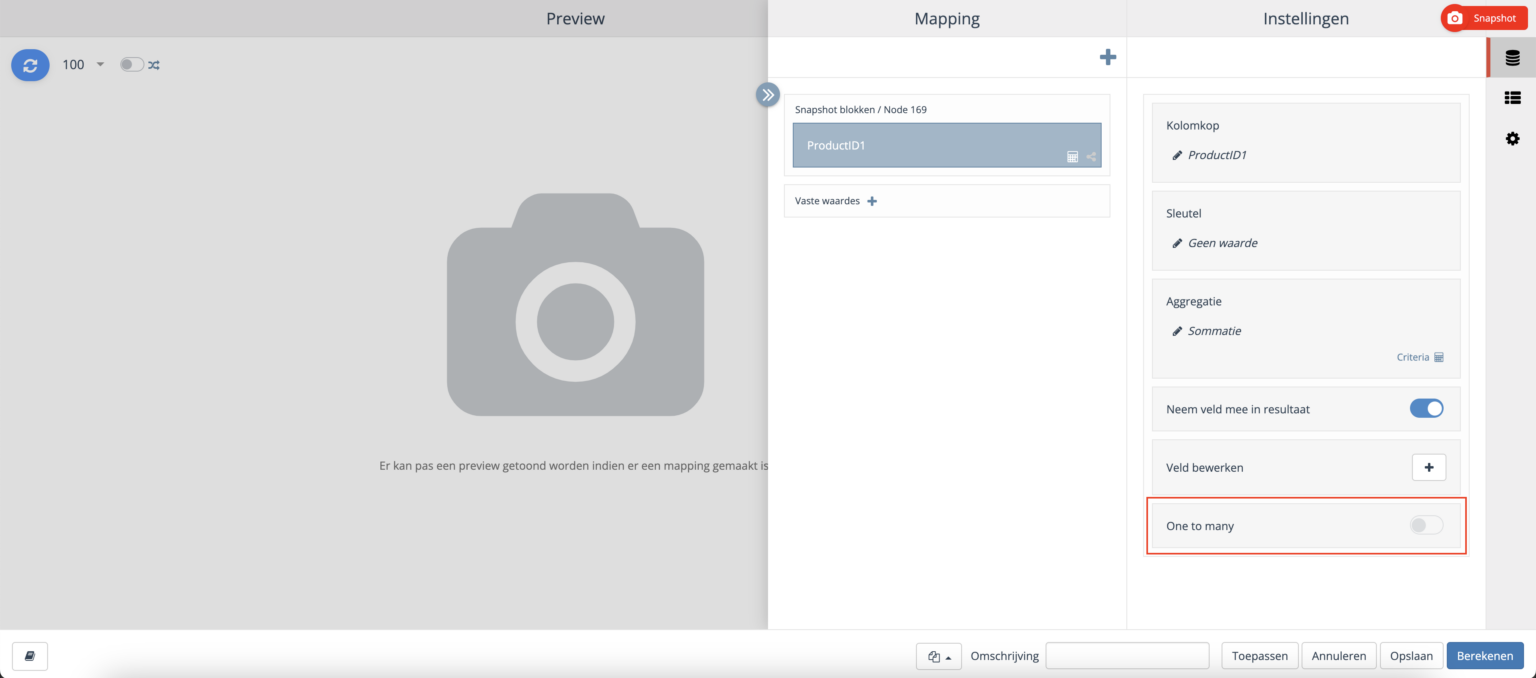
You can tell whether the one-to-many functionality is available by looking at the icon below:
For example, you can use this feature to retrieve multiple orders for a customer. After all, a customer may have multiple orders. To view a customer’s most recent orders, you can select “Descending” under “Sort.” The number under “Limit” specifies the maximum number of records you want to see.
The results can be displayed using a delimiter, JSON, or XML. If you choose a delimiter, you can select from a comma, semicolon, period, or tab.
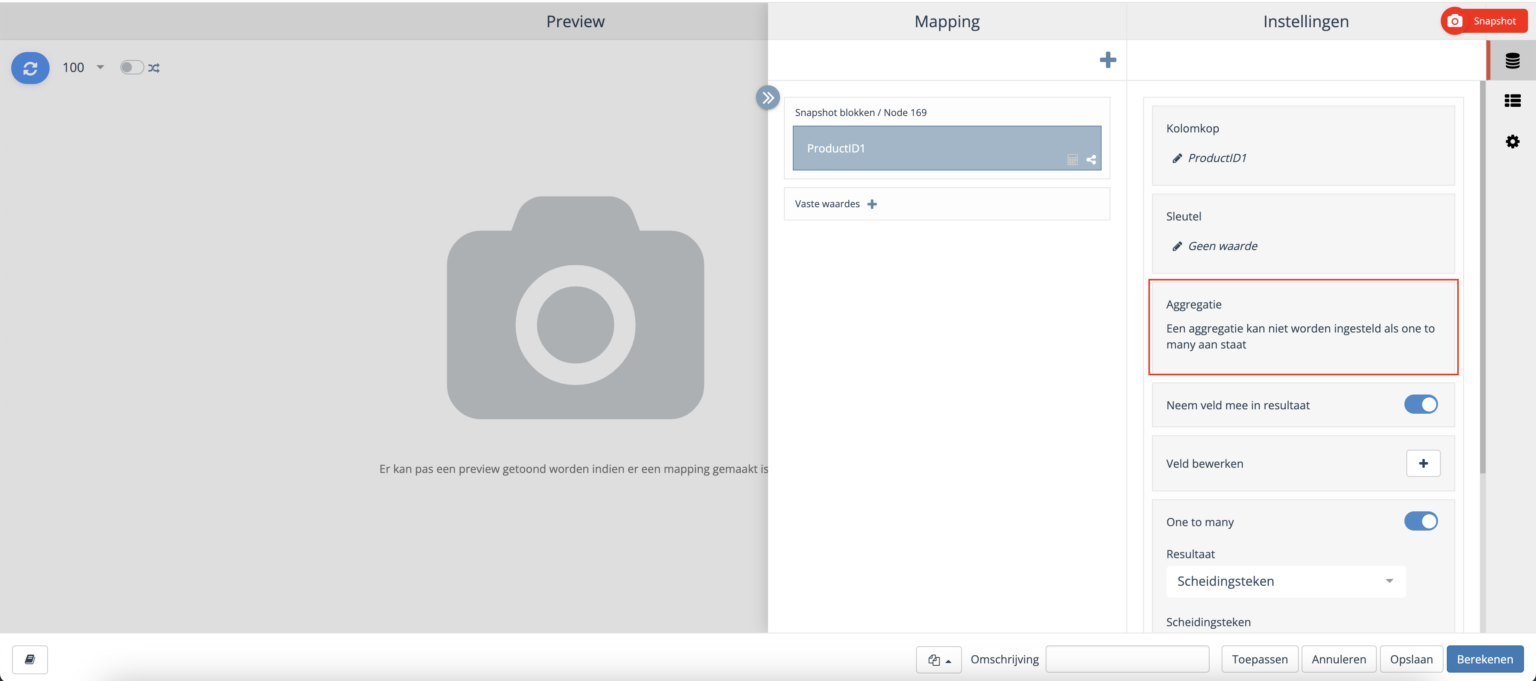
Please note: The one-to-many functionality can only be applied to a Snapshot block and can never be used in combination with aggregation.
Changes to Dates
Fields that have been modified on the “Mapping” tab are displayed in chronological order on the “Data Changes” tab. You can undo changes by clicking the trash can icon.
Settings
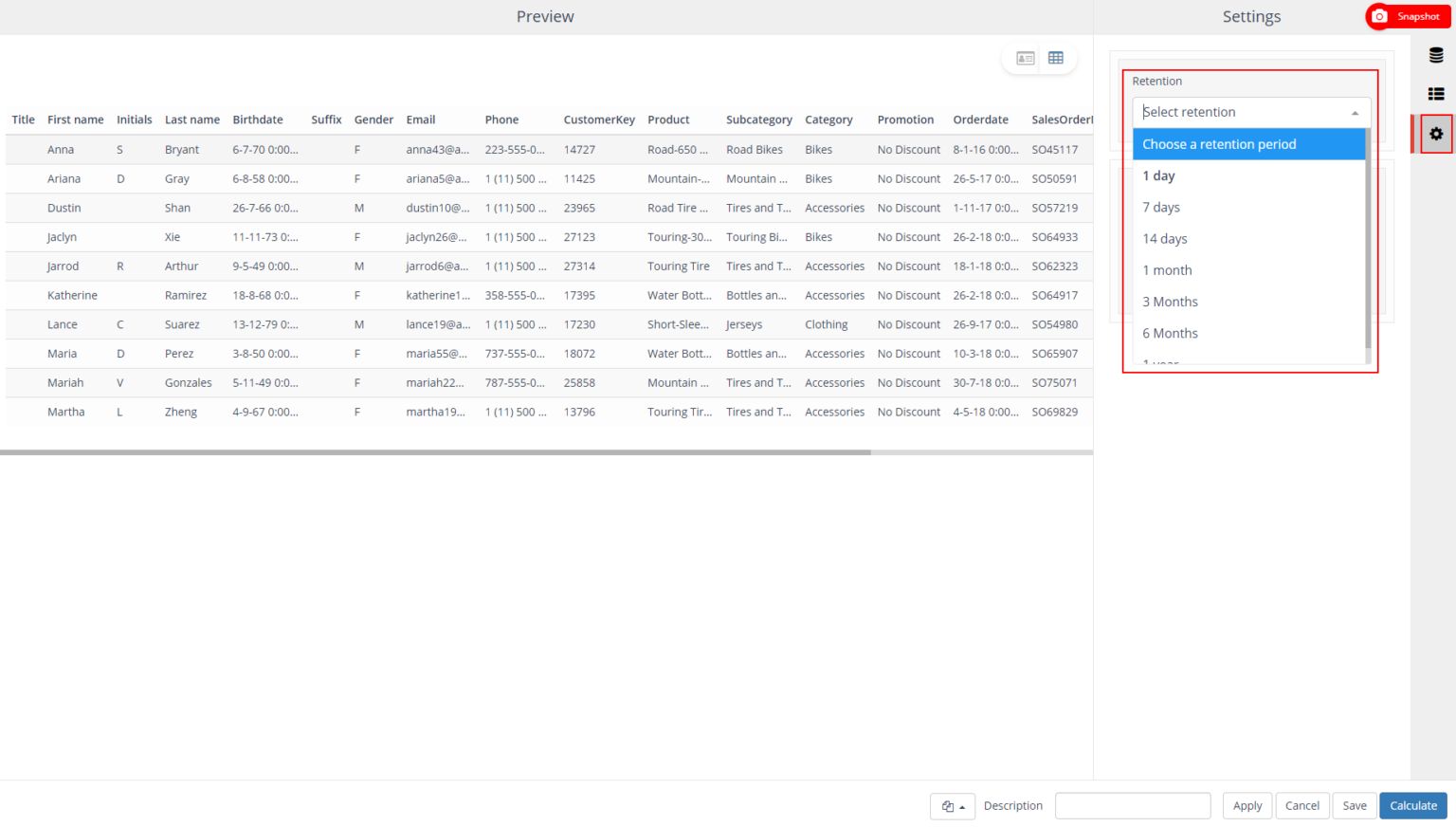
On the "Settings" tab, you can set a retention period.
Retention
The retention period determines how long the snapshot remains available in Ternair.
The default retention period for snapshot blocks is one day.
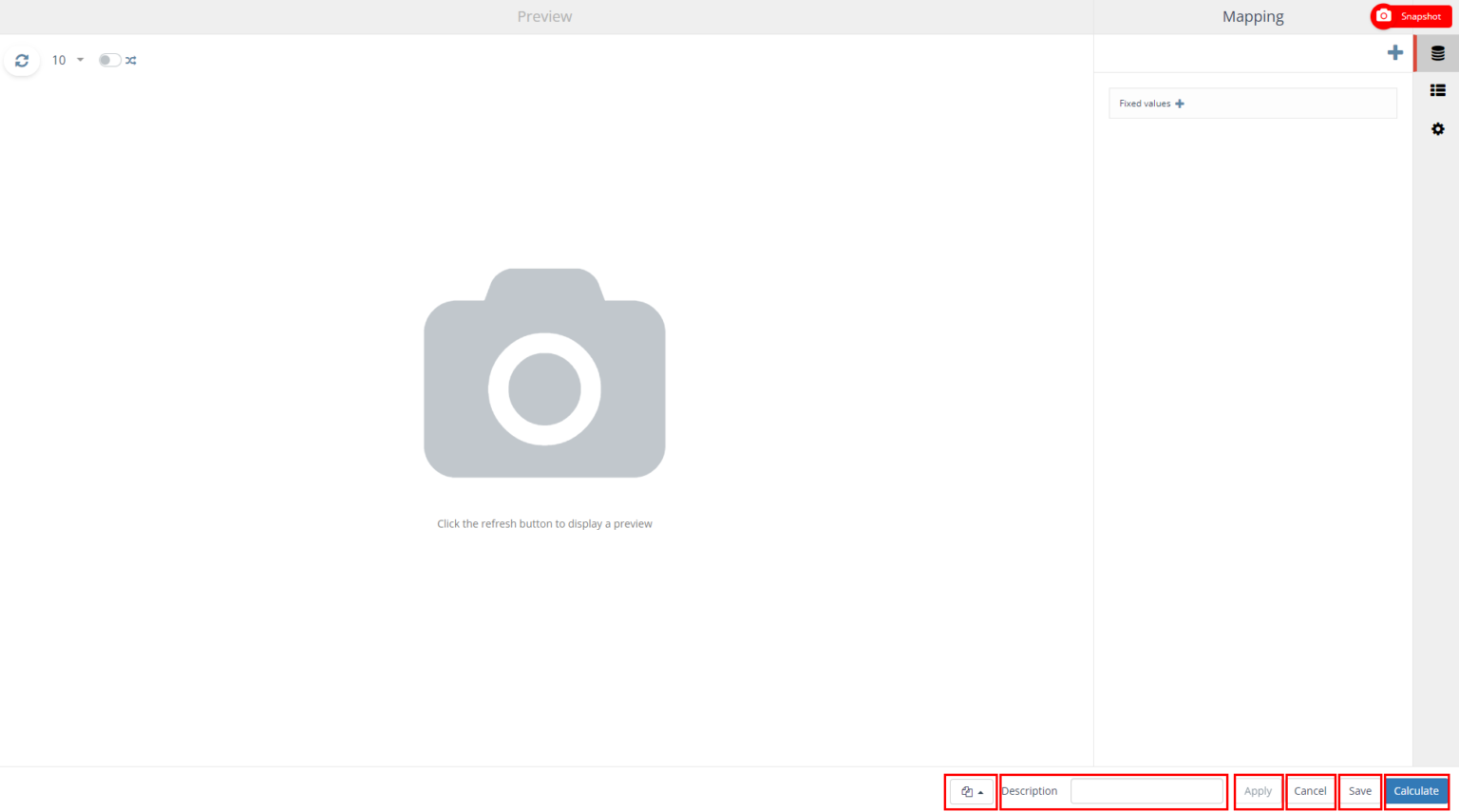
General Settings
Option
Description
Block template
Any snapshot block can be saved as a template. Once a snapshot block has been saved as a template, it can be used as a template for other snapshot blocks. A block template can be reused by clicking “Open block template” in the lower-left corner of the snapshot block and selecting the template from the list.
Description
You can provide a description for a snapshot block. The description field is intended for providing a logical description of the block. This makes the contents of the output block easily recognizable in the selection flowchart.
Apply
Clicking the "Apply" button saves the temporary settings for the selection block.
Cancel
Use the "Cancel" button to undo your changes.
Save
The "Save" button lets you save your changes without (re)calculating the block.
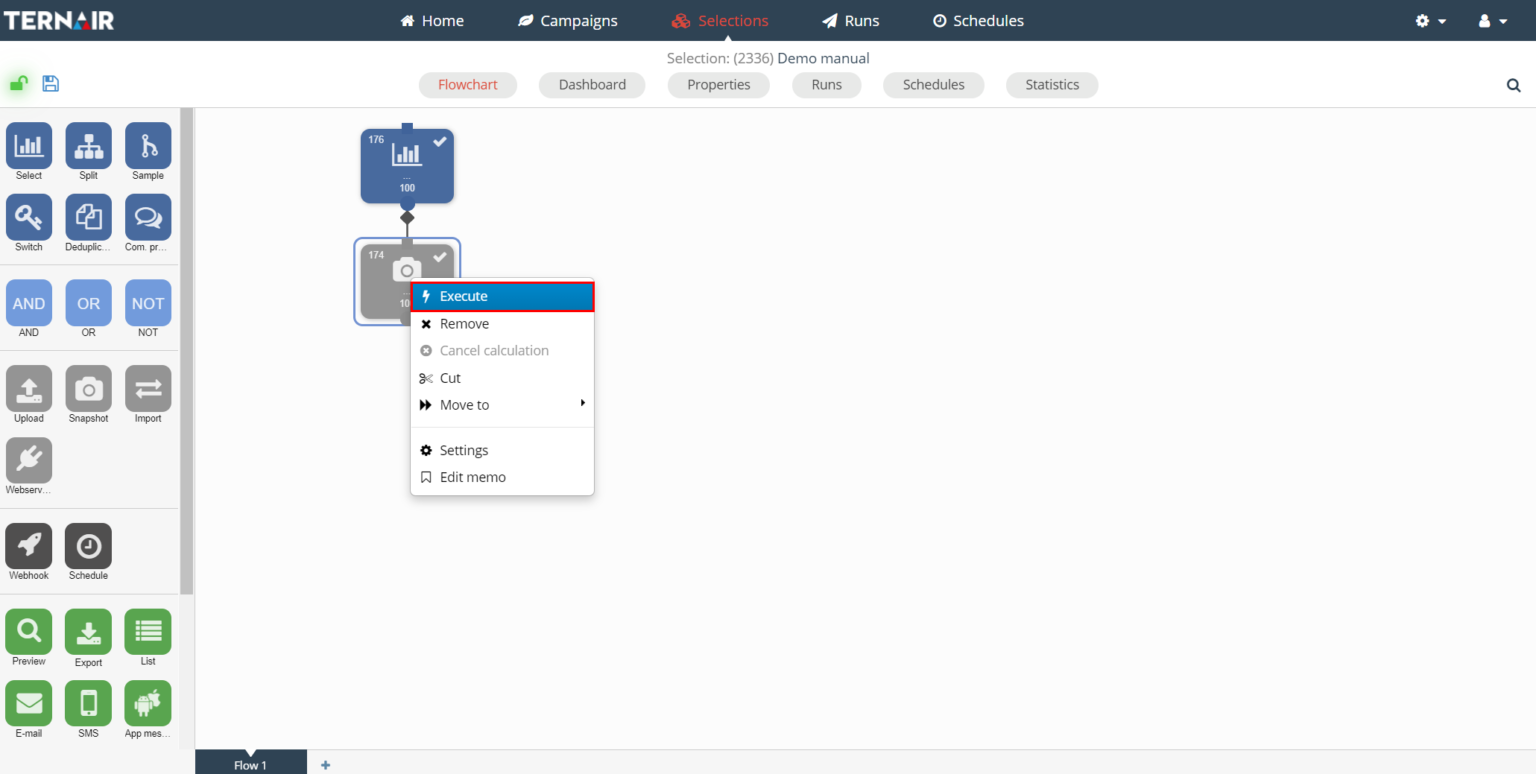
Execute
As a final step, you must run the snapshot. Select the snapshot block, right-click, and then click “Run.” Running the snapshot populates the internal table in Ternair with data.
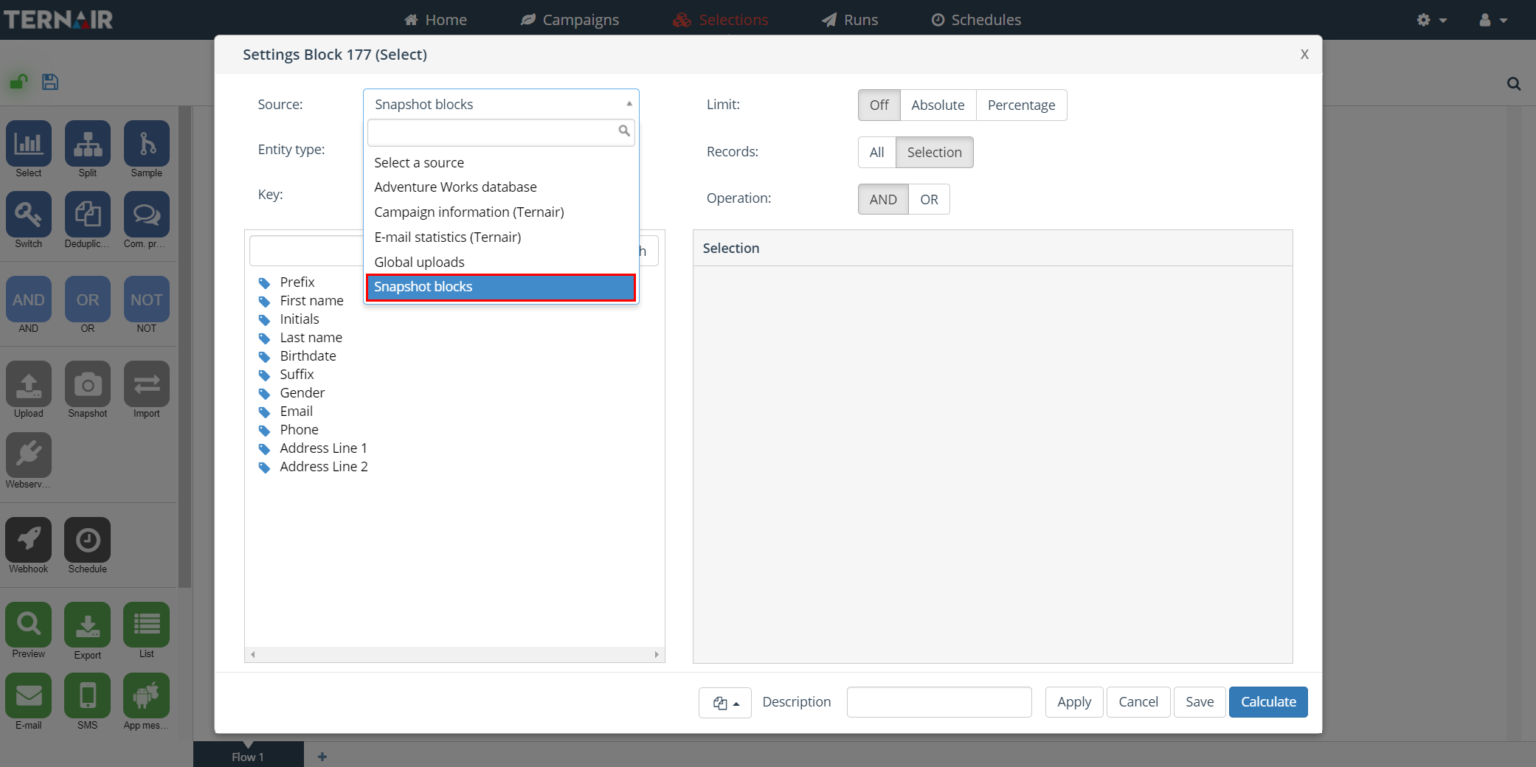
When you create a snapshot, the values of selected fields—as they are at the time the block is executed—are saved in the database. The snapshot can then be used at a later time as input for other blocks in the selection.