Repository
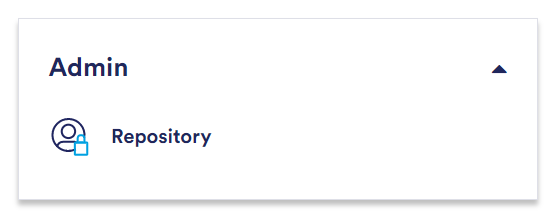
The Repository is a central location for managing and maintaining authorization and authentication. The Ternair Repository can be found on the Portal on the right-hand side under the "Admin" heading.
Users
Under “Users,” you can specify users who are allowed access to one or more applications within the Ternair environment.
The cell phone number is optional and is used to send a verification code when logging in with 2FA. It must be a valid (Dutch) phone number and start with 06 or +316. If no mobile number is entered or if it does not start with 06 or +316, a verification code will be sent to your email address when you log in to the portal.
When a user is added, the Repository automatically prepends the CUSTOMER_NAME\ to the login code (for example: CUSTOMER NAME\j.baas). You do not need to enter this prefix yourself when logging in. You log in via the central login page using your email address. See the chapter Log In for the complete login procedure.
When using APIs, it is recommended that you create service accounts and do not link users to APIs. When you add a service account to the list of users, you can check the “Password never expires” box. Never use this option for personal accounts.
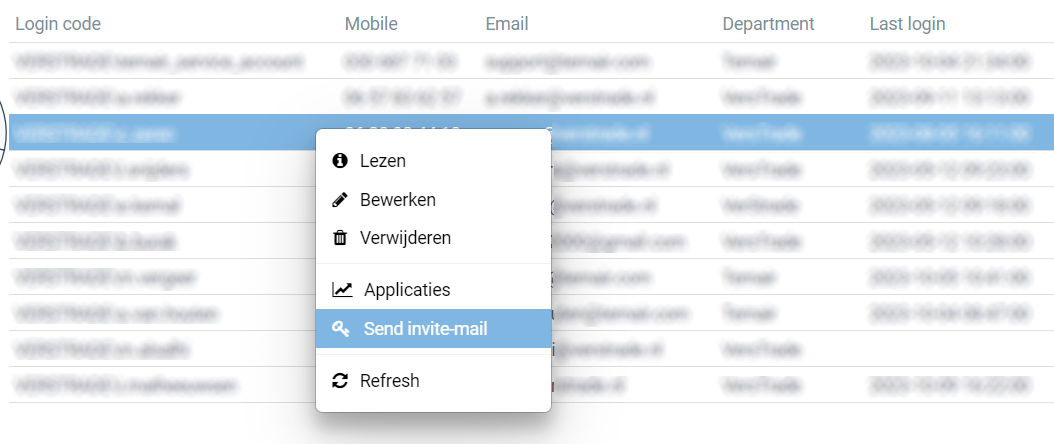
When you right-click on a user in the user overview, a menu with options appears. Among other things, you can view or edit the user’s properties, manage the password, view the linked applications, and send the user an invitation email (“Send invite-mail”) to create a password. For more details, see the chapter “Settings – Create and Change a Password'.
Applications
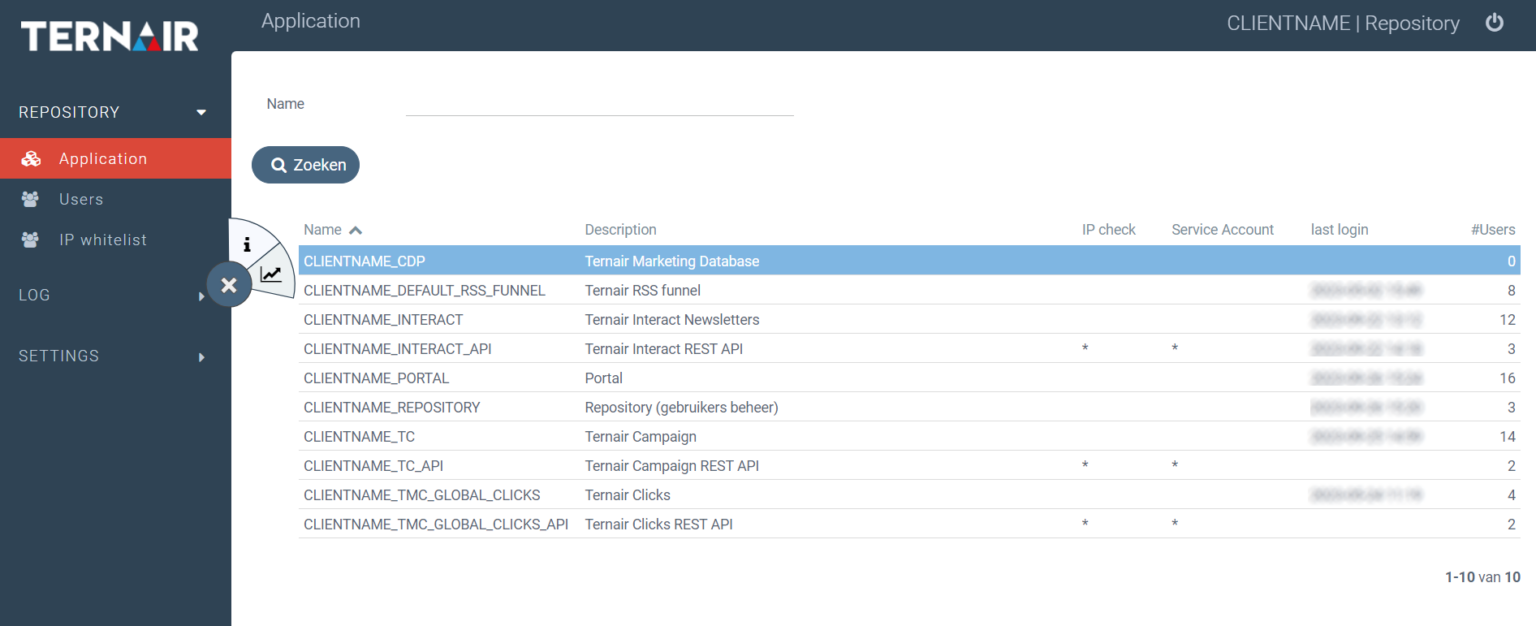
This overview shows all applications within your customer environment. Applications begin with CUSTOMER_NAME_application_name. For each application, you’ll see the description (Description), whether the IP address is checked during login (IP check), whether it’s a Service Account (Service Account), the date of the last login (Last login date), and how many users have access (#Users).
An asterisk (*) in the “IP check” column indicates that the IP address is verified when logging in to that application. When IP check is enabled for an application, users can only log in using an IP address that is on the IP whitelist. An asterisk (*) in the “Service Account” column means that for that application, the option to not use two-factor authentication (2FA / verification code) has been selected.
IP Whitelist
Some applications are only available to users or servers whose IP address is known. In the “IP Whitelist” menu, you can specify trusted IP addresses. The “IP” and “Remarks” fields are required. In the overview, you’ll see the remark (Remarks) and the last login date (Last login) for each IP address. When you apply an IP whitelist to an application, all access is blocked except for the IP addresses you’ve added. Right-click to edit or delete an existing IP address.
Authorizations
To grant a user access to an application, the user and the application must be linked. There are two ways to do this.
Option 1
From the application overview, you can grant authorizations for a specific application. Right-click on an application (for example, CUSTOMER_NAME_PORTAL) and select “Authorized.” You’ll immediately see which users have access, which user group (Group) they belong to, their language (Language), and the date of their last login. Use the “+” button to add users.

Option 2
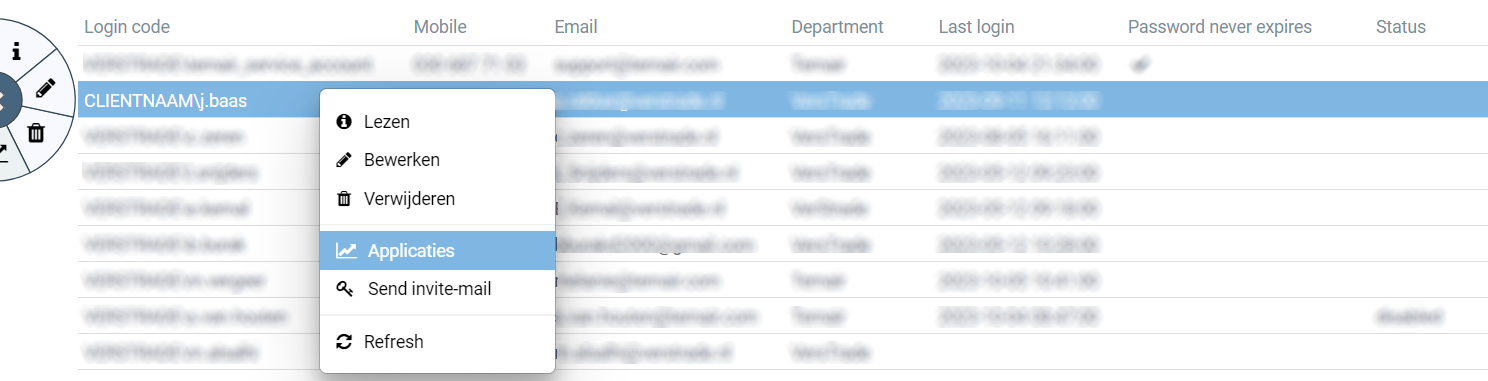
From the user overview, you can assign applications to a specific user. Right-click on a user and select “Applications.” You’ll immediately see which applications this user is allowed to log into. Use the “+” button to add applications. For each application, you can also specify which user group the user has access to.
Settings
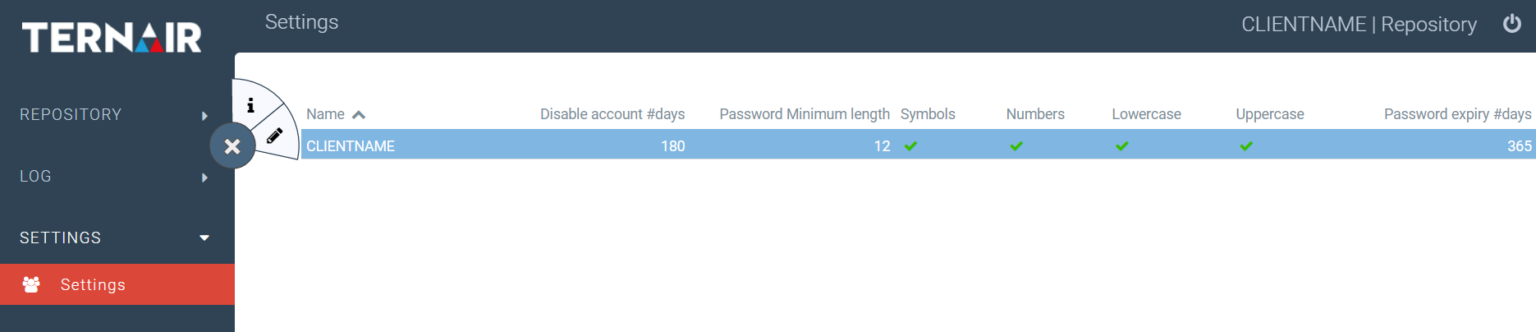
The Repository contains a number of settings that need to be configured once. Initially, these settings are populated with default values that can be customized for each customer. The "Settings" screen provides a clear overview of these settings.
Security
A user who does not log in for a specified period of time is automatically locked out. By default, this setting is set to 180 days. A user is locked out when:
has not logged in during the specified period, or
has never logged in, and the account was created more than the defined period ago
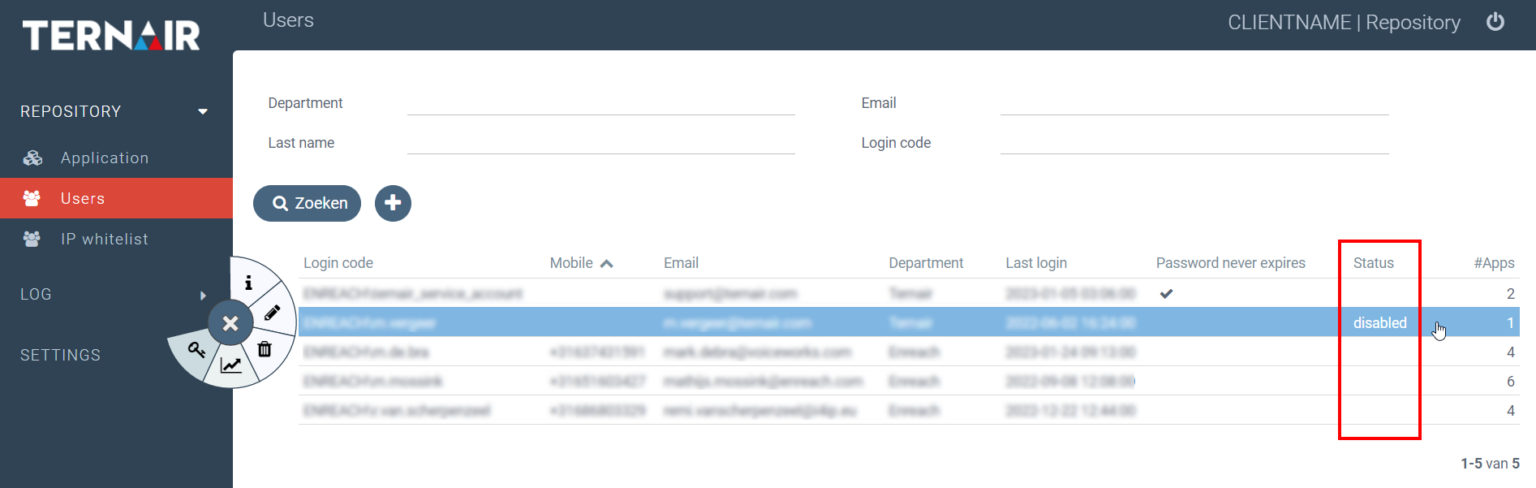
Users who have been blocked or whose "End date" is in the past are displayed as "disabled" on the Users screen.
Password Settings
The password must be at least 12 characters long. Optionally, the password requirements can be expanded to include specific characters, namely:
Capital Letters
Lowercase letters
Special characters (! ” # $ % & ‘ ( ) * + – . / : ; < = > ? @ \ ] ^ _ } ~ `)
Numbers (0–9)
If one or more options are checked, the password must contain at least one specific character. Ternair recommends making all of the above options mandatory.
When these settings are changed, these conditions apply only to passwords created or changed from that point forward.
Password has expired
By default, a password expires after 180 days, but this period can also be customized for each customer.
14 days before your password expires, after you successfully log in, you’ll see a screen prompting you to reset your password. Enter your old password once and create a new password. You can also choose to reset your password later; in that case, select the “Later” option.
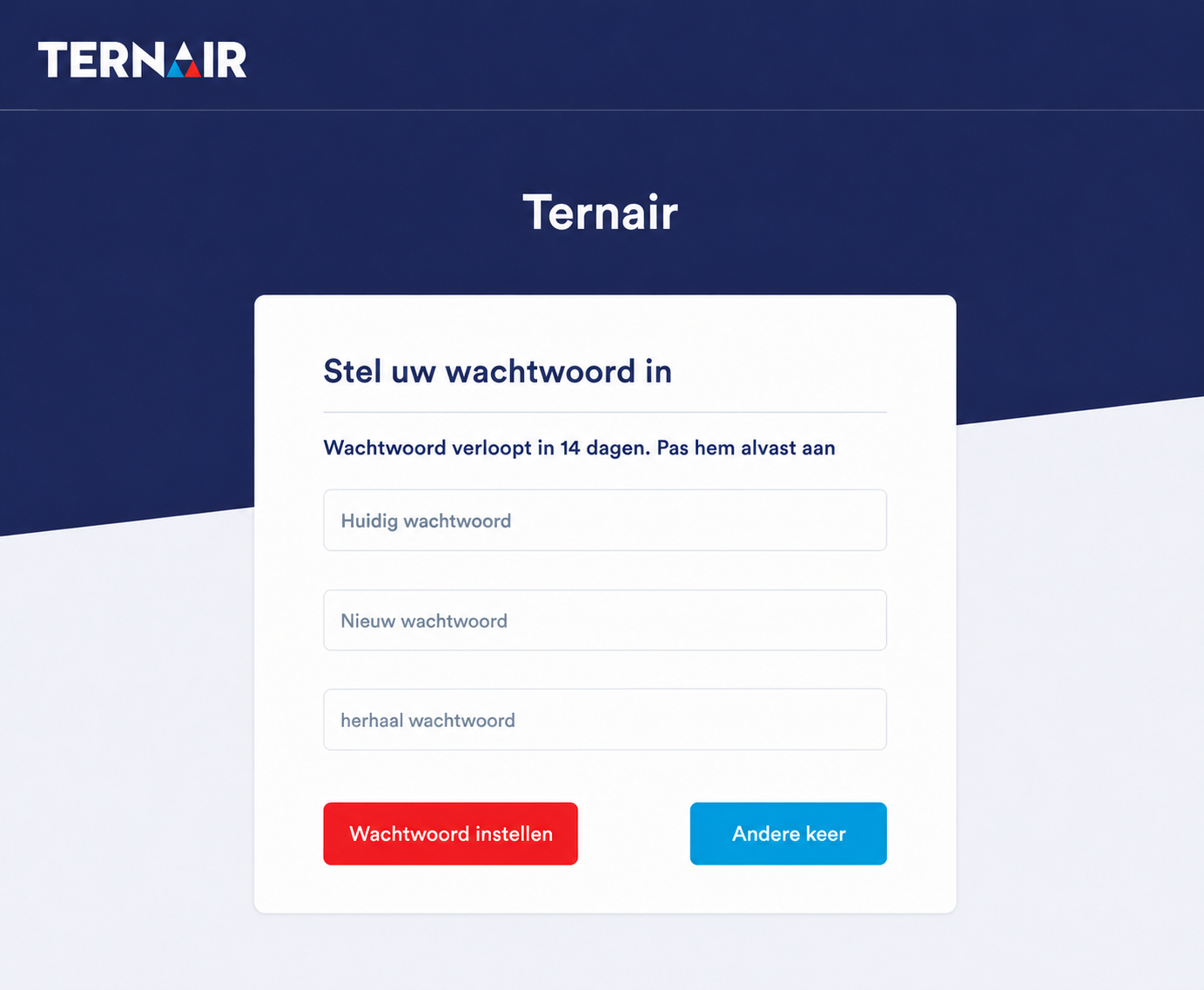
The new password must not be the same as the old password and must meet the password requirements.
Create and Change a Password
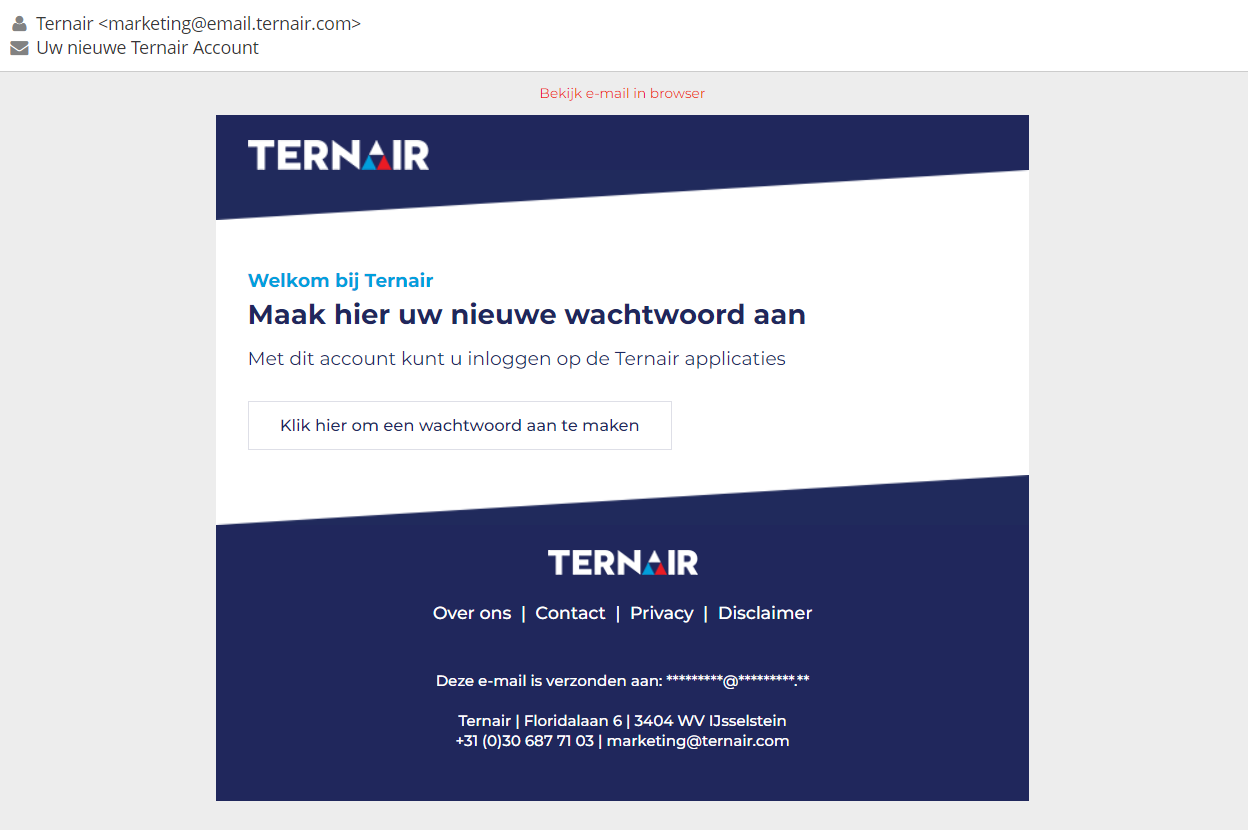
Before you can log in as a new user, you’ll receive an invitation email asking you to create a password. (See also the chapter “Users’). If you’ve forgotten your password, you can request a new one on the login page using the “Forgot your password?” option.
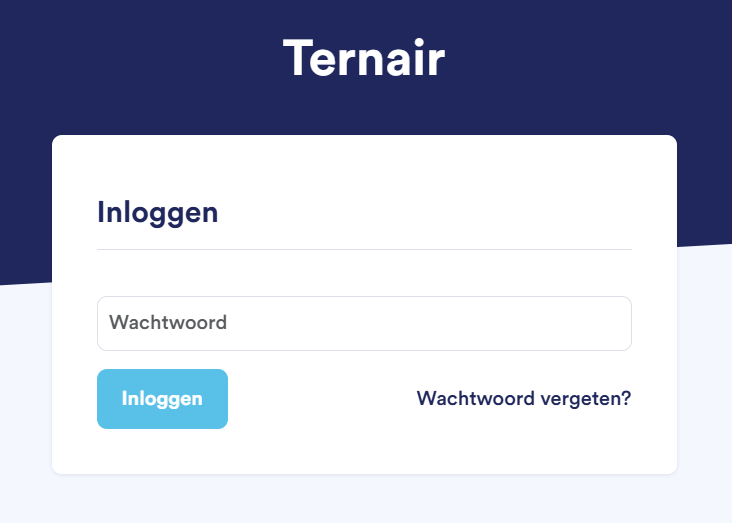
The user receives an email with a link that is valid for 7 days. If a user clicks the link in the email after these 7 days, it will no longer be possible to change the password. If a user selects “Forgot Password” on the portal itself, he or she will receive an email with a link that is valid for 15 minutes.
By default, this email is sent from a generic Ternair environment. It is possible to have this process run via an external webhook or through a webhook in your own Campaign environment. When using a “custom” webhook, you can customize the email, and statistics will also be available.
This webhook requires at least 2 parameters, namely:
User's email address
PasswordGUID (this is generated by the Repository and is valid for 7 days)
Two-factor authentication (2FA)
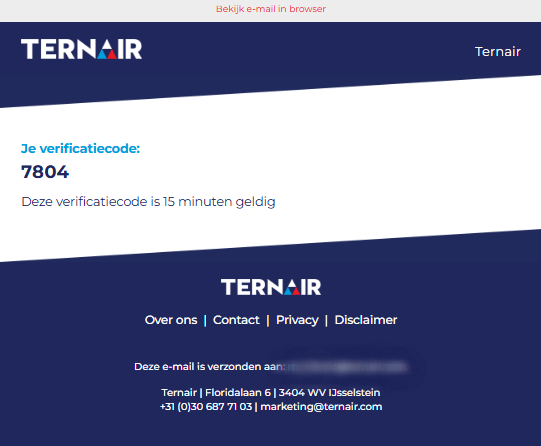
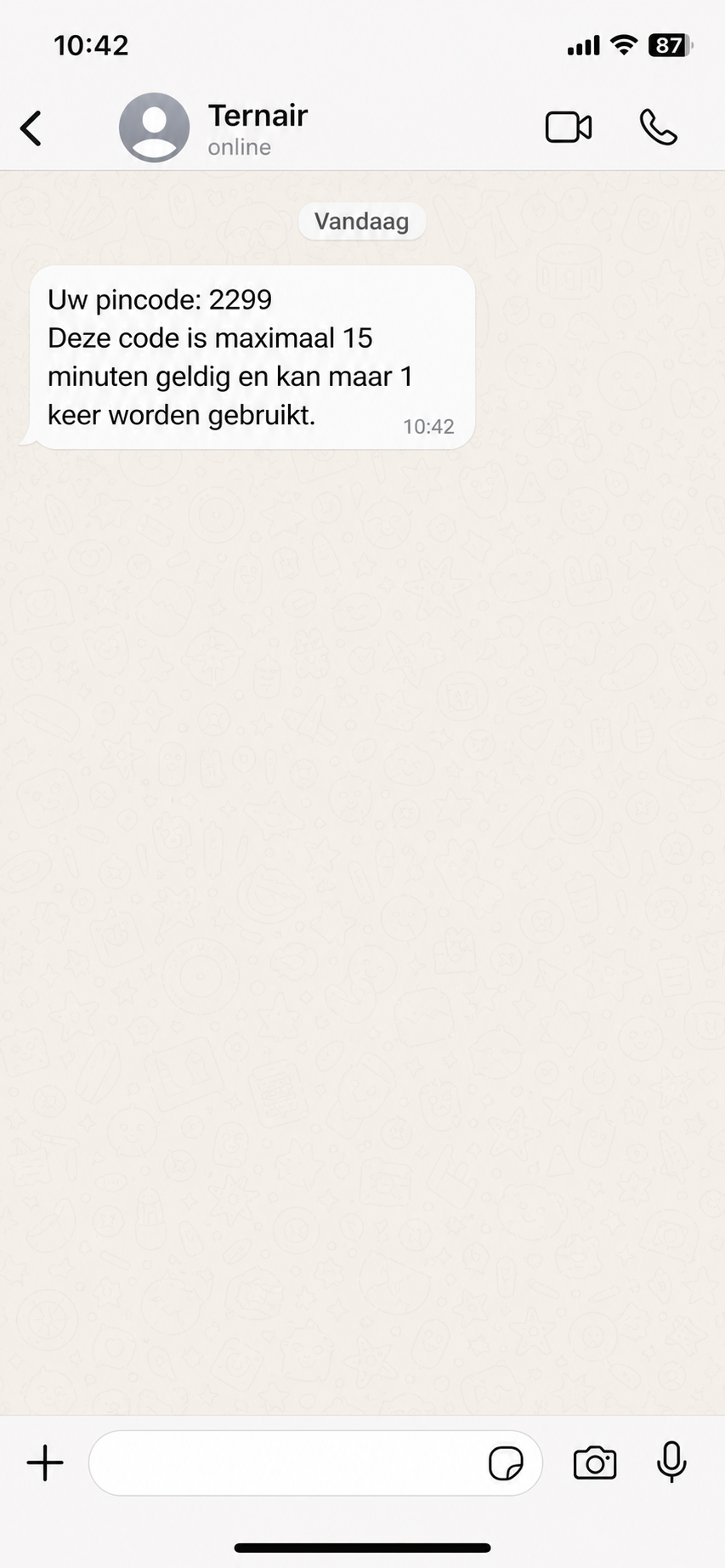
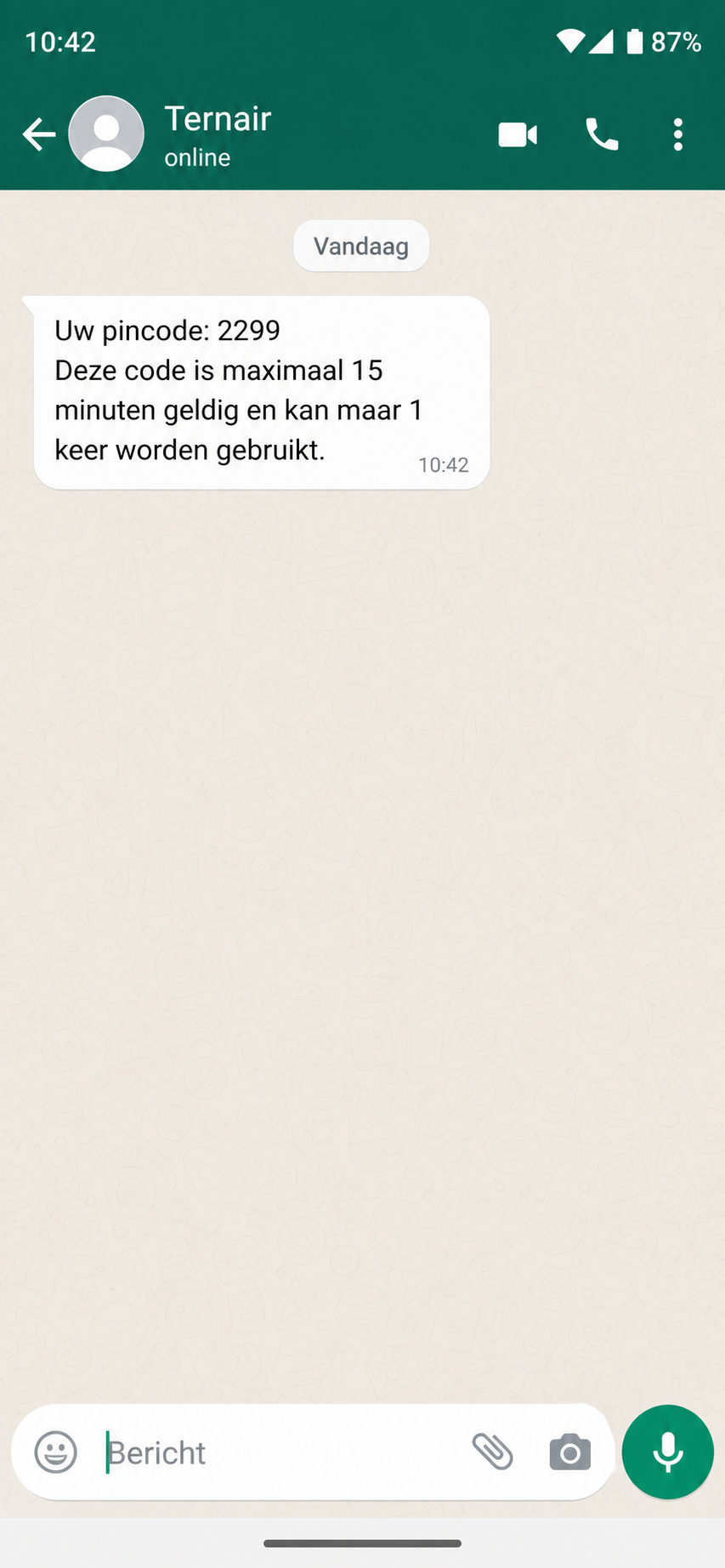
For security purposes, you will receive a verification code every time you log in. This code is sent via WhatsApp if a mobile phone number is on file in the Repository. If no mobile phone number is on file, the verification code will be sent via email. For some applications, it may be configured so that no verification code is used (see the “Applications” section). The complete login procedure (email address, verification code, and password) is described in the section Log In.
iOS | Android |
|---|---|
|
|
Login log
This overview shows all users' login attempts. By default, you'll see only today's activity. At the top of the screen, you can filter by a specific date or user.
This overview shows which user is logging in to which application and whether the login was successful. This login overview includes the following result codes:
0 = Logged in successfully
1 = Application unknown
2 = The login credentials are incorrect or the user has been disabled
3 = Not authorized on this application
4 = IP address rejected
5 = 2FA failed
An administrator can use this screen to determine why a user is unable to log in.
FAQ
Who is the Repository for?
The Repository is intended for administrators within an organization. Would you like access to an (additional) application? Are you unable to log in? Have you forgotten your email address? If so, please contact one of the administrators within your organization.
What can I do if a user has forgotten their password?
As an administrator, you can resend an "invitation email" to a user to help them create a new password. You can also direct the user to the "Forgot Password" option on the login page.
Why can't someone log in?
There may be several reasons for this. Please check the login log in your repository. See also the chapter “Login log'.
How can I grant a user more permissions in Campaign?
In the Repository, you can only manage access to an application and specify which user group a person belongs to. You define what this user group entails within the applications themselves. For Ternair Campaign, you can find this under “General Settings – System – Authorization.” You can link the code for these user groups to a specific person. See also the chapter “Authorizations'.