Start with Ternair
Introduction
Menu
Audience Manager (data)
Campaign Manager (channels & content)
Key path
Automation
Execute
Schedule
Webhook
Time zones
Reports
Email dashboard
Campaign calendar
Email conversion dashboard
Manage
Home
Selections (classic)
Audience Manager
Campagne Manager
Runs
Schedules
Monitor
Campaign set
Overview
Create
Manage
Search
Operation Campaign
Overview
A Campaign set is a folder used to organize and manage multiple campaigns in a clear and structured way.
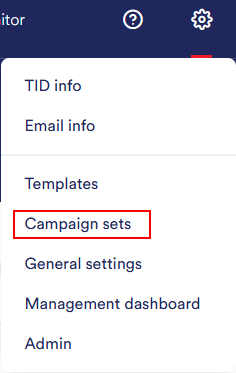
You can manage campaign groups via Settings (the gear icon in the top-right corner of the screen).
The Campaign set screen provides an overview of all campaigns within Ternair Campaign.
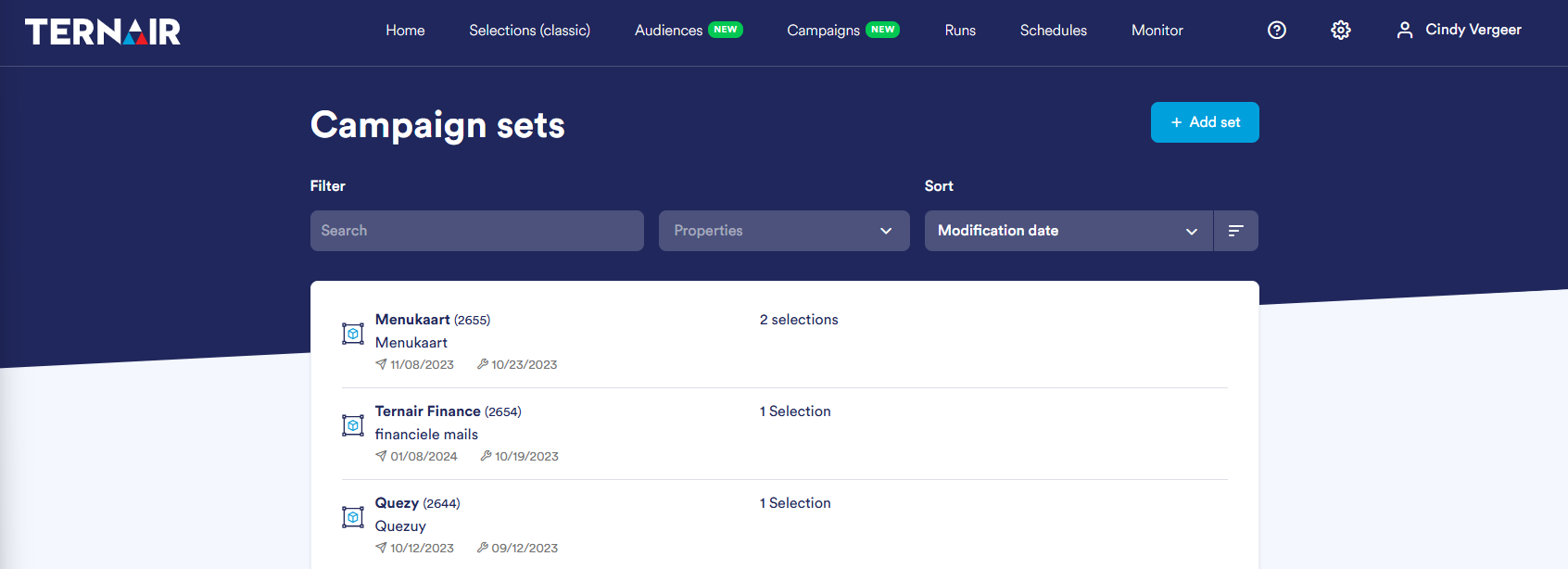
Standardly, the campaign sets are sorted by most recent modification date, with the most recently edited campaign at the top.
For each campaign set, the following information is displayed:
Name and unique code of the campaign set
Description of the campaign set
Date of creation of the campaign set
Date of last modification
Number of selections within the campaign set
To quickly find the right campaign set, you can use various filter options. A detailed explanation of how to use filters can be found in the manual section Campaign set search.

Pinned selections
In the overview screen, you can pin a campaign set by clicking on the thumbtack icon. This icon appears when you hover your mouse over a campaign set.
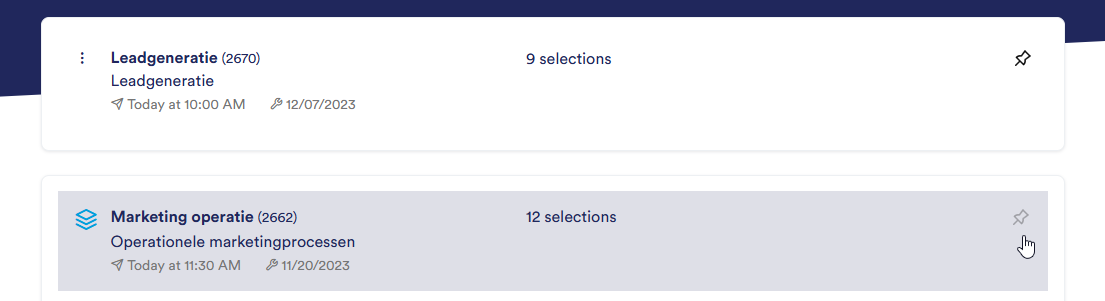
Pinned campaign sets are displayed at the top of the list for quick and easy access.
Do you want to unpin a campaign set again? Then hover over the thumbtack icon again and click it to unpin the campaign set. The campaign set will then disappear from the top, pinned section of the overview.
Error message
If a run produces an error message it will be visibly displayed in the campaign set overview. Runs with an error message are outlined in red.
Move the mouse over the run with error message to show the number of failed and successful emails sent.