Log In (2026)
Ternair is accessible via the Ternair Portal. You log in through the central login page. It is no longer necessary to use your own customer-specific portal URL: after logging in, you will be automatically redirected to the correct environment. This makes logging in easier.
You can log in with your username whether you email address. The login process consists of several steps.
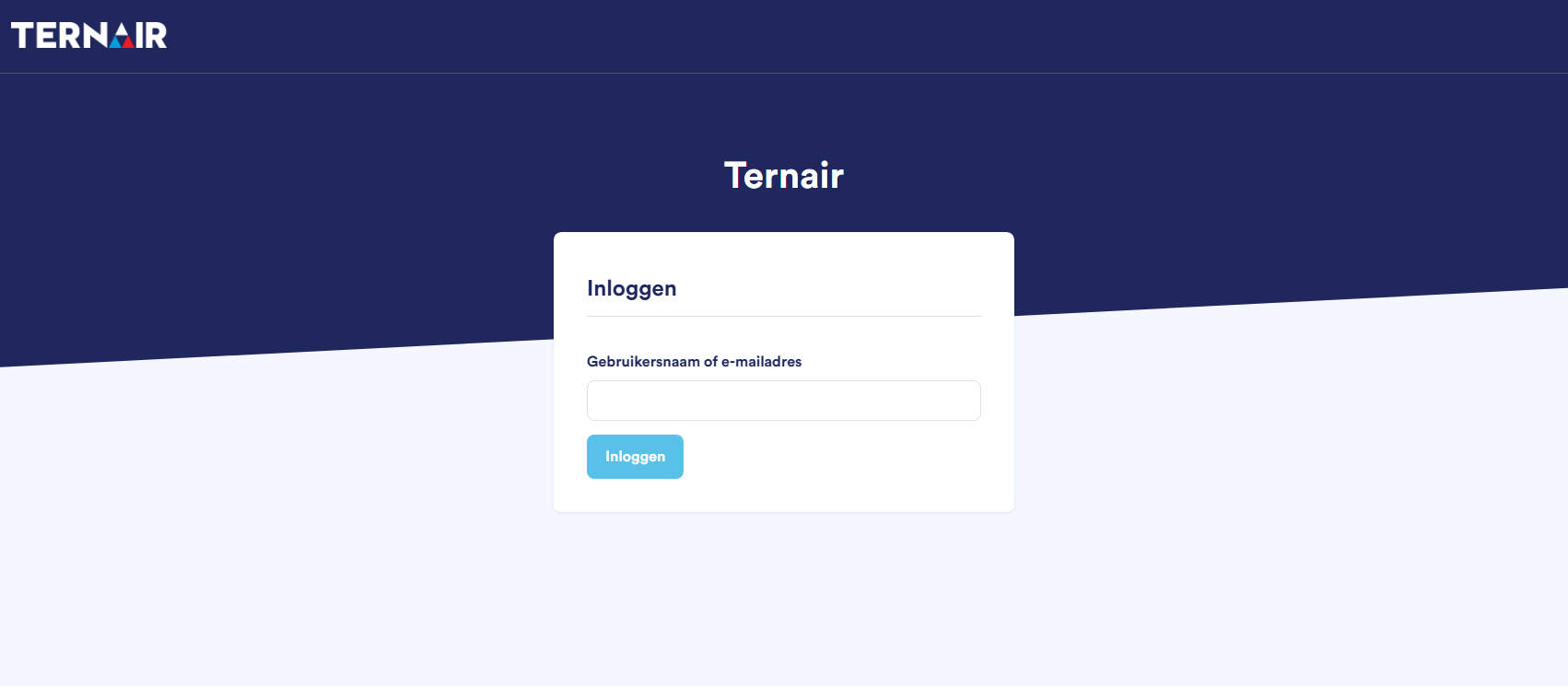
Step 1 – Username or email address
Enter your username or email address and click "Log In."
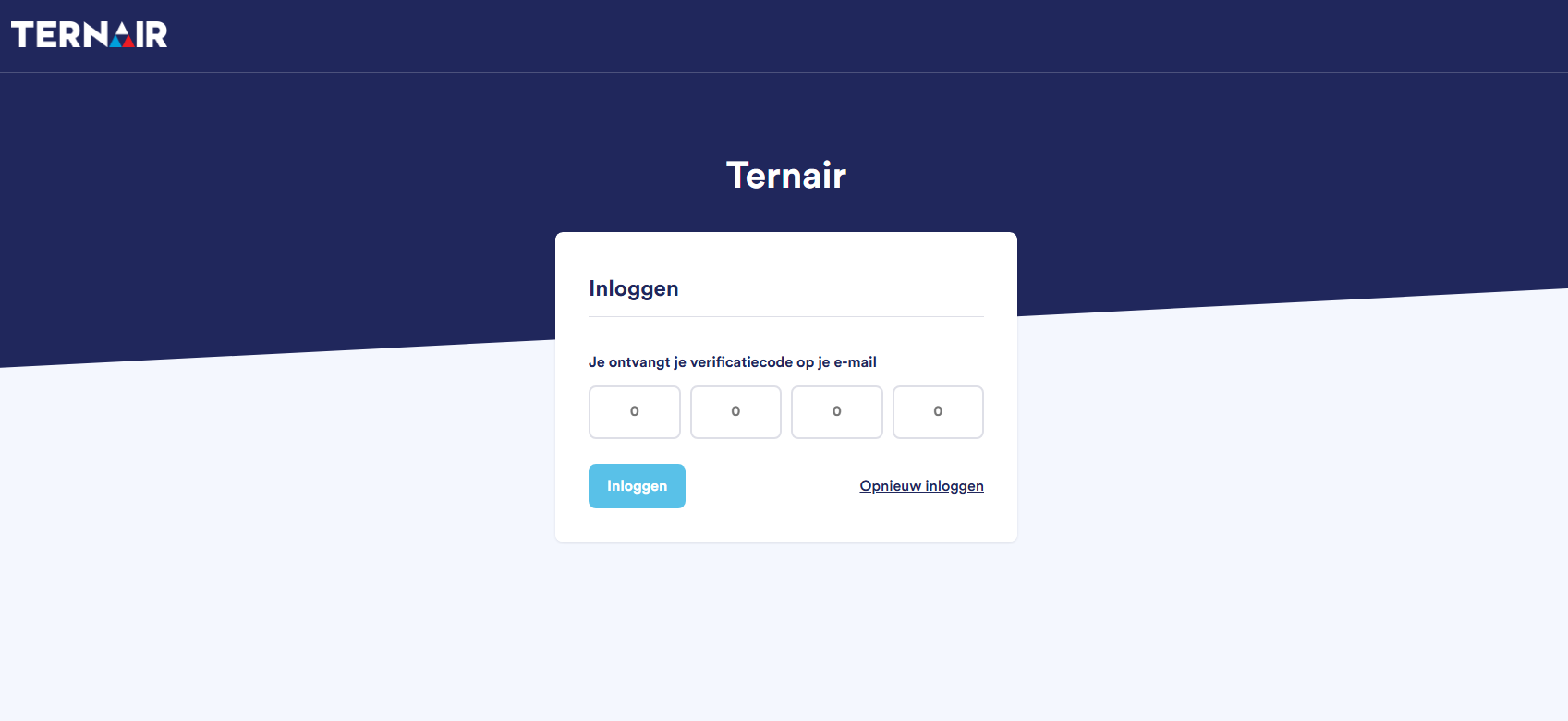
Step 2 – Verification Code
For security reasons, you'll receive a verification code via email every time you log in. Enter the code in the fields and click "Log In." Want to start over? Then click Log in again.
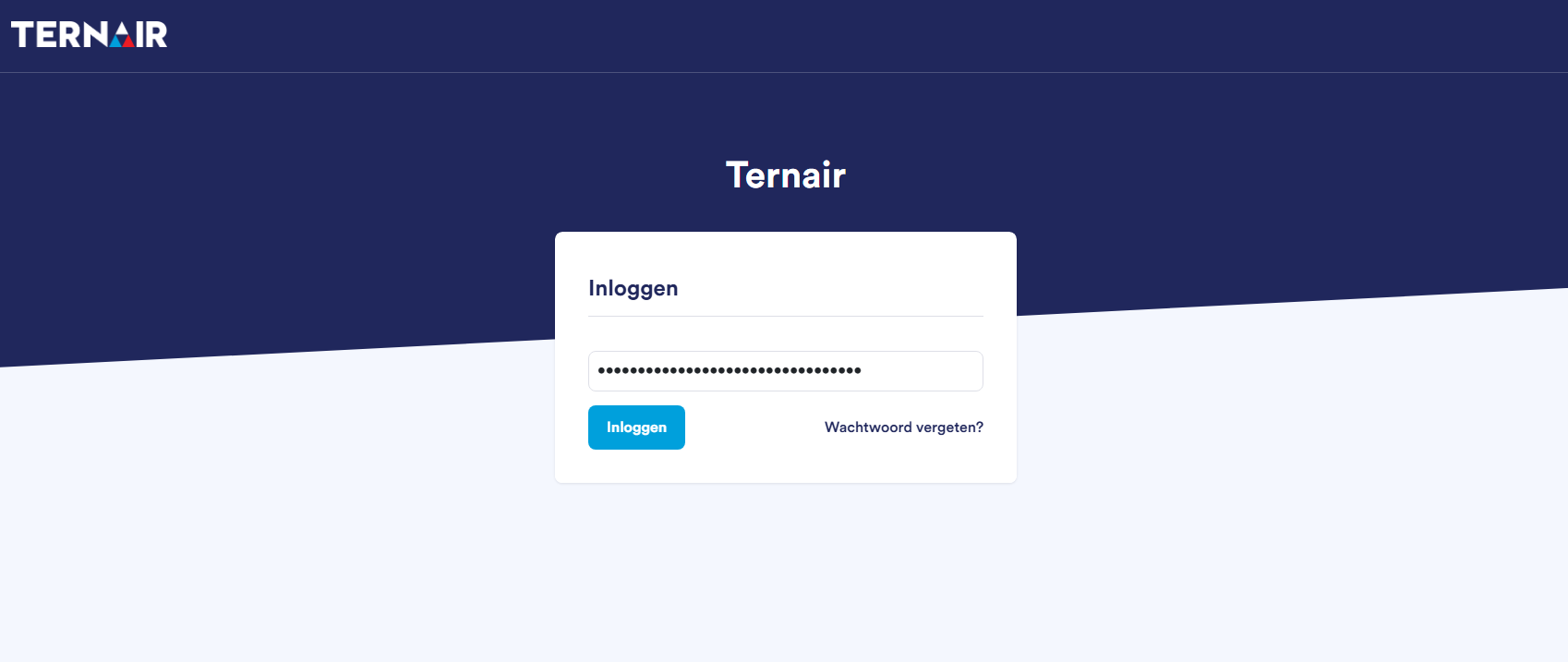
Step 3 – Password
Enter your password and click "Log In." Forgot your password? Then click Forgot your password? to set a new password.
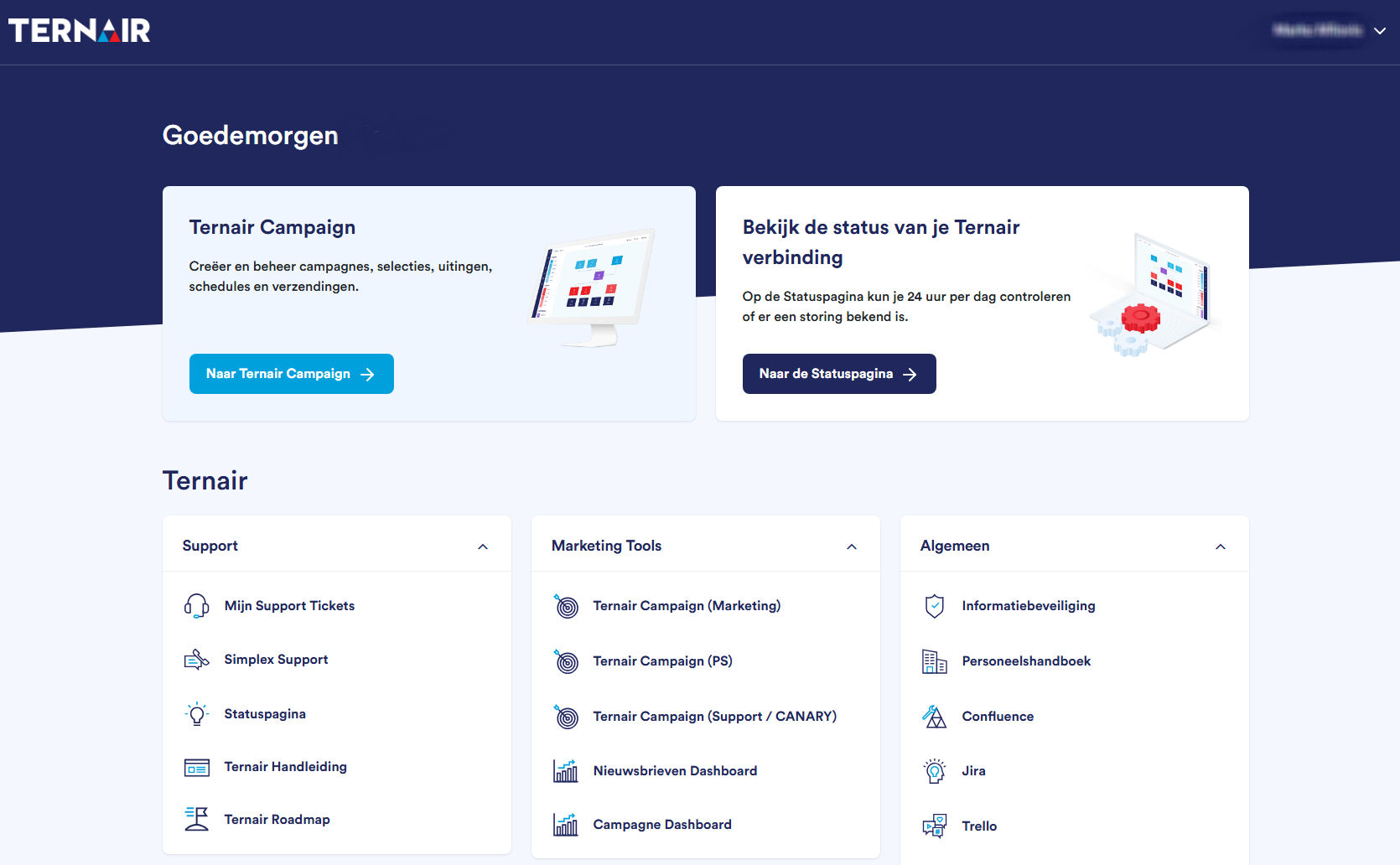
Step 4 – Ternair Portal
After successfully logging in, the Ternair Portal will appear. Click once on To the Ternair Campaign to launch the application. Once you've logged in to the portal, you won't need to log in to Ternair again.
If you've forgotten your login information or are having trouble logging in, please use the option Forgot your password? or contact the administrator. Also contact the administrator to create new users or delete existing users.
Browser
Ternair is a web-based application that can be accessed through a browser.
The following browsers are supported:
Microsoft Edge (latest version)
Chrome (latest version)
Safari (latest version, Mac only)
Firefox (latest version)
The following browsers are recommended for optimal use:
Chrome (latest version)
Firefox (latest version)
Screen resolution
The minimum required screen resolution is 1920 × 1080 px.
For the best display results, set the DPI to 100%.