Target Audience Section
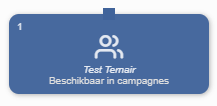
Using the Audience Block in the Audience Manager, you can create an audience that you can then use in the Campaign Manager. An audience often forms the basis for a campaign. However, it’s also possible to start a campaign without using the Audience Manager—for example, through the newsletter block (wizard block) with available newsletter lists.
 

Terms and Conditions
Before you can use a target audience in Campaign Manager, you must do the following in Audience Manager:
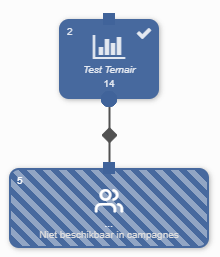
  • Place a Target Audience block on the flowchart and link it to at least one input block (for example, a Selection block);

 
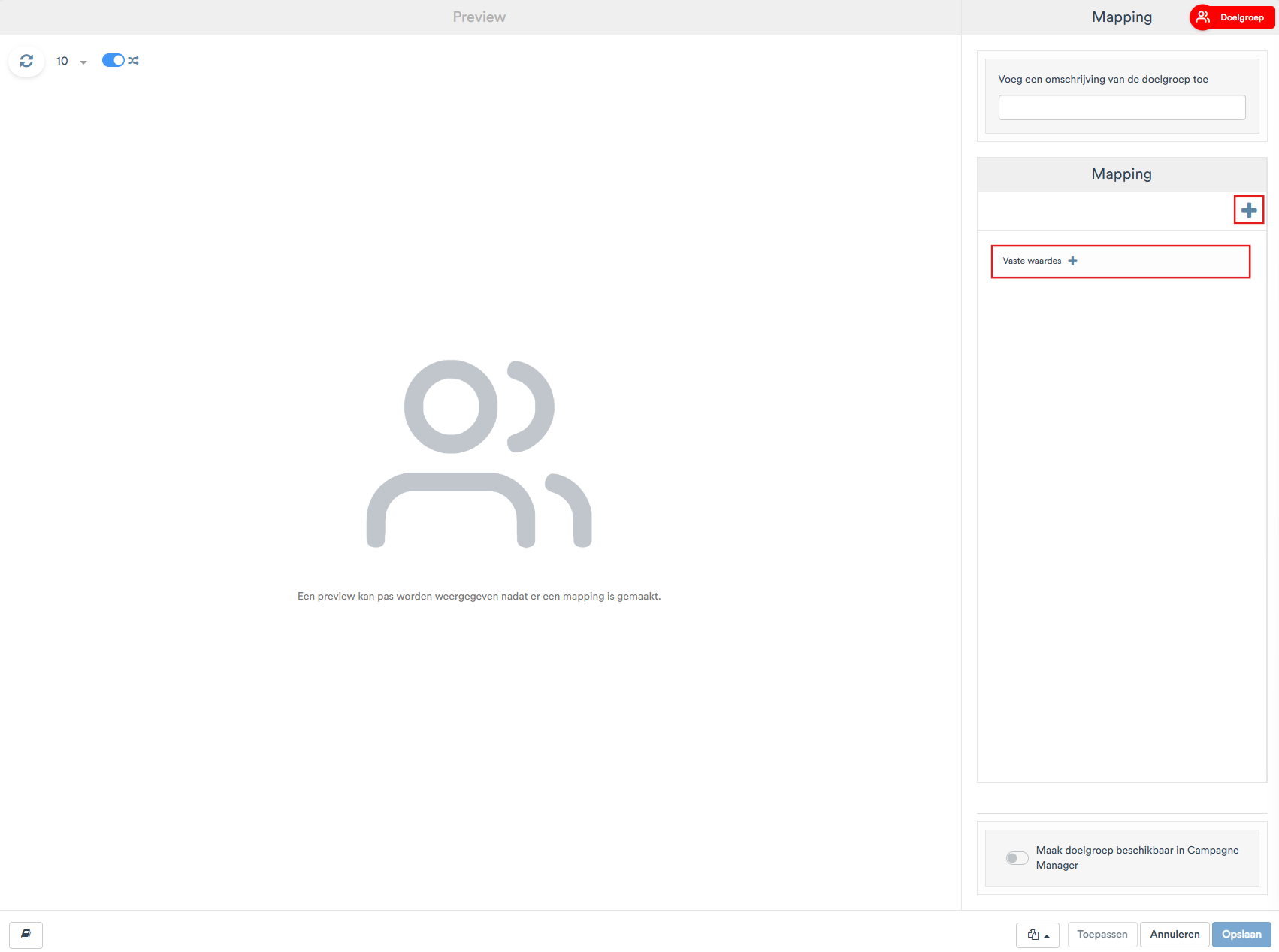
  • Double-click the target group block to open it and fill in the mapping so that it is clear which fields are included in the target group;

 
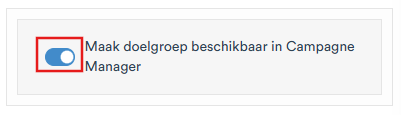
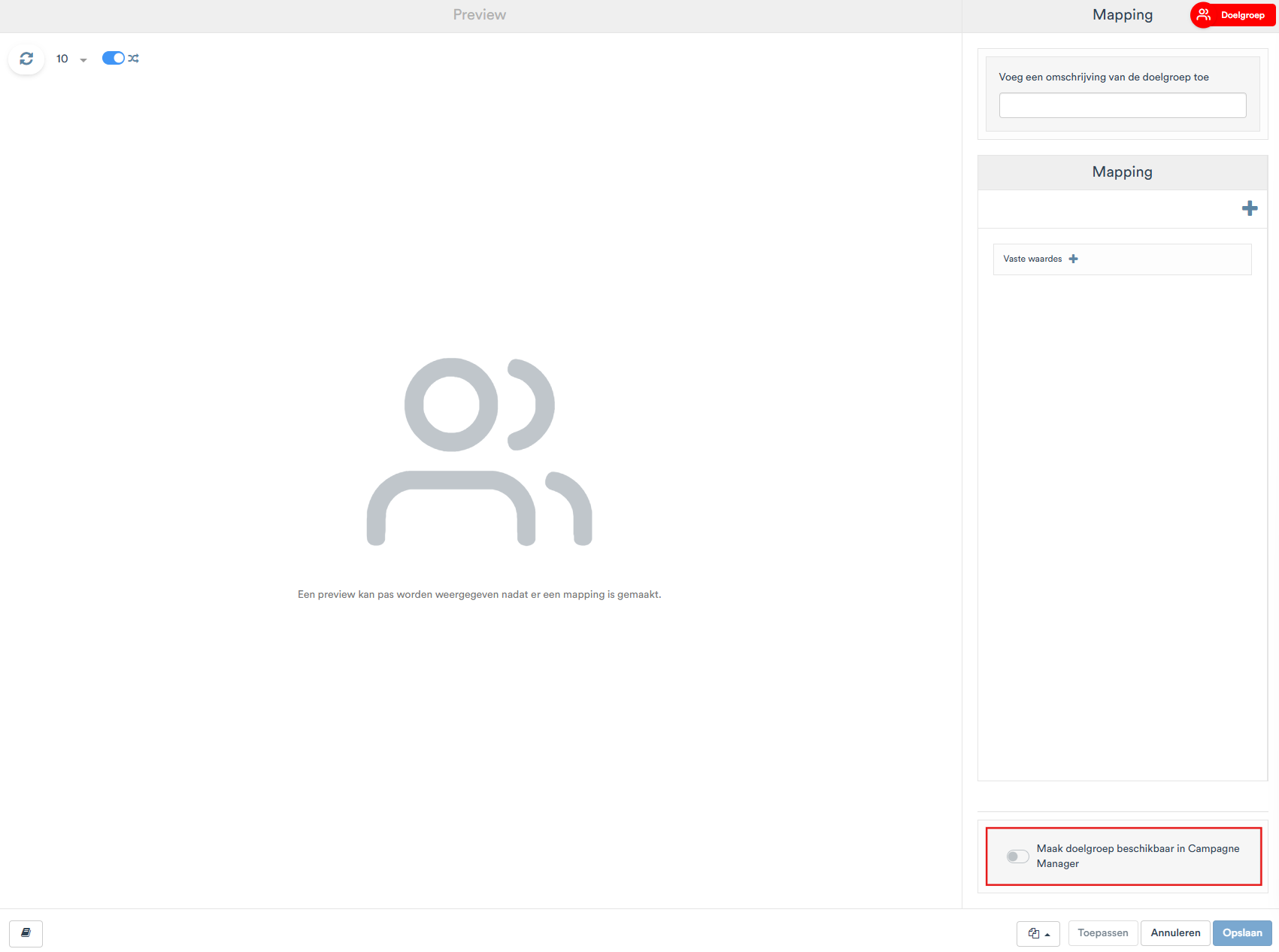
  • the switch Make the target audience available in Campaign Manager turn on.

 
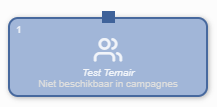
Please note: A target audience for whom the switch Make the target audience available in Campaign Manager If it is disabled, it remains in the selection within the Target Group Manager, but cannot be selected in the Campaign Manager. In the flowchart, this is indicated by the block being displayed as foggy.


Add Target Audience Block

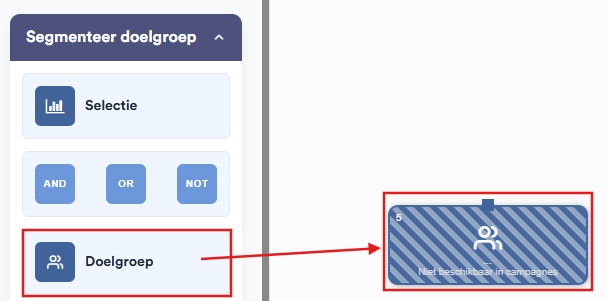
Drag the "Target Audience" block from the category Segment the target audience In the menu, go to the worksheet. Then connect the Target Audience block to one or more input blocks (such as a Selection block) that provide the data used to build the target audience.
 
 
The block does not open automatically immediately after being placed on the flowchart. You can recognize the block by:
  • a wider view than other blocks;


  • diagonal stripes on the block, indicating that the configuration still needs to be completed.
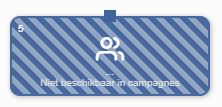

 
Double-click the block or use the context menu (three dots > Settings) to open the editor.

Overview of the Editor

The Target Audience Editor consists of two main sections:
  • Left: a preview of the data included in the target group.
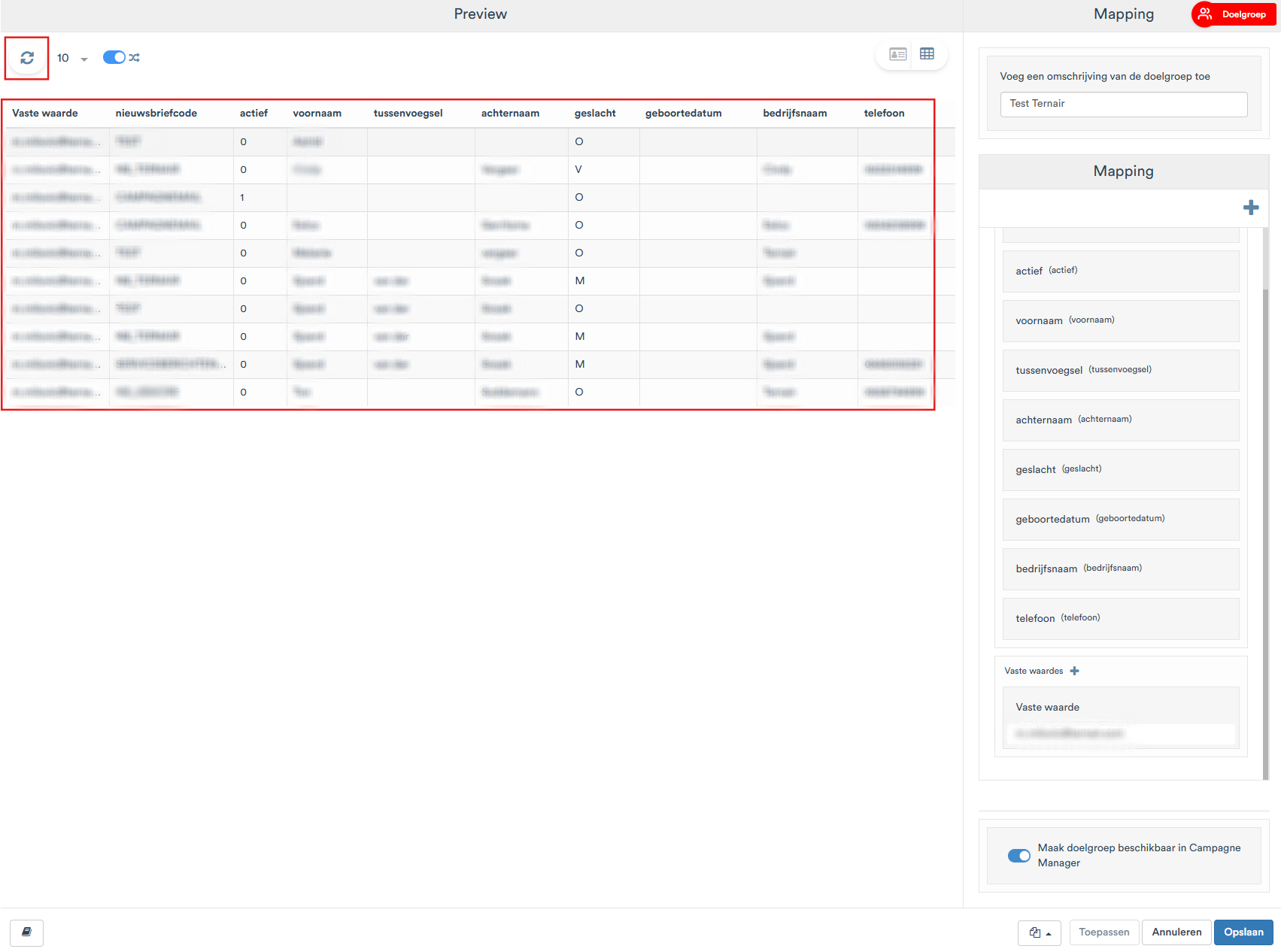

 
  • Right: the mapping panel, where the target audience's content is configured.
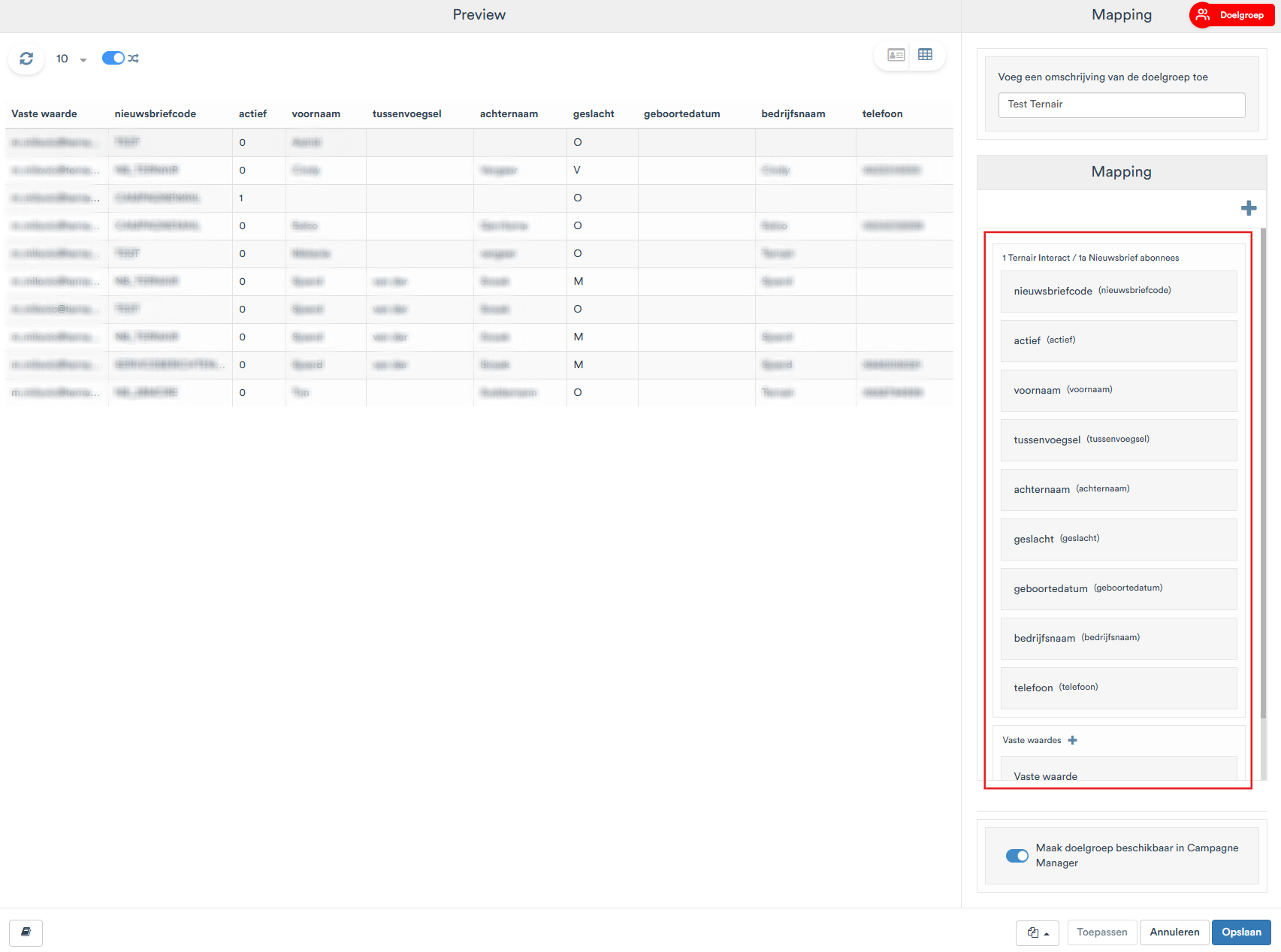

 
Please note: As long as no mapping has ba created, the preview displays the message “A preview can only be displayed after a mapping has ba created.”
 

Configure Target Audience

Description
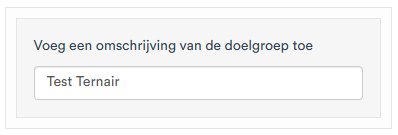
In the field, enter Add a description of the target audience add a brief description of the target audience. This description will help you locate the target audience later in the Campaign Manager.

 
Mapping
In the Mapping section, you specify which fields from the source block are included in the target group. For each mapped column, a column containing the corresponding values from the source file is displayed on the left side of the preview.

Icon

Component

Position

Mapping +

Adds a field link from the source block (for example, newsletter code, first name, last name, email address). For each linked field, the column name as it will appear in the target group is displayed, with the source field name shown in parentheses.

Fixed values +

Adds a fixed value that is identical for every contact in the target group, such as a fixed email address or a segment code.


Make a Target Audience available in Campaign Manager
At the bottom of the mapping panel, toggle the switch Make the target audience available in Campaign Manager. From that point on, the target audience can be selected in the Campaign Manager and used in campaigns (for example, to send an email to the desired contacts).

 
Please note: Unless this switch is activated, the audience will remain unusable in the Campaign Manager. In the Audience Manager flowchart, this is indicated by the block being displayed as a grayed-out block.

Retention
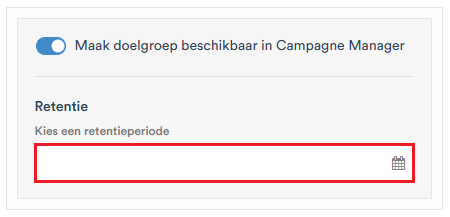
Under the switch Make the target audience available in Campaign Manager Imagine, with the Retention how long the target group remains available: the target group expires after the retention period you select here. In the Retention field, click a retention period or the calendar button to select a retention period. The maximum retention period is 10 years.


Please note: Once a target audience expires, it is no longer available in Campaign Manager. Active campaigns that use an expired target audience will then generate an error message. The associated schedules, webhooks, and similar components are not automatically stopped and therefore remain active.

Apply / Save / Cancel
Use the options below to save your changes.

Option

Description

Apply

Save the settings without closing the editor.

Save

Save the settings and close the editor.

Cancel

Close the editor without saving any changes.


Open Target Audience Block

To open an existing Audience block, double-click the block. The editor opens immediately. The Audience block also has a context menu with additional options.
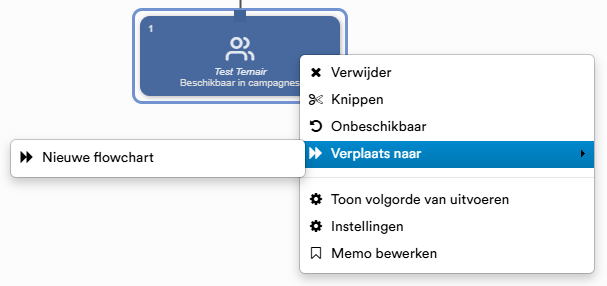
To open this menu, use the right mouse button Click on the block. A context menu will appear with the following options:

Option

Description

Delete

Remove the block from the flowchart.

Cut

Cut out the block to paste it somewhere else.

Unavailable

Make the block unavailable in the flow(s) where it is used.

Move to

Move the block to a new flowchart.

Show execution order

Shows the order in which the blocks in the flowchart are evaluated to arrive at the final target audience.

Settings

Open the block's settings.

Edit Memo

Add a note to the block.


Copyright © 2026 Ternair.