Start with Ternair
Introduction
Menu
Operation Campaign
Working with blocks
Connecting blocks
Grouping blocks
Add Memo
Signal
Context menus
Settings
Coding information
Audience Manager (data)
Campaign Manager (channels & content)
Key path
Automation
Execute
Schedule
Webhook
Time zones
Reports
Email dashboard
Campaign calendar
Email conversion dashboard
Manage
Grouping blocks
To keep the selection flowchart organized, it is possible to place several blocks in a group. The group can then be collapsed to provide more free space on the worksheet.
Create group
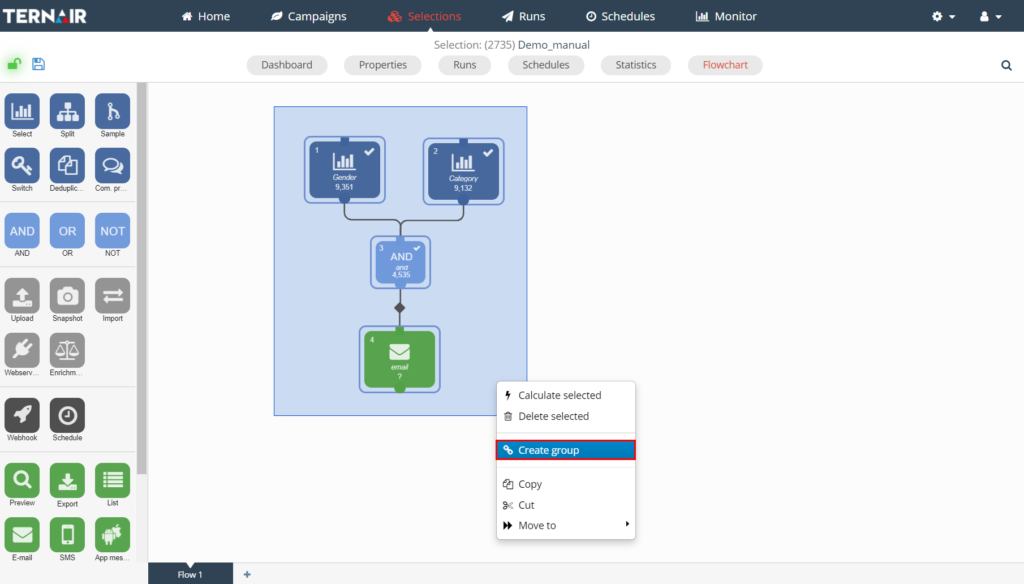
While holding down the left mouse button, drag a rectangle around the blocks you want to place in a group. Once you release the left mouse button, a (light) blue area will appear around the selected blocks. Right-click in the blue area and select "Create Group" to create a group.
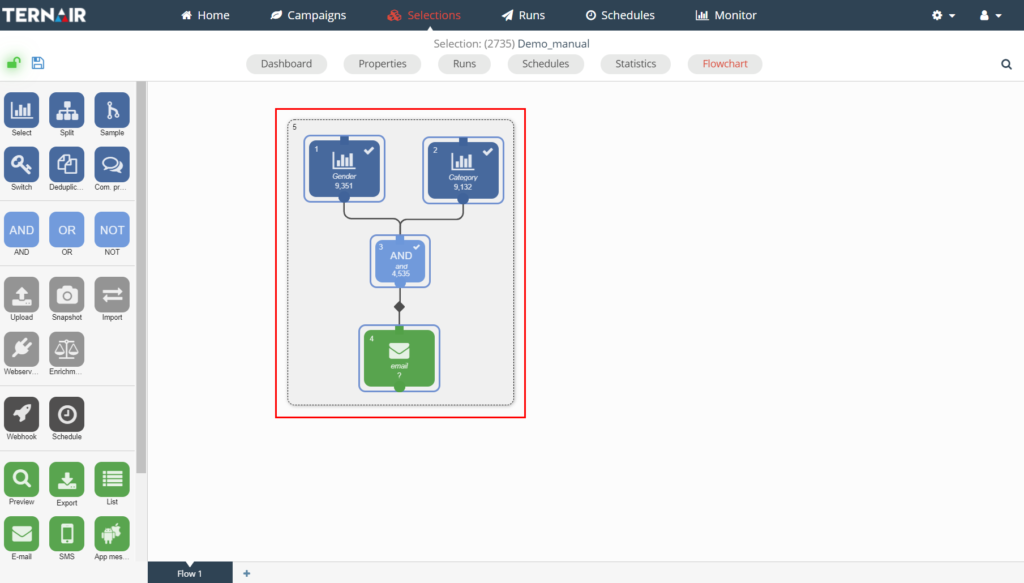
A group looks like this:
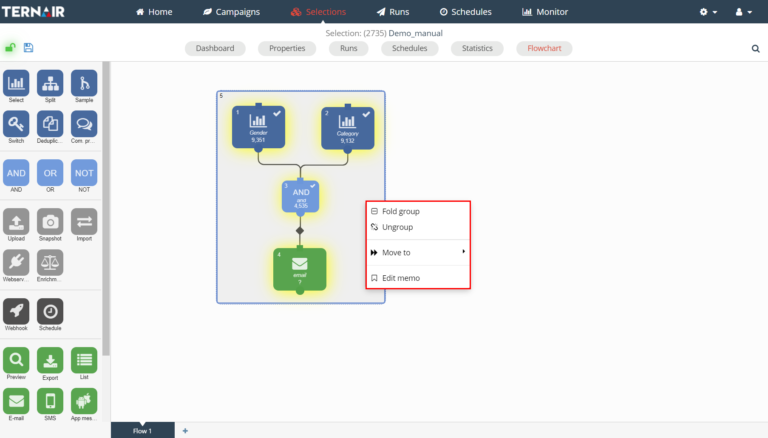
Settings group
From the context menu (right-click), the group can be collapsed (fold group), deleted (cancel group), moved (move to) or a memo can be added to the group (edit memo). See Add Memo for more information on how to add a memo.
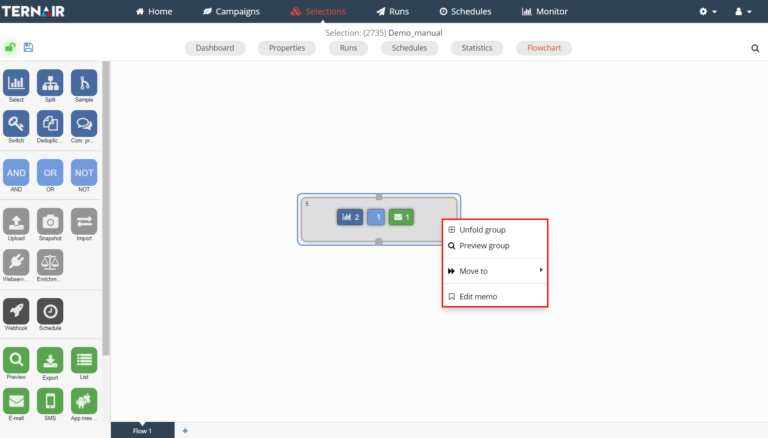
A collapsed group looks like this:
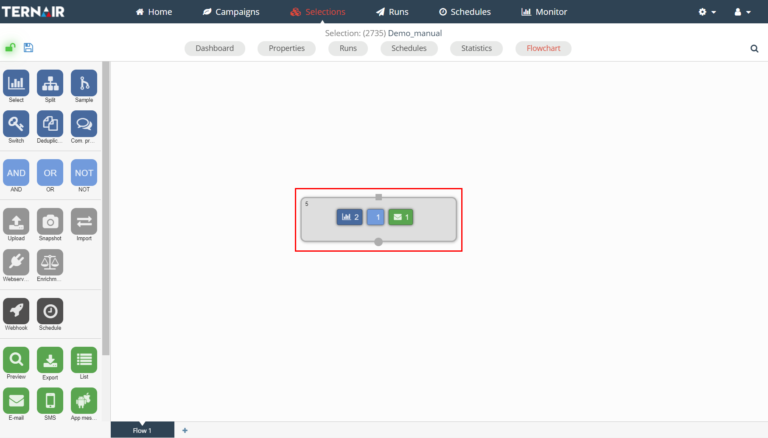
The icons in the group indicate the type of block(s) included in the group and the number of blocks per type. In the example above, the group contains a selection block, a connection block and an e-mail block.
By right-clicking on a collapsed group, the group can be expanded (expand group), viewed (view group), moved (move to) or a memo for the group can be edited (edit memo).
An existing group can be deleted by using "Cancel Group. This function is only available when a group is unfolded.