Product recommendations
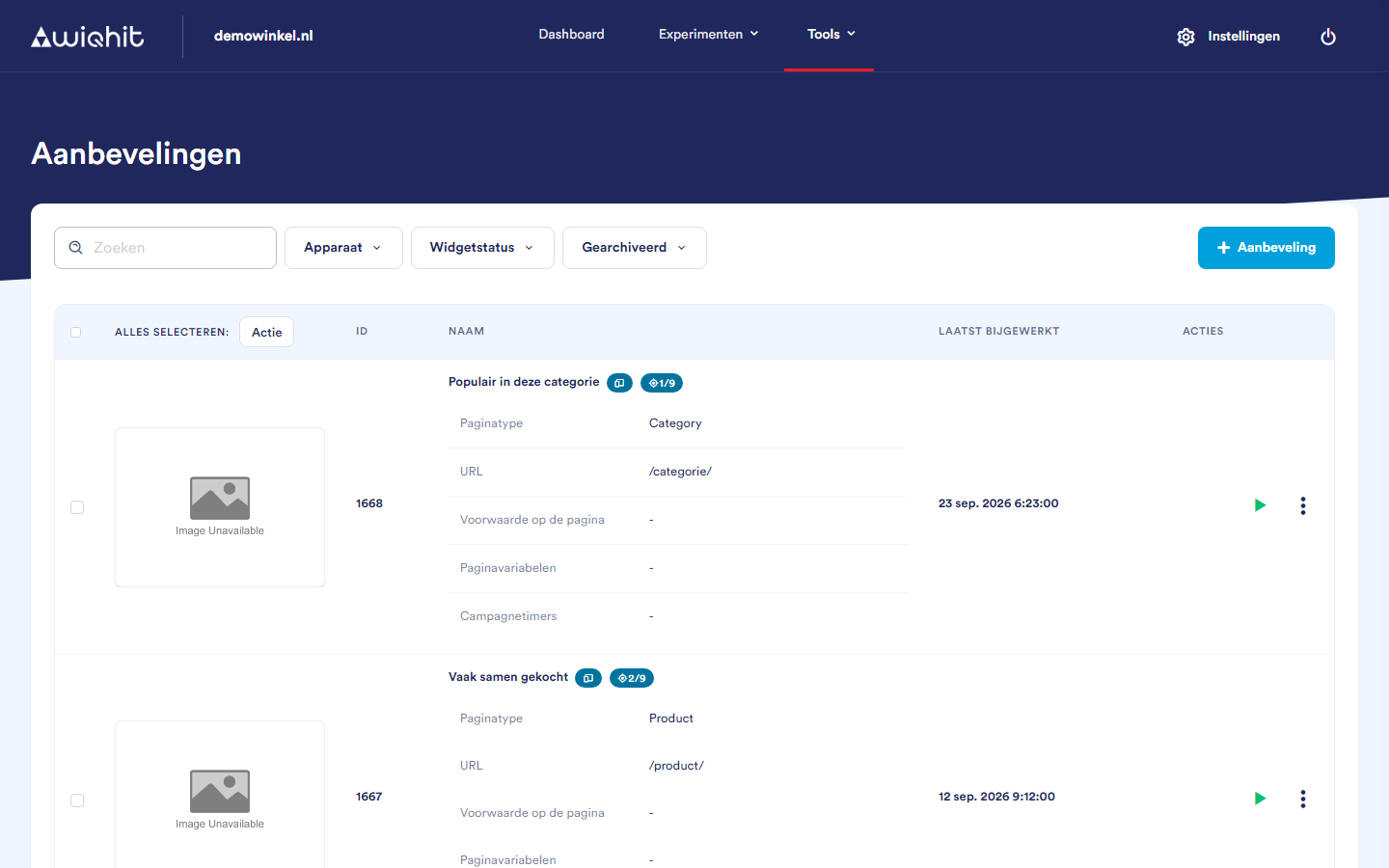
The overview
ID and name: next to the name is an icon for the device: desktop, mobile or both.
Page type and URL: the pages on which the recommendation runs.
Campaign timers: the start and end date, if the recommendation has a schedule.
Note: You only see archived recommendations if the Archived filter is turned on.
Creating a recommendation
Click + Recommendation.
Enter a name.
Click a template. The selected template gets a green border. With empty template you start without content.
Click Create.
Important: A template may already include a page type. Check via ⋮ > Settings on which pages the recommendation appears and adjust this if necessary.
Changing the status
Active (green play icon): visitors see the recommendation.
Inactive (pause icon): the recommendation is turned off.
Scheduled (clock): the recommendation follows the schedule from Settings. WiQhit checks every quarter of an hour whether the recommendation should be on or off.
The ⋮ menu
Note: If there is a red target icon with 0/… next to the name, the recommendation is not linked to any active combination of phase and audience and nobody sees it. Check the link and the status via Journey position.
Considerations
Archive sets the recommendation to Inactive and removes it from the list.
Delete cannot be undone.