Variants and A/B tests
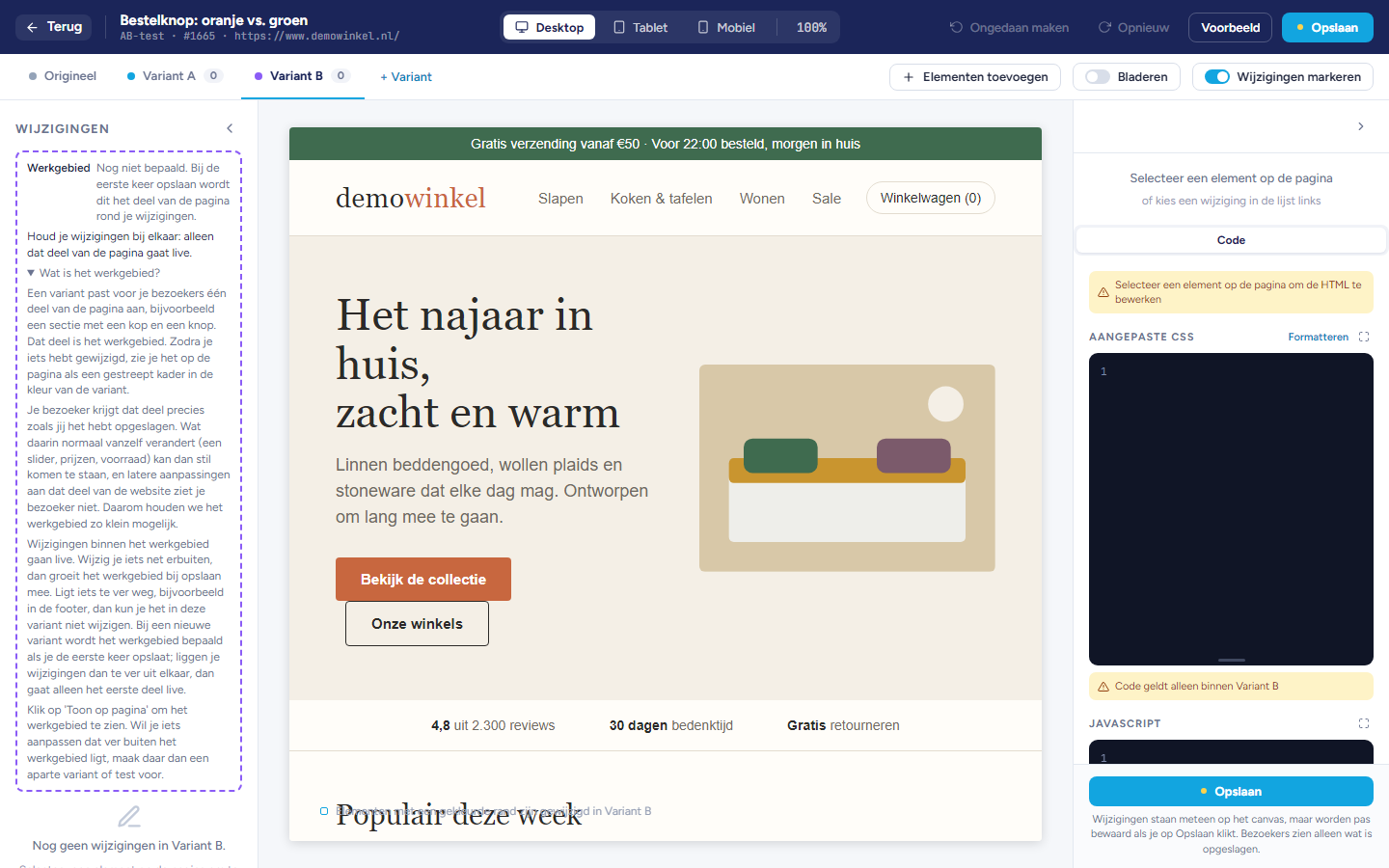
The tabs
Original: your page as it is now. You do not change it.
Variant A, Variant B and so on: your variants. The number next to the name is the number of changes in that variant.
Tip: With the keys 1 to 9 you switch tabs: 1 is Original, 2 is Variant A.
Adding a variant
Click + Variant. A new, empty variant is added and the editor switches to it.
Adjust the page to how this variant should look.
Click Save.
Managing a variant
Duplicate: creates a copy of the variant, with all its changes.
Share link: copies a link that shows this variant on your website. See the article Previewing and saving.
Delete: removes the variant. The last variant cannot be removed.
The working area
Changes within the working area go live.
If you change something just outside the working area, the working area grows along with it when you save.
If something is too far away, for example in the footer, you cannot change it in this variant. Create a separate variant or test for it.
Important: Your visitor gets the working area exactly as you saved it. Things inside it that normally change automatically, such as a slider, prices or stock, may then stand still. So keep your changes together.
What happens when you save
Considerations
Visitors only see your variants once you have saved and the A/B test is set to Active in the app.