Ideas and tips
Your first A/B test in 30 minutes
Addressing new and returning visitors differently
Retaining hesitant visitors with an exit-intent pop-up
Product recommendations that sell more
Writing a good test hypothesis
Getting started
Experiments
A/B tests
Personalisations
Reading results and statistics
Editor
Opening the editor
Editing elements on the page
Variants and A/B tests
Adding elements
Writing copy with AI
Building a widget
Previewing and saving
Data and audiences
Goals
Audiences
Lists
Products
Journey Board
Tools
Product recommendations
Search
Reviews
Product finder
Integrations
Email (ESP integrations)
Data Platform and Ternair Campaign
Other integrations and Booking Experts
Settings
Websites
Personal details
My environments
General settings
Pages and page types
Tracking
Users
Styling
Media
Users
On this screen you determine who has access to this WiQhit environment and with which role. You invite colleagues, change their role and choose which emails they receive.
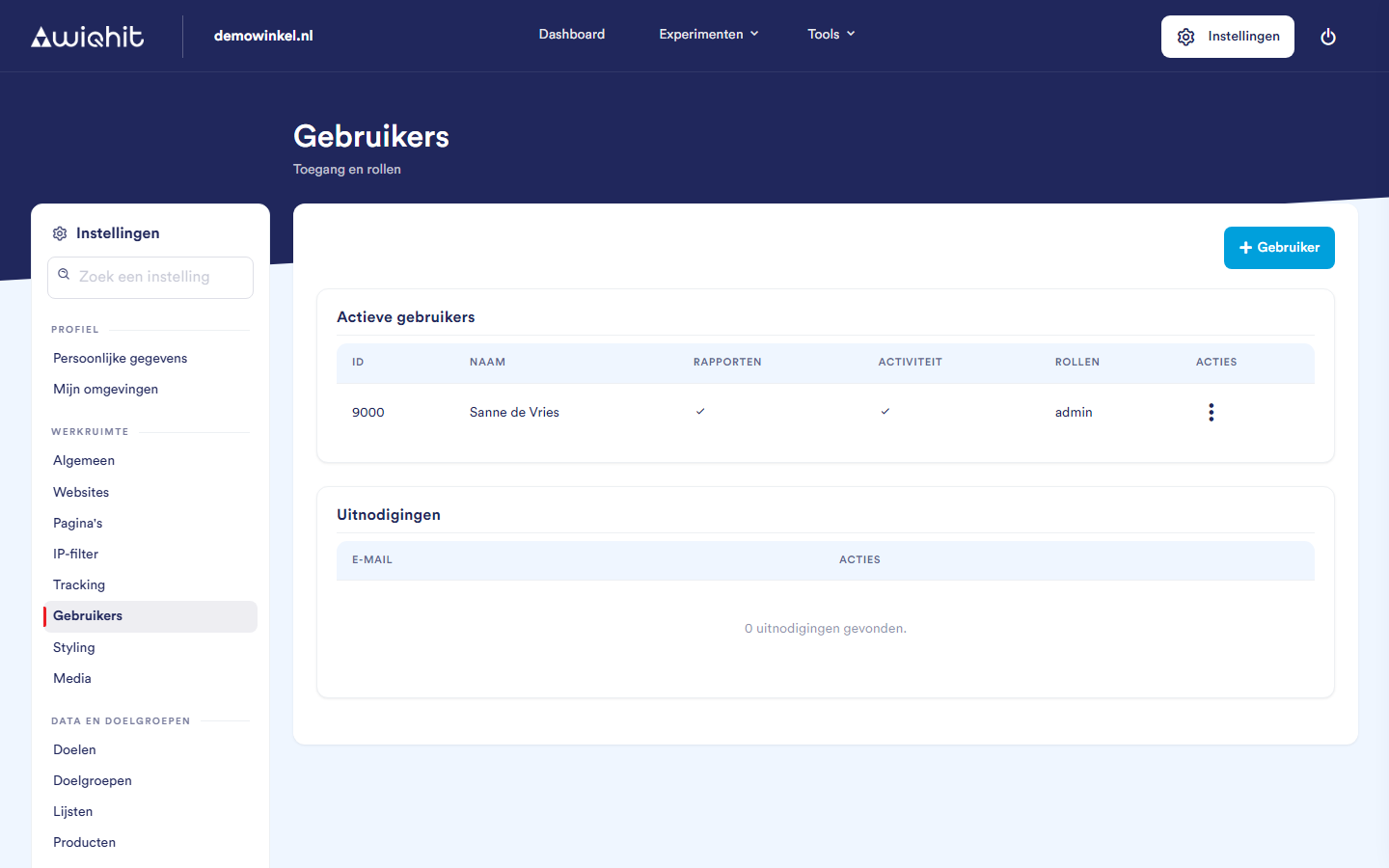
At the top right, click Settings, then Workspace and then Users.
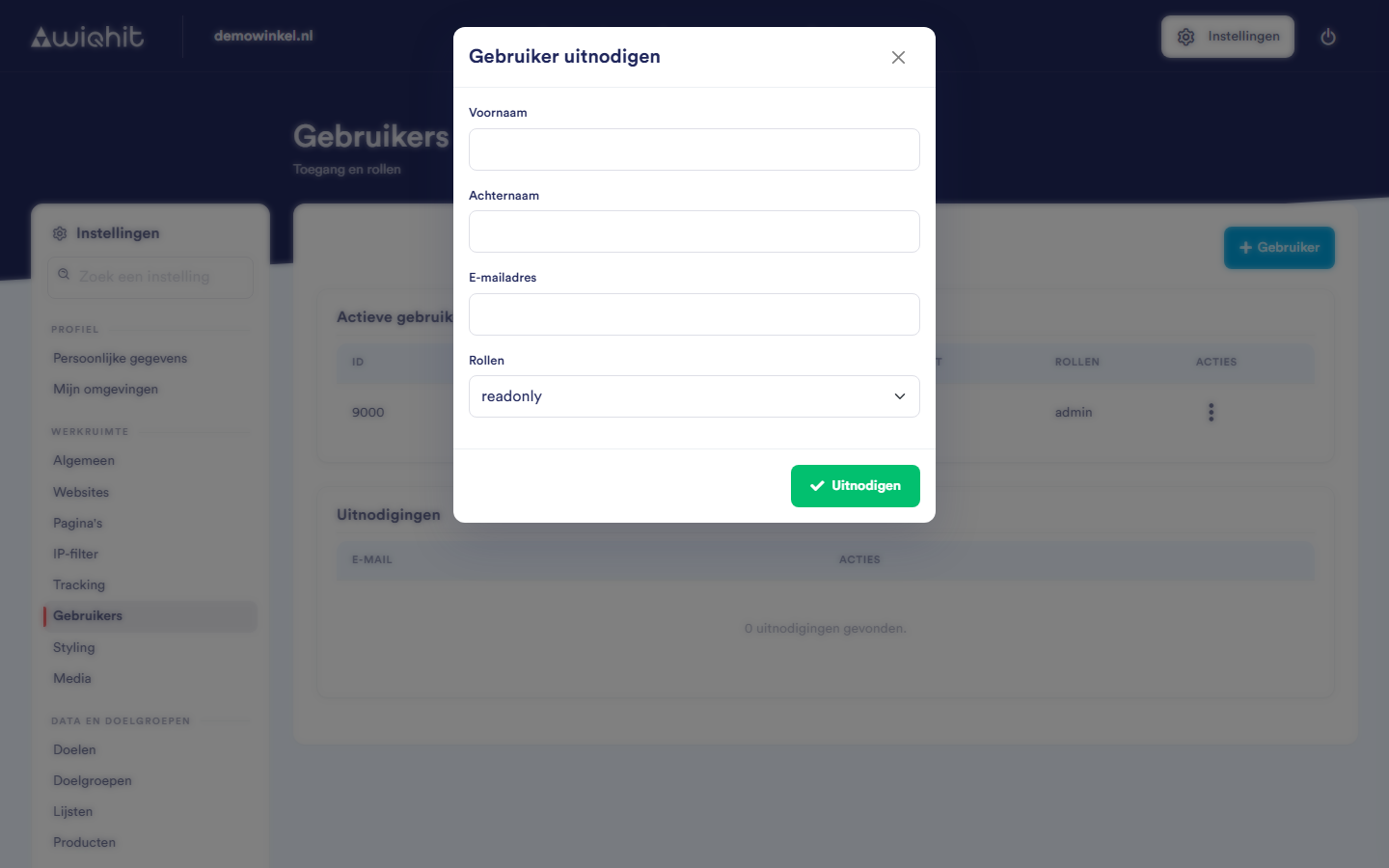
Inviting a user
Click + User.
Enter First name, Last name and Email address.
Under Roles, choose the role this person gets.
Click Invite.
The invitation is sent to the invitee by email. Until the invitee accepts the invitation, it is listed under Invitations.
If the invitee does not have a WiQhit account yet, they create one via the link.
If they already have an account, they log in and this environment is added.
Resending or revoking an invitation
In the row of the invitation, click ⋮.
Click Resend or Revoke.
After revoking, the link no longer works.
Editing a user
In the row of the user, click ⋮.
Click Edit.
Change the name, the role or the email settings.
There are two email settings:
Reports: the user receives the weekly conversion report for this environment. That report is only sent in weeks with positive results.
Activity: the user receives a daily email with the previous day's activity in this environment. If nothing happened, no email is sent.
In the list, a tick or a cross shows who receives these emails.
Deleting a user
In the row of the user, click ⋮.
Click Delete.
Confirm.
The user loses access to this environment. Their WiQhit account and their access to other environments remain.