Adding elements
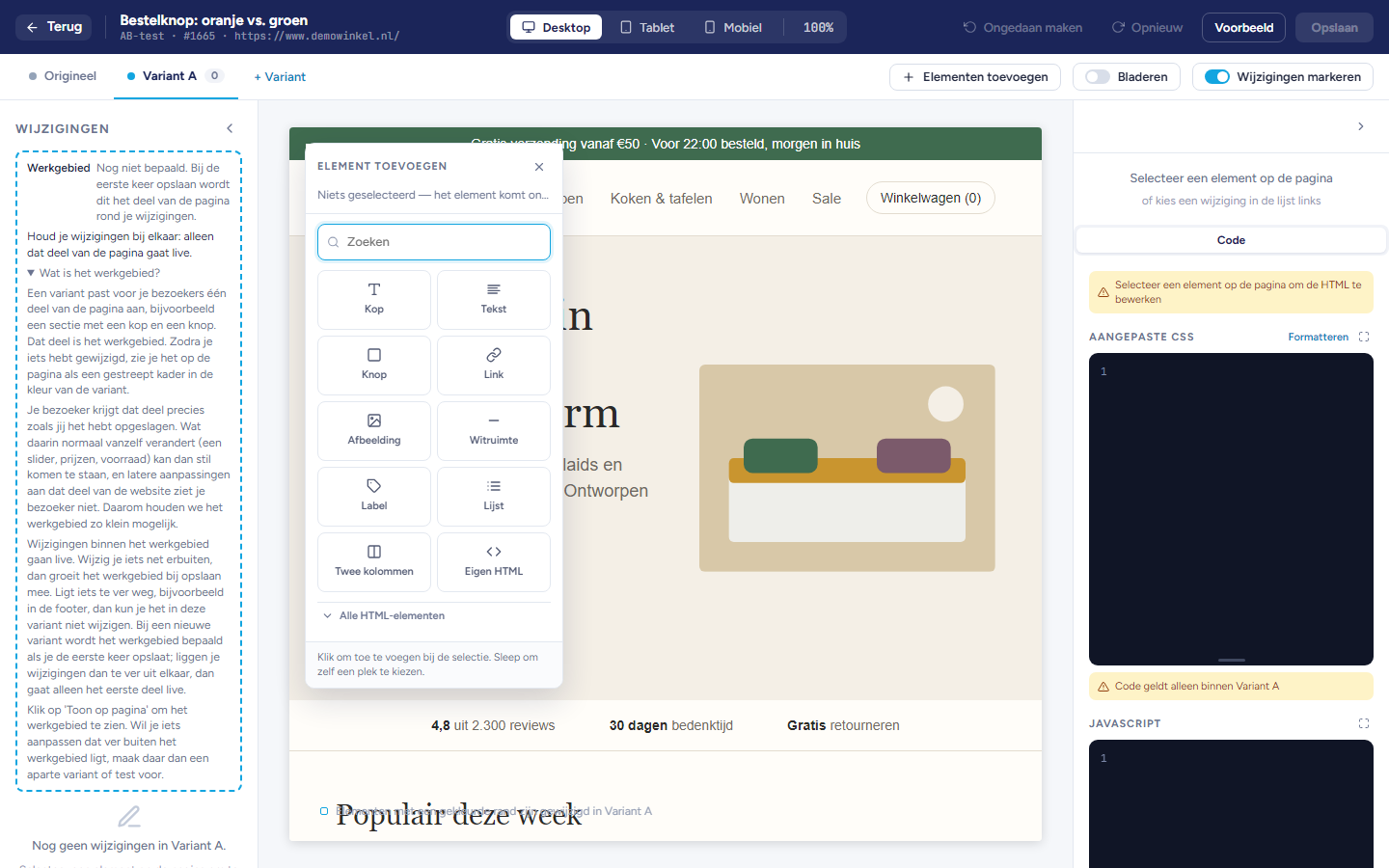
Adding an element
On the page, select the element next to which the new element should go.
Open the Add element panel.
Under Position, choose where the element goes: Before, After, First inside or Last inside.
Click the element you want to add.
Important: Keep new elements close to your other changes. Only the part of the page around your changes goes live. See the article Variants and A/B tests.
Available elements
Heading, Text, Button and Link: with a sample text that you then adjust.
Image: initially with a sample image.
White space, Label, List and Two columns.
Custom HTML: an empty block whose HTML you write yourself on the Code tab.
<section>, <video> or <input>. With Search you can find an element by name.
Choosing an image
Select an image on the page. On the Content tab you will find the Image and Alt text fields.
Click Choose…. Your environment's library opens.
Choose an image, click Upload or drag a file into the window. You can also paste an address at the bottom and click Use address.
Note: A large photo is reduced in size when uploading. If it stays above 1 MB, you have to reduce it yourself first.
Video and embedded media
For a video, choose a Poster and a Video file.
For embedded media, such as an embedded video, enter the Address.