Previewing and saving
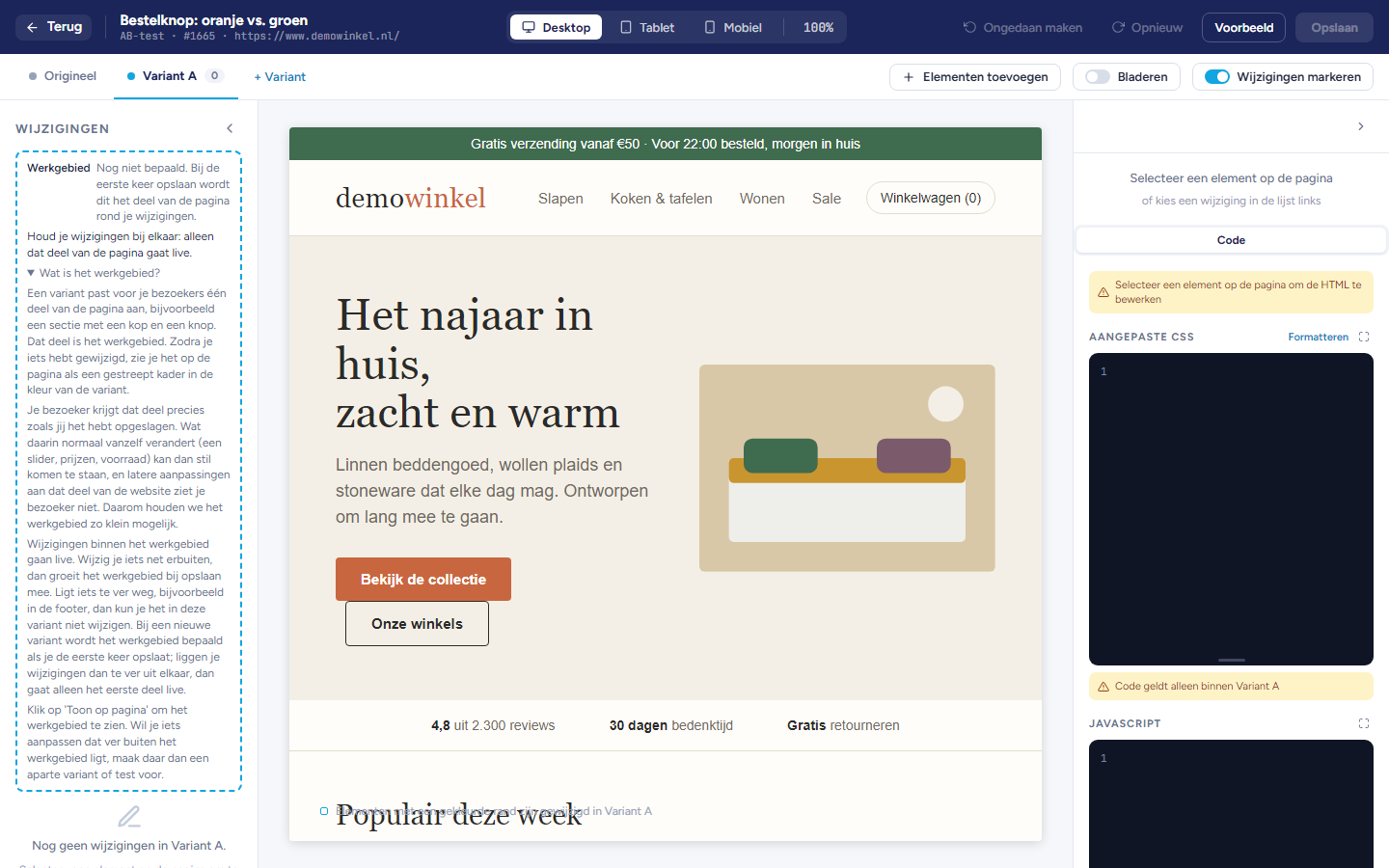
Before you put anything live, you view your work on different screen sizes and as a visitor sees it. Then you save it.
The editor with the Preview button at the top right
Open the editor via ⋮ > Design (see the article Opening the editor). Preview and Save are on the right of the top bar, the views in the middle.

Important: Without Save, nothing reaches your visitors.

Choosing a screen size

  • In the top bar, click Desktop, Tablet or Mobile. The page gets the width of that screen, so you can see how your changes turn out there.

  • Next to it, choose the zoom level: 50% to 125%, or Fit to get the full width in view.
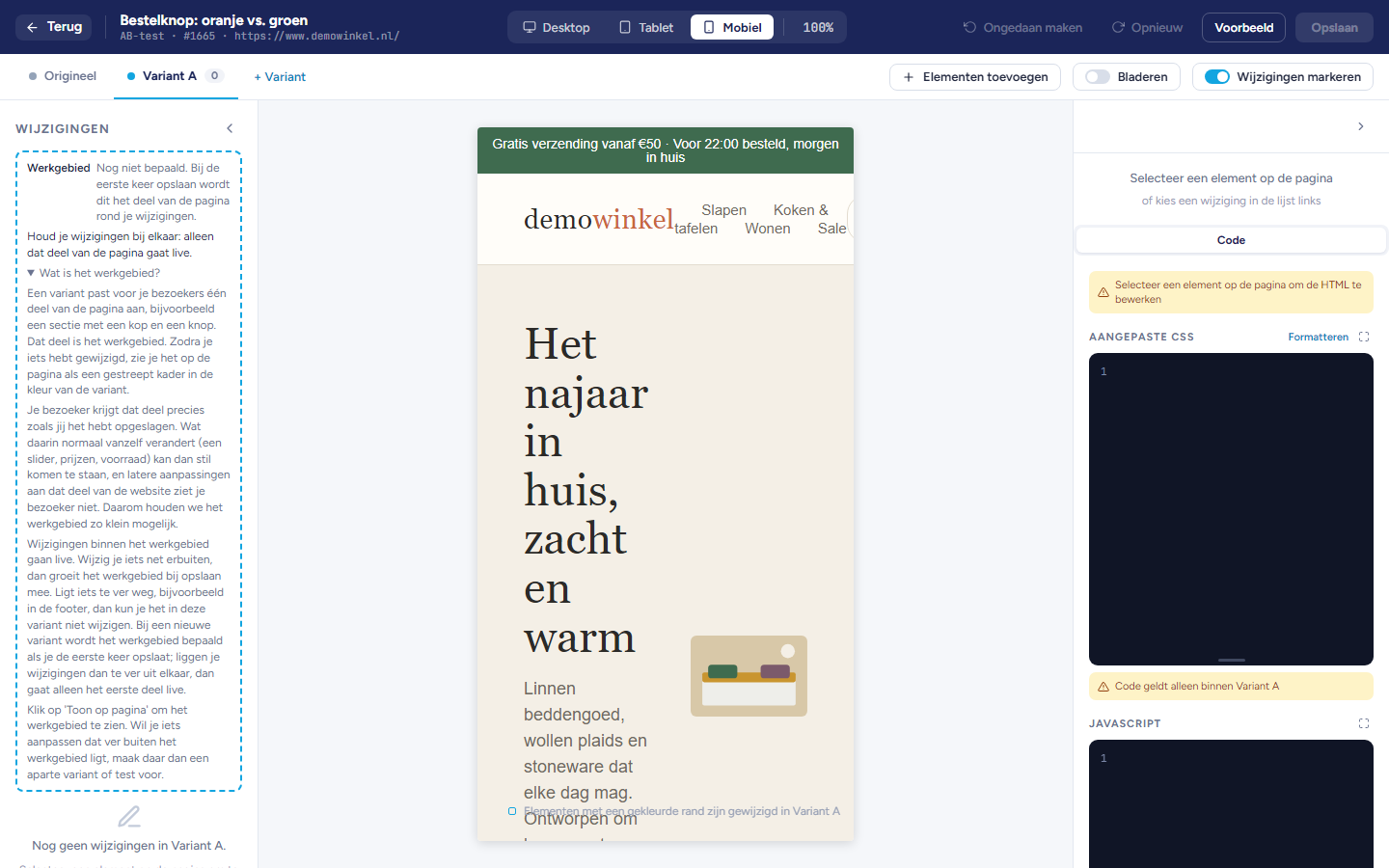
Viewing the page on mobile

Browsing

Normally you select an element when you click on it. With Browse you use the page as a visitor.
  • Turn on Browse.

  • Expand a menu or open a tab on the page.

  • Click Back to editing. What you expanded stays open and you can then select it.

Note: In browse mode you do not follow links to another page, because your test belongs to this page.

Viewing a preview

Click Preview. Your page opens in a new tab with the selected variant, as a visitor gets it. The script from the Code tab also runs there. If your browser blocks the tab, click Open in the notification.
If the saved variant or widget is already on the page in the editor, no tab opens. Preview then removes it from the page and puts it back on a second click, so you can see the page with and without it.

Important: The preview shows the saved version. Save first if you want to see your latest changes.

Viewing a preview without the editor

If you only want to see what an A/B test, personalisation or widget looks like, you do not need to open the editor.
  • In the list, in the row of the test or widget, click ⋮ and then Preview.

  • Enter the address of the page on which you want to view it. For an A/B test, also choose which variant you want to see.

  • Click Preview. Your page opens in a new tab, with the test or widget on it.

With Copy to clipboard you copy the preview link, so you can share it with a colleague. Select Include timing conditions on the page if the preview should also wait for the conditions on the page, such as a number of seconds or exit intent. Without that tick, it appears immediately.
This preview also shows the saved version. WiQhit remembers the address you enter: next time, Design opens the editor on that page.

Sharing a variant

Click the arrow next to the name of a variant and choose Share link. The editor copies a link that shows your page with that variant. This link also shows the saved version.

Note: Anyone with the link can open it, without logging in.

Saving

Click Save at the top right or at the bottom of the panel on the right, or press Ctrl+S.
A dot on the button means there are unsaved changes. If nothing has changed, the button is grey. If saving fails, a notification appears with the Try again button, and the reason if possible.

Considerations

  • Your visitors only see your changes once you have saved and the A/B test or personalisation is set to Active in the app.

  • Click Save before you close the editor: Back does not ask you to.

See also


Copyright © 2026 Ternair.