Your first A/B test in 30 minutes
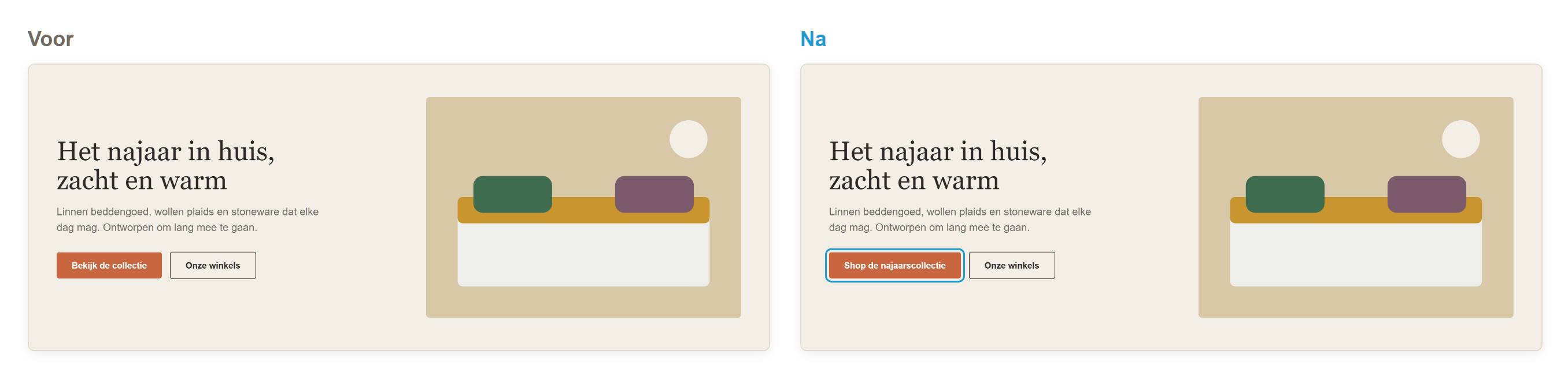
Checking in advance (5 minutes)
The script is on your site. Check under Tracking whether the notification is green. If so, visits are coming in.
Your website is in the list. On a domain that is not listed under Websites, WiQhit does nothing.
You have a default goal. Without a goal, a test cannot identify a winner. Under Goals, create for example the goal
Order completed.
Important: The URL field of a goal always searches for part of the address, and a full stop there stands for any character. So write demowinkel\.nl/bedankt.
Choosing a first idea
Tip: Change one thing at a time. If you change the text and the colour and the variant wins, you do not know why. No winner is also an outcome.
Creating the test (5 minutes)
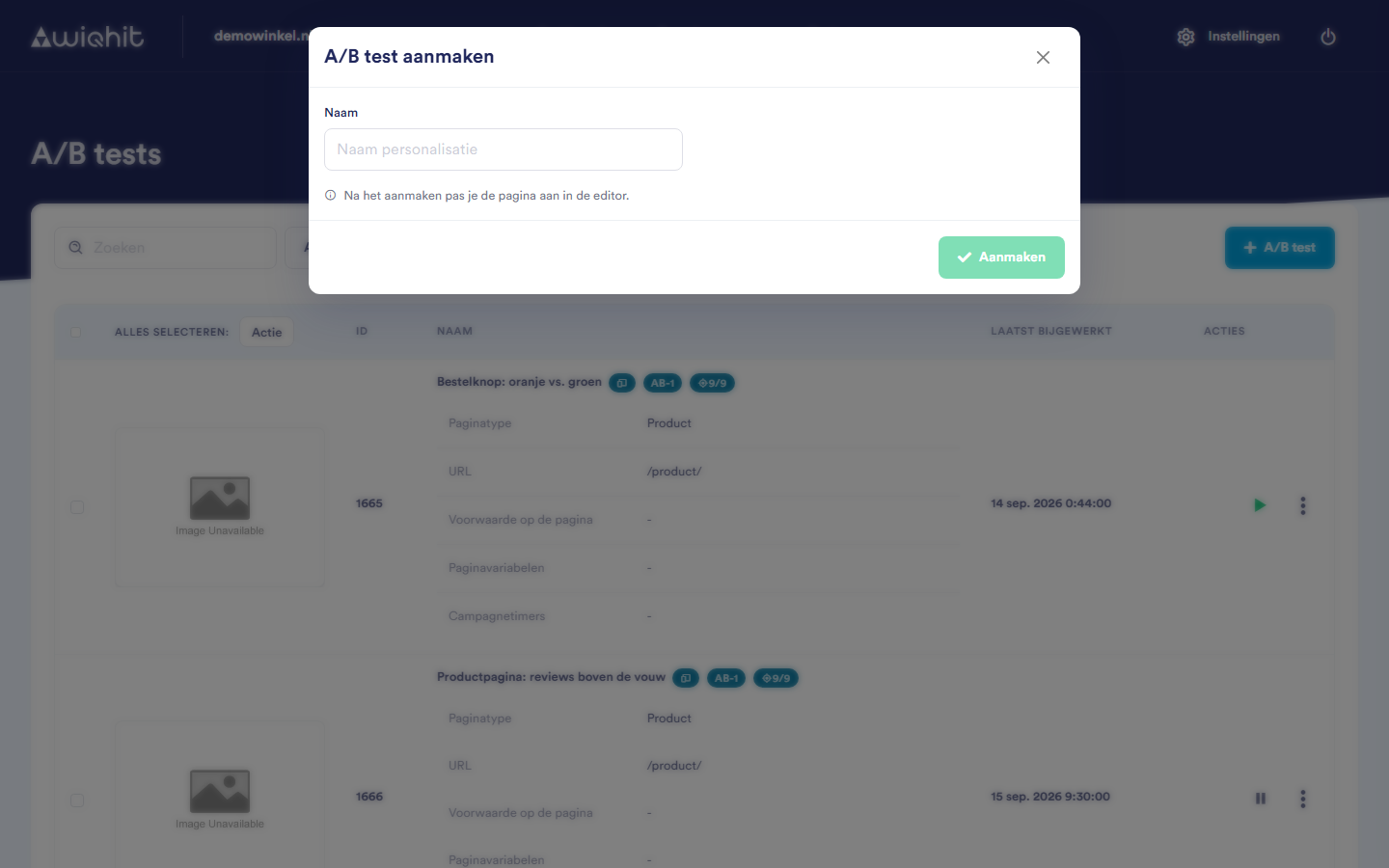
In the main menu, click Experiments and then A/B test.
Click + A/B test.
Enter a name that says what you are testing, for example
Homepage: button text autumn collection, and click Create.In the row of the test, click ⋮ and then Settings.
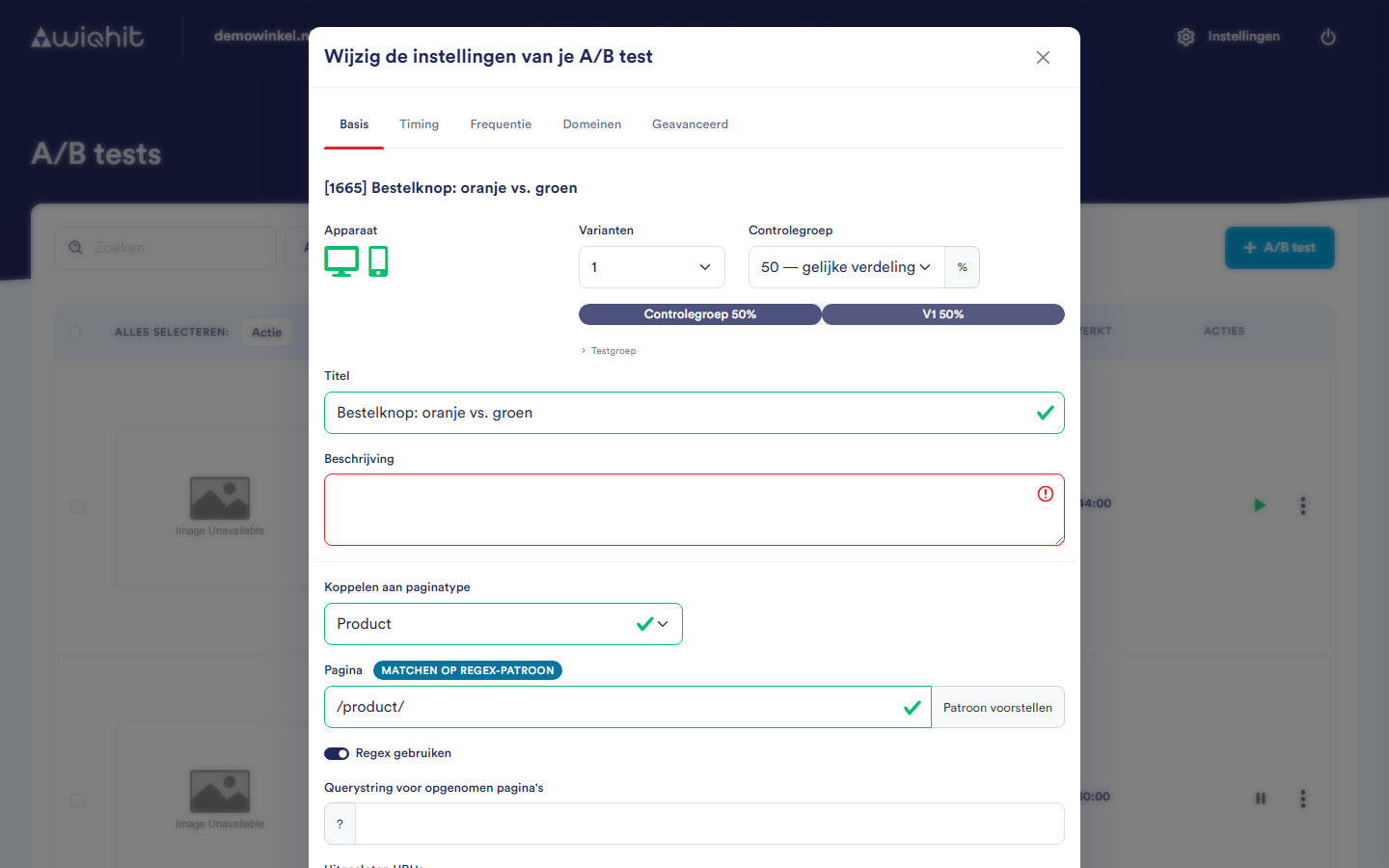
On the Basic tab, under Link to page type, choose the page type of your homepage.
Note: Without a page type, a new test runs on all pages.
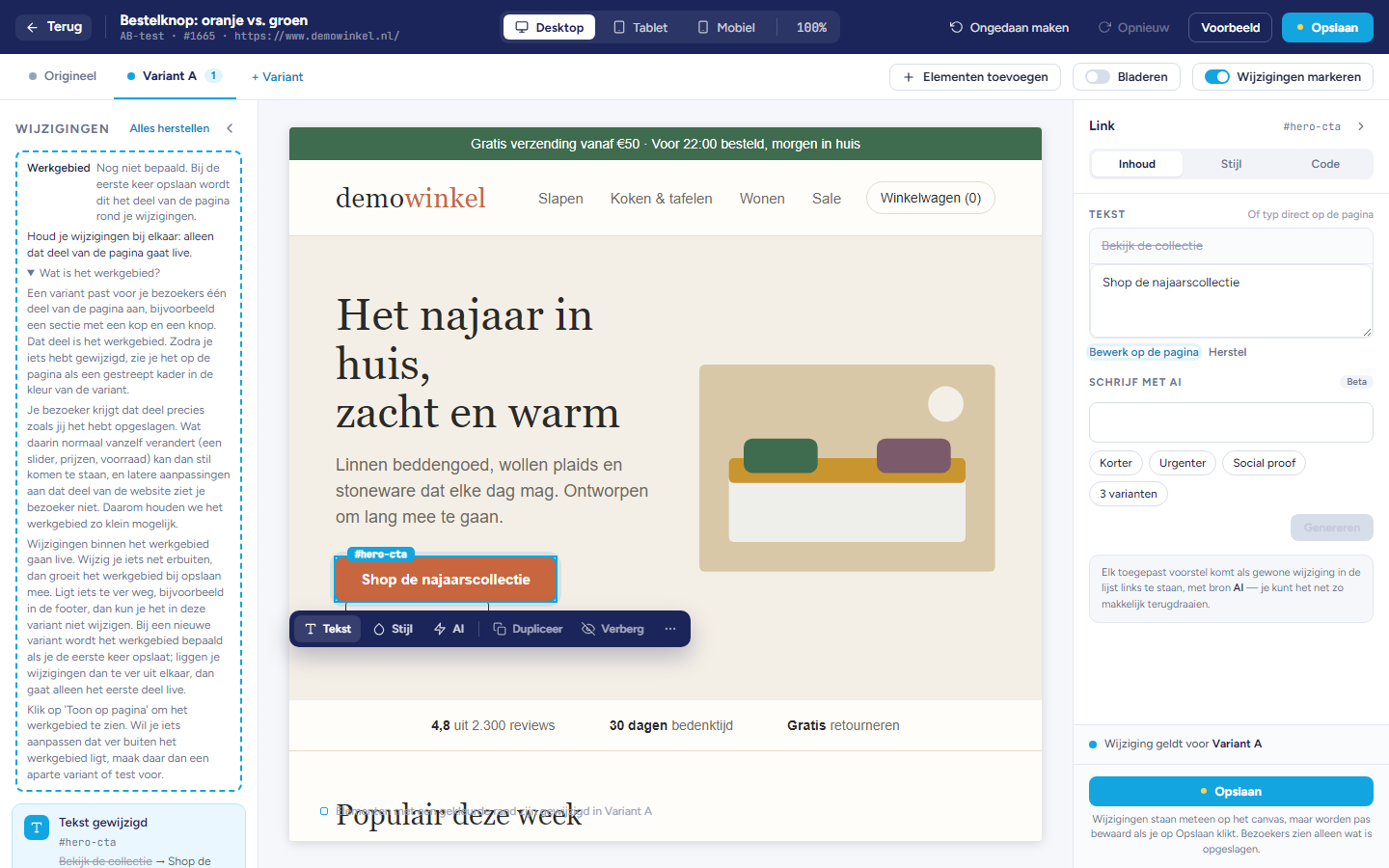
Designing the variant in the editor (10 minutes)
In the row of the test, click ⋮ and then Design.
Enter the address of your homepage and click Edit.
Click the button.
On the Content tab, change the text, or on the Style tab, the colour.
Click Save.
Important: Every time you save in the editor, WiQhit resets the control group to an equal split: 50% with one variant. Only set a different split once you have finished in the editor, via ⋮ > Settings > Basic. For a first test, 50/50 is suitable: it gives you an outcome the fastest.
Putting the test live (2 minutes)
View your variant with Preview.
Click the status icon and set the test to Active.
Tip: Add your office IP address to the IP filter (Settings > Workspace), so that your own visits are not counted in the statistics.
Considerations: duration and conclusion
Let the test run for at least one to two full weeks. Visitors behave differently at the weekend than on a Monday morning. Never stop in the middle of a week.
Wait for enough conversions. With a handful of orders per variant, a difference means nothing yet. The more conversions, the more reliable.
Judge by your goal. Open ⋮ > Statistics and choose your goal instead of All goals. Compare the variant with the control group. A variant only counts as a winner at a significance of 95% or more.
Do not change the variant along the way. If you change the variant halfway through, you are comparing two different tests with each other.