Lists
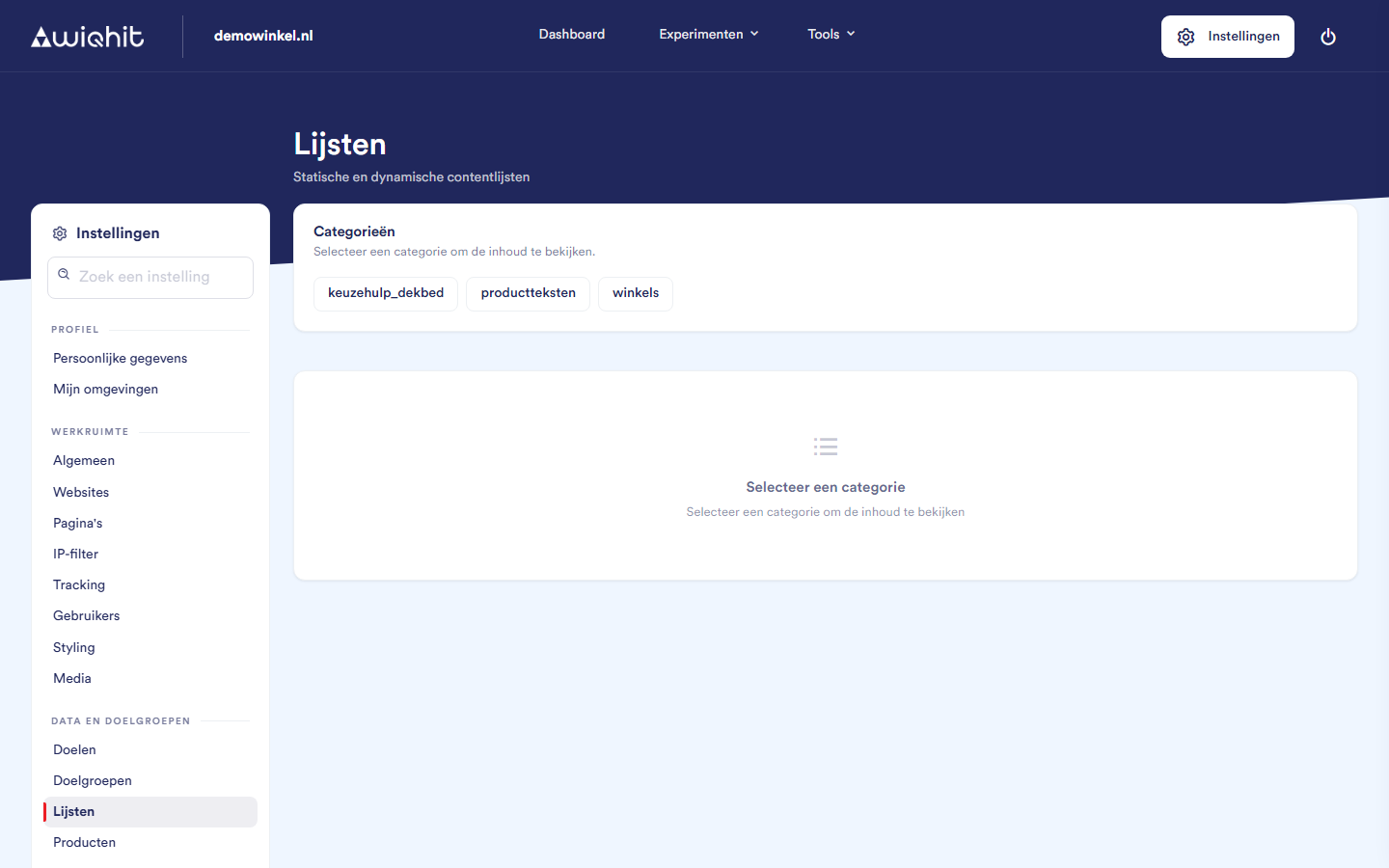
Viewing a list
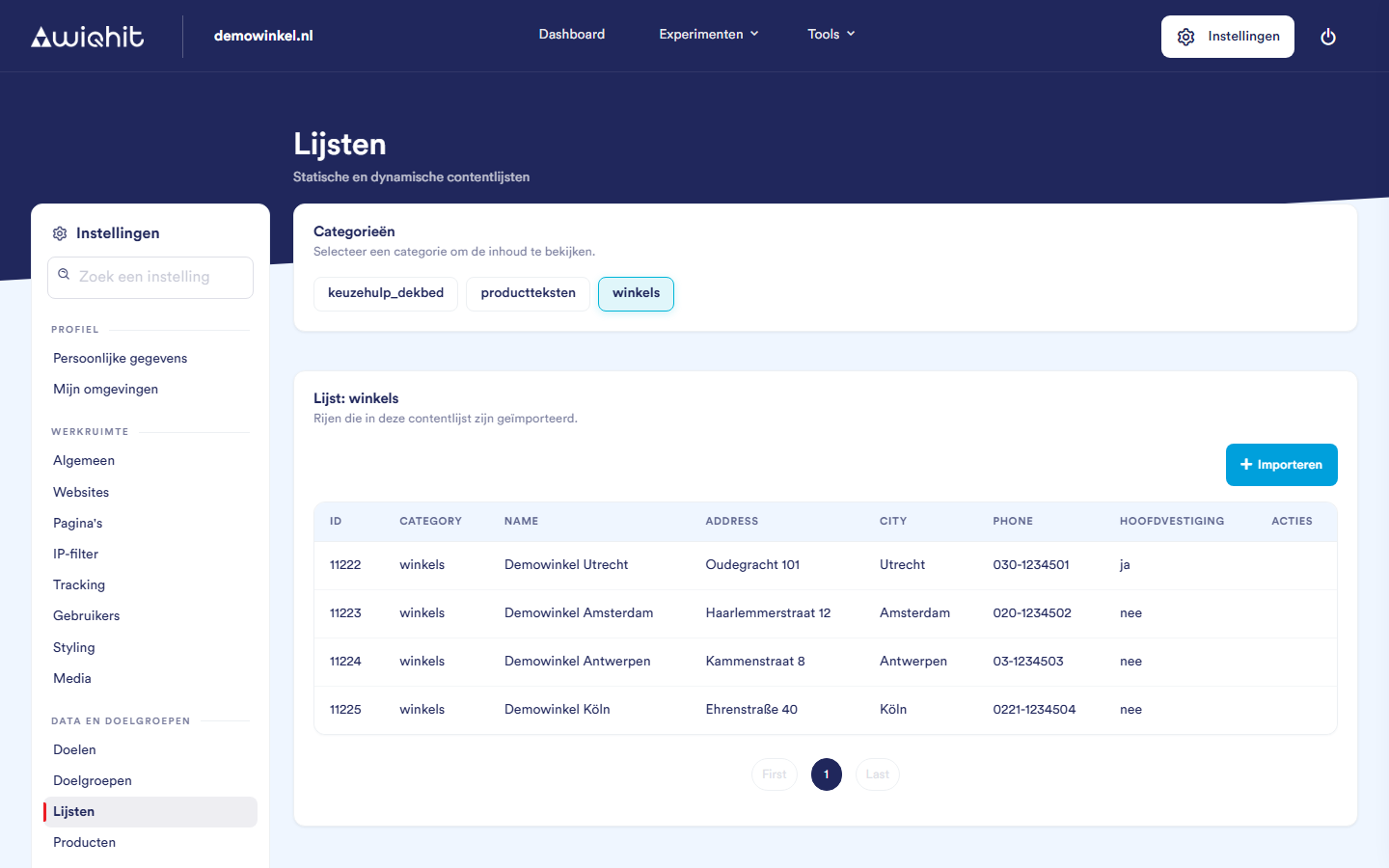
Click a category. The rows of the list are shown, 25 per page.
Scroll to the next page at the bottom.
social proof: the figures you set up under Audiences.
Categories that start with
keuzehulp_: the questions and answers of a product finder.
Important: Adjust a product finder via Tools > Product finder, not by importing a file here.
Importing a list
Click a category and then + Import.
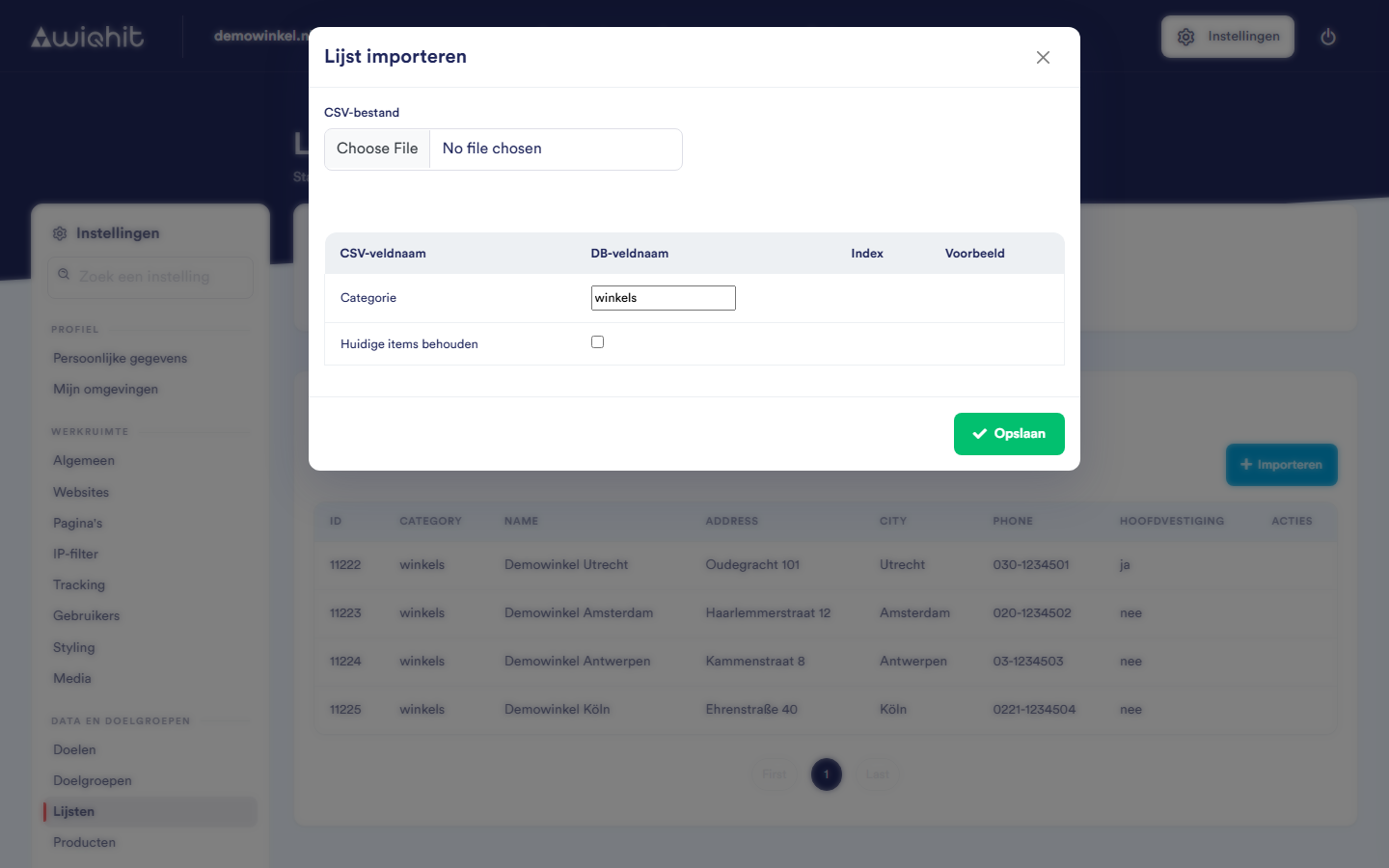
Under CSV file, choose your file. For each column, the CSV field name, a DB field name and an Example from the first row are shown.
Adjust the DB field name if necessary. This is the name under which the value is stored. If you empty the field, that column is not imported.
Under Index, select the column by which the list is looked up, for example a product code or a country. You choose at most one index.
Check the Category: this is where the list ends up. If you type a new name, you create a new category.
Select Keep current items.
Click Save.
Important: Wait for the notification that the import is complete. Then always check whether the list contains the expected rows.
Considerations
With Keep current items ticked, the rows from your file are added to the existing rows of the category. If you want to replace an existing list, contact WiQhit.
Use column headers in lower case and without spaces, such as
name,cityandphone. The names are case-sensitive: anyone who uses the list in a widget must use exactly the same name. Spaces in a column header automatically become an_.Large files are processed in batches of 1,000 rows.