Product finder
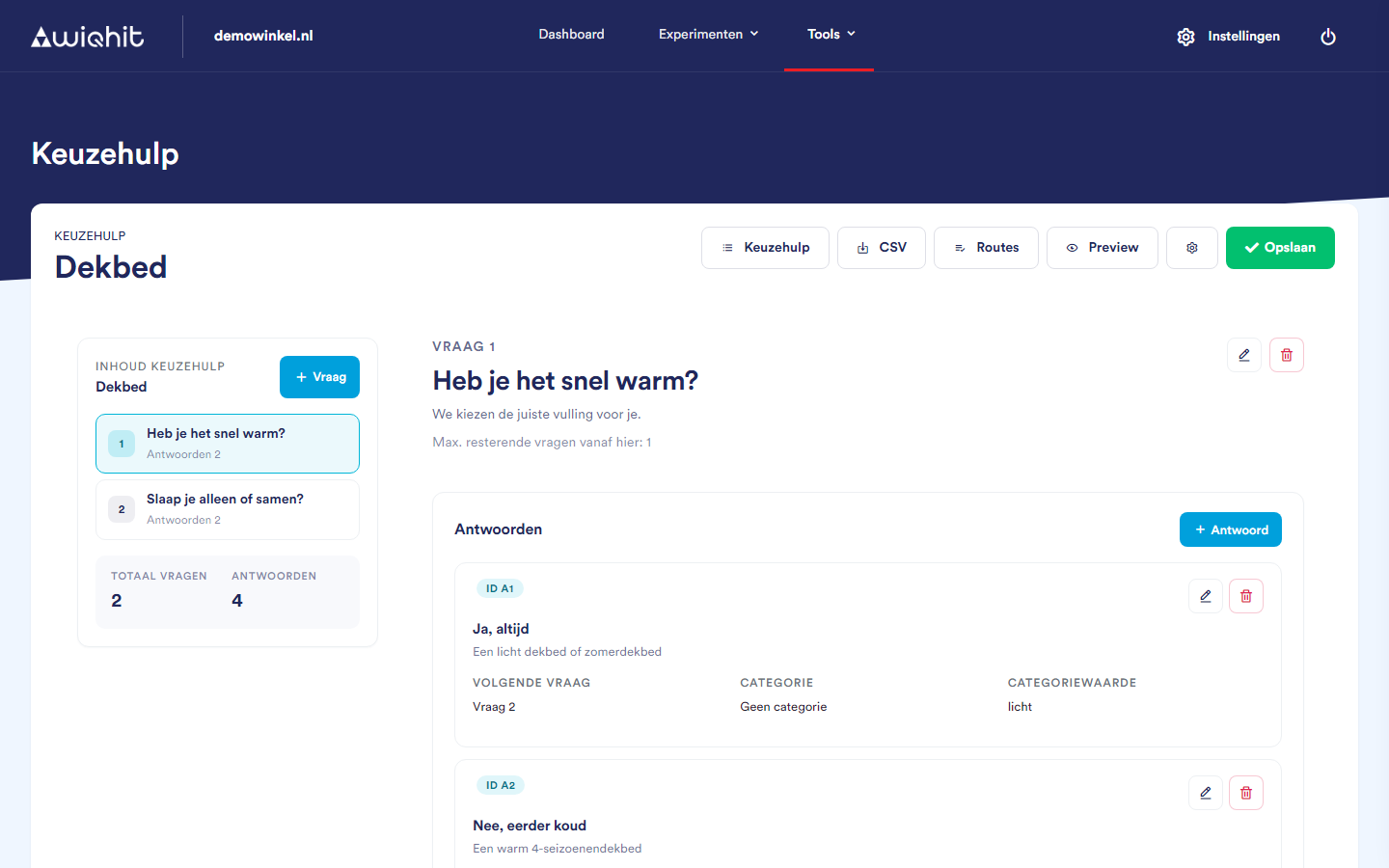
Choosing or creating a product finder
Adding a question
Click + Question. A new question appears at the bottom of the list.
On the right, click the pencil icon.
Enter a Title and a Description. Both are required.
In the window, click Save.
Adding an answer
For a question, click + Answer.
Fill in the fields:
Title (required) and optionally a Description.
Next question: the question that comes after this answer, or Result if the visitor sees their products after that.
Image: choose one from your media library with Choose image, or paste the link to an image.
Category and Filter type: the product attribute from your product feed on which this answer filters, with an Exact value, a text the attribute must contain (Contains value) or a range (Between two values).
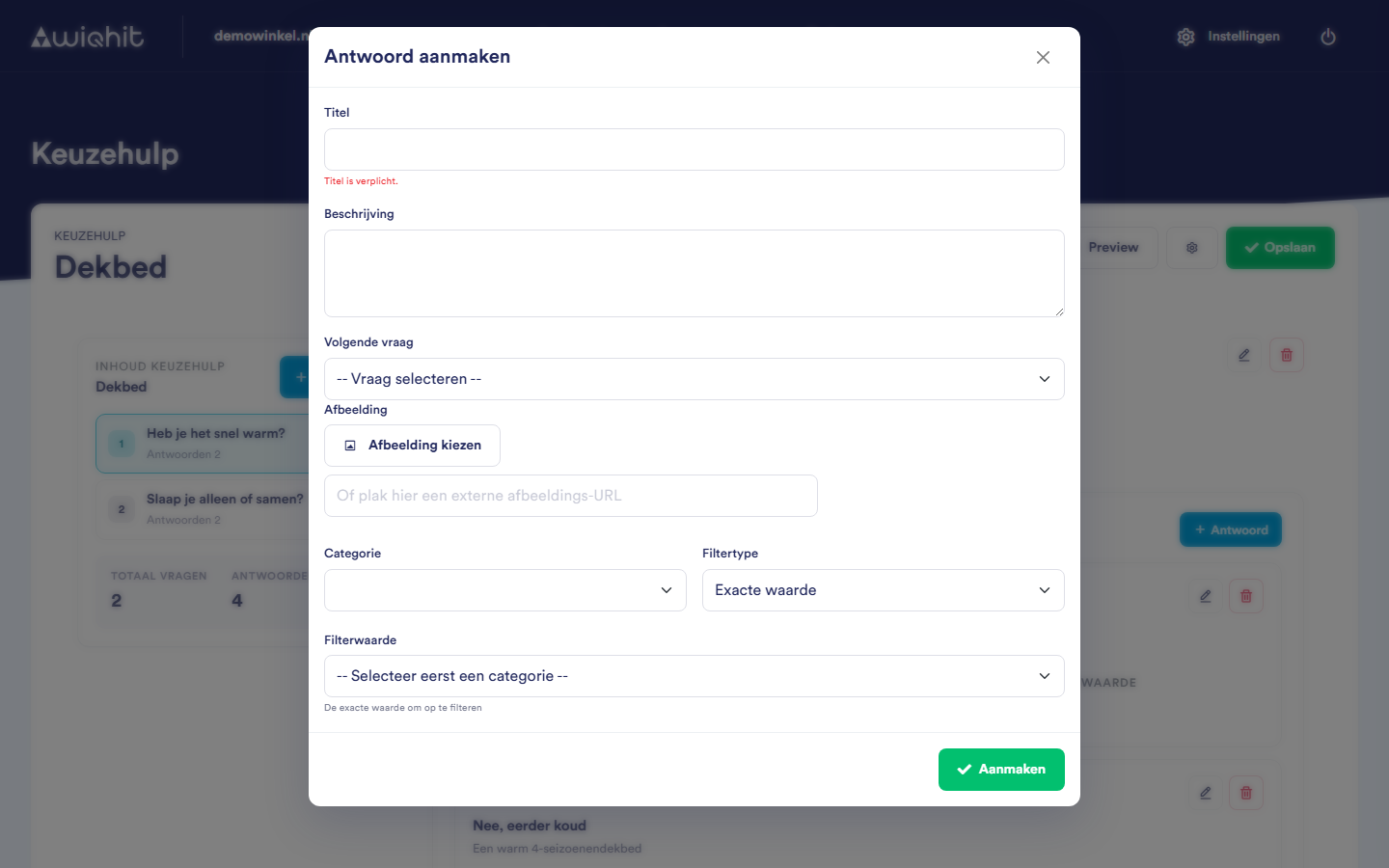
Note: Under Next question you can only refer to a question that is further down the list.
Checking and viewing the product finder
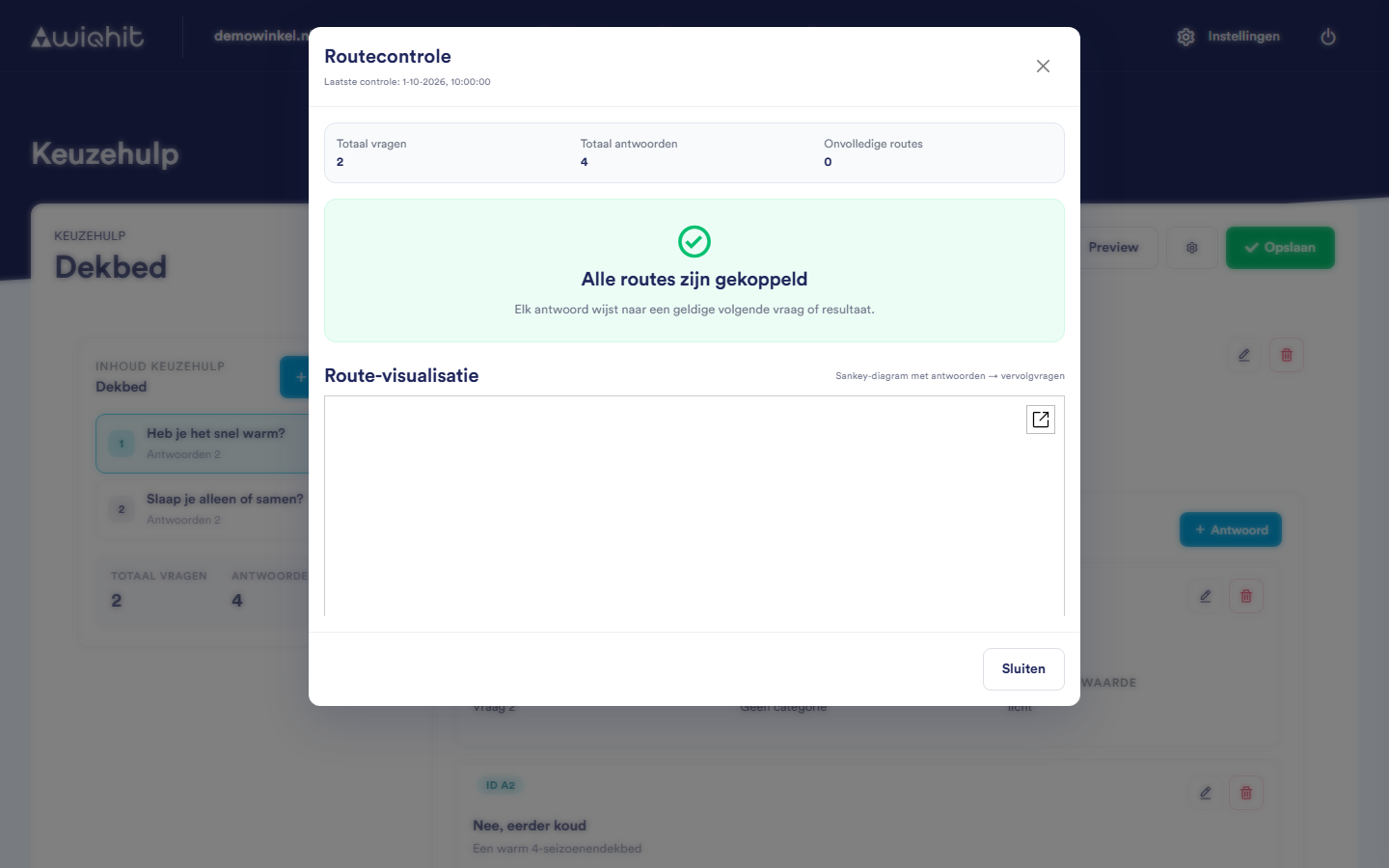
Routes opens the route check. It shows answers without a valid next question and a diagram of all routes. Such answers are also listed on the left under Incomplete routes.
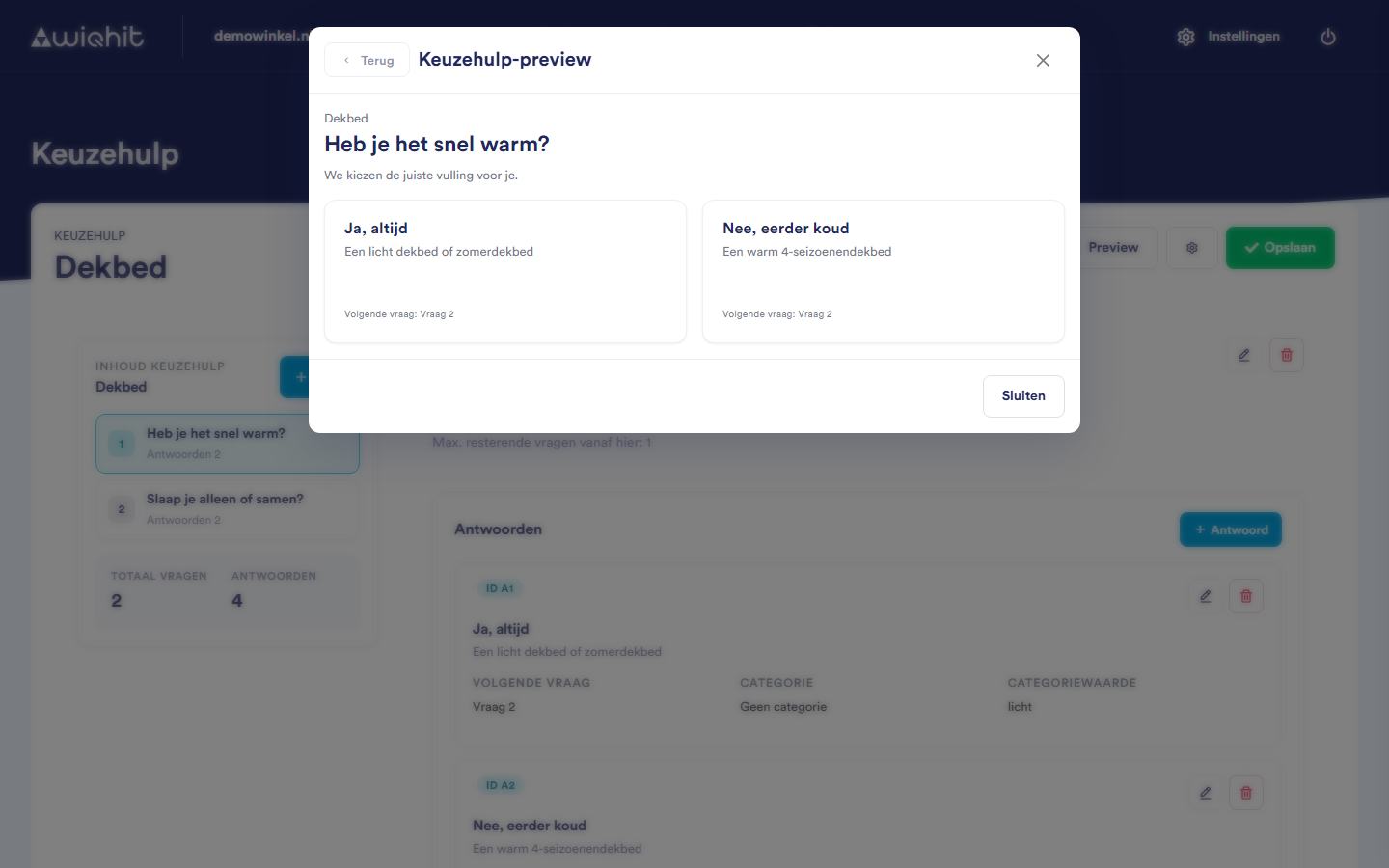
Preview lets you click through the product finder as a visitor does.
Saving the product finder
Important: A new product finder is only stored once you click Save at the top right. Complete it fully first and then save it once. Give each question at least one answer: a question without answers is not saved.
Considerations
If you want to change a product finder that has already been saved, contact WiQhit and check together whether the changes have been saved correctly.
The product finder is stored as a list, with one row per answer. You can find it under Settings > Data and audiences > Lists, as a category starting with
keuzehulp_.