Email (ESP integrations)
Requirements
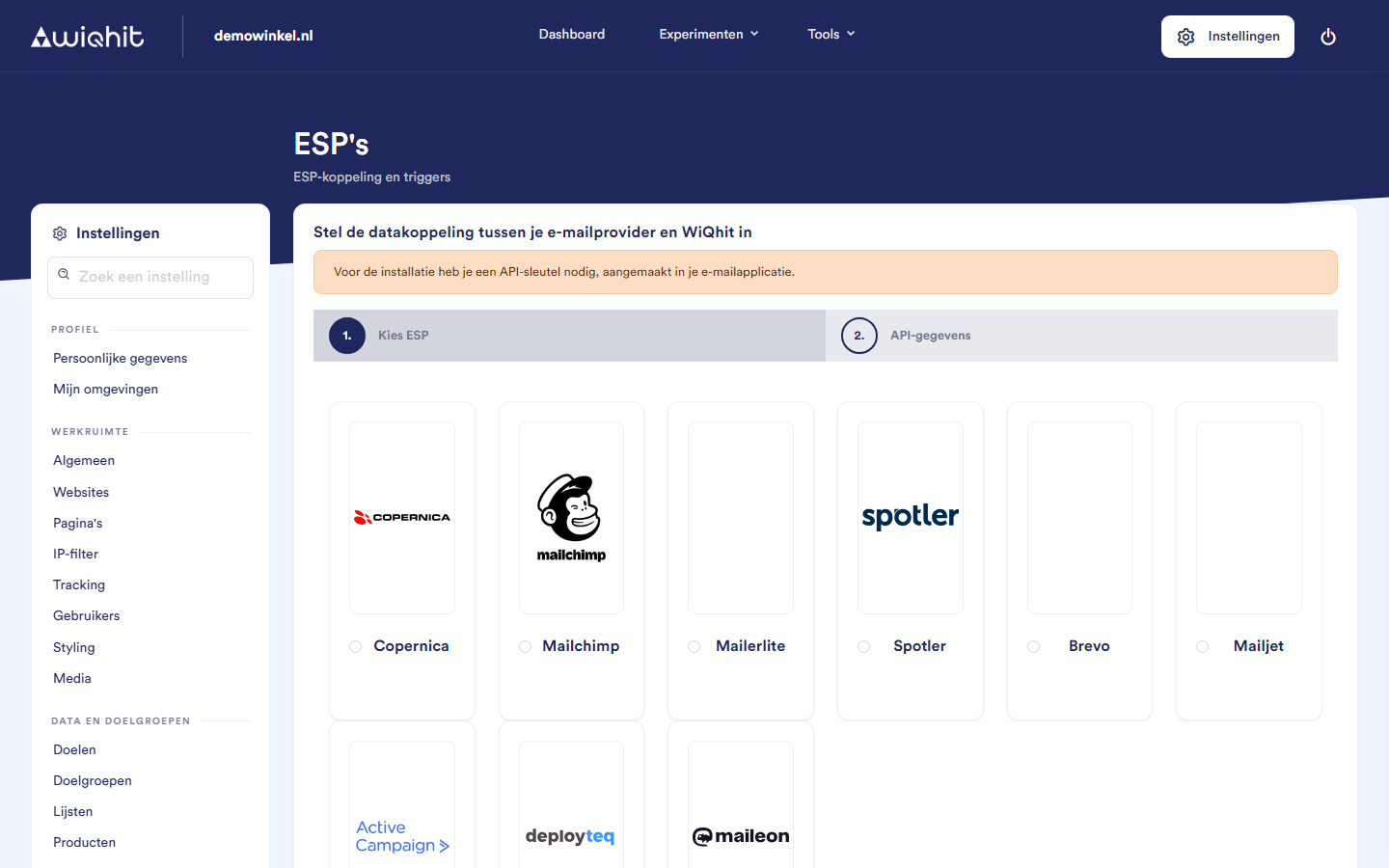
An account with one of these email platforms: Copernica, Mailchimp, Mailerlite, Spotler, Brevo, Mailjet, ActiveCampaign, Deployteq or Maileon.
Your API key for that email platform. For Mailjet you also need your API secret, for ActiveCampaign your API URL.
For Copernica and Mailchimp: the list or database in which the contacts should be placed.
Visitors with a known email address. WiQhit only passes on profiles where the email address is stored in a status variable, usually
email.
Connecting an email platform
Choose your email platform and click Next.
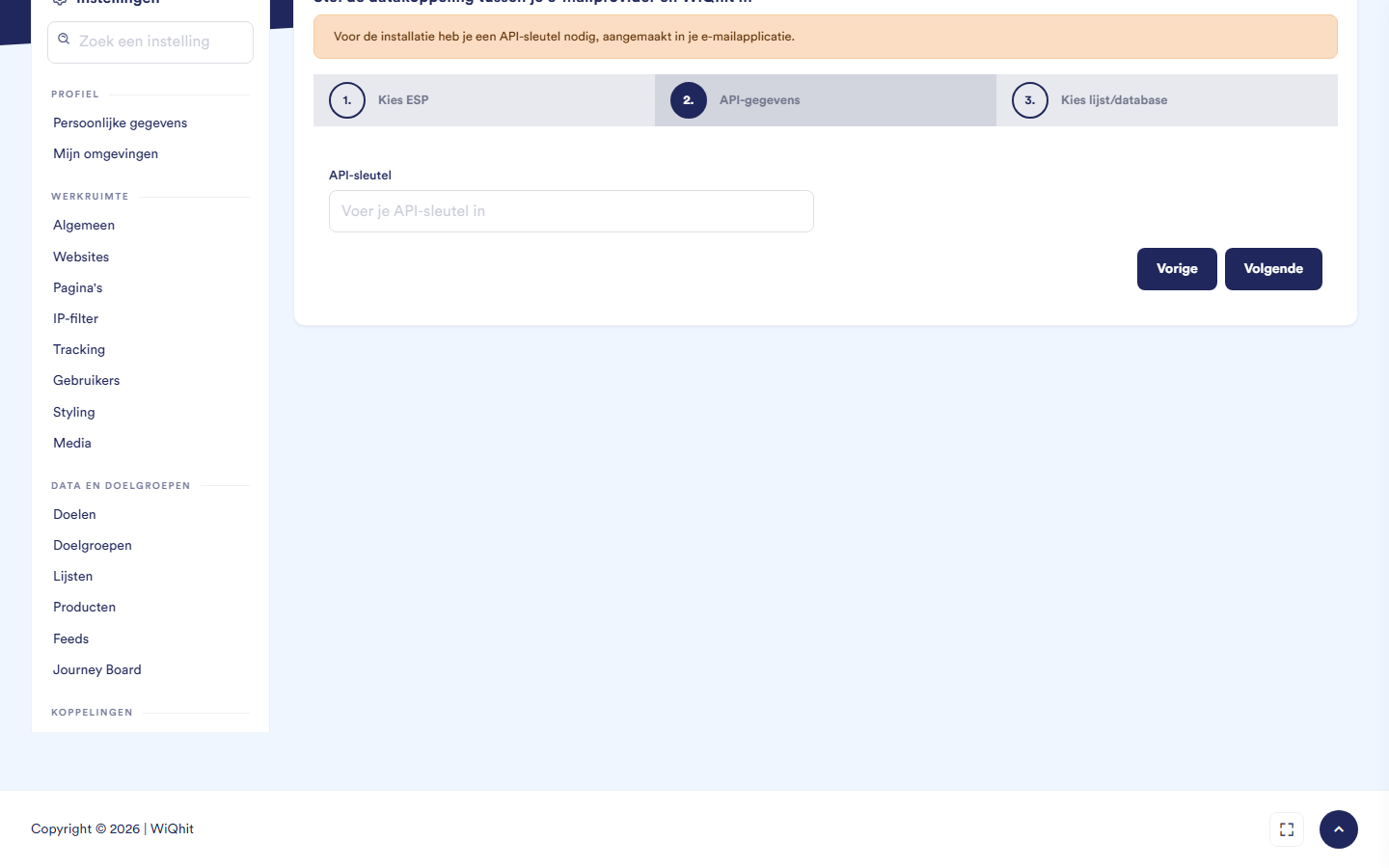
Enter your API key, and where requested the API secret or API URL.
Click Next or Finish. WiQhit immediately checks whether the key works. If it is rejected, a notification appears and you can correct it.
For Copernica and Mailchimp, choose the list or database. For Copernica and Spotler, then choose the email field.
Click Finish.
Note: The synchronisation runs every 5 minutes and picks up a visit about 35 minutes later. The first figures therefore do not appear immediately.
Setting up new contacts
Click Change.
Under Linked on, choose in which status variable WiQhit looks for the email address.
For Mailchimp, also choose the status with which a new contact comes in. By default this is Not subscribed (transactional).
Important: Only choose Subscribed if visitors give permission for this on your site (GDPR). Existing contacts keep their status.
Adding a field mapping
Click + Field mapping.
Choose the ESP field.
Type the WiQhit field, for example
visit datetimeorhas products abandoned.
Note: You can only choose fields that already exist in your email platform. Create a new field there first.
Passing on an abandoned shopping cart (Mailchimp)
In Mailchimp, start an automation on an API event with exactly the same name (by default
cartleft).Set after how many minutes the event is sent (minimum 30).
Choose whether the contents of the shopping cart are included, so you can use them as merge tags in the email.
Send a test event to an address that is already in your list to check whether it works.
Transactions
Disconnecting an email platform
Considerations
Contacts that are already in your email platform remain there after disconnecting.
If you connect again later, you start completely from scratch, including the field mappings.