Retaining hesitant visitors with an exit-intent pop-up
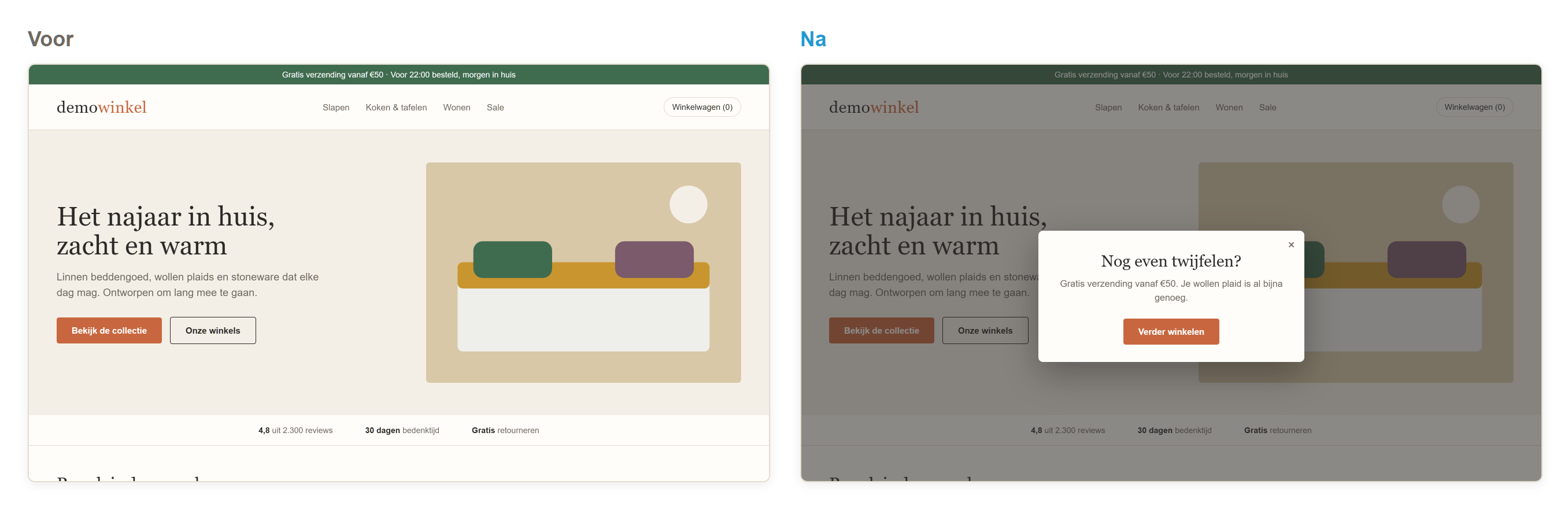
How exit intent works
Important: Exit intent only works with a mouse. On a phone or tablet the pop-up will therefore never appear. So only show the pop-up on desktop.
Tip: To also reach mobile visitors, create a second pop-up with the condition visitor inactivity. It appears when someone does not scroll, click or type for a number of seconds.
Choosing a message
Discount: Still not sure? With the code WELKOM you get 10% off your first order. Effective, but it costs margin. Only use this for new visitors.
Free shipping: Free shipping from €50. Your wool throw is almost enough already.
Newsletter: someone who does not buy now stays in the picture this way. Use the Sign-up form template.
Help: Questions about the size of your duvet cover? Our customer service is happy to help.
Creating the pop-up
Under Personalisations, create a new personalisation, for example
Exit intent: free shipping.In the row of the personalisation, click ⋮ and then Design.
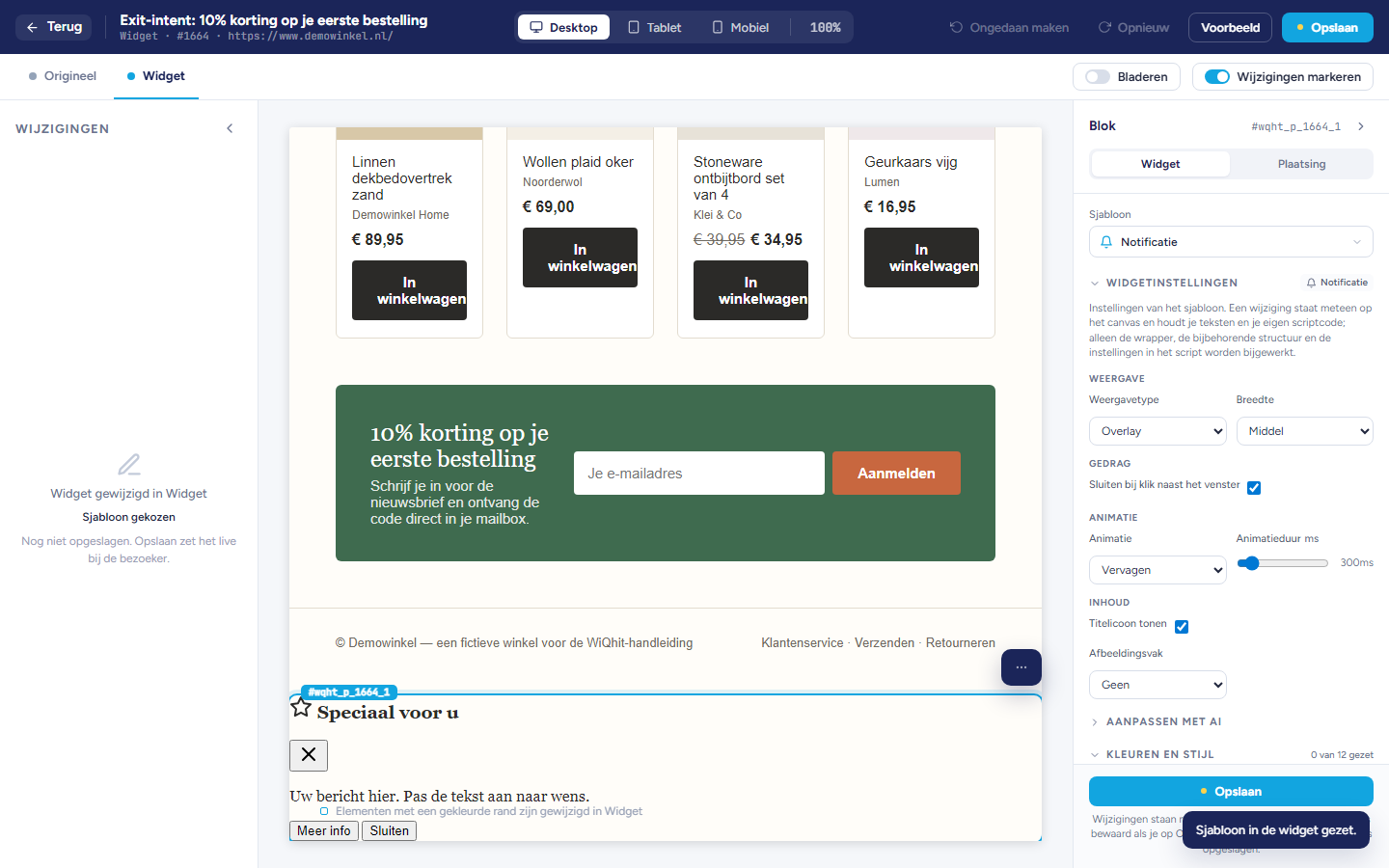
On the Widget tab, choose the Overlay template, or Notification with the display type Popup.
Leave Show close button turned on.
Adjust the texts.
Click Save.
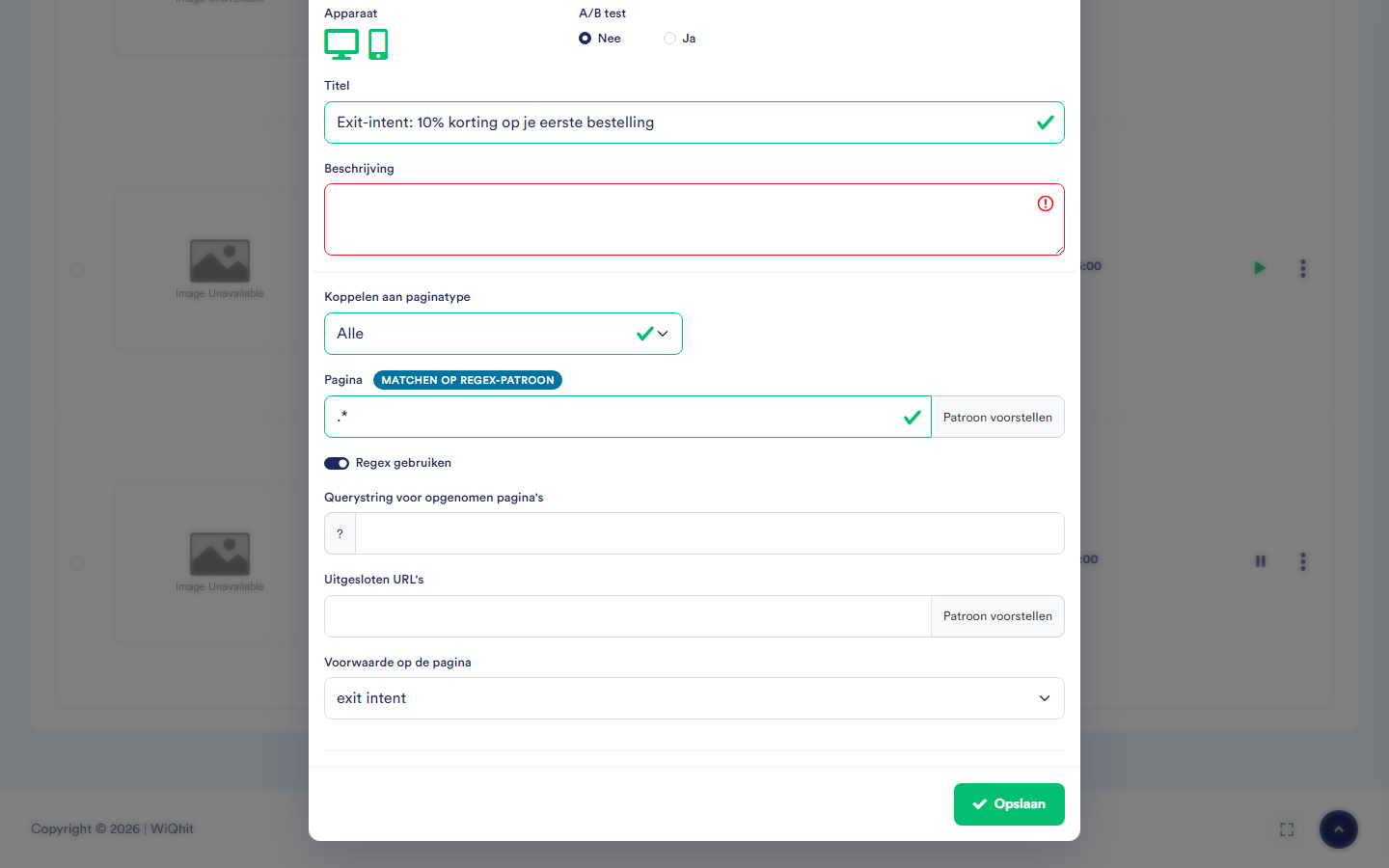
Setting up exit intent and frequency
In the row of the personalisation, click ⋮ and then Settings.
On the Basic tab, under Condition on the page, choose the exit intent option.
Under Device, turn on only the desktop icon.
Under Excluded URLs, enter your checkout pages, so that the pop-up does not disturb anyone who is checking out.
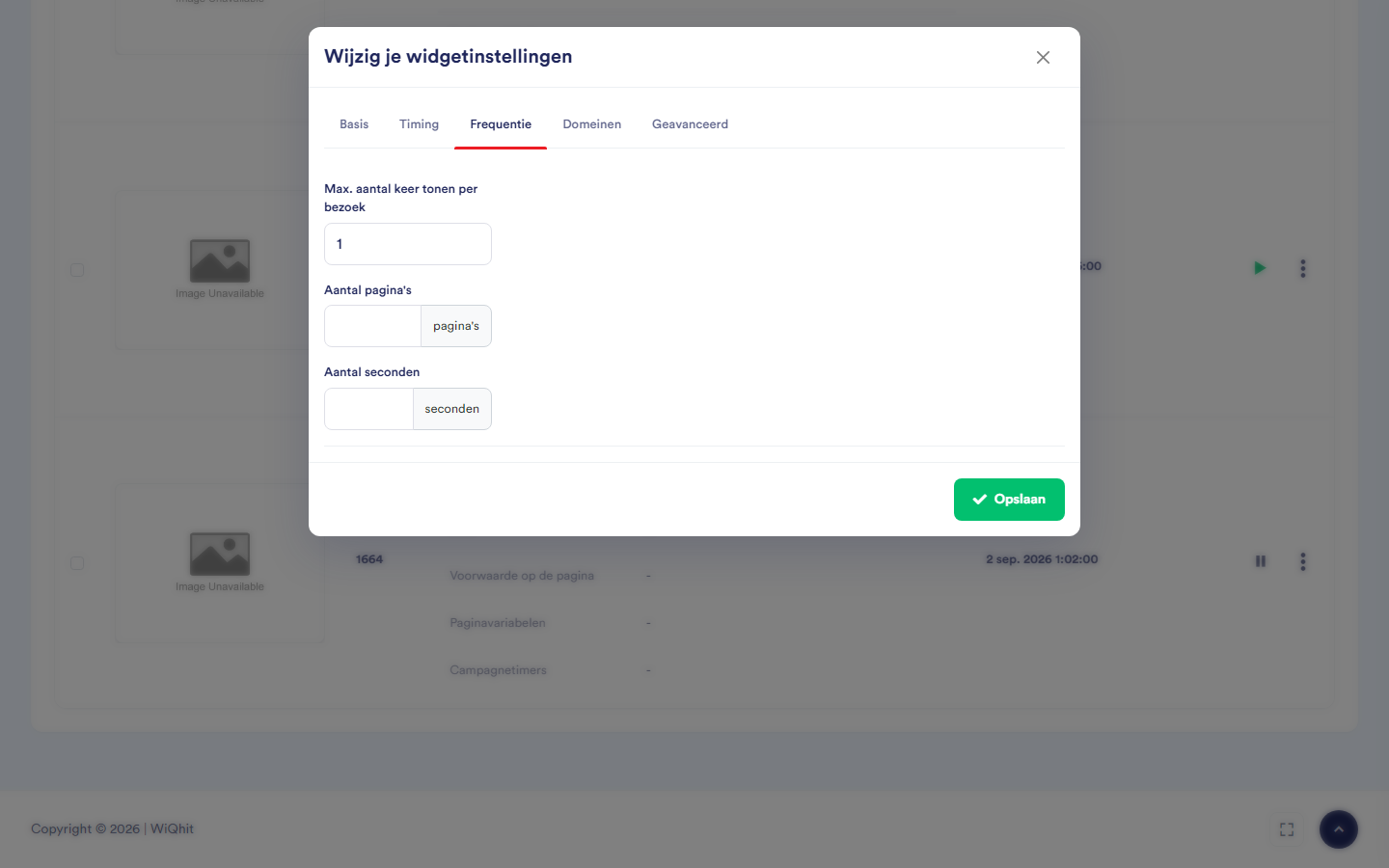
On the Frequency tab, set how often the pop-up appears (see below).
Click Save.
Max. number of times shown per visit: leave this at
1. Someone who has seen the pop-up will not get it again during that visit.Number of pages and Number of seconds: if you allow it more than once, use these to determine how many pages or seconds there must be in between at least.
Note: The Timing tab is about the days, hours and period in which the pop-up may run, not about exit intent.
Putting the pop-up live
In the Journey Board, add the personalisation to the combinations of phase and audience in which it should appear.
Set the personalisation to Active.
Important: A new personalisation is not yet in any card of the Journey Board. As long as that is the case, nobody sees it (the red target icon with 0/…).
Measuring the effect
As an A/B test: on the Basic tab, set the A/B test option to Yes and choose a Control group. That group does not see the pop-up.
With your environment's control group: without an A/B test, WiQhit compares with the control group from General settings.
Important: Every time you save in the editor, WiQhit resets the control group to an equal split (50%). Only set your own split once you have finished designing.
Considerations
Add your office IP address to the IP filter, so that your own visits are not counted.
The IP filter only removes you from the statistics. You will still see the pop-up yourself.