A/B tests
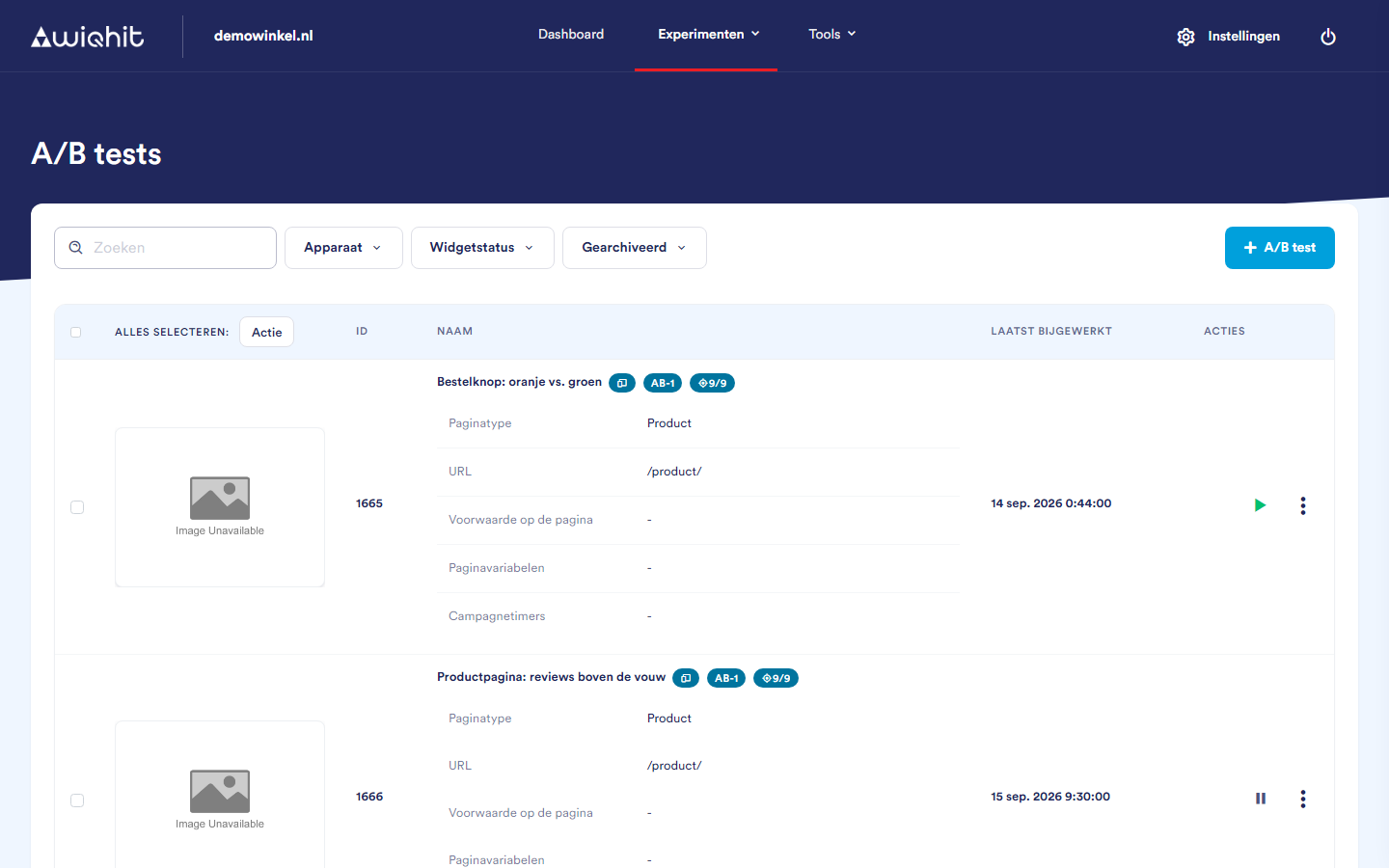
The overview
ID and name: next to the name are an icon for the device and the label AB-1, the test group number of the test.
Page type and URL: the pages on which the test runs.
Campaign timers: the start and end date, if the test has a schedule.
Actions: the status icon and the ⋮ menu.
Note: You only see archived tests if the Archived filter is turned on.
Creating an A/B test
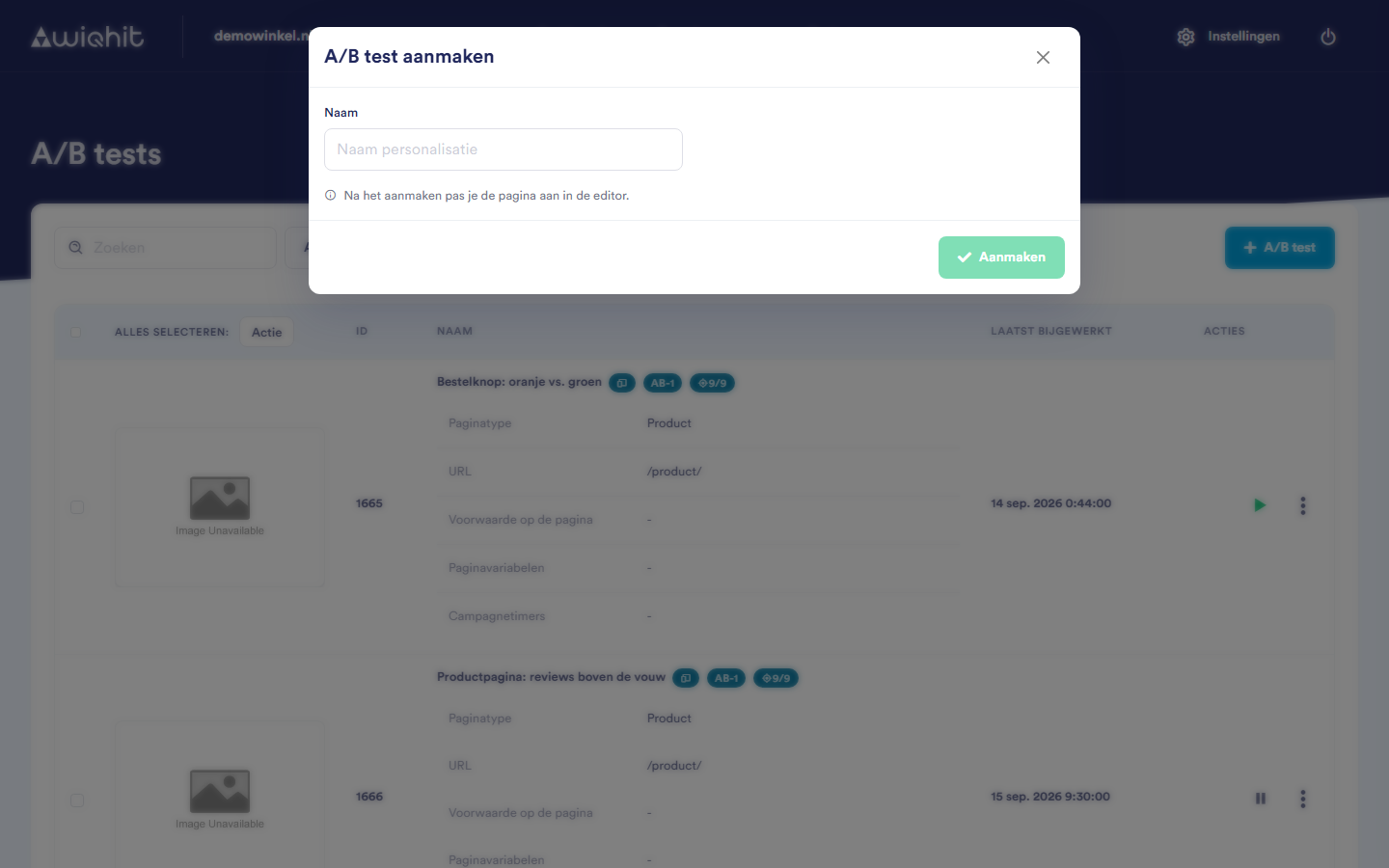
Click + A/B test.
Enter a name and click Create.
In the row of the test, click ⋮ and then Design.
In the editor, adjust the page to how the variant should look.
Click ⋮ and then Settings. Check on which pages and devices the test runs.
Click the status icon to turn on the test.
status Inactive;
all pages and all devices;
one variant;
a control group of 50%. The control group sees the original page.
Setting up variants and the control group
In the row of the test, click ⋮ and then Settings.
Click the Basic tab.
Choose the number of Variants and the size of the Control group.
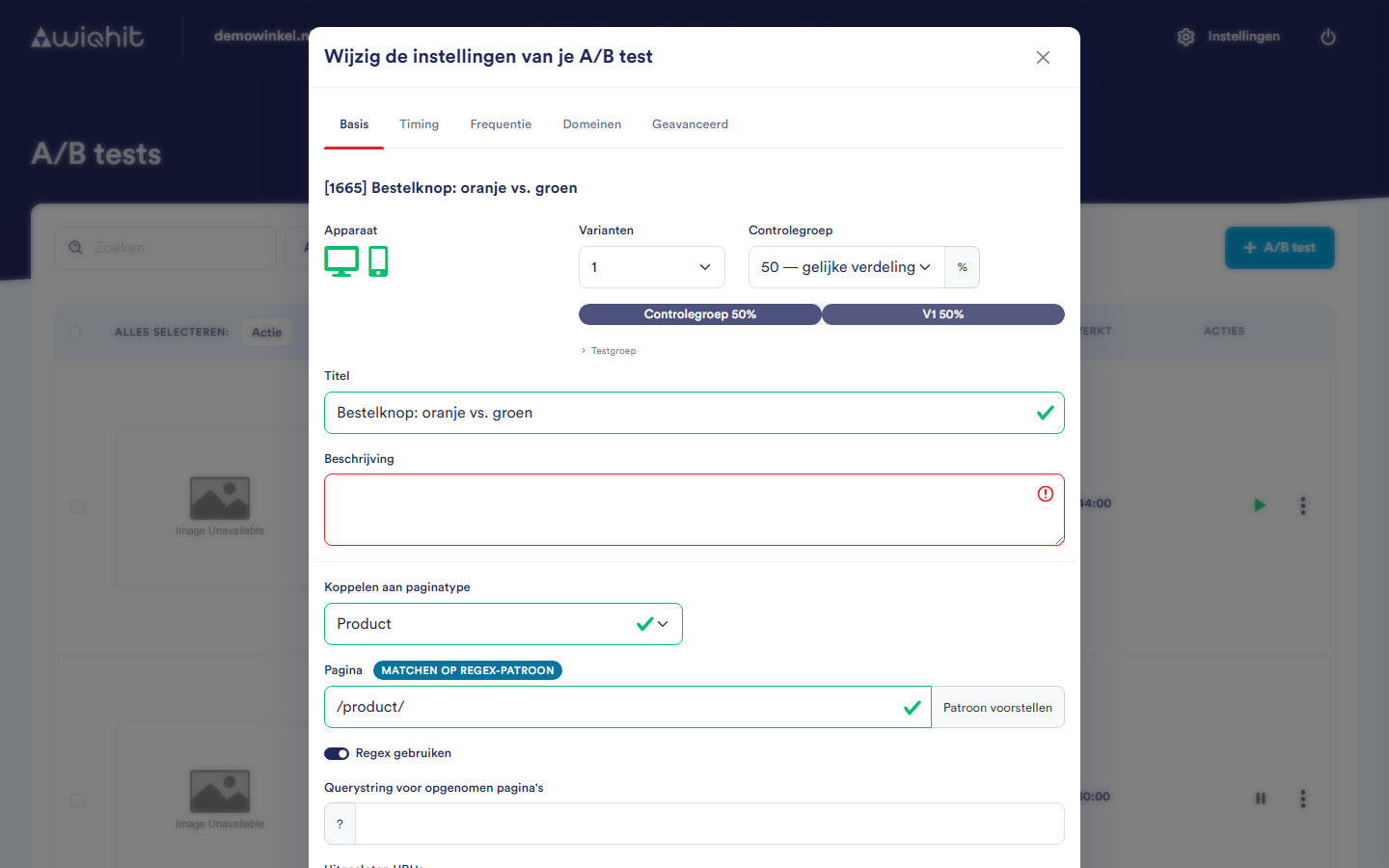
Important: Every time you save the test in the editor, WiQhit resets the control group to an equal split for the number of variants: 50% with one variant, 33% with two, and so on. Only set a different split once you have finished in the editor, and check the split after every save.
Changing the status
Active (green play icon): the test is running.
Inactive (pause icon): the test is stopped.
Scheduled (clock): the test follows the schedule from Settings. WiQhit checks every quarter of an hour whether the test should be on or off.
The ⋮ menu
Considerations
Archive sets the test to Inactive and removes it from the list.
Delete cannot be undone.