Editing elements on the page
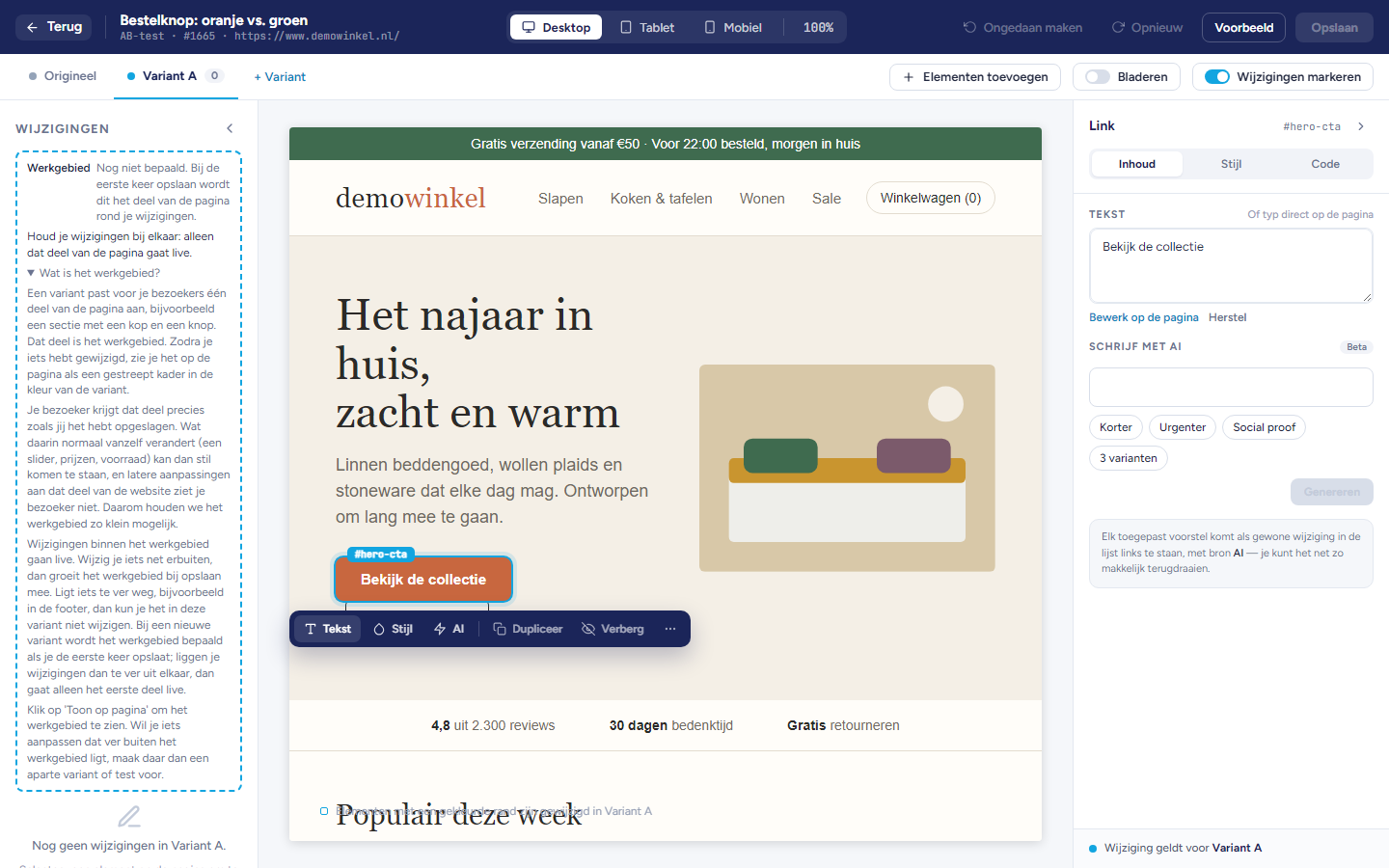
Note: Original is the page as it is now. You do not change it.
Selecting an element
Click an element on the page. The element gets a frame and the element bar appears below it.
Press Escape to cancel the selection.
The element bar
Text and AI: open the Content tab on the right.
Style: opens the Style tab.
Duplicate: places a copy of the element on the page.
Hide: hides the element for visitors of this variant. Click again to show it again.
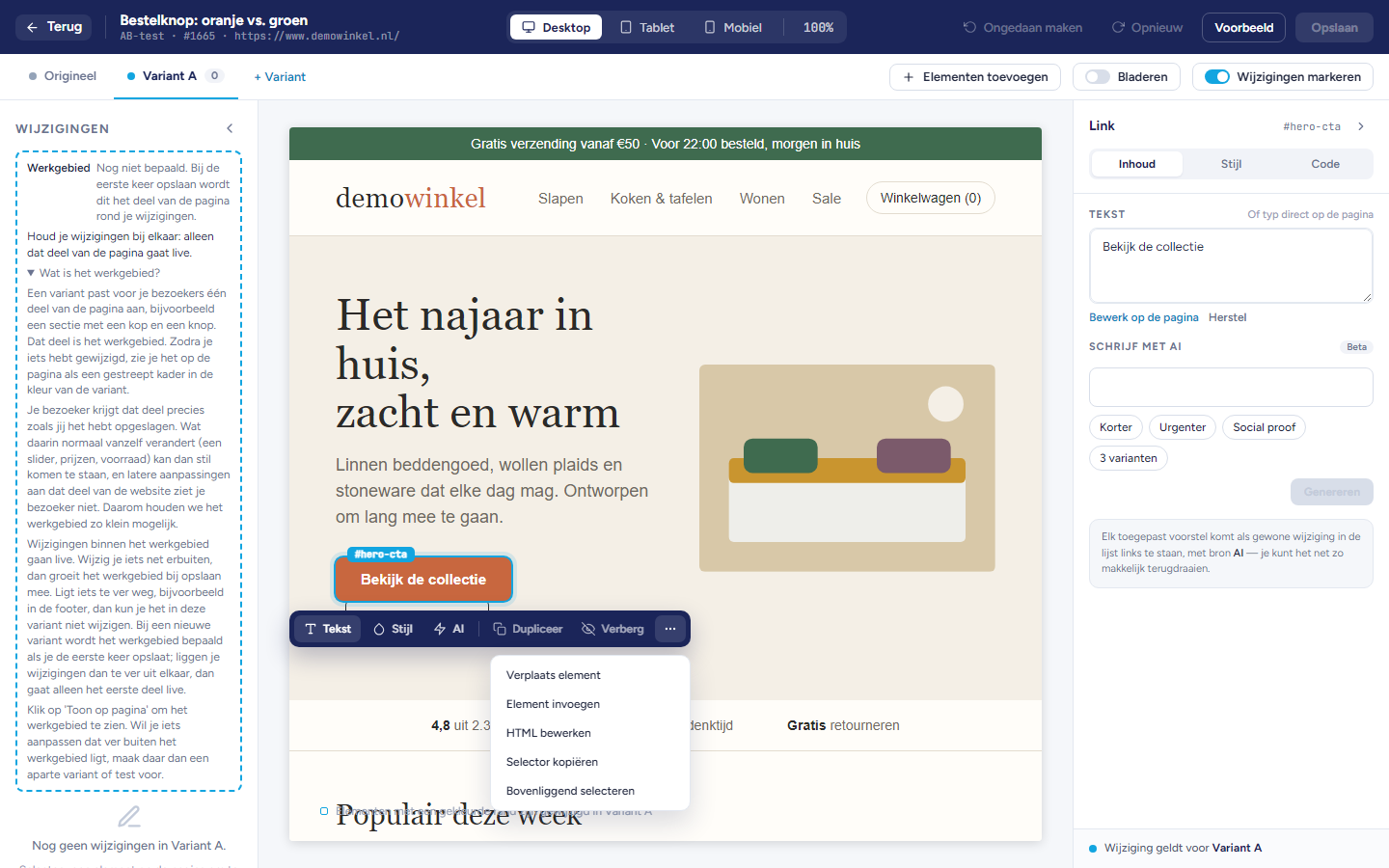
⋯: opens more actions:
Move element: then click where the element should go. Escape stops.
Insert element.
Edit HTML.
Copy selector.
Select parent: selects the block around it.
Also in Variant B: applies the same changes to this element in that variant too. This action is only available if your test has more variants.
Changing a text
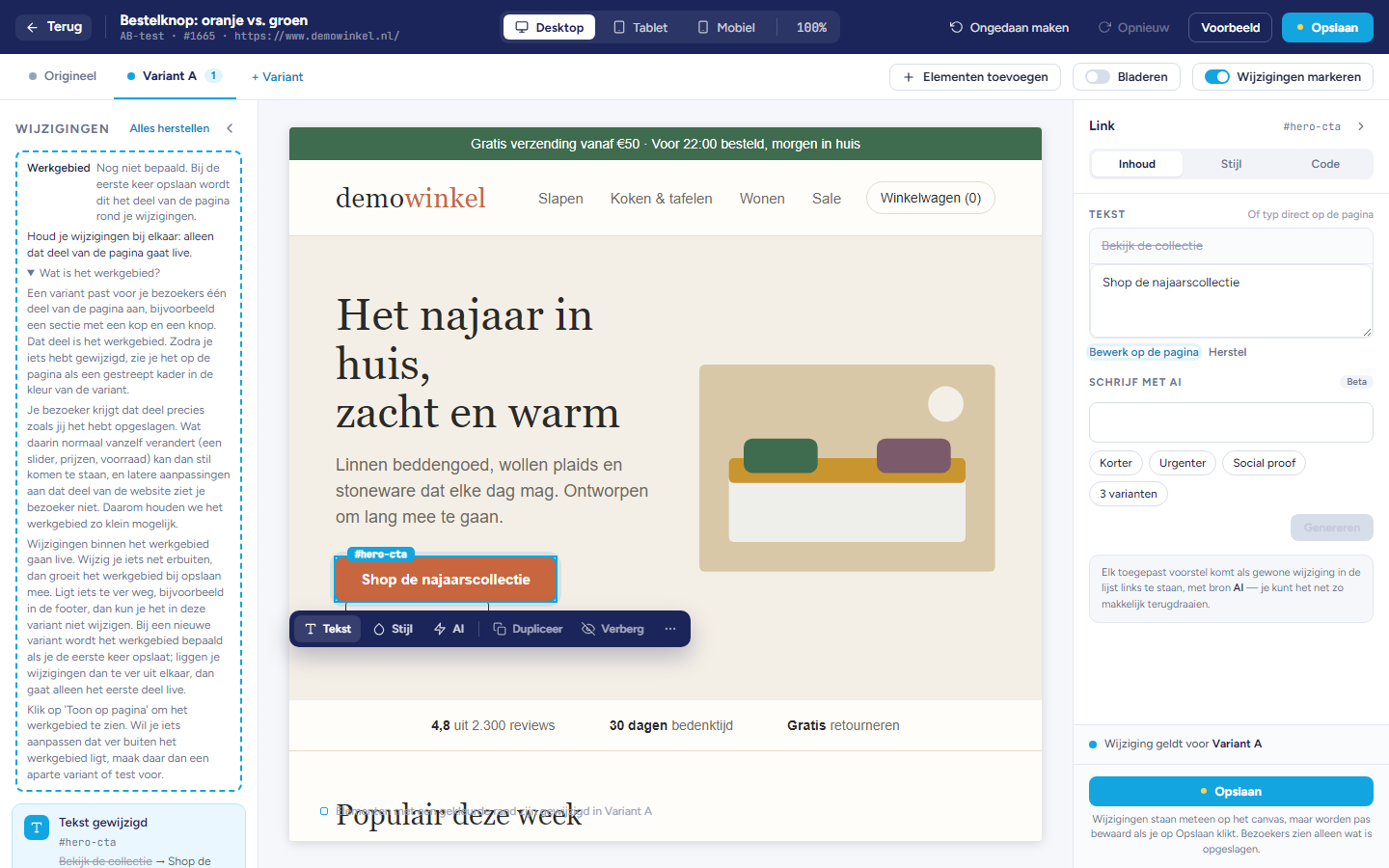
Select the element and open the Content tab.
Type the new text in the Text field.
Tip: If an element contains more than text, such as a link or bold words, click the exact text or select a smaller element.
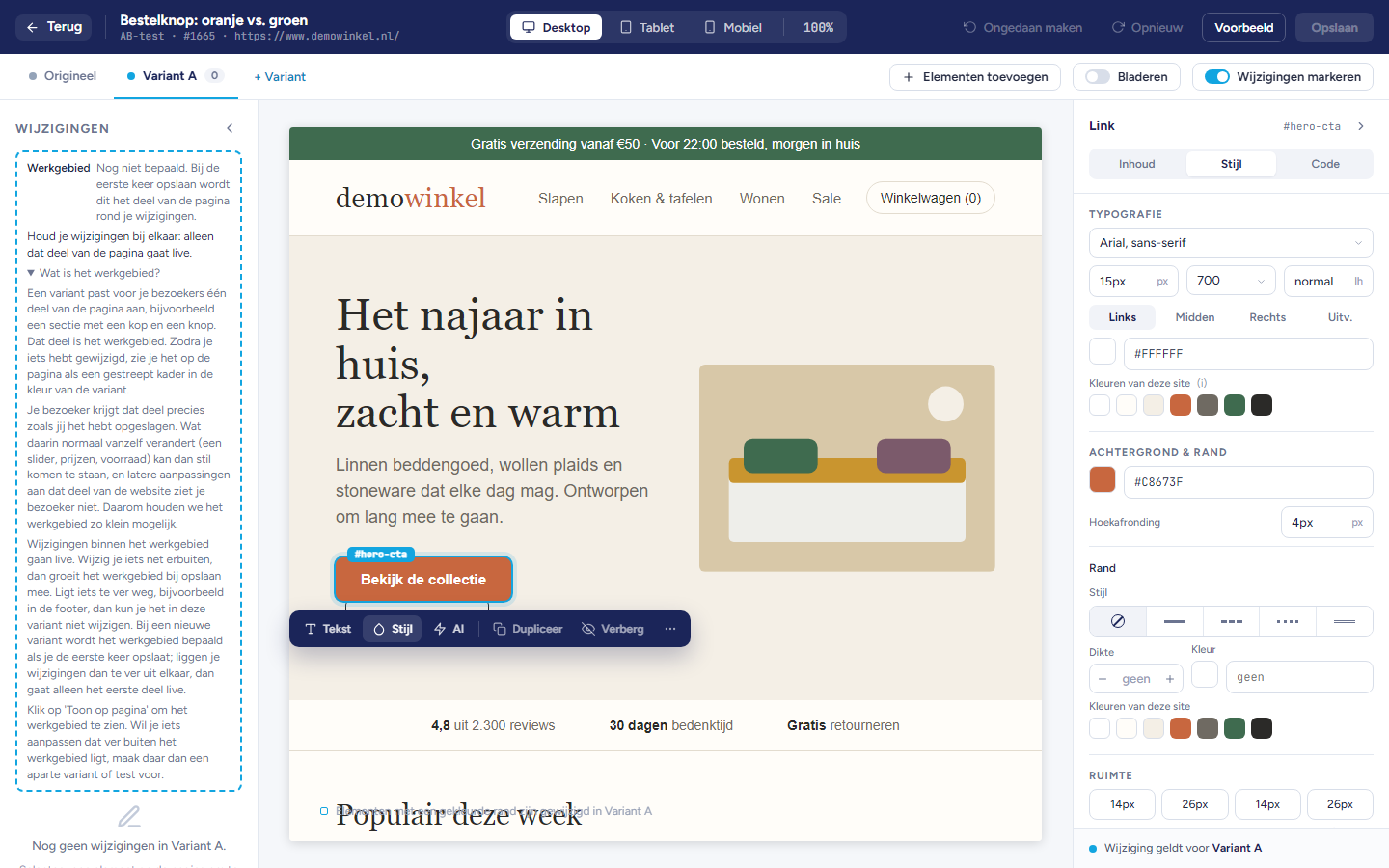
Changing the style
Typography: font, size, alignment and text colour.
Background & border: the background, the corners and the border.
Spacing: the space inside the element.
Colours of this site: the colours your page already uses.
Changing the code
Adjust the code.
Click Apply to put your code on the page.
Note: The script does not run in the editor, but it does in Preview and for visitors.
Undoing changes
In the top bar, click Undo or Redo, or use
Ctrl+ZandCtrl+Shift+Z.In the Changes list, click the button on a line to undo one change, or Restore all to undo everything.
Click a line in the list to select that element.
Important: Your changes are only stored once you click Save.