Writing copy with AI
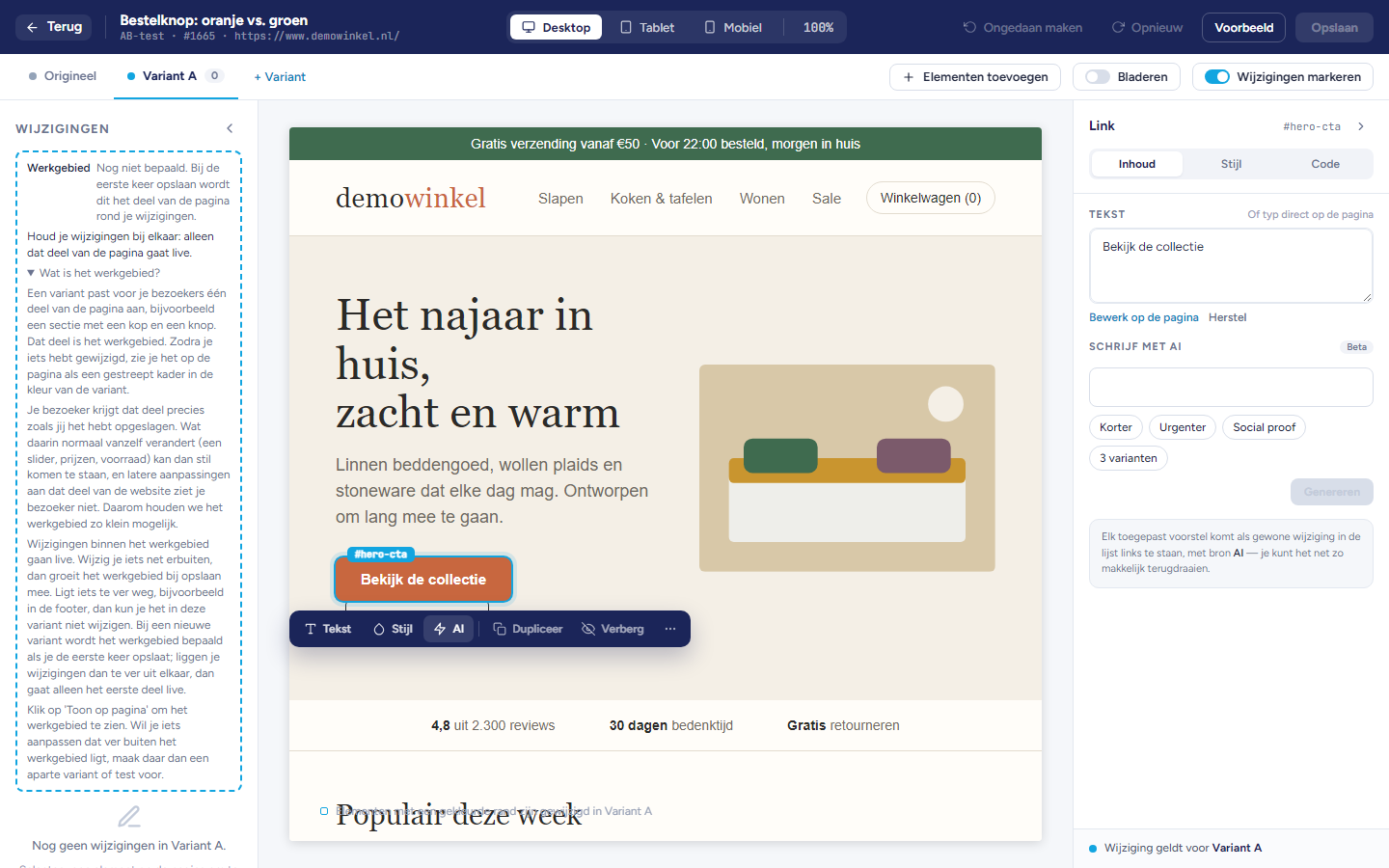
Important: Check every suggestion before you save.
Having a text rewritten
Select the element whose text you want to change.
Type what you want in the field, or choose one or more buttons:
Shorter: a shorter, more concise text.
More urgent: more emphasis on time or scarcity.
Social proof: references to, for example, popularity or satisfaction.
3 variants: suggestions that clearly differ from each other.
Click Generate, or press Enter in the field.
For a suggestion, click View on page to see it on your page. A preview gets a dashed border.
Click Apply to use the suggestion, or Discard to go back.
Having the layout of a block adjusted
Select a block with several elements in it, such as a section or a row of logos.
At the top, choose Layout instead of Text.
Describe in the field what should be different, for example more white space around the logos.
Note: If the block is too large, the editor asks you to select a smaller part.
Adjusting a widget with AI
In widget mode, on the Widget tab, open the Adjust with AI section.
If the AI may also style one element of the page itself, click Point out an element on the page and click that element. Press Escape to stop pointing.
Under What should change? describe what you want, for example make the button bigger and green, and click Create suggestions. You can also click a ready-made instruction, such as Use the colours of this site or Make it look good on mobile. It is sent immediately. The suggestions appear one by one.
For a suggestion, click View to see it on the page. Below the suggestion it says how many elements it affects, and how many of those are on the page outside the widget.
Click Apply to use the suggestion.
Note: If you still have code changes open, apply or discard them first.
Important: A rule for an element of the page only applies where the widget is placed, and only for the personalised group, not for the control group. The rule remains when the visitor closes the widget, and only becomes visible after the widget has loaded.
Removing rules for the page
Considerations
An applied suggestion is only stored once you click Save.
If a suggestion affects 0 elements, it changes nothing on this page and you cannot apply it. If the widget is not on this page, or builds its content later, you only get a warning. In that case, view the suggestion on a page where the widget is present.
You cannot point out an element without an id and without a fixed class: it cannot be found again for the next visitor. An element must also be unique on the page.
If the widget does not have any content yet, the AI does not make suggestions. First choose a template or add content on the Code tab. What you then see on the canvas, such as a button or form, belongs to the website itself.
If your question is about the site itself and not about the widget, the editor reports that this is not in the widget. An element of the site is best adjusted in an A/B test with a page change.