Styling
Styling an element
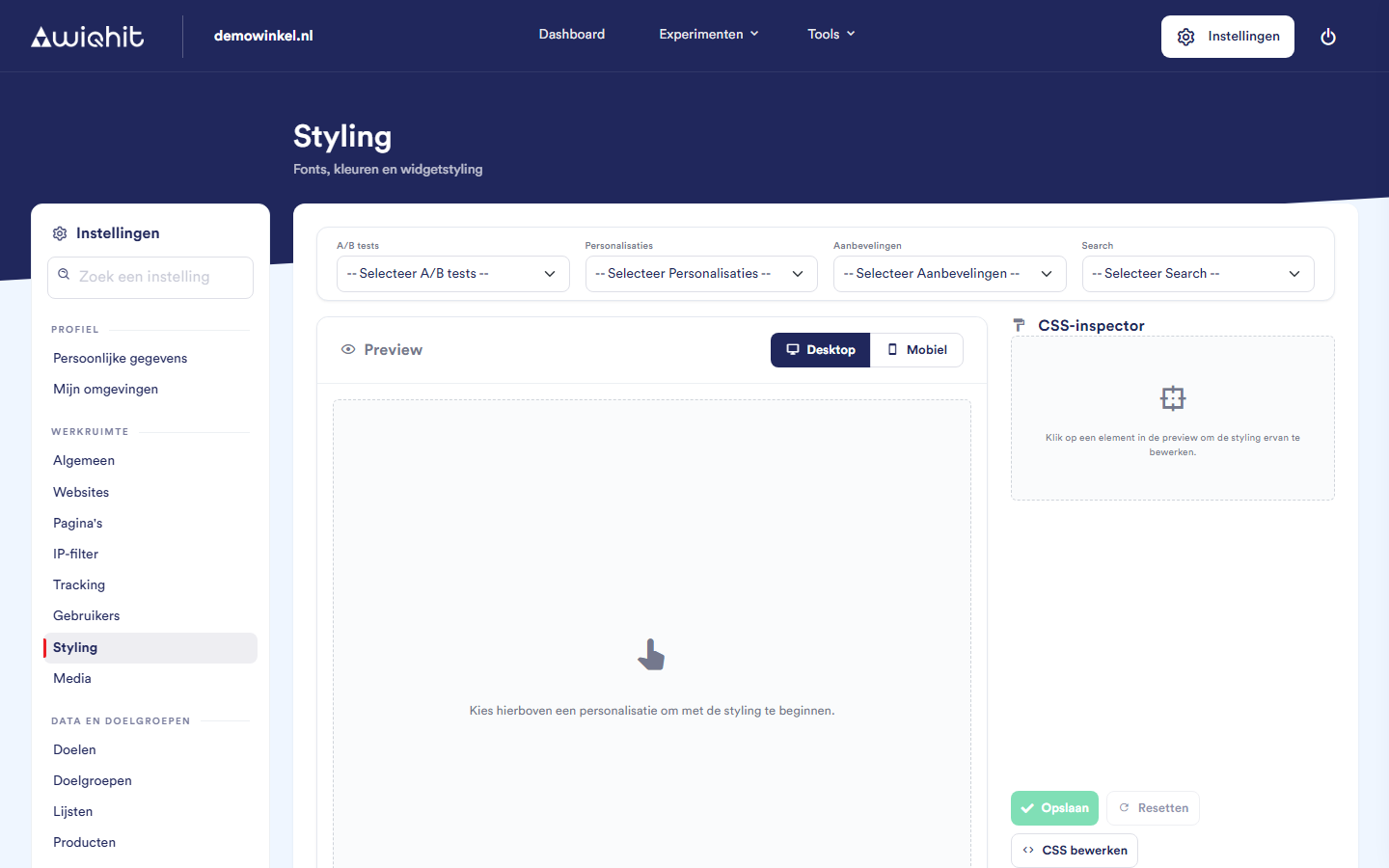
At the top, choose a widget under A/B tests, Personalisations, Recommendations or Search. The widget appears in the preview.
In the preview, click the element you want to adjust, for example a button or a title.
Adjust the properties in the CSS inspector. They are grouped into Layout, Typography, Background, Border and Effects. Below an empty field is the current value.
Click Save.
Important: The styling is saved for all elements with the same selector, not just for the widget in the preview. Which selector that is is shown at the top of the inspector.
Buttons and options
Desktop and Mobile: switch the width of the preview.
Mob. styling: turn this on to set a value only for screens up to 500 pixels wide.
!: this box next to a filled-in field makes the value
!important. That value then wins over the styling of your own website.Show personalisation styling: turns the selected widget's own styling on or off in the preview. This way you can see what the general styling does on its own.
Reset: resets the selected element to the last saved version.
Matching CSS selectors: shows which rules currently apply to the element.
Considerations
If you want to adjust the general CSS directly, contact WiQhit.