Goals
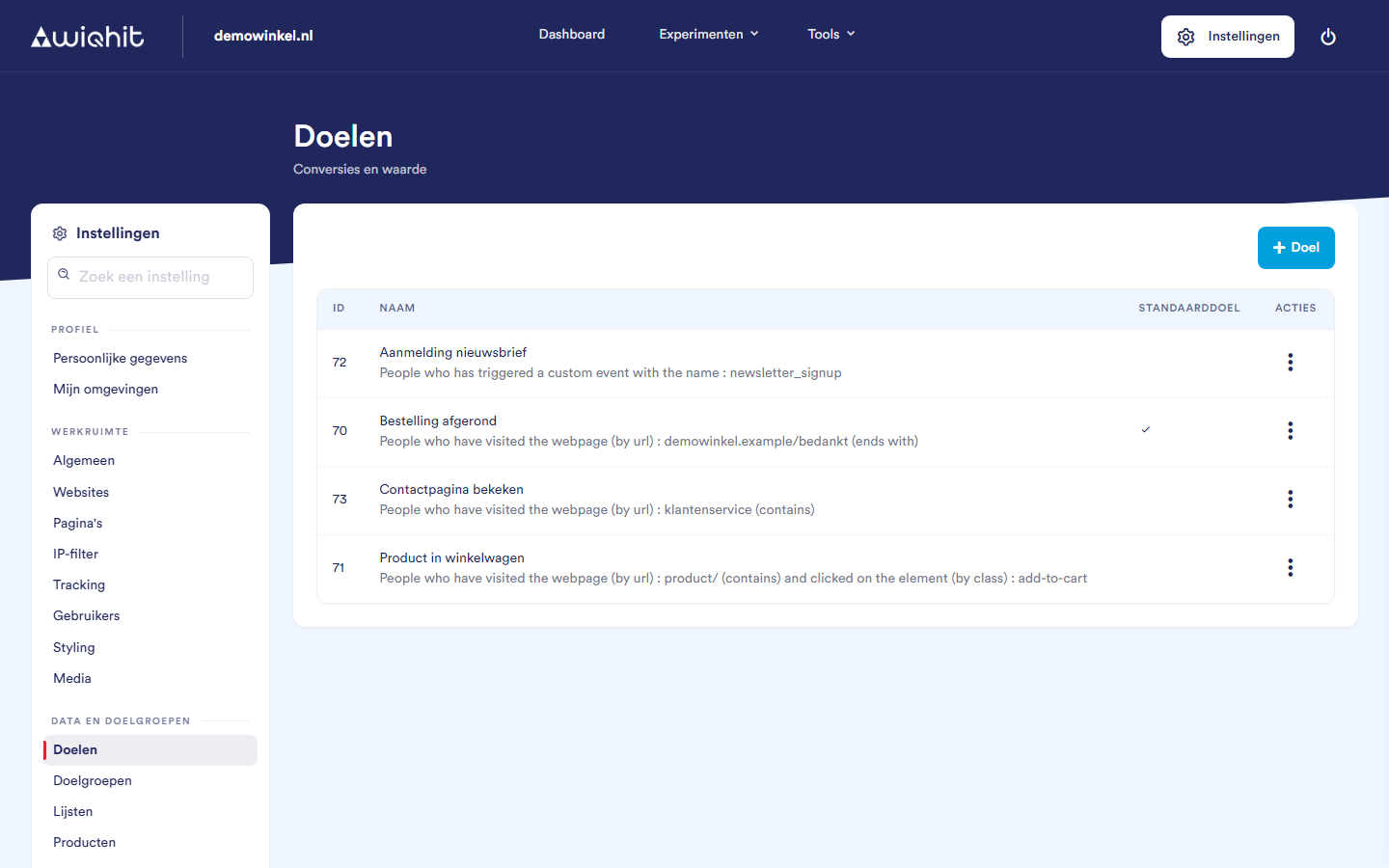
The overview
ID and name: with a short description below of what is measured.
Default goal: a tick marks your most important goal.
Creating a goal
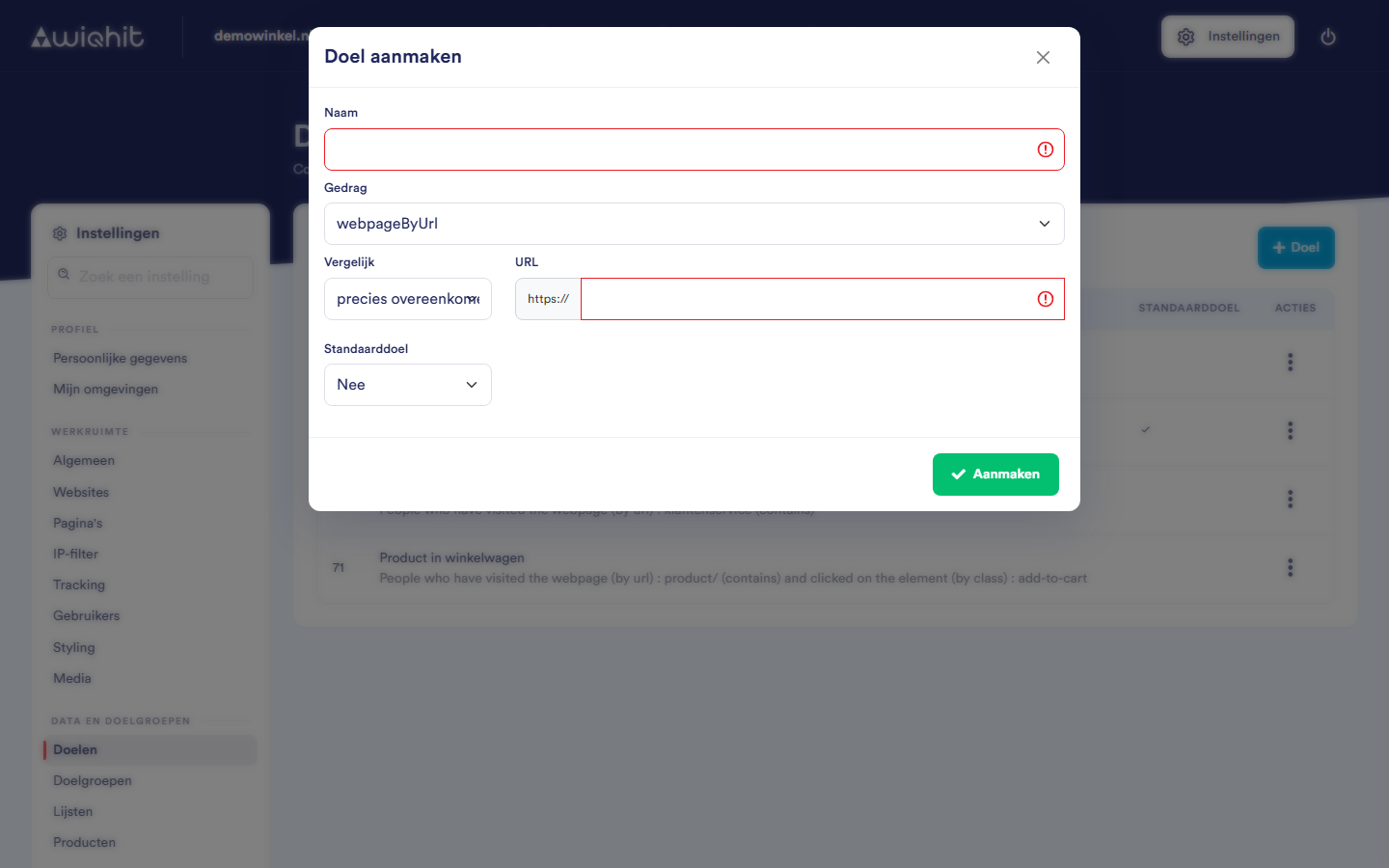
Click + Goal.
Under Name, enter a recognisable name, for example Order completed.
Under Behaviour, choose what the visitor must do. See the Behaviour section below.
Fill in the fields that belong to that behaviour.
Under Default goal, choose whether this is your most important goal.
Click Create.
Note: A goal counts at most once per visit.
Behaviour
webpageByUrl: the visitor views a certain page. Under URL, enter a recognisable part of the address, for example
demowinkel\.nl/bedankt. WiQhit searches for this pattern in the address and ignores upper and lower case.querystringVariable: the visitor views a page with a certain parameter in the address, such as
?bron=nieuwsbrief. Enter the URL, the name of the parameter under key and the value under value.pagetype: the visitor views a page of a certain Page type, such as the thank-you page. You set up page types under Pages.
clickedById, clickedByClass and clickedByHref: the visitor clicks an element. Enter the URL of the page on which the click takes place. In the second input field, enter the id, the class or the link address of the element.
customName and customNameValue: your website itself passes an event to the WiQhit script, with a name and optionally a value (for example
newsletter_signup). Enter the name, and for customNameValue also the value.purchase event: the visitor completes a purchase. You do not need to fill in anything for this.
personalizationNextPage and personalizationNextPagetype: the visitor has seen a certain widget and then views a certain page or a page of a certain page type. Choose the personalisation and enter the URL or choose the page type.
Tip: Under Compare, choose contains if in doubt: this is how measuring works in practice.
Considerations
The URL field uses regular expressions. A full stop means any character; use
\.for a literal full stop. With%you create a wildcard, for example/bestelling/%/bedankt.For clickedById, clickedByClass and clickedByHref, the second field must be exactly the same as what is on the page. For a button with
class="btn add-to-cart"you therefore enterbtn add-to-cart. If you only want to match part of it, use%, for example%add-to-cart%.For customName and customNameValue, the name may be part of the event name. The value must match exactly, including upper and lower case.
Editing or deleting a goal
After the goal, click ⋮.
Choose Edit or Delete.