Personal details
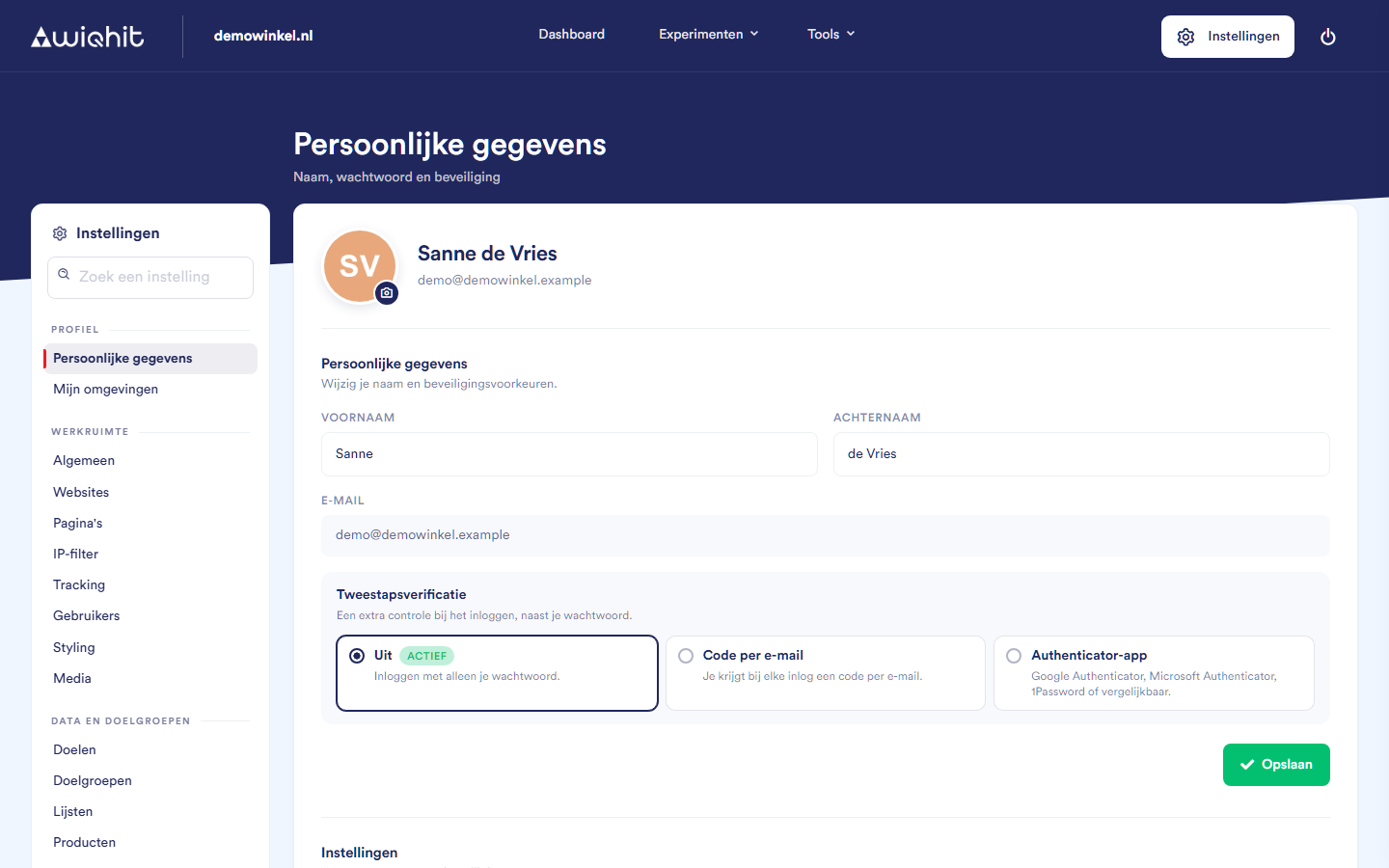
Changing your name
Change First name and Last name.
Click Save.
Note: Your email address is shown for information. You cannot change it here.
Setting a profile photo
At the top, click the photo (the camera icon).
Choose an image.
Crop the image to a square. Rotate or flip it if necessary.
In the window, click Save.
Two-factor authentication
Off: you log in with just your password.
Code by email: you receive a 6-digit code by email every time you log in. The code is valid for 5 minutes, so make sure you can access your mailbox.
Authenticator app: the code comes from an app on your phone, such as Google Authenticator, Microsoft Authenticator or 1Password.
Connecting an authenticator app
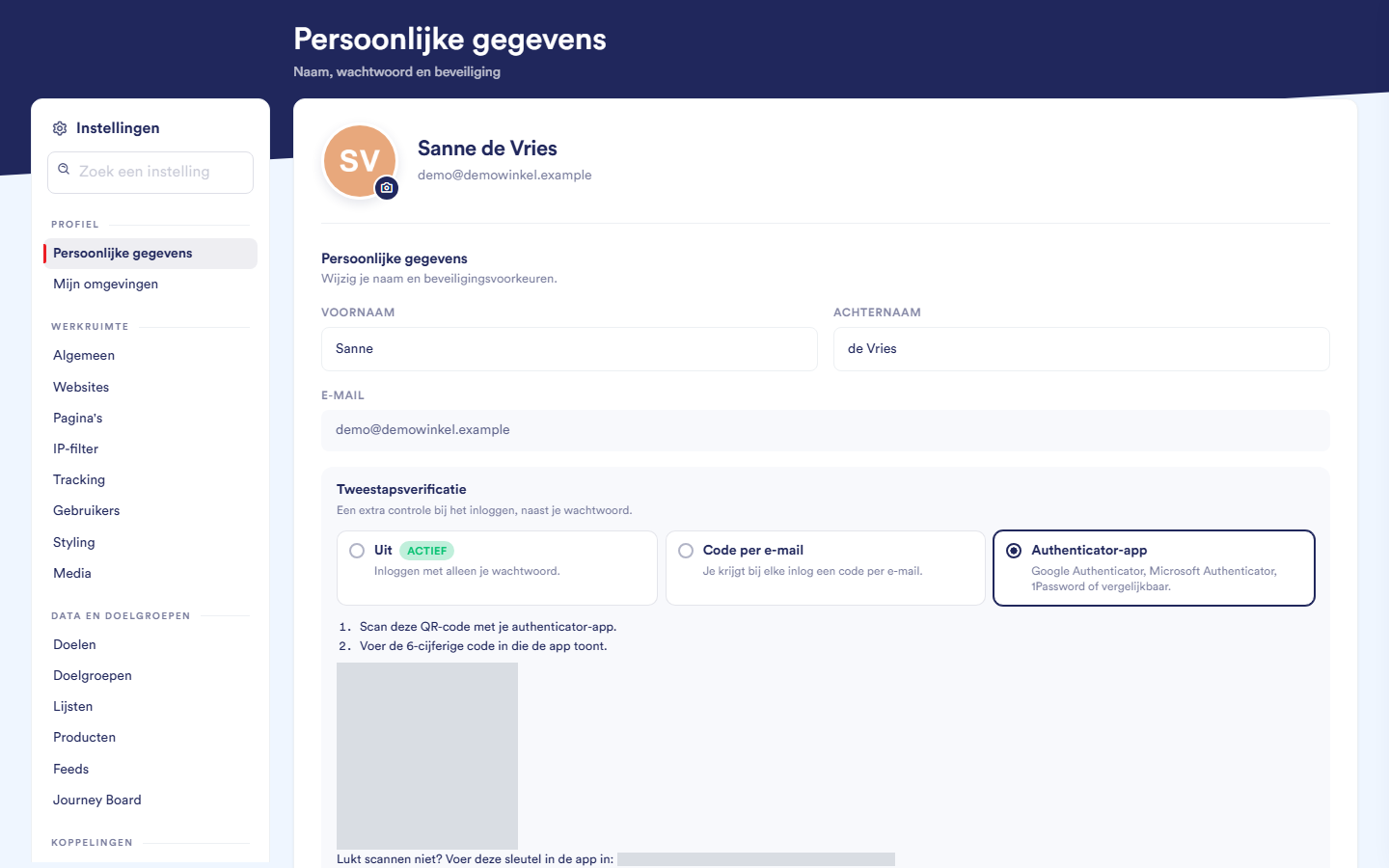
Choose Authenticator app.
Scan the QR code with your authenticator app. If scanning does not work, enter the key below the QR code in the app.
Enter the 6-digit code that the app shows.
Click Activate.
Note: If you enter an incorrect code too often, you have to wait 15 minutes.
Important: If you lose your phone or no longer have the app, you can no longer log in yourself. In that case, contact WiQhit; WiQhit can remove the connection for you.
Turning on the dark theme
Note: Your browser remembers this choice. On another computer or in another browser you will see the light theme again.
Changing your password
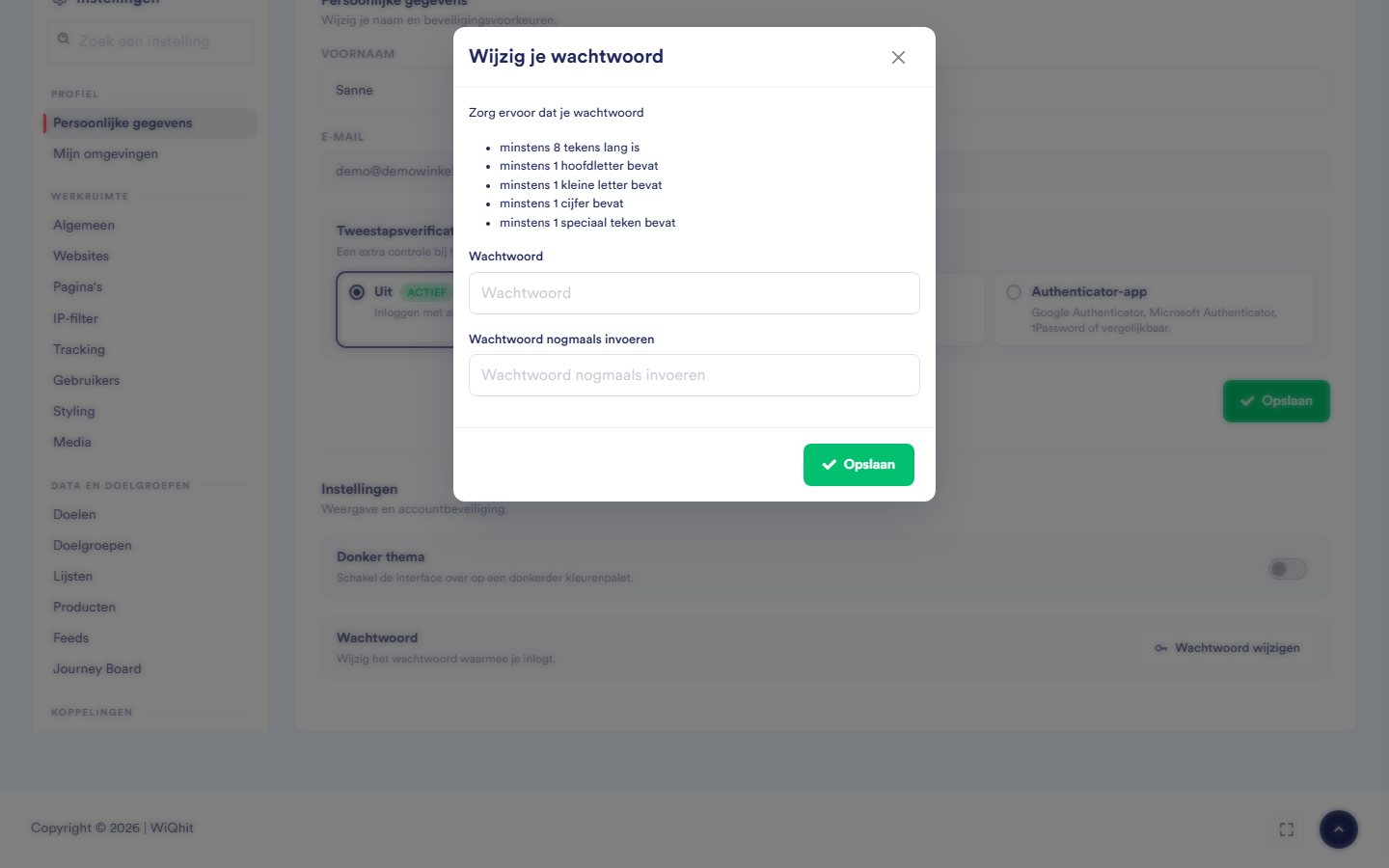
Under Password, click Change password.
Enter your new password twice.
Click Save.
at least 8 characters;
at least one upper-case letter, one lower-case letter, one digit and one special character.
# ? ! @ $ % ^ & * -. Other punctuation marks, such as a full stop or a space, do not count.