Ideas and tips
Your first A/B test in 30 minutes
Addressing new and returning visitors differently
Retaining hesitant visitors with an exit-intent pop-up
Product recommendations that sell more
Writing a good test hypothesis
Getting started
Experiments
A/B tests
Personalisations
Reading results and statistics
Editor
Opening the editor
Editing elements on the page
Variants and A/B tests
Adding elements
Writing copy with AI
Building a widget
Previewing and saving
Data and audiences
Goals
Audiences
Lists
Products
Journey Board
Tools
Product recommendations
Search
Reviews
Product finder
Integrations
Email (ESP integrations)
Data Platform and Ternair Campaign
Other integrations and Booking Experts
Settings
Websites
Personal details
My environments
General settings
Pages and page types
Tracking
Users
Styling
Media
Media
On this screen you manage the images you use in your widgets, such as banners and icons. You upload an image once and then copy the link to a widget.
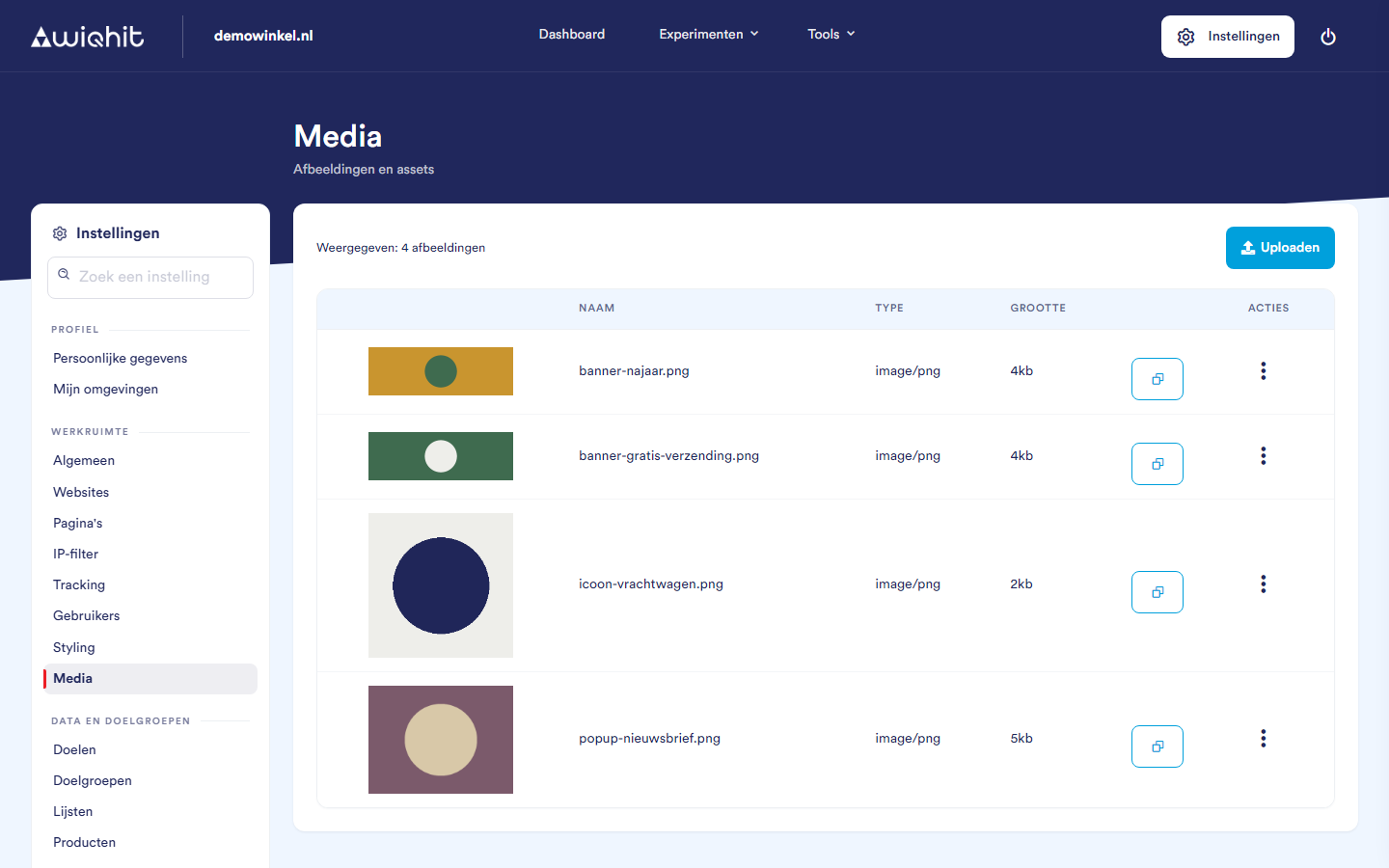
At the top right, click Settings, then Workspace and then Media.
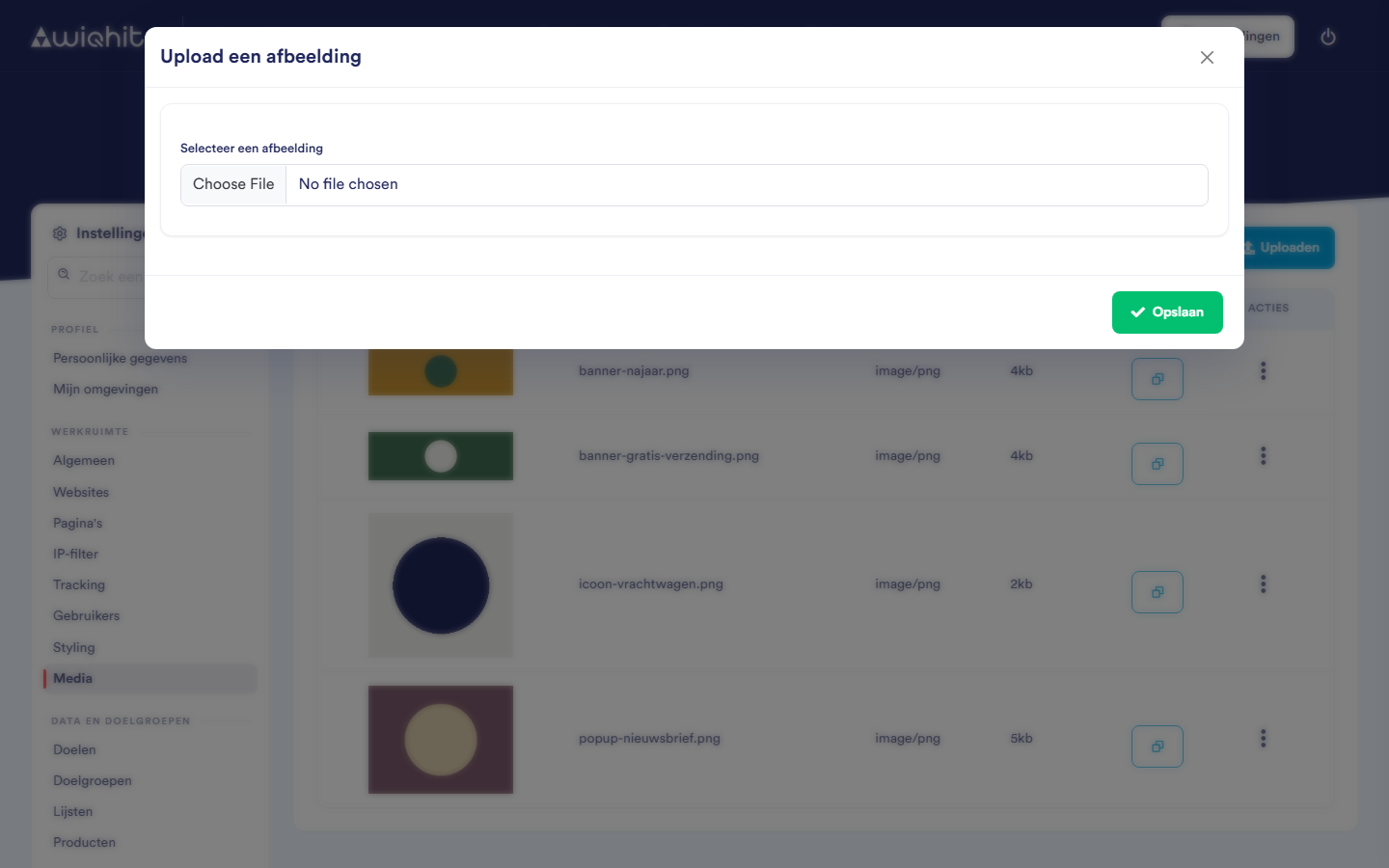
Uploading an image
Click Upload.
Under Select an image, choose a file on your computer.
Crop the image if necessary. Use the buttons below it to rotate or flip it.
Click Save.
WiQhit saves the image as a WebP file, under the file name without the extension. Uploading
banner-najaar.png therefore gives an image named banner-najaar.
Important: Do not use a full stop in the file name: everything from the first full stop onwards is dropped.
Using an image
The list shows a preview, the name, the type and the size of each image. Click a column header to sort.
Click the copy button of the image. That is the small button with two overlapping squares, to the right of the size. The button has no text. The link is now on your clipboard.
Paste the link into your widget, for example as the source of an image or as a background.
Deleting an image
In the row of the image, click ⋮.
Click Delete.
Confirm in the window.
Important: If you delete an image that is still used in a widget, that widget no longer shows it. So first check where you use the image.