Journey Board
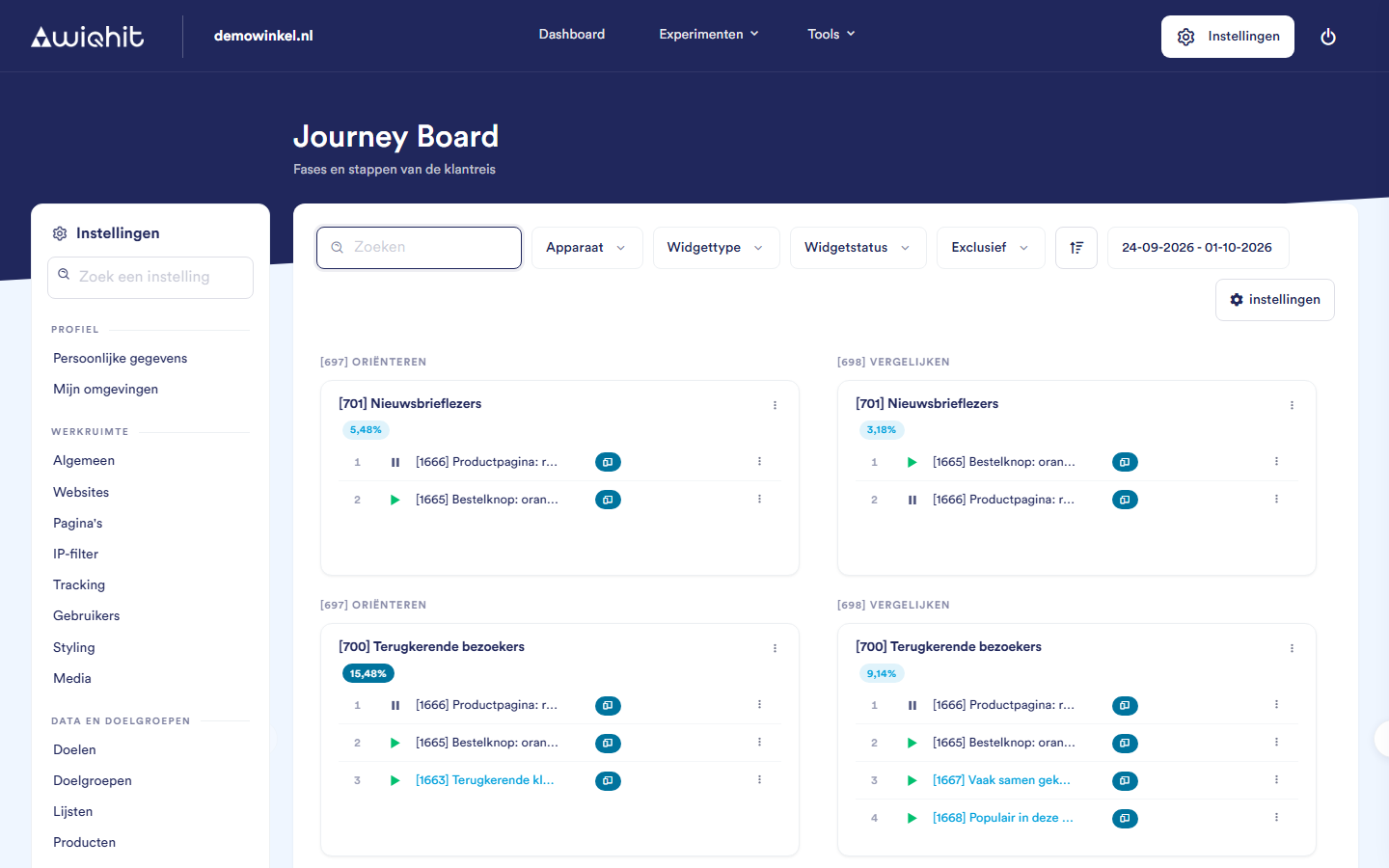
The board
Percentage: the share of the registered phase moments in the selected period that falls into this phase and audience. An orange label means less than 10%. If it says Paused, the phase or the audience has been turned off. Click the label for the distribution per day; click again to go back to the widgets.
Widgets: the widgets in this combination, in order of priority. A green play icon means active, a pause icon inactive and a clock scheduled. The icon after it shows whether the widget runs on desktop, mobile or both. A blue name means that the widget is exclusive.
Filtering and searching
Adding a widget to a combination
At the top right of the card, click ⋮ and then Add personalisation.
Select the widgets you want to add to this combination.
Click Save.
Tip: Type the ID of a widget in the search field. In every card where the widget is still missing, a line with a plus sign appears. Click that line to add the widget there.
Changing the priority
At the top right of the card, click ⋮ and then Change priority.
Drag the widgets into the desired order.
Click the tick to save, or the cross to cancel.
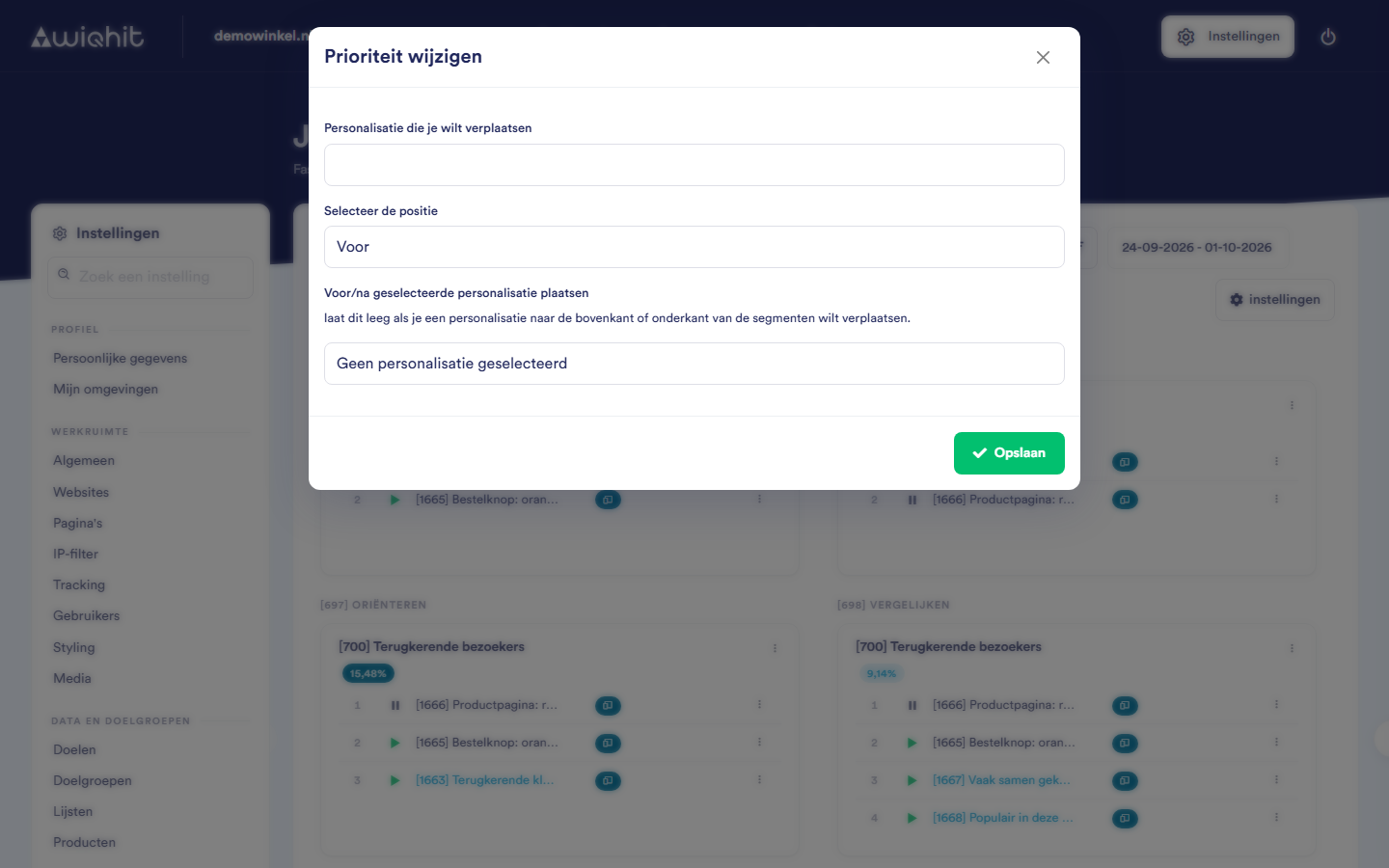
Moving a widget in all cards
Click the sort button next to the filters.
Choose the widget.
Choose Before or After and the widget it should go next to. Leave the latter empty to put it at the very top or bottom.
Making a widget exclusive or removing it
Exclusive on/off: after an exclusive widget, the same visitor does not see another exclusive widget for a while. How many pages or how much time is in between is set under Pages, under Display pressure of exclusive personalisations.
Remove: the widget disappears from this one combination of phase and audience.
Note: Remove only removes the widget from the combination. The widget itself still exists.
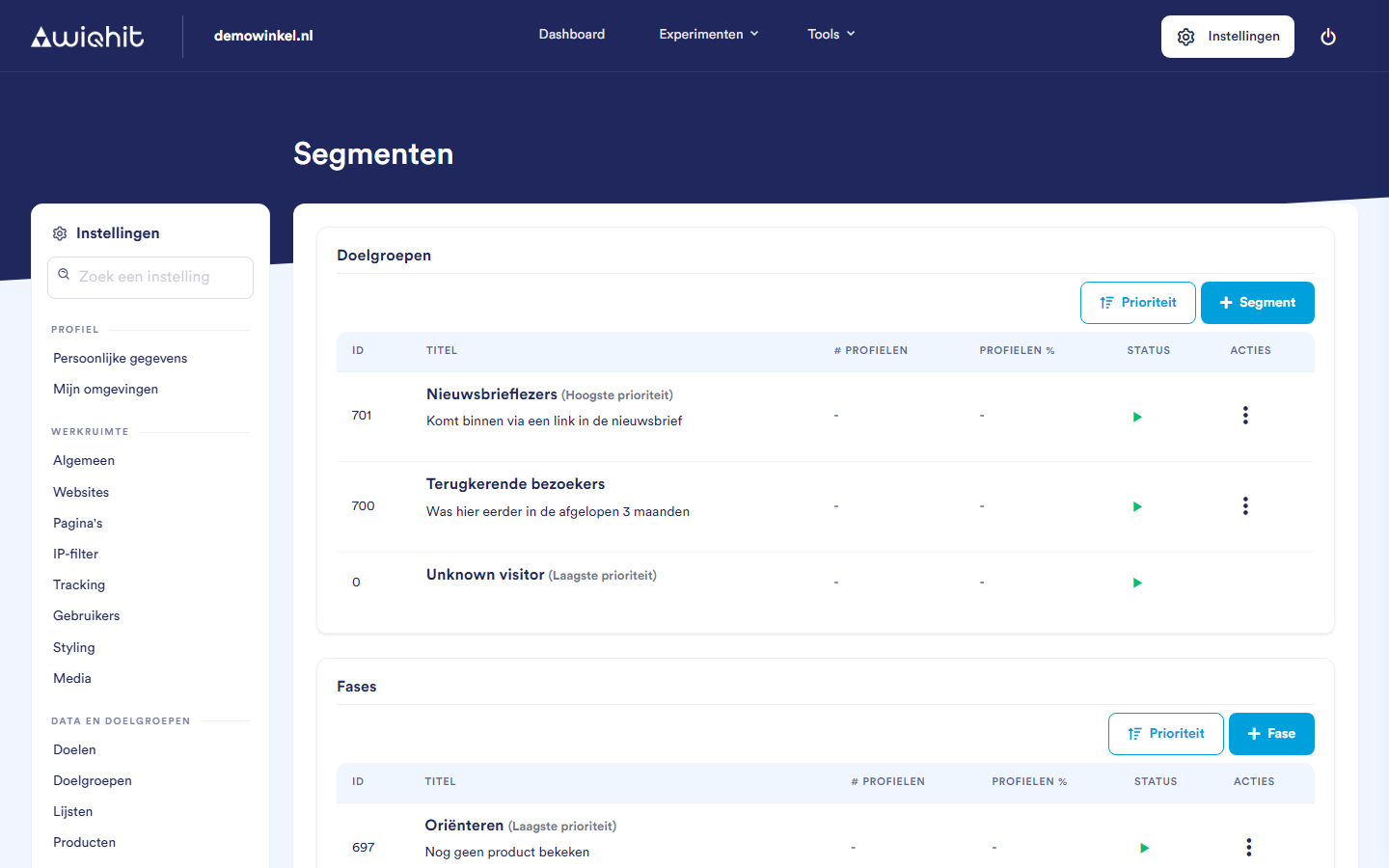
Managing phases and audiences