Opening the editor
Starting the editor
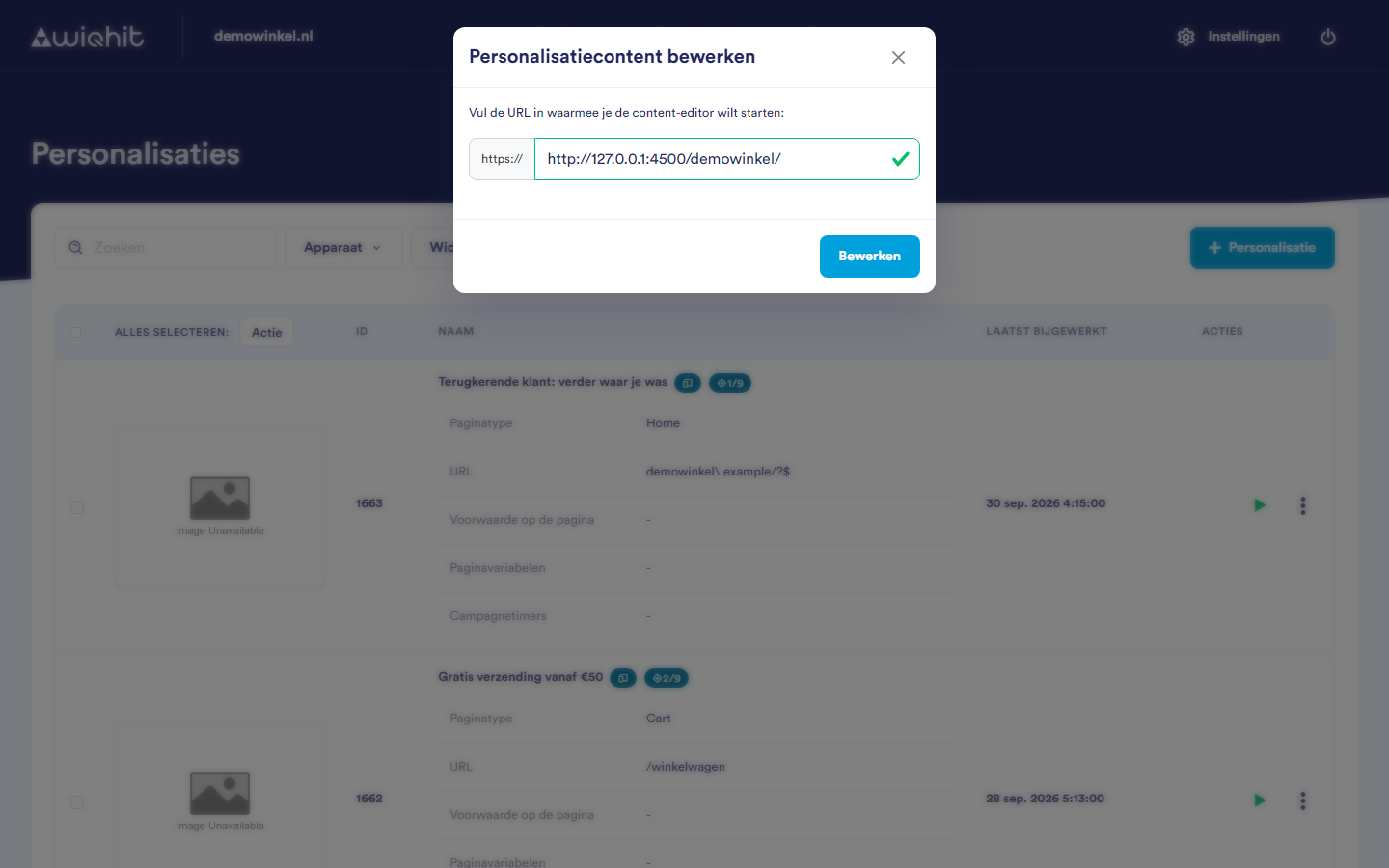
In the list, in the row of the test or personalisation, click ⋮ and then Design.
Enter the address of the page you want to work on, for example
www.demowinkel.nl/. If the address does not start withhttp://orhttps://, WiQhit addshttps://in front of it.Click Edit. The editor opens in a new window.
Note: If nothing opens, allow pop-ups for the WiQhit app in your browser.
Important: The editor gets your login details from the window from which you open it. So always open the editor via Design. If you paste an editor address into a new tab, or your browser restores an old tab, the editor stays empty.
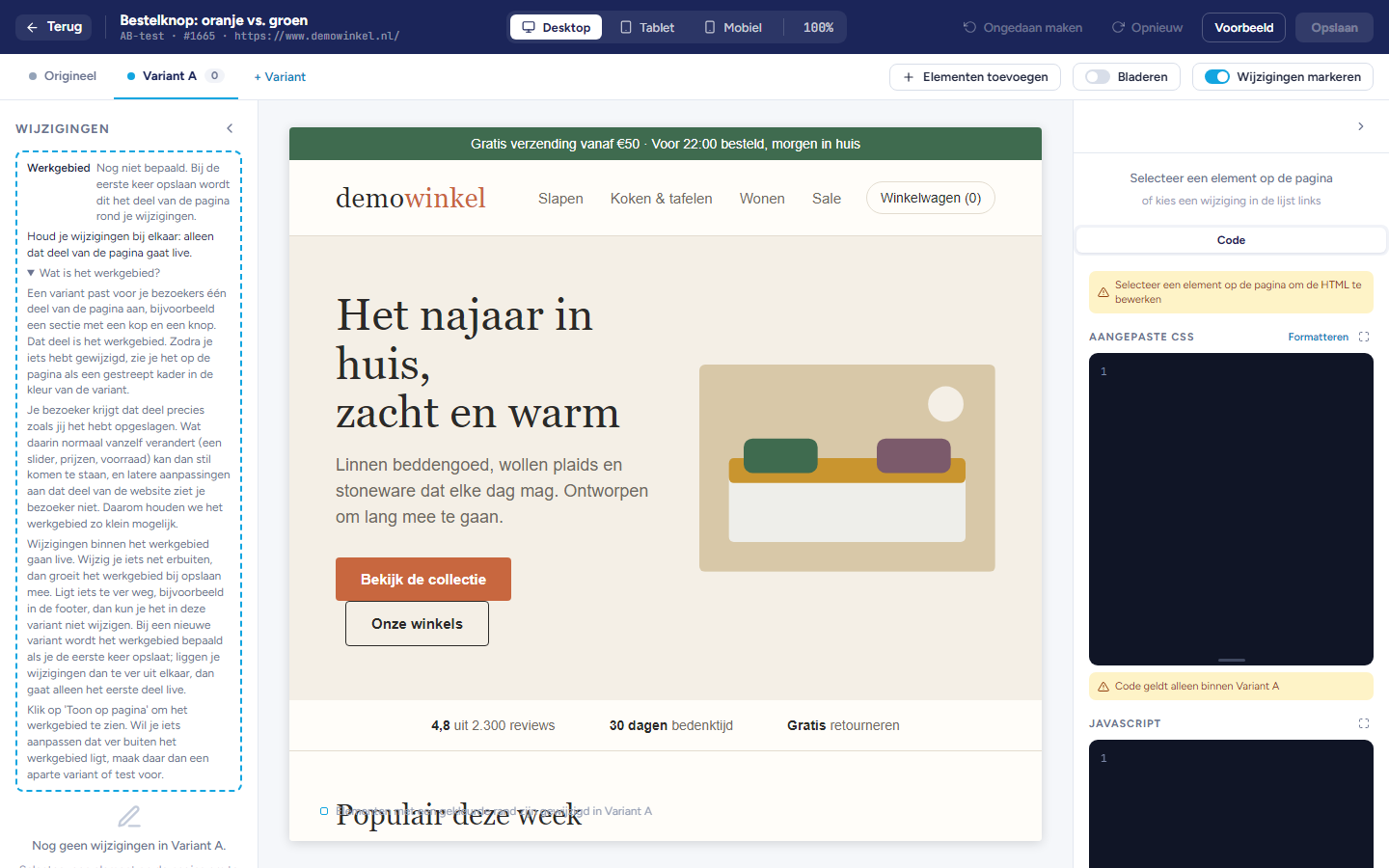
The screen
The top bar
Left: Back, the name of the test or personalisation, the type (for example AB test or Widget) and the address of the page.
Middle: Desktop, Tablet or Mobile and the zoom level.
Right: Undo, Redo, Preview and Save.
Important: Back closes the editor without asking whether you want to save. Click Save first.
The variant bar
Changes (left)
The canvas (middle)
The panel on the right
Adjusting the columns
Click the arrow at the top to collapse the left and right columns. Your page then gets more space.
Drag the edge of the right column to make it wider or narrower.
Considerations
If you reload the editor window, it loses the connection. The app then shows no connection to the editor window. Close the editor and click Edit again.