Search

With WiQhit Search you give visitors search results and search suggestions from your own product feed. On this screen you manage your search widgets and define synonyms.
Search
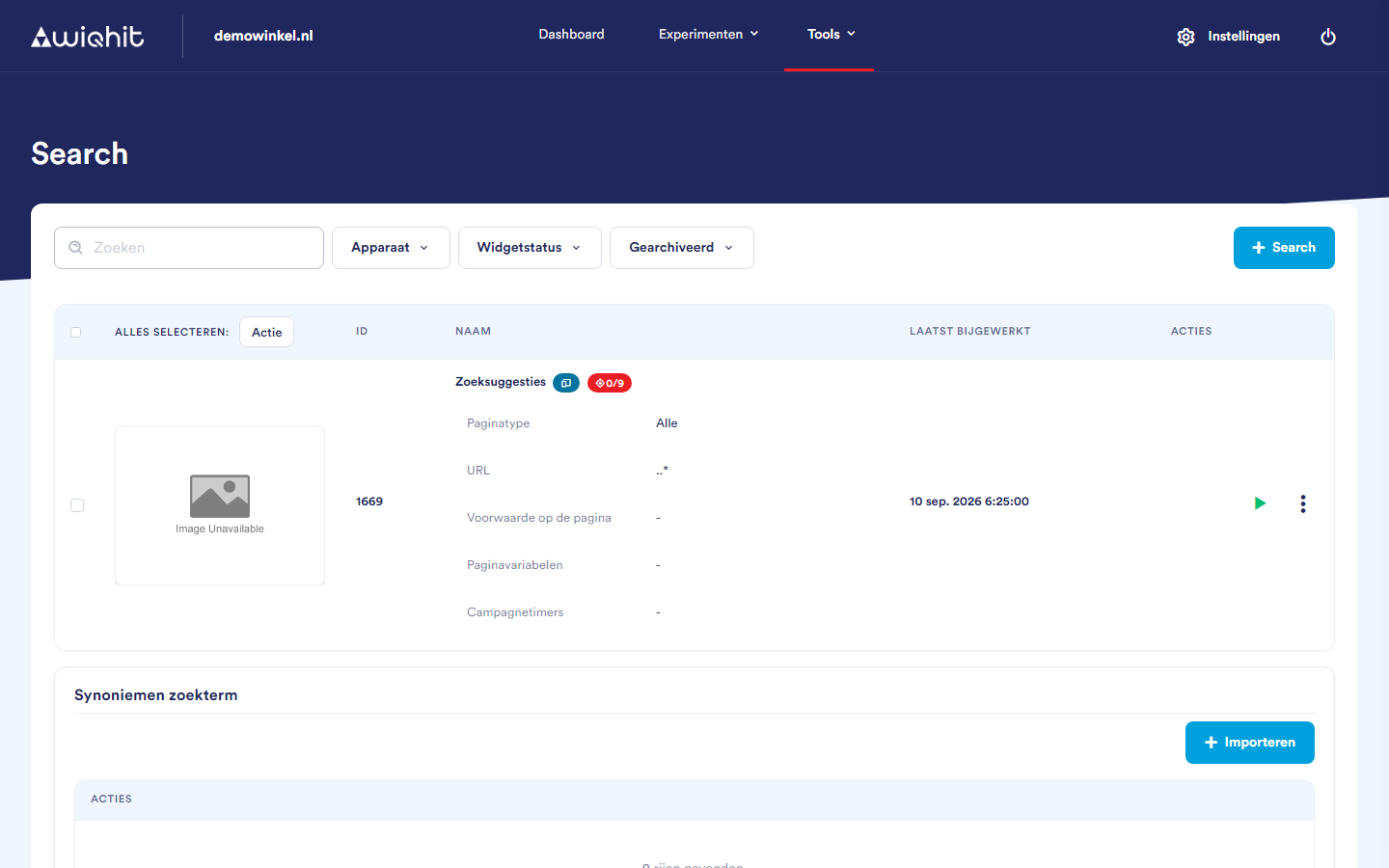
In the main menu, click Tools and then Search.

Search widgets

At the top are your search widgets, with for each widget the ID, the name, the Page type and the URL on which it runs. Filter the list with Search, Device, Widget status and Archived.
Via ⋮ you open, among other things, Design, Settings, Preview and Statistics. These screens are described in separate articles.

Creating a search widget

  • Click + Search.

  • Enter a name.

  • Click a template. The selected template gets a green border. With empty template you start without content.

  • Click Create.

A new search widget is set to Inactive.

Turning on a search widget

  • In the Actions column, click the status icon.

  • Choose Active.

Importing synonyms

With synonyms, visitors also find products that use a different word, for example dekbed and donsdeken. If one of the two words is used for a product, a visitor also finds that product with the other word.
The synonyms that have already been defined are in the list under Search term synonyms. You add new synonyms with a CSV file.
  • Create a CSV file with two columns, original and synonym, and one pair of words per line. Write the words in lower case.

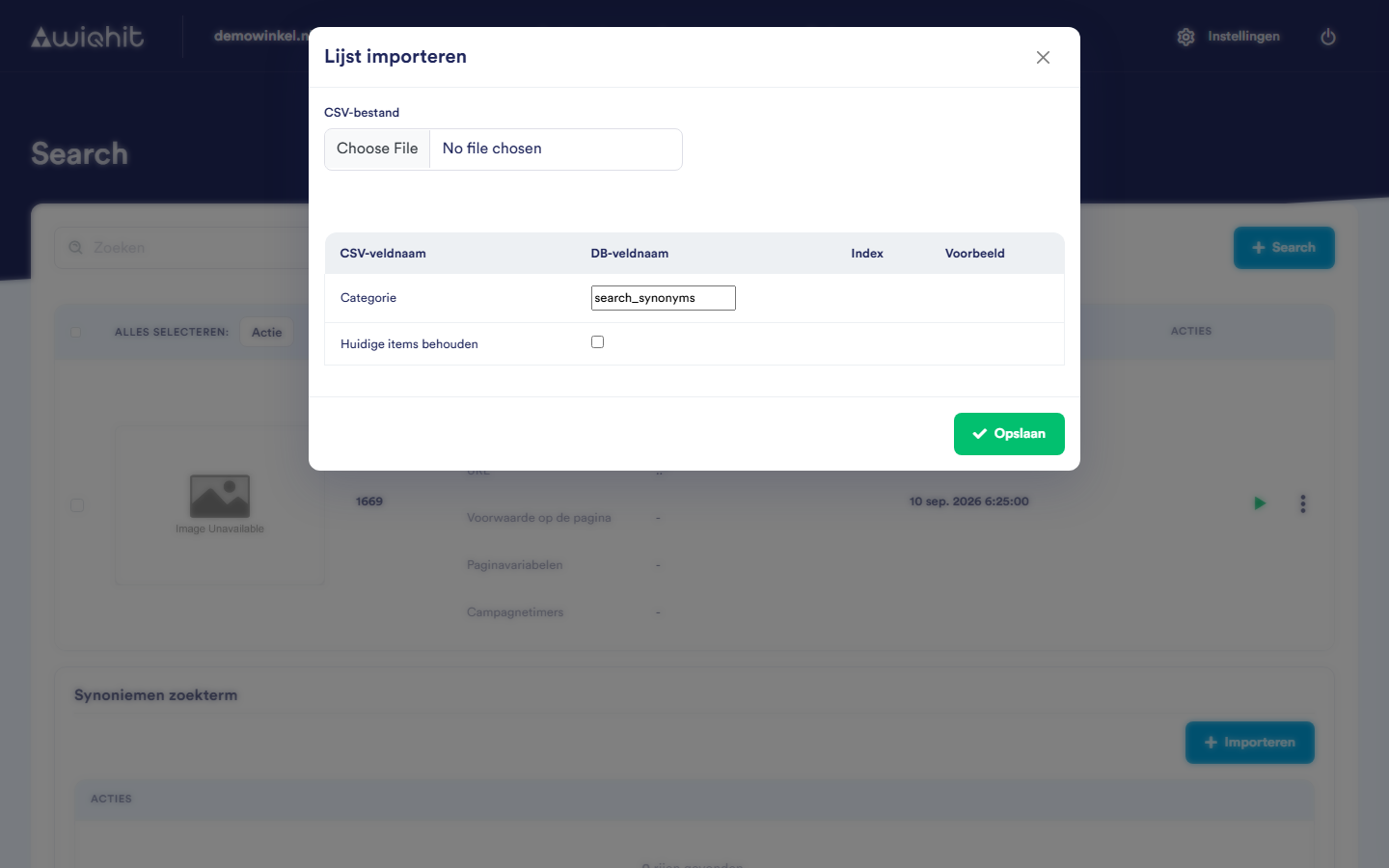
  • Click + Import.

  • Choose the file under CSV file.

  • Check that the DB field name column shows original and synonym. Leave the Category field set to search_synonyms.

  • Select Keep current items. The synonyms from your file are then added to the existing ones.

  • Click Save.

Importing synonyms

Note: The synonyms are included in the next import of your product feed. Only then will visitors find products with them.

Search term usage

If you want to know what visitors search for on your website, for example to see which search terms return nothing, contact WiQhit.

Considerations

  • If you want to replace or delete existing synonyms, contact WiQhit.

See also


Copyright © 2026 Ternair.