Segment Filter

With the segment filter, you can direct a channel in Campaign Manager to specific segments or a target audience. This allows you to approach each segment in its own way, without having to create a separate target audience for each segment.
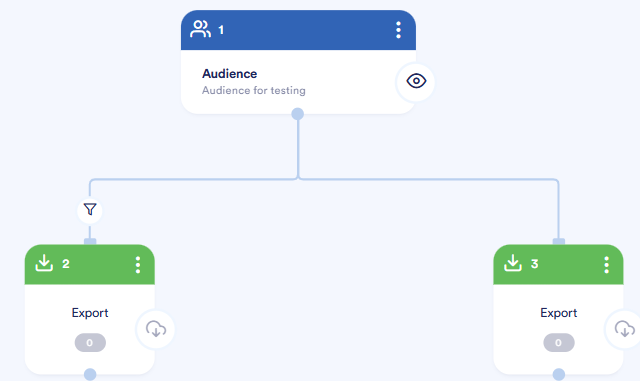
You set the filter on the connecting line between a Target Audience Section and a channel block: Email, Text Message, Web Service or Export. When the channel is running, it receives only the contacts from the selected segments.
A line without a filter works the way you're used to: the channel receives the entire target audience.

Terms and Conditions

Before you can set up a segment filter, the target audience must contain segments. You create segments in the Target Audience: Manager:
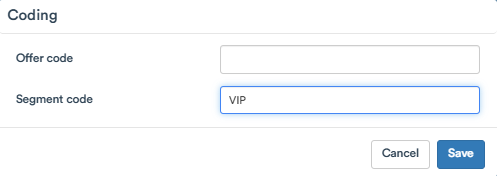
  • Right-click on the connection line to the Target Audience block and select Coding.
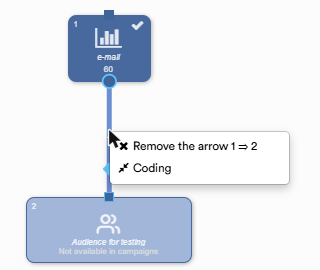


  • The window Encoding opens. Enter in the field Segment Code Enter a code, such as VIP.

  • Click on Save.


The segment filter is only available between a Target Audience block with segments and a Channel block.

Set the Segment Filter

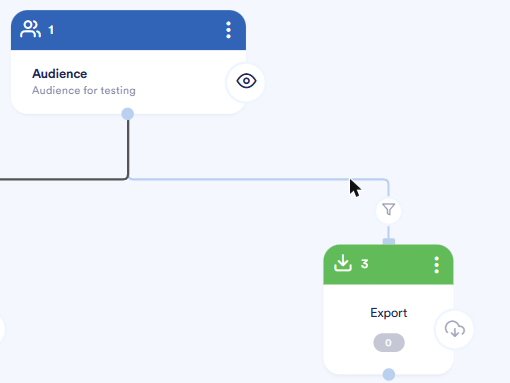
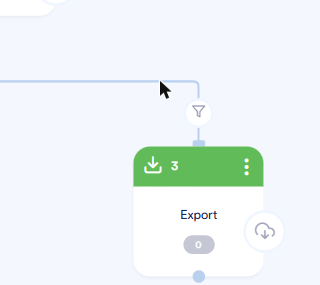
Hover your mouse over the line between the Target Audience block and the Channel block. A tooltip appears next to the Channel block filter icon. Click the icon to open the settings.


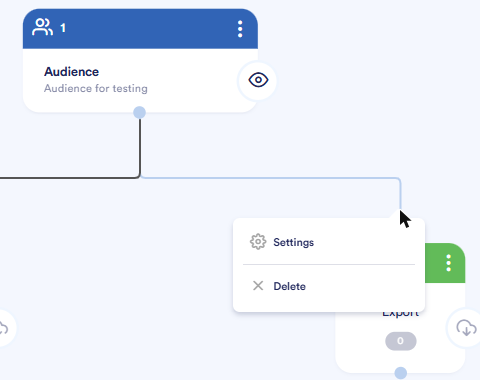
You can also right-click on the line and select from the context menu Settings.


Overview or the Settings Window

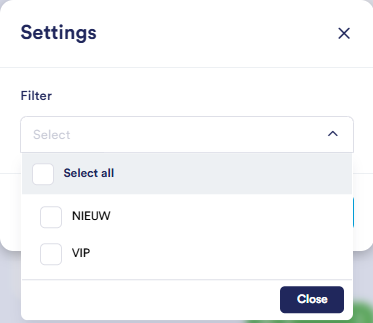
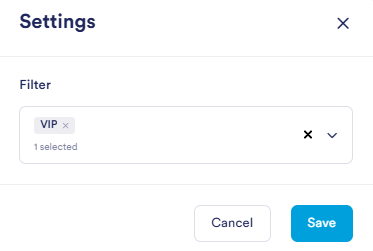
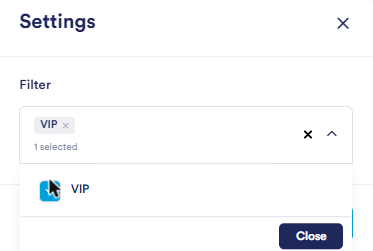
The window Settings has one field: Filter. This is a drop-down list containing the segment codes from the target group, sorted alphabetically. You can select multiple segments. With Select All At the top or the drop-down list, select all segments at once.


The field shows how many segments you have selected (for example, "1 selected"). Click on Close to close the drop-down list.


Long segment codes are truncated in the list and in the selected labels. Hover your mouse over a code to see it in full.


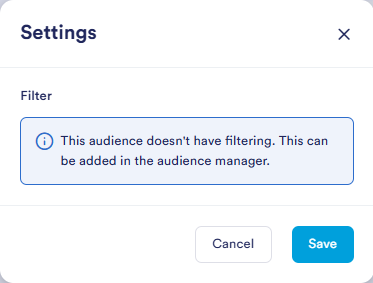
Please note: Does the target group have no segments? If so, you'll see an informational message instead or the drop-down list.

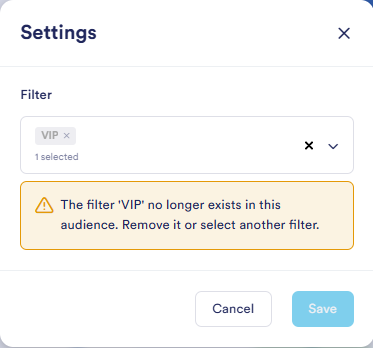
Please note: If a saved segment code no longer exists in the target group, the code will remain grayed out in the list, and you'll see a warning listing the missing code(s). You won't be able to save again until you've removed the missing codes.

Save / Cancel

Option

Description

Save

Save the filter and close the window.

Cancel

Close the window without saving any changes.


Segment filter on the flowchart

Line with filter: The filter icon is always visible. Hover your mouse over the icon to see the selected segment codes in a tooltip.


Line without filter: There is no icon on the line. If you hover your mouse over the line, a faint filter icon appears with the tooltip "Filter." This icon is not visible while you are drawing a new connection.


Execute

  • Before the channel is executed, the contacts from the selected segments are collected. These form the input for the channel. The calculation or the channel itself does not change.

  • Segment codes are compared without regard to case: VIP and VIP are considered part or the same segment.

  • If multiple campaigns select the same segments from the same target audience, they use the same segment table within a single run.

  • A filter on a line leading to a A/B Test Email Block is also used. Both the test versions and the final mailing are sent only to the selected segments.

Please note: If a selected segment code isn't found in the target audience during the run, the run will result in an error message. This prevents messages from being sent to no one—or, conversely, to everyone—without anyone noticing.

Preview

The preview or the Target Audience block (eye icon) always shows the entire target audience, even if there is a segment filter on an outgoing line.
Please note: The sample records on the tab Test The email and Text Message blocks come from the entire target audience, not from the selected segment.

Limitations

Web Push and Newsletter These are wizards without an incoming line. So you can't set a segment filter on them.

Reports

When setting up a segment filter, you may encounter the following messages.

The target audience has no segments
If the target audience does not contain any segments, you will not see a drop-down list in the settings window; instead, you will see an informational message. First, add a segment code to the target audience in the Target Audience Manager (see Conditions).


A saved segment code no longer exists
Have you previously selected a segment that is no longer included in the target audience? If so, you'll see a warning with the name or that segment. Remove the segment from the filter or select a different segment. You won't be able to save until the missing segment has been removed.


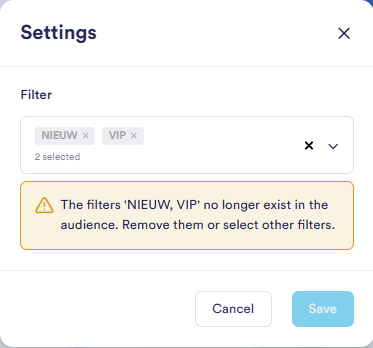
Multiple saved segment codes no longer exist
Are several selected segments missing from the target audience? If so, the warning will list all missing segments, separated by commas. Again, you won't be able to save until you've removed the missing segments.


Segment code not found during the run
The segment filter checks during each run whether the selected segment codes are still present in the target audience. If one is missing—for example, because the segment code was changed or deleted in the Target Audience Manager—the run will stop. This prevents a channel from sending messages to no one or, conversely, to the entire target audience without you realizing it. In that case, adjust the segment code in the Target Audience Manager, or select a segment that does exist in the segment filter. Then restart the run.

Copyright © 2026 Ternair.