Target audience
In the Target Audience Section Select a target audience or webhook for your campaign.
Terms and Conditions
Before you can use the Target Audience block, at least one target audience must have ba made available in the Target Audience Manager.
Add Target Audience Block
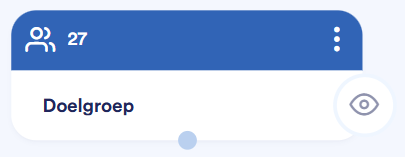
Drag the "Target Audience" block from the category Select recipients From the menu, go to the worksheet; the block opens carmatically.
Title
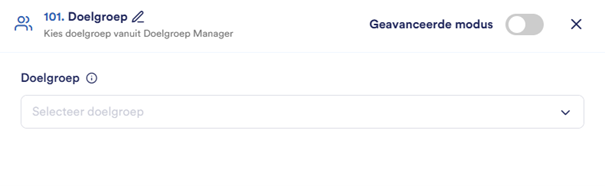
At the top of your screen, you'll see the block's title (default: Target audience). Click the pencil icon next to the name to edit the title.

Advanced Mode
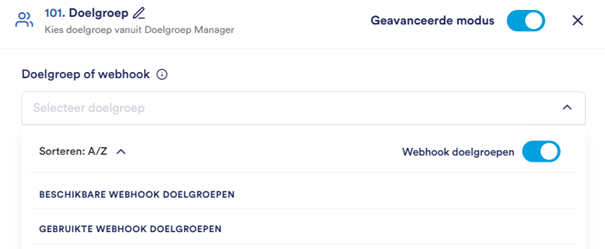
In the upper-right corner of your screen, you'll find the "Advanced Mode" toggle for additional features.

If you check the ""Advanced Mode" When you check the box, the option to populate a target audience from a webhook appears.
In addition, an option to save the target audience block as a template appears. Click the Save button appear three dots which allows you to open an additional option to save the block as a template.
Select a target audience or webhook
In the middle of the block, select:
An existing doelgroep, or
A webhook (visible only when Advanced Mode is enabled)

Save/Cancel
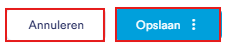
The Target Audience block is saved and calculated after you click the “Save” button. By clicking the three dots next to “Save,” you can save the block as a template. Use the “Cancel” button to undo your changes.
Open Target Audience Block
The first time you drag a Target Audience block into the flow, the block opens carmatically.
To open an existing Audience block, double-click the block or click the three dots in the upper-right corner of the block.
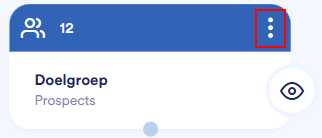
A context menu appears with the following options:
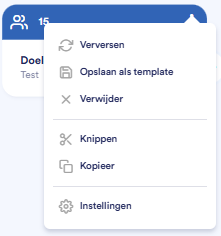
Option | Description |
Refresh | Update the selected data |
Save as a template | Save the block as a reusable template (available only when Advanced Mode is enabled) |
Delete | Remove the block from the flowchart |
Cutting | Cut out the block to paste it somewhere else |
Copy | Make a copy of the block |
Settings | Open the block's settings |
Target Audience: Connecting the Block
After saving, you can use the Target Audience block as input for other blocks.
Connect blocks by drawing a line from the Target Audience block to the next channel block.
Connect blocks by drawing a line from the Target Audience block to the next channel block.
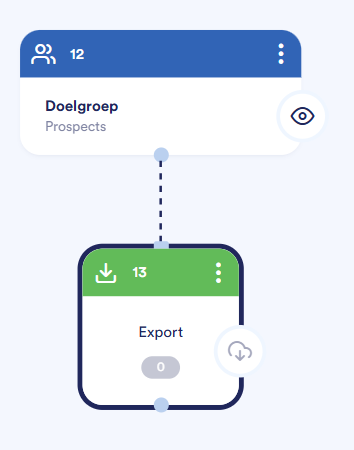
Target Audience Preview (eye icon)
After you save the Target Audience block, it will be eye icon blue.
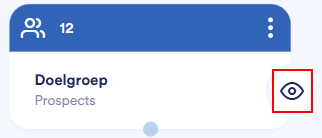
When you click the eye icon, a preview of the selected target audience appears.
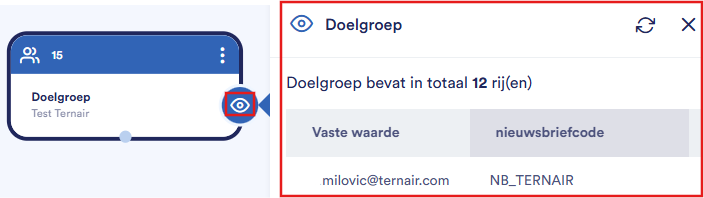
The preview displays the following information:
Number of rows
The number of contacts in the target group.

Target Audience Data
Information about the selected contacts, such as their email addresses.

View more data
Click the button “View more data” to open a detailed overview with additional information about the target audience.
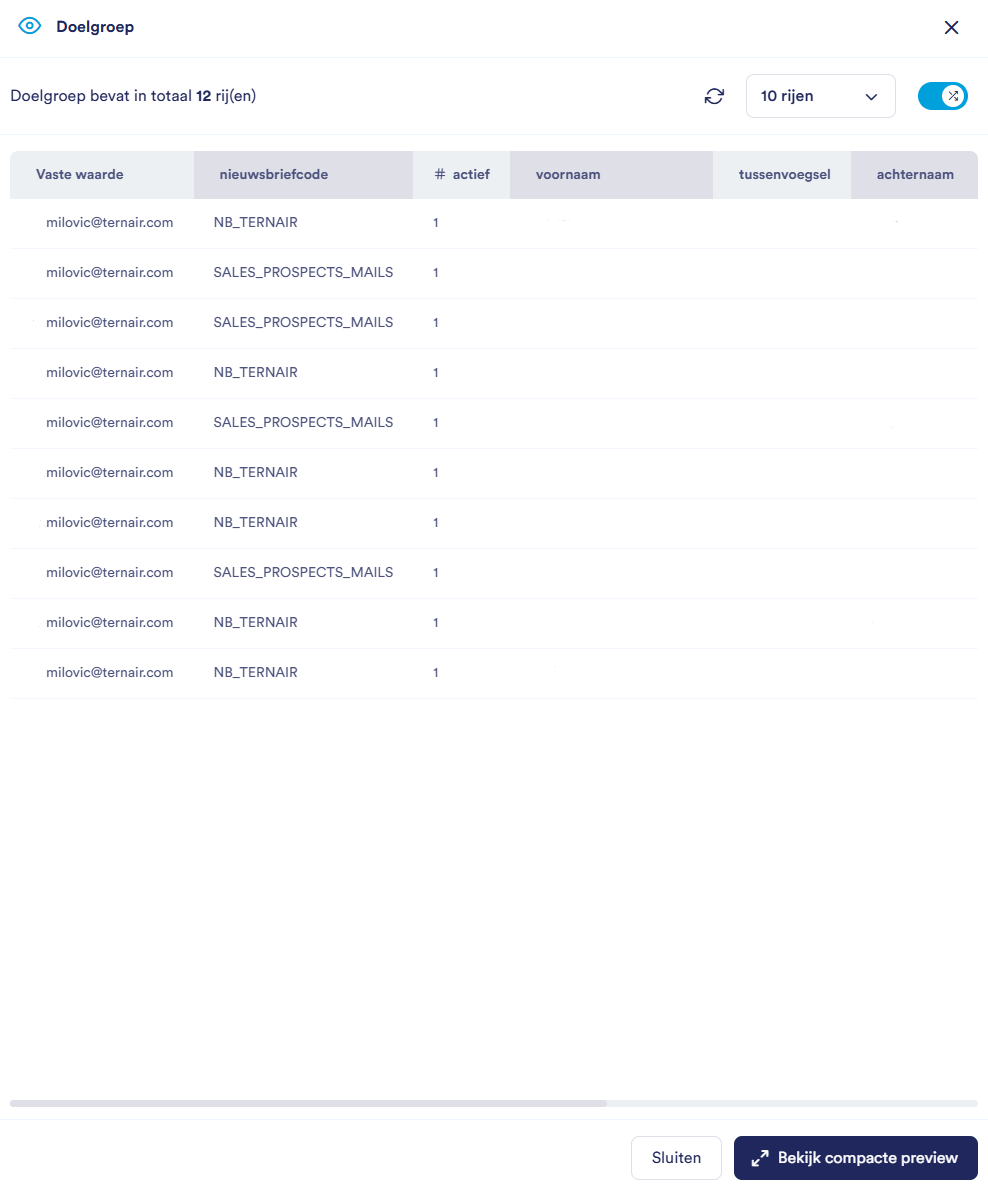
Refresh Data
Click on the refresh-icon to refresh the data (for example, after recent changes).

Close Window
Close the preview by clicking the little cross Click in the upper-right corner or use the Close button.
