Newsletter wizard
Select a target audience
Set the content together
Plan shipment
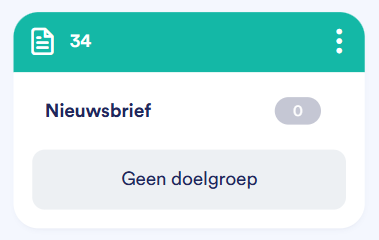
Before you can send a newsletter, at least one newsletter list or target audience must be available.
Add newsletter block
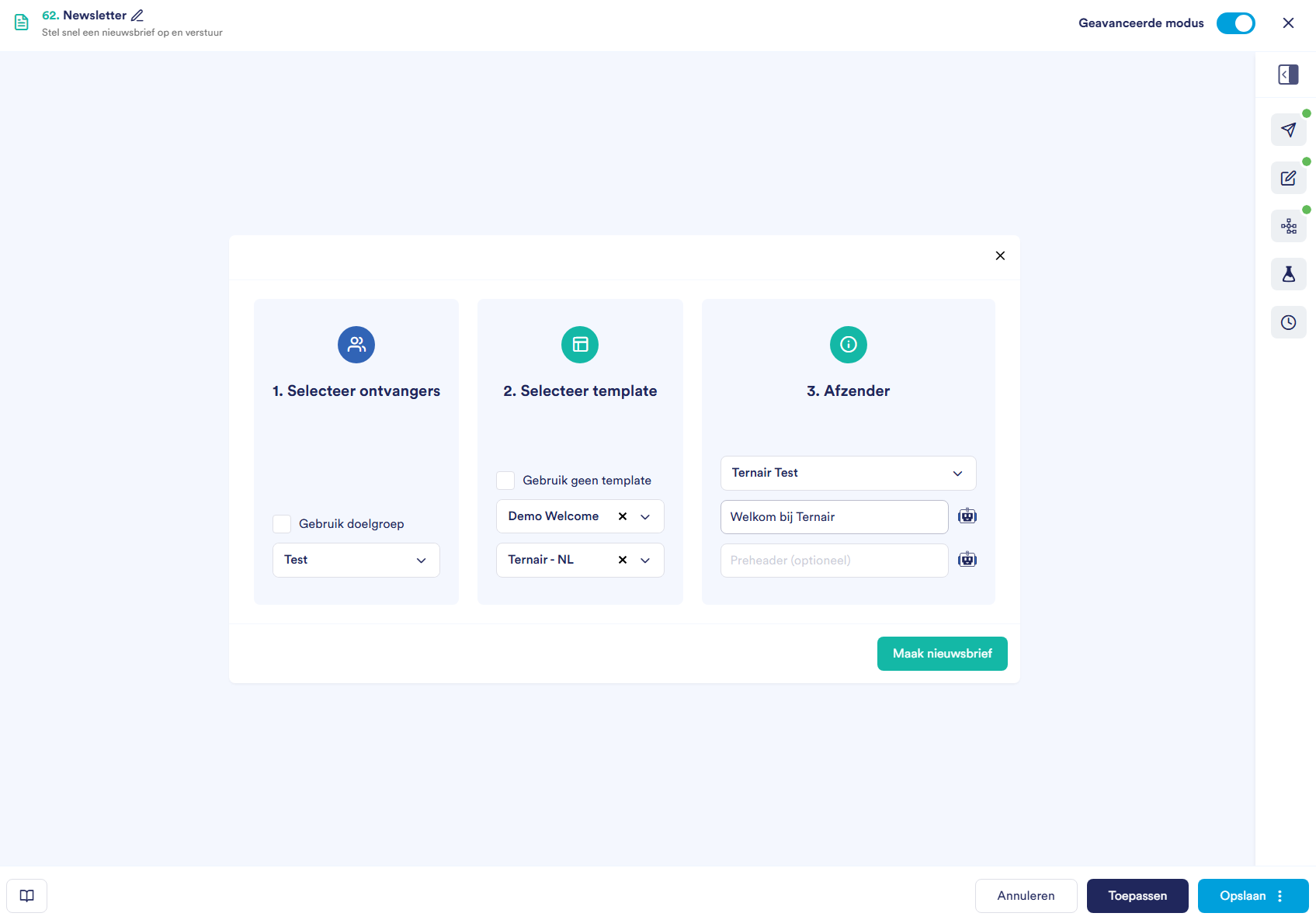
Select target group - choose the desired newsletter list or target audience.
Select template - select a template and associated corporate identity.
If you want to work with your own HTML code select 'Do not use a template'.Sender - Set the sender, subject line and optionally the preheader.
You can have both the subject and the preheader generated by the AI Assistant. You do this by clicking on the AI icon next to the topic or preheader.
Newsletter editor
Overview or the editor
Icons | Section | Function |
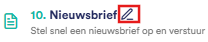 | Title | At the top left or your screen you will see the newsletter title (default: Newsletter). Click the pen icon next to the name to edit the title. |
 | Advanced mode | At the top right or your screen, you'll find the Advanced Mode switch for additional functionality. |
 | Editor | On the left side or your screen you have the editor where you format the newsletter. |
 | Menu | On the right side or your screen you will find a drop-down menu with additional options. |
Menu items
Icon | Section | Description |
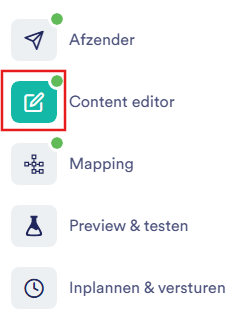
 | Choose recipients | Select or view the sender atformation (target audience/newsletter list, sender, subject and optionally the preheader) |
 | Content editor | Prepare the newsletter |
 | Mapping | Map the fields you want to use at your newsletter |
 | Preview & test | View and test your newsletter |
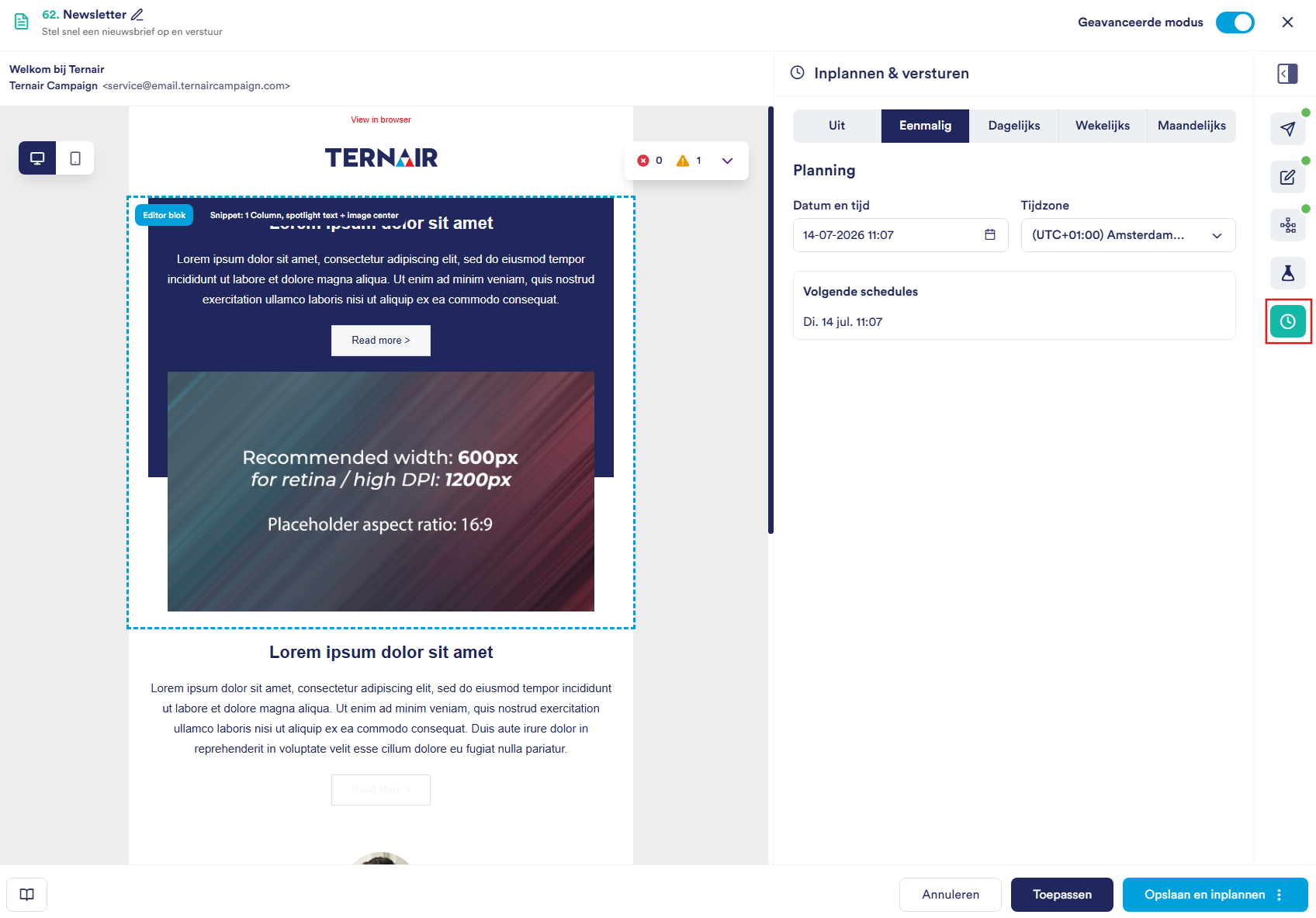
 | Schedule & send | Schedule newsletter mailing on desired day(s) and time(s) |

Advanced mode
Error messages and warnings
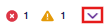
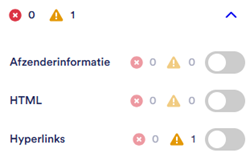
Error message: sender, HTML or hyperlinks are missing - you cannot preview, test or send

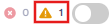
Warning: newsletter can be sent, but contains QUESTIONS
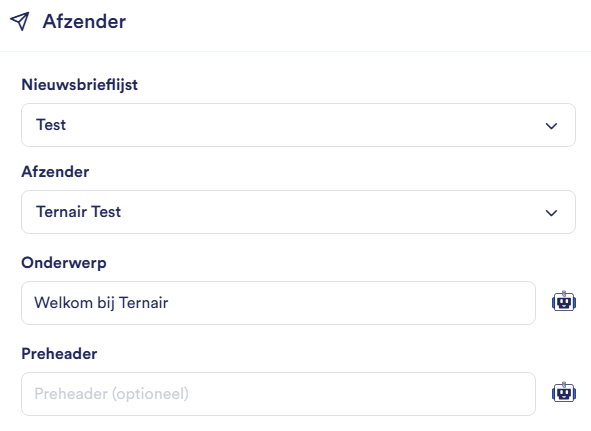
Select recipients (Sender)
Field | Description |
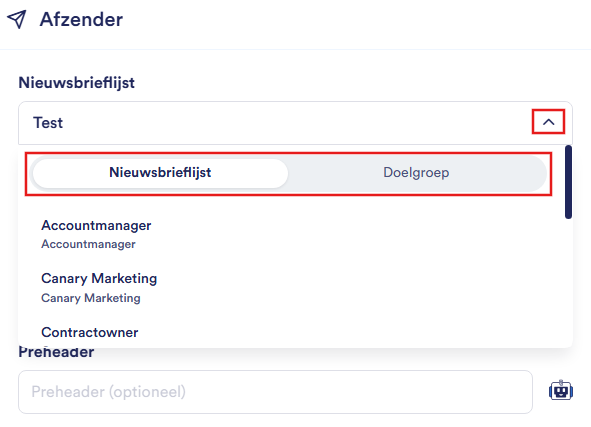
Newsletter list/ Target audience | The newsletter list or target audience to which the newsletter will be sent. Use the toggle at the top of the field to switch between Newsletter List and Target Audience. Type in the field to search quickly. |
Sender | The sender profile used to send the newsletter |
Subject line | The title or your newsletter that recipients see at their atbox. You can have the subject generated by the AI assistant. You do this by clicking on the AI icon next to the topic |
Preheader | The short text displayed at the atbox immediately after (or below) the subject line or a newsletter. You can have the preheader generated by the AI assistant. You do this by clicking on the AI icon next to the preheader |
Content Editor
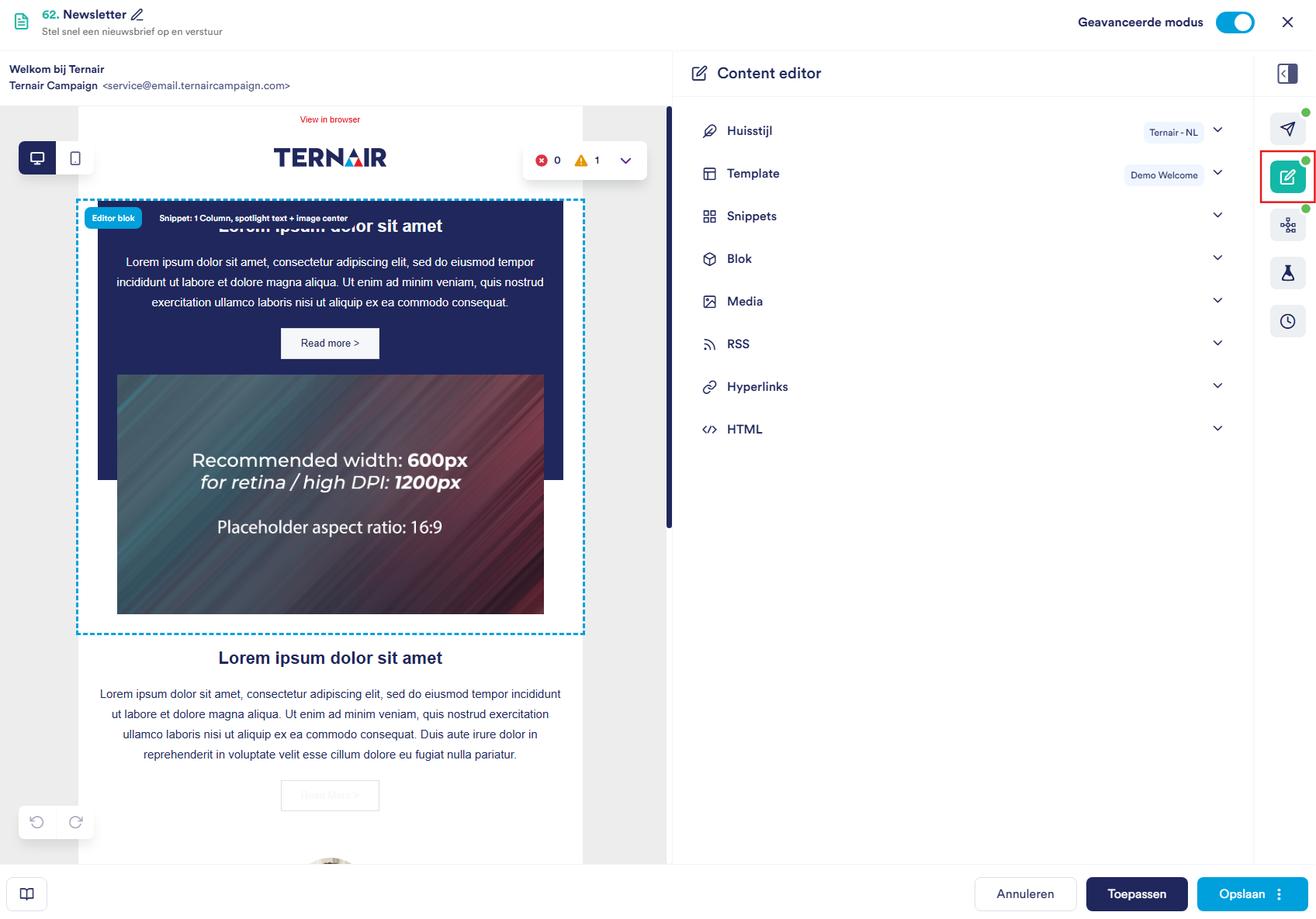
Icon | Section | Description |
 | Corporate identity | Select the visual style or the newsletter. The selected house style is applied to the templates or snippets. |
  | Templates | Select a template. Use the eye-icon to preview the template. To the globe-icon you recognize whether it is a global snippet. Use the search function to quickly find the right template. |
 | HTML | Add HTML code, or view and edit existing HTML code |
 | Snippets | Add reusable content blocks such as text, images and logos. Gebruik het eye-icon to preview the snippet. To the globe-icon you recognize whether it is a global snippet. Use the search function to quickly find the right snippet. |
 | Block | Edit your content. |
 | Media | Add and manage images within your newsletter. |
 | RSS | Add RSS feeds and select RSS messages. |
 | Hyperlinks | Provide a tag and/or tracker for each hyperlink. |
Mapping
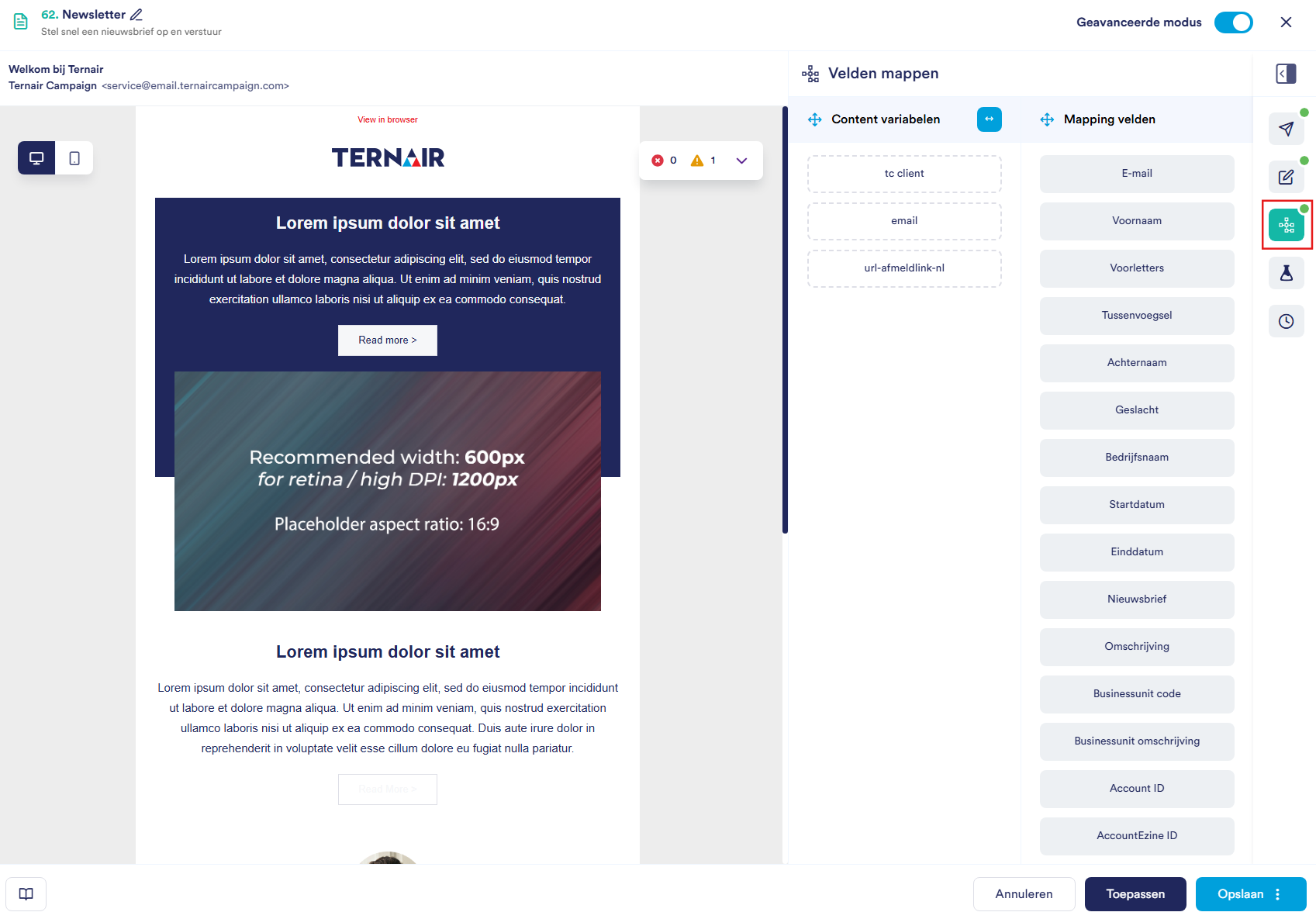
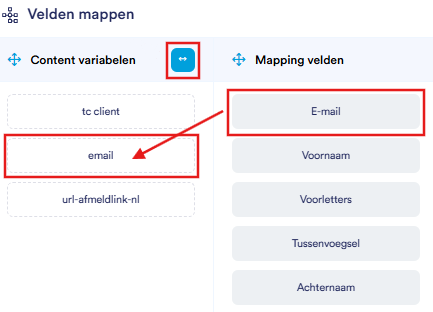
het Automap fields-icoon to use, or
drag a field from the right column to the corresponding field at the left column.
Preview & test
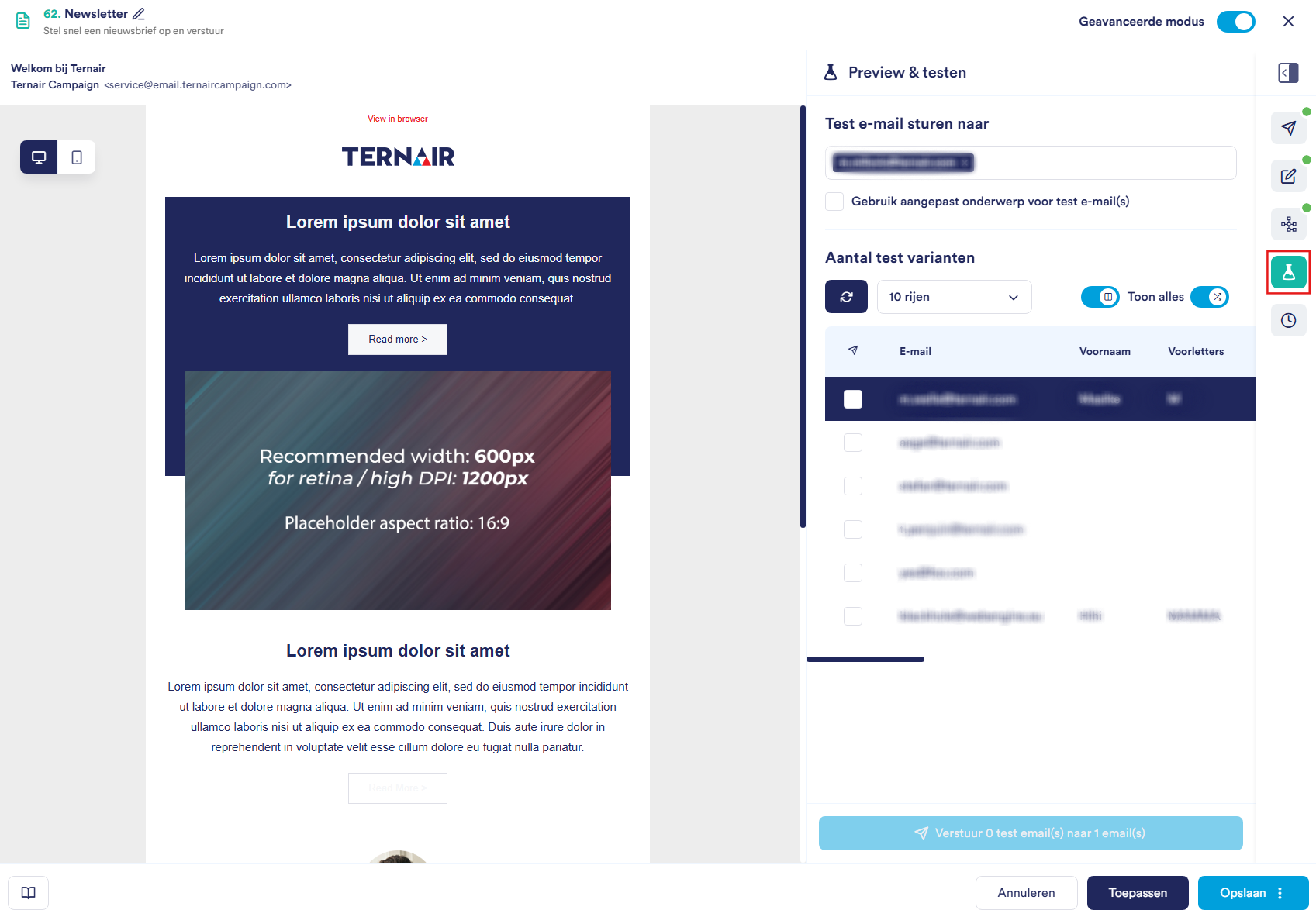



Renew data - load the latest data
Show number or rows - choose between 10, 20 or 30 records
Show random data - load random records
Schedule & send
Option | Description |
From | The newsletter is not yet scheduled |
One-time | The newsletter is sent once at a specific time |
Daily | The newsletter is sent every day at a set time |
Weekly | The newsletter is sent on a fixed day and time each week |
Monthly | The newsletter is sent on a fixed day and time each month |
Apply/save/cancel
Option | Description |
Apply | Save the settings without closing the editor |
Save | Save the settings and close the editor. If "Advanced Mode" is enabled, you can also save the block as a template by clicking on the three dots. |
Cancel | Close the editor without saving changes |

Scheduled Newsletter block
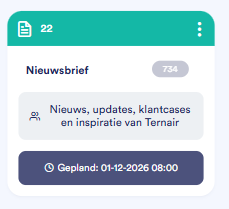
Open newsletter block
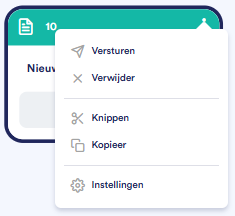
Option | Description |
Send | Send the newsletter |
Remove | Remove the block from the flow chart |
Cut | Cut the block to paste it elsewhere |
Copy | Make a copy or the block |
Settings | Open the settings or the block |