Web Service
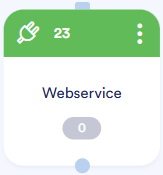
The Web Service block allows you to establish a connection to an external web service. By using the Web Service block, the user can send data to a third party.
Terms and Conditions
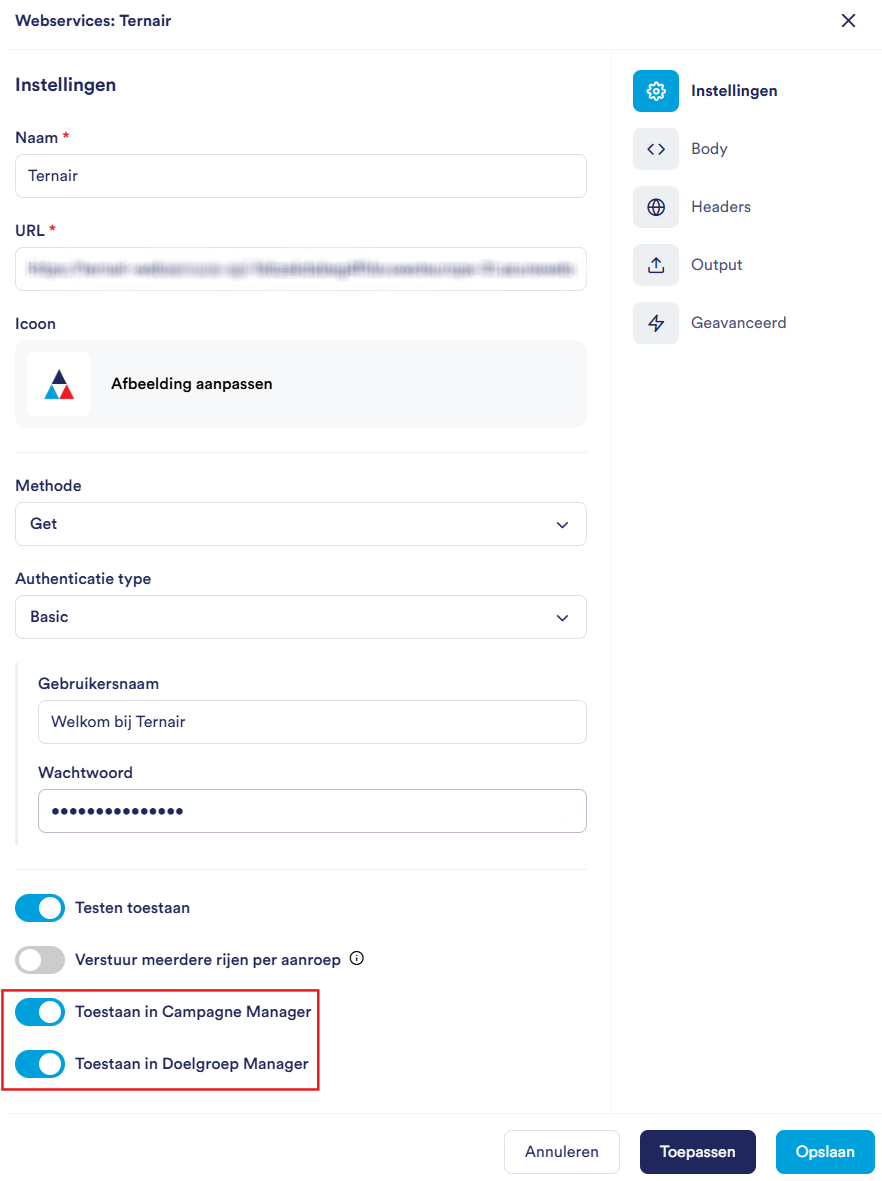
Before you can use the Web Service block, at least one web service must be configured in the General Settings.
Before you can use the Web Service block, at least one web service must be configured in the General Settings.
If you can't select a web service, check whether the web service is enabled in the General Settings. This must be enabled in both the Target Audience and Campaign Manager.
Add a Web Service Block
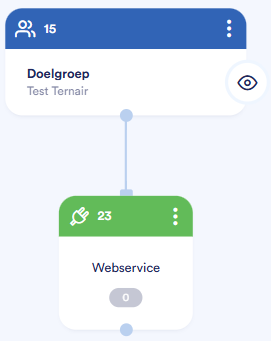
Drag the Web Service block from the category Select channels in the menu, go to the worksheet. Connect the Web Service block to a Target Audience block.
Double-click the block or use the context menu (three dots > Settings) to open the editor.
Title
At the top of your screen, you'll see the block's title (default: Web Service). Click the pencil icon next to the name to edit the title.

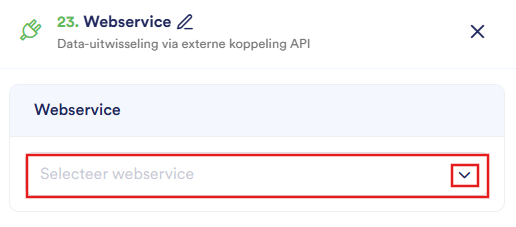
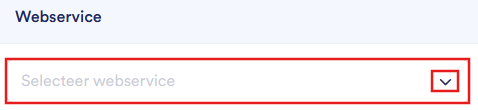
Select Web Service
Select the desired web service from the dropdown menu
Mapping
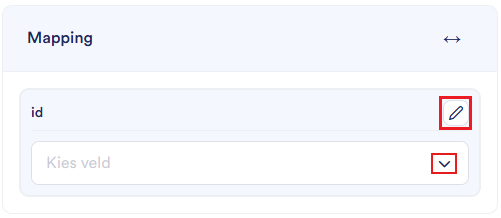
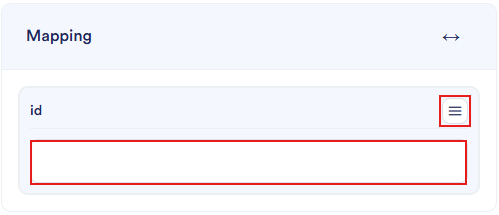
During the mapping process, you map each field (for example, id) the value that is sent to the web service. You can switch between two input methods using the icon in the upper-right corner of the field.
Option 1 – Select a field from the dropdown menu (pencil icon visible). Select via Select field an existing field from the target group or data store; click the pencil icon to switch to manual entry.
Option 2 – Manual entry (dashes icon visible) Type a fixed value directly into the text field; click the dashes icon to switch back to the drop-down menu.
Save Settings
Use the options below to save your changes.
Option | Description |
Cancel | Close the editor without saving any changes |
Apply | Save the settings without closing the editor |
Save | Save the settings and close the editor |
Save as a template | Next to the Save button there are three dots that let you save the block as a template |

Execute Web Service Block
Once you've saved the Web Service block, you can call it in two ways:
Go to the Web Service block, right-click, and select Execute. The web service is then activated. A one-minute countdown timer appears, after which the web service is called.
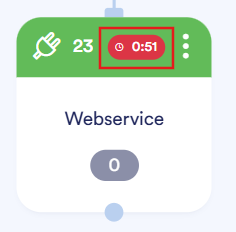
Connect the Web Service block by drawing a line to a Schedule-block.
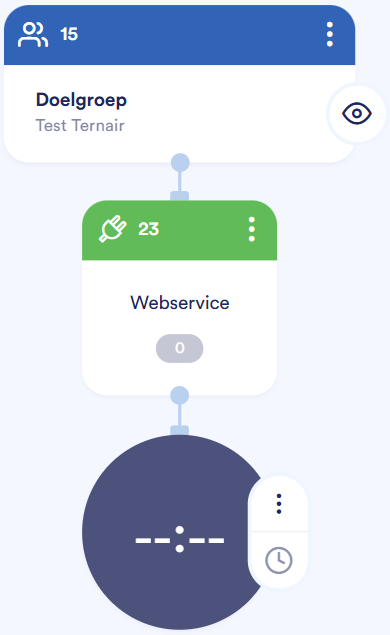
Open Web Service Block
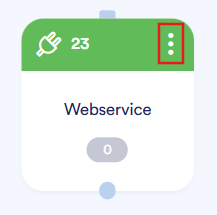
To open an existing Web Service block, double-click the block or click the three dots in the upper-right corner on the block.
A context menu appears with the following options:
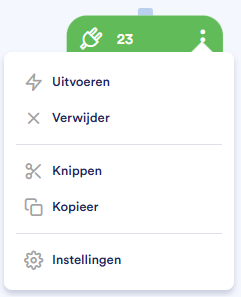
Option | Description |
Execute | Execute the web service call |
Delete | Remove the block from the flowchart |
Cutting | Cut out the block to paste it somewhere else |
Copy | Make a copy of the block |
Settings | Open the block's settings |