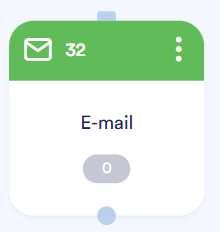
Before you can send an e-mail, at least one target group must be available. You can select this target group via a Target, Leads, Website clicks or Webhook block on the flow chart.
Add email block
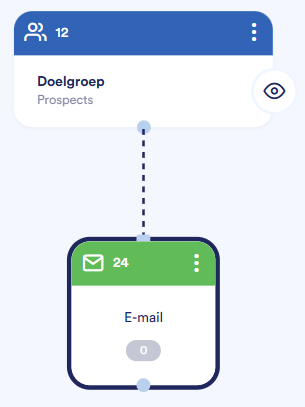
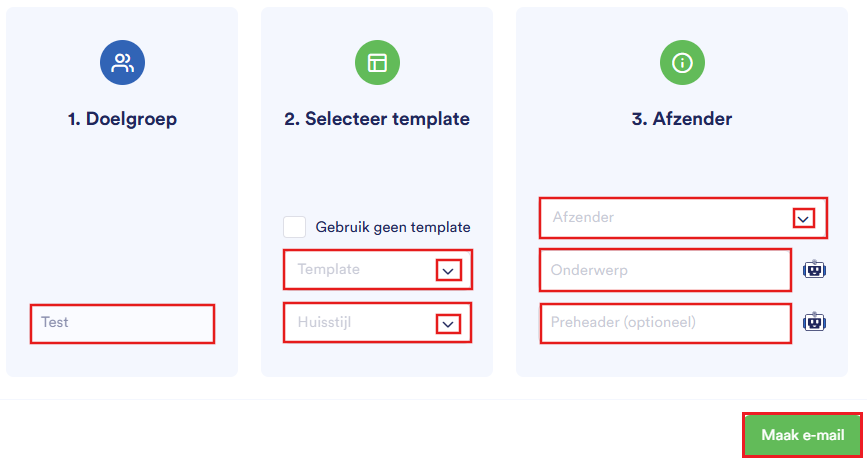
Target - shows the linked target group
Select template - select a template and associated corporate identity.
If you want to work with your own HTML code select 'Don't use a template'.Sender - Set the sender, subject line and optionally the preheader.
You can have both the subject and the preheader generated by the AI Assistant. You do this by clicking on the AI icon next to the topic or preheader.
Email editor
Overview of the editor
Icons | Section | Function |
 | Title | At the top left of your screen you will see the title of the block (default: Email). Click the pen icon next to the name to edit the title. |
 | Advanced mode | At the top right of your screen you will find the Advanced Mode switch for additional menu items and functionality. |
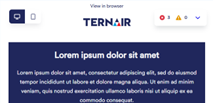 | Editor | On the left side of your screen you have the editor where you format the e-mail. |
 | Menu | On the right side of your screen you will find the drop-down menu with additional options. |
Menu items
Icon | Section | Description |
 | Choose recipients | Select or view the sender information (target audience, sender, subject and optionally the preheader). |
 | Content editor | Format the e-mail. |
 | Mapping | Map the fields you want to use in your email. |
 | Contacts | Record if and when a contact moment is recorded after transmission. (Visible only in Advanced mode). |
 | A/B testing | Set up A/B testing to test variants of your email. (Visible only in Advanced mode). |
 | Preview & test | Review and test your e-mail. |
 | Settings | Configure advanced options such as slur, attachment and honeypot. (Visible only in Advanced mode). |


Advanced mode
Choose recipients
Content editor
Mapping
Preview & Testing
Contacts
A/B testing
Settings
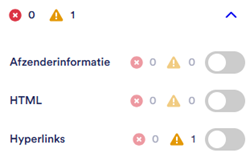
Error messages and warnings
Error message: afzender, HTML of hyperlinks ontbreken – je kan not previewen, testen of versturen

Warning: newsletter can be sent, but contains aandachtspunten
Drafting email
Afzender
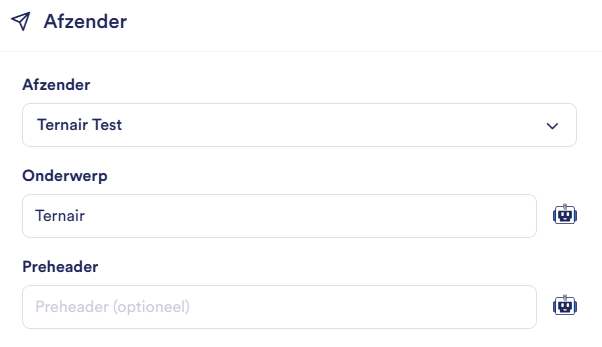
Field | Description |
Target | The newsletter list or target audience to which the newsletter will be sent. Use the toggle at the top of the field to switch between Newsletter List and Target Audience. Type in the field to quickly search. |
Sender | The sender profile used to send the e-mail. |
Subject line | The title of your email that recipients see in their inbox. You can have the subject generated by the AI assistant. You do this by clicking on the AI icon next to the subject. |
Preheader | The short text displayed in the inbox immediately after (or below) the subject line of an email. You can have the preheader generated by the AI assistant. You do this by clicking on the AI icon next to the preheader. |
Content Editor
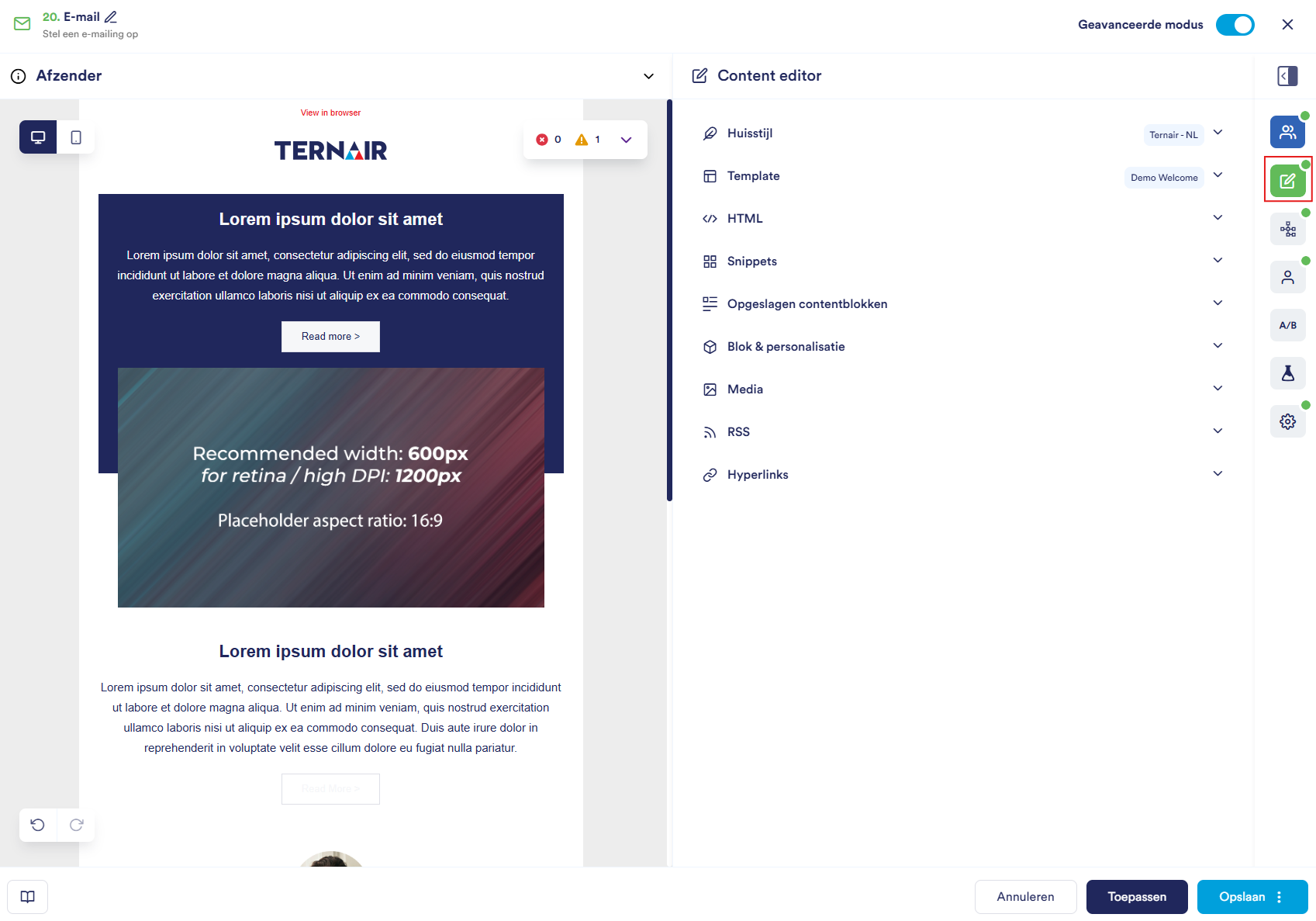
Icon | Section | Description |
 | Corporate identity | Select the visual style of the email. The selected house style is applied to the templates or snippets. House styles can be added and managed in the General Settings. |
  | Templates | Select a template. To the globe-icon you can recognize if it is a global template. Use the search function to quickly find the right template. |
 | HTML | Add HTML code, or review and edit existing HTML code. |
 | Snippets | Add reusable content blocks such as text, images and logos. To the globe-icon you can recognize if it is a global snippet. Use the search function to quickly find the right snippet. |
 | Saved content blocks | Add user-specific content to the email. This option is only available in Advanced mode. |
 | Block & personalization | Edit your (personalized) content. Select a block on the left (this will be marked with a blue border) and then adjust the (personalized) content on the right. |
 | Media | Add images or other media files to the email and manage the media within your email. |
 | RSS | Pair a RSS feed to the e-mail to carmatically retrieve current content. |
 | Hyperlinks | Manage and add hyperlinks to the email. Provide a tag and/or tracker for each hyperlink. By clicking on the button 'Apply wildcards' all configured wildcards (hyperlinks/tags/statistics) are applied to the content of the email block. Wildcards can be set in the General Settings. |
Saved content blocks
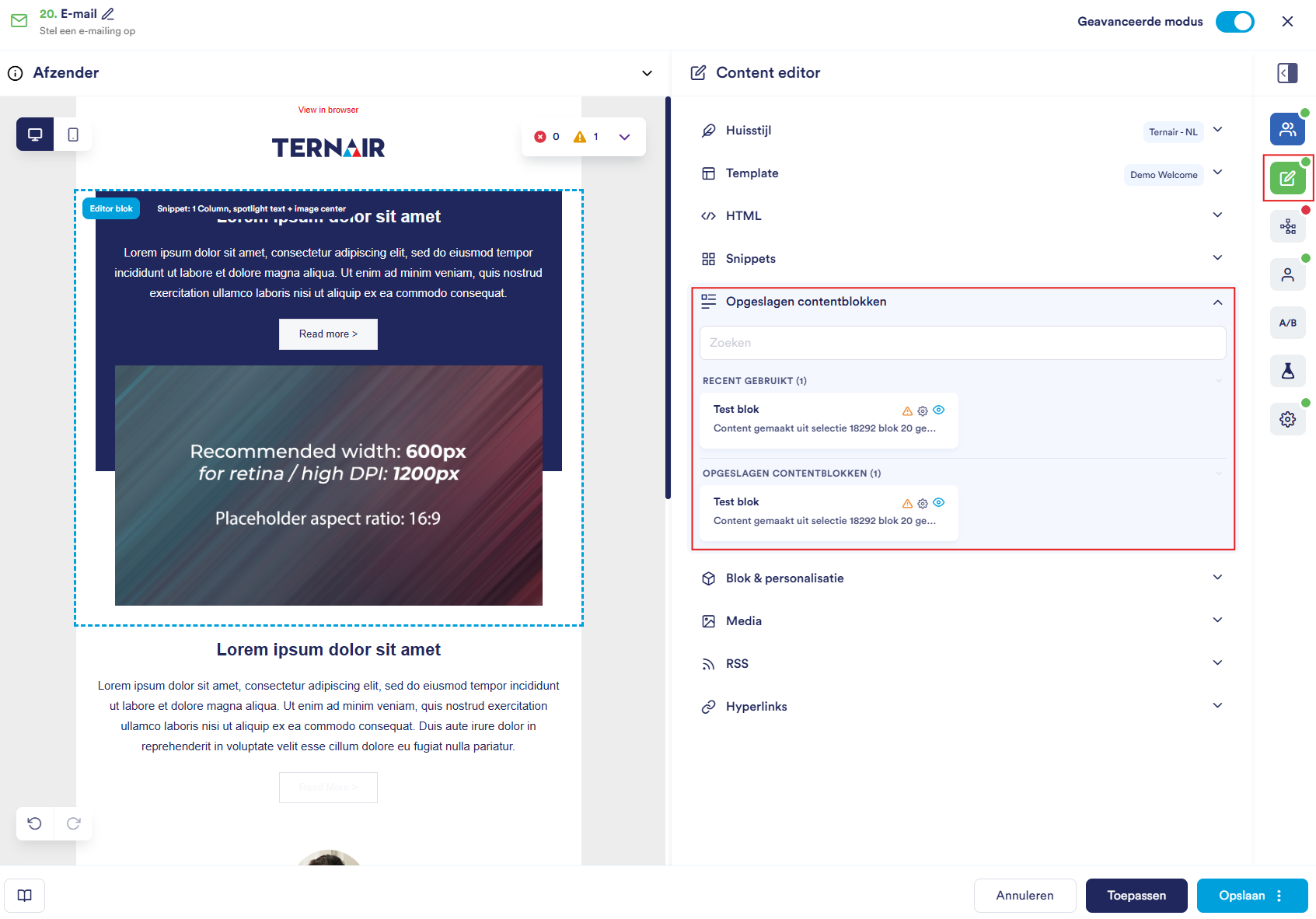
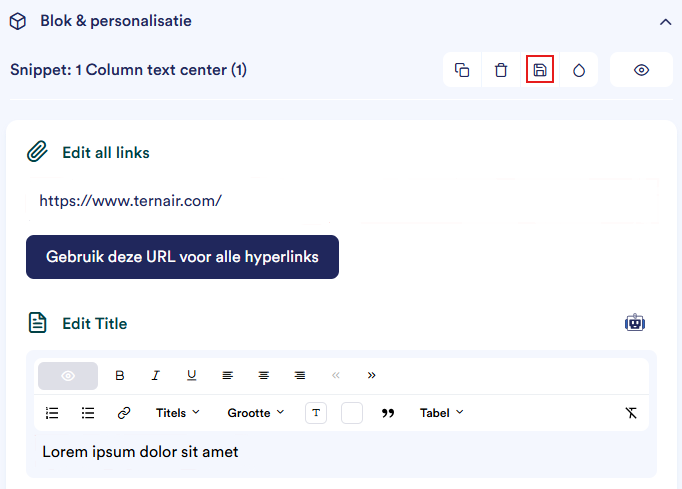
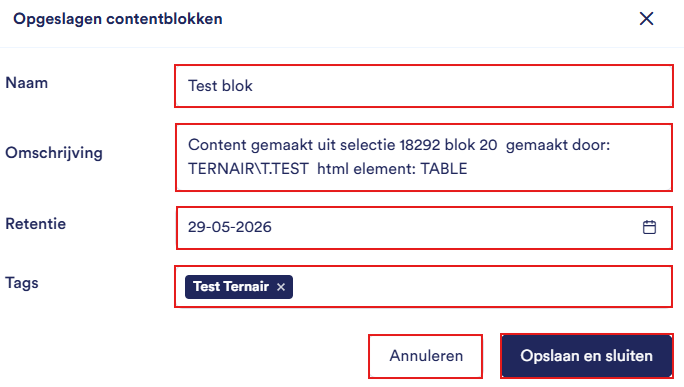
Option | Description |
Name | The name under which the content block is displayed in the overview. |
Description | A brief explanation of the content or intended use of the block. |
Retention | The retention period determines how long a content block remains available in the overview. Once the set date has passed, the content block disappears from Saved Content Blocks and can no longer be applied in an email. |
Tags | Optionally add additional information to block. |
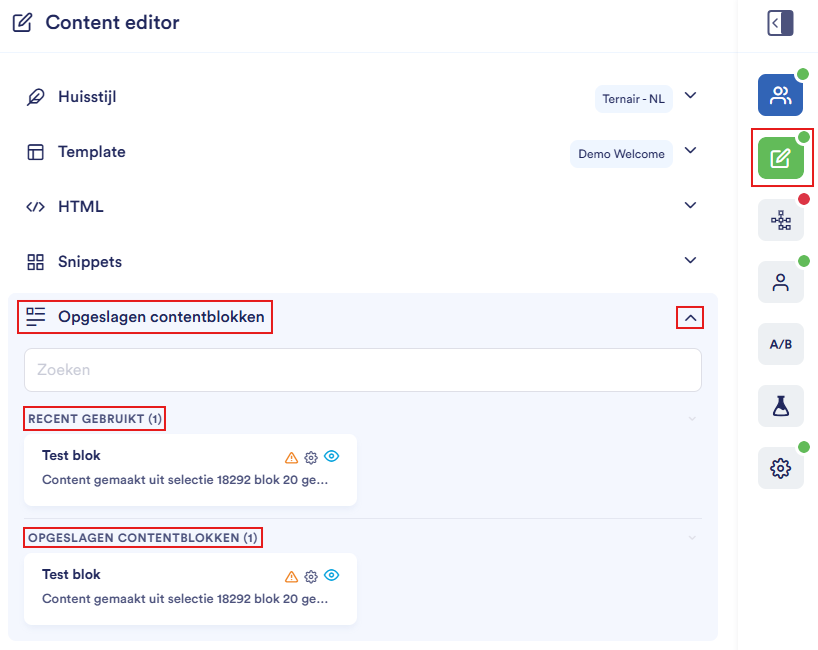
Recently used - The content blocks most recently applied in an email.
Saved content blocks - the complete overview of all saved blocks.
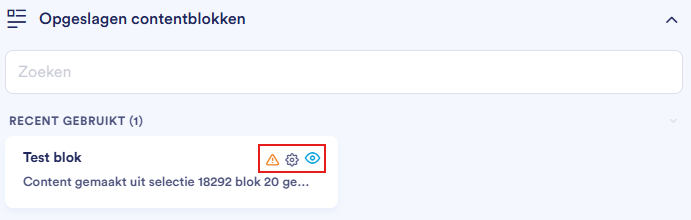
Option | Description |
Triangle icon | Indicates that the retention period is about to expire. Adjust the retention via the gear icon to prevent the block from disappearing from the overview. |
Gear icon | Opens the settings window where content block properties can be adjusted. |
Eye icon | Displays a preview of the content block so that the content can be checked before being applied in an email. |
Personalization
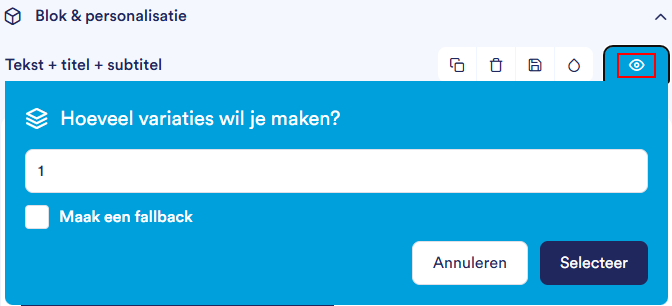
Click on a content block and choose the "eye" from the menu to add personalization.
Next, decide how many variations you want to make.
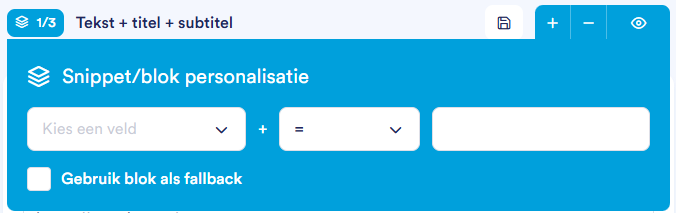
Select what you personalize
Set the condition in (e.g. equals, contains, is in list)
Fill the value in (e.g. yes/no, language or number)
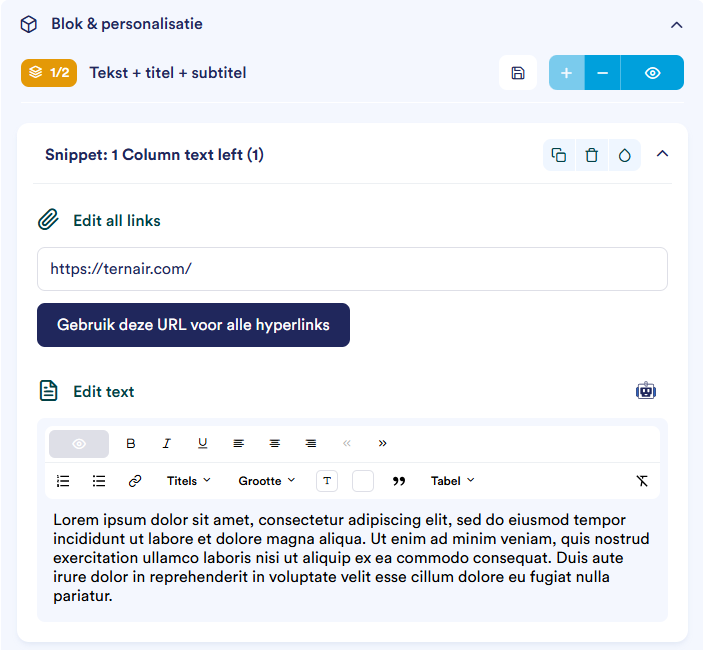
Select the content block and edit the text
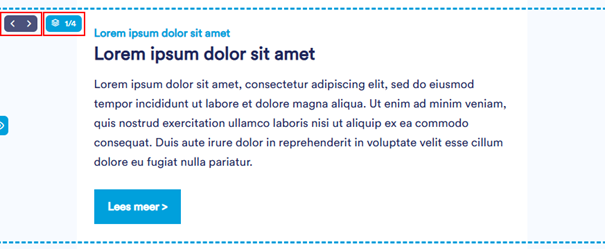
Use the left arrow to switch between variants. Repeat until all variants are completed
Mapping
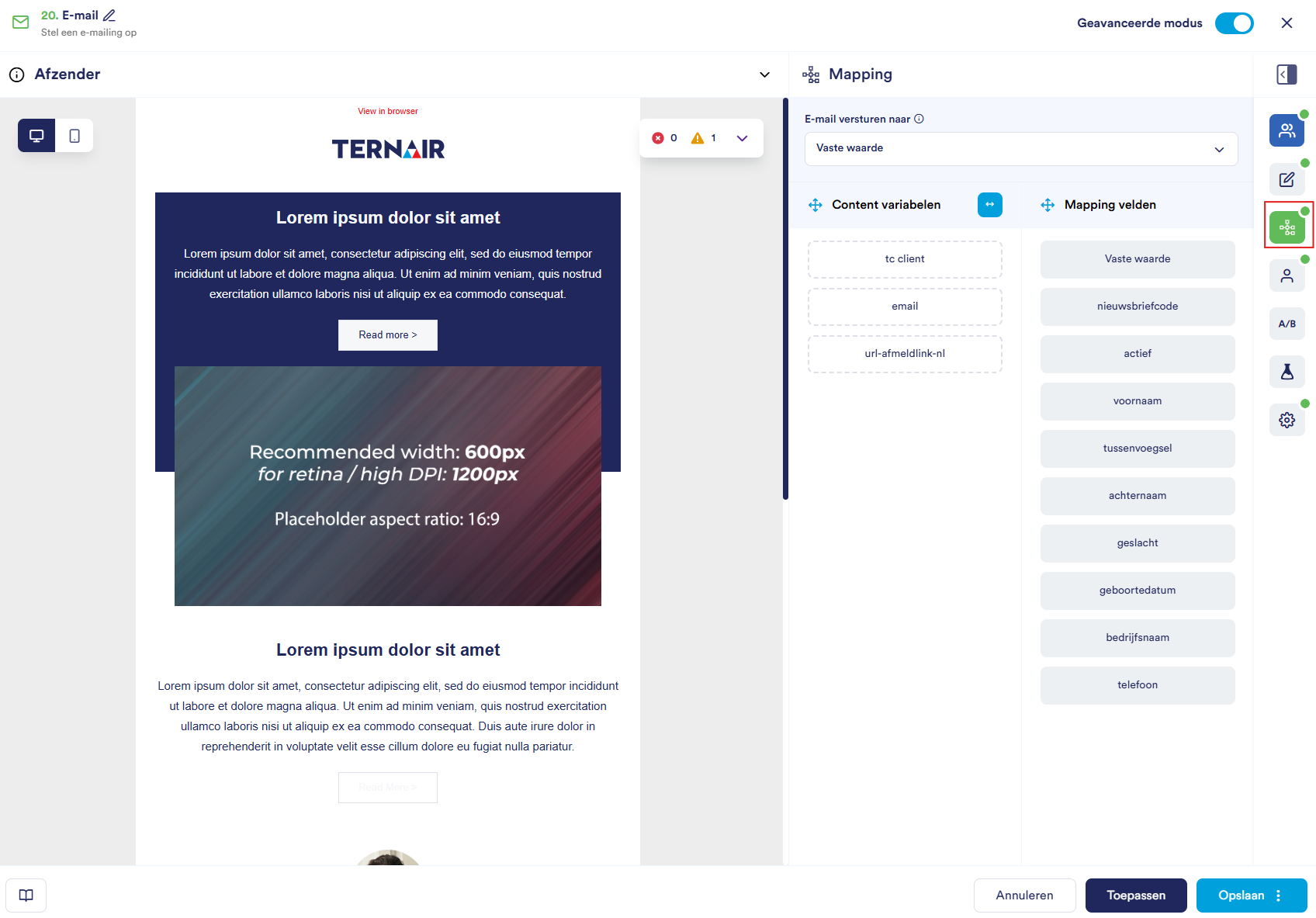
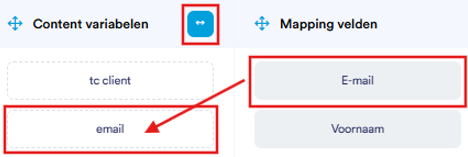
het Automap fields-icon to use, or
drag a field from the right column to the corresponding field in the left column.
As long as there geen target group is linked, is Mapping not available.
Does the message "No fields found" appear? Then check that your template contains variables and that the target group is linked correctly.
Contacts
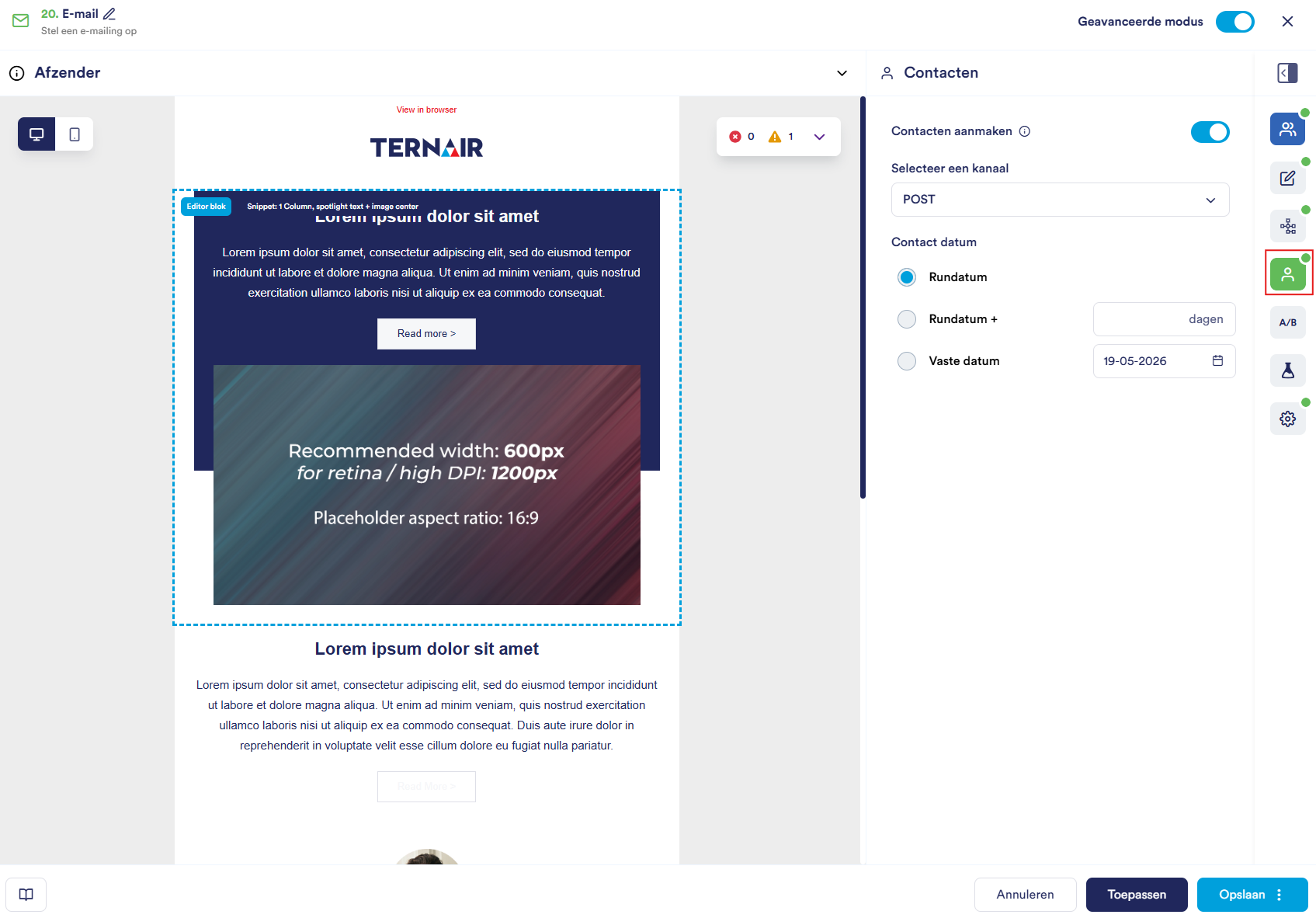
bovine date (the date the block is executed)
beef date + (a few days after the run)
fixed date (on a specific, self-set date).
A/B Testen
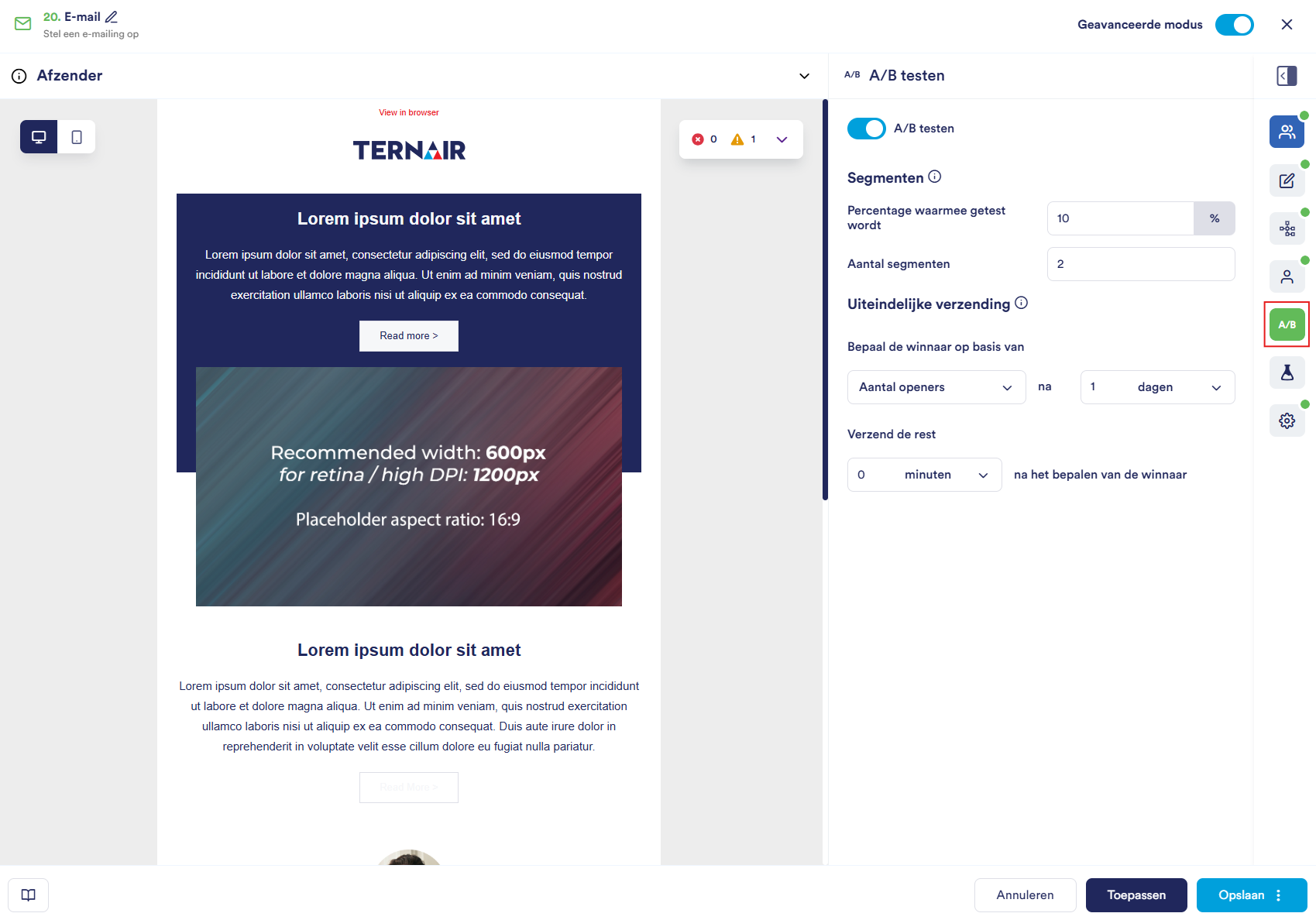
Icons | Section | Function |
 | A/B testing | Switch to enable or disable A/B testing. |
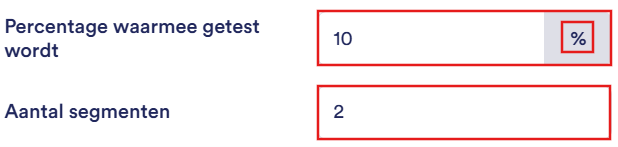 | Segments | Set what percentage of the target audience receives the test versions and how many segments. |
 | Ultimate shipment | Determine the winner based on a criterion (e.g. Number of openers) after a set number of hours/minutes/days. |
 | Send the rest | Set how much time after determining the winner the rest of the target audience will receive the winning variant. |
Preview & test
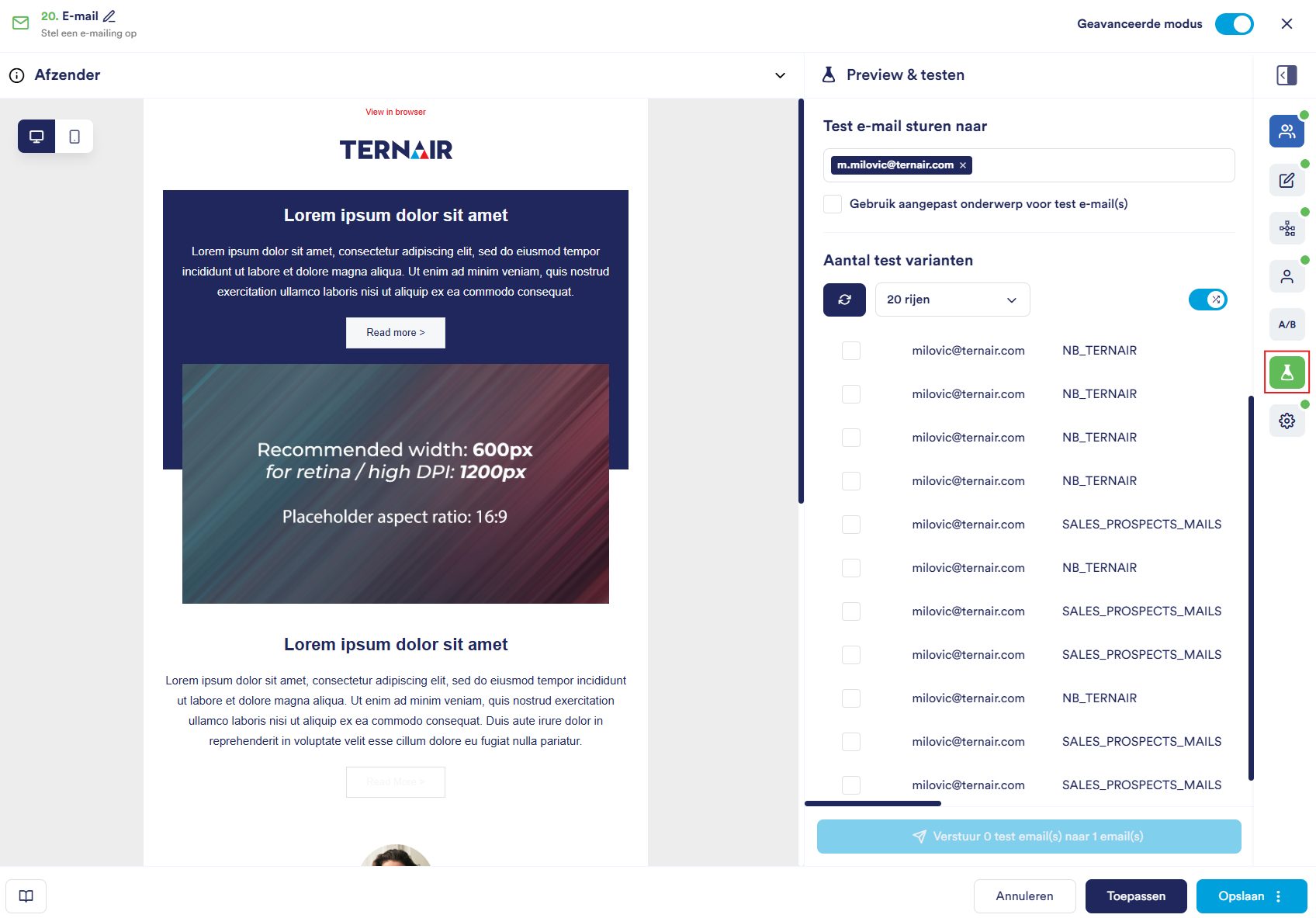



Renew data - load the latest data
Note: when reopening an existing e-mail block, previously saved data is shown. Click on refresh to see current data
Show number of rows - choose between 10, 20 or 30 records
Show random data - load random records
Settings
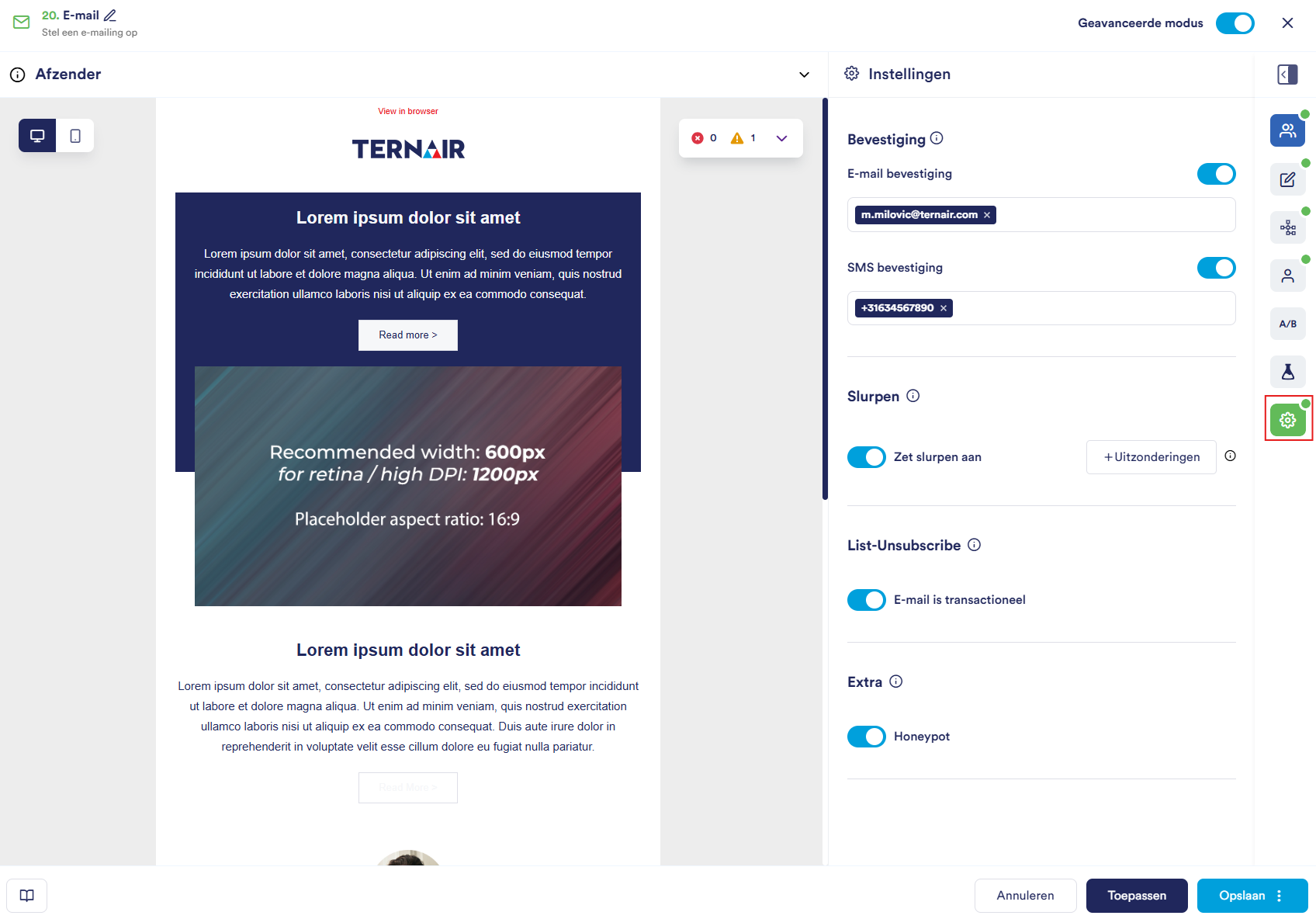




Apply/save/cancel
Option | Description |
Apply | Save the settings without closing the editor. |
Save | Save the settings and close the editor. If "Advanced Mode" is enabled, you can also save the block as a template by clicking on the three dots. |
Cancel | Close the editor without saving any changes. |

Run email block
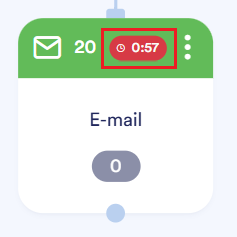
Go to the Email block, right-click and choose Execute. The e-mail transmission is then activated. A one-minute countdown timer appears after which the e-mail is sent.
Connect the Email block by drawing a line to a Schedule-block.
Open e-mail block
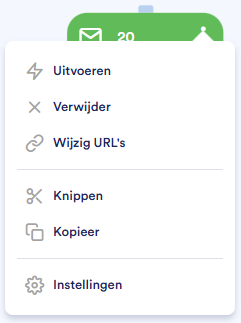
Option | Description |
Execute | Perform the e-mail transmission. |
Remove | Remove the block from the flow chart. |
Cut | Cut the block to paste it elsewhere. |
Copy | Make a copy of the block. |
Settings | Open the block's settings. |