Terms and Conditions
The WhatsApp account must be in Meta are set up. To do this, you'll need:
a verified business;
a linked and verified cell phone number;
the WhatsApp Outbound Messaging service that has been enabled.
The user must WhatsApp Access Rights have. First, enable this in the user group settings.
The WhatsApp account must be set up and tested under WhatsApp Settings (see below).
There must be at least one approved message template in it WhatsApp Manager are.
There must be at least one target audience. You select it using a "Target Audience," "Leads," "Website Clicks," or "Webhook" block on the flowchart.
WhatsApp Settings
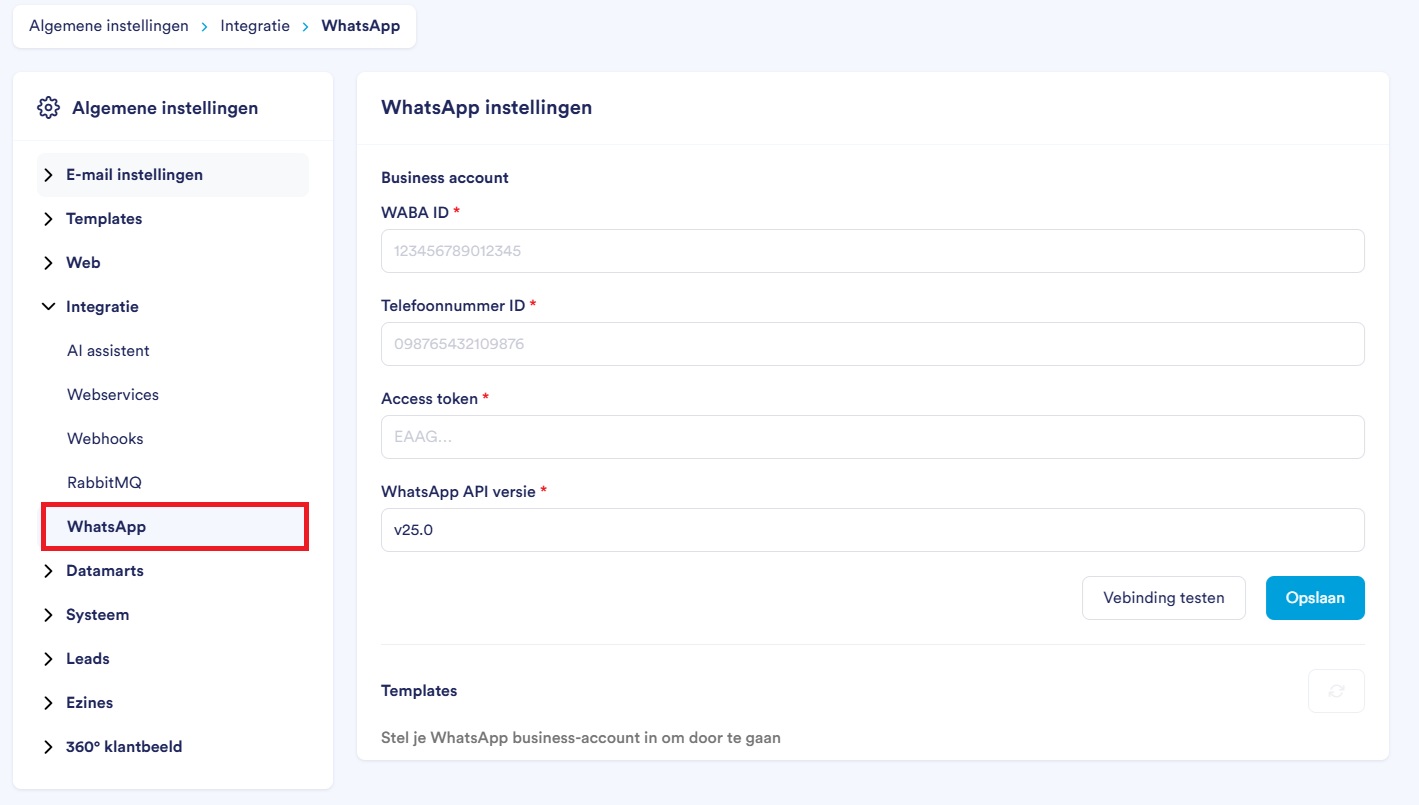
Business Account
Field | Description |
|---|---|
WABA ID | The ID or your WhatsApp Business Account. |
Phone Number ID | The ID or the phone number you're sending from. |
Access token | Meta's access key. After saving, you'll see the message The access token has been entered. |
WhatsApp API version | Meta's API version, for example, v25.0. |
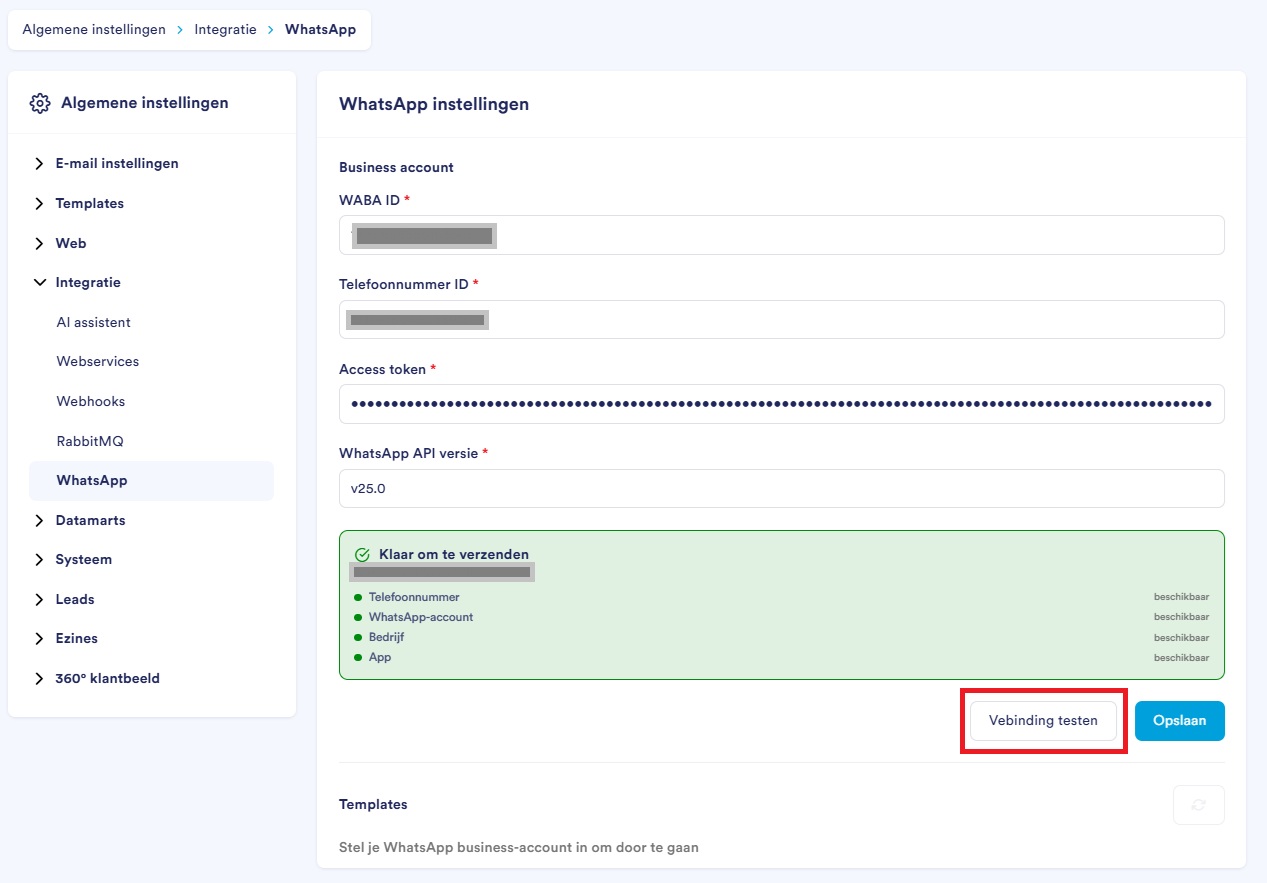
Test Connection
a solution: Ready to ship, Shipping is subject to restrictions or Shipping is blocked;
the status or the phone number, the WhatsApp account, the company, and the app;
Save
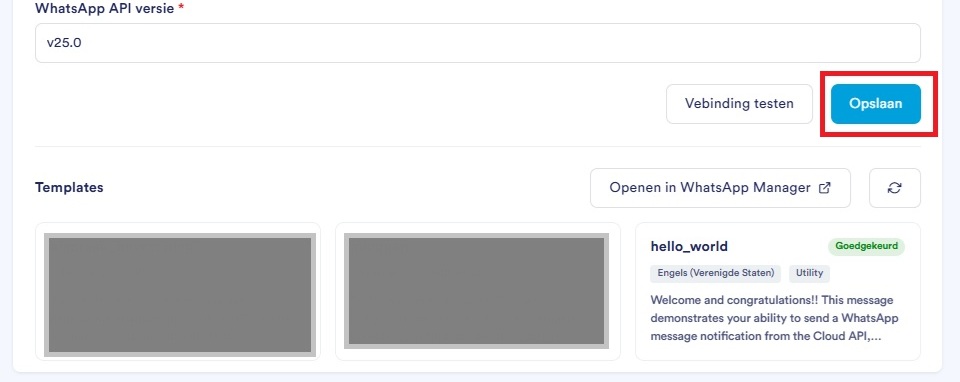
Message Templates
Option | Description |
|---|---|
Open in WhatsApp Manager | Opens the template overview for this account in WhatsApp Manager. |
Refresh | Reload the list or templates. |
Add a WhatsApp block
WhatsApp Editor
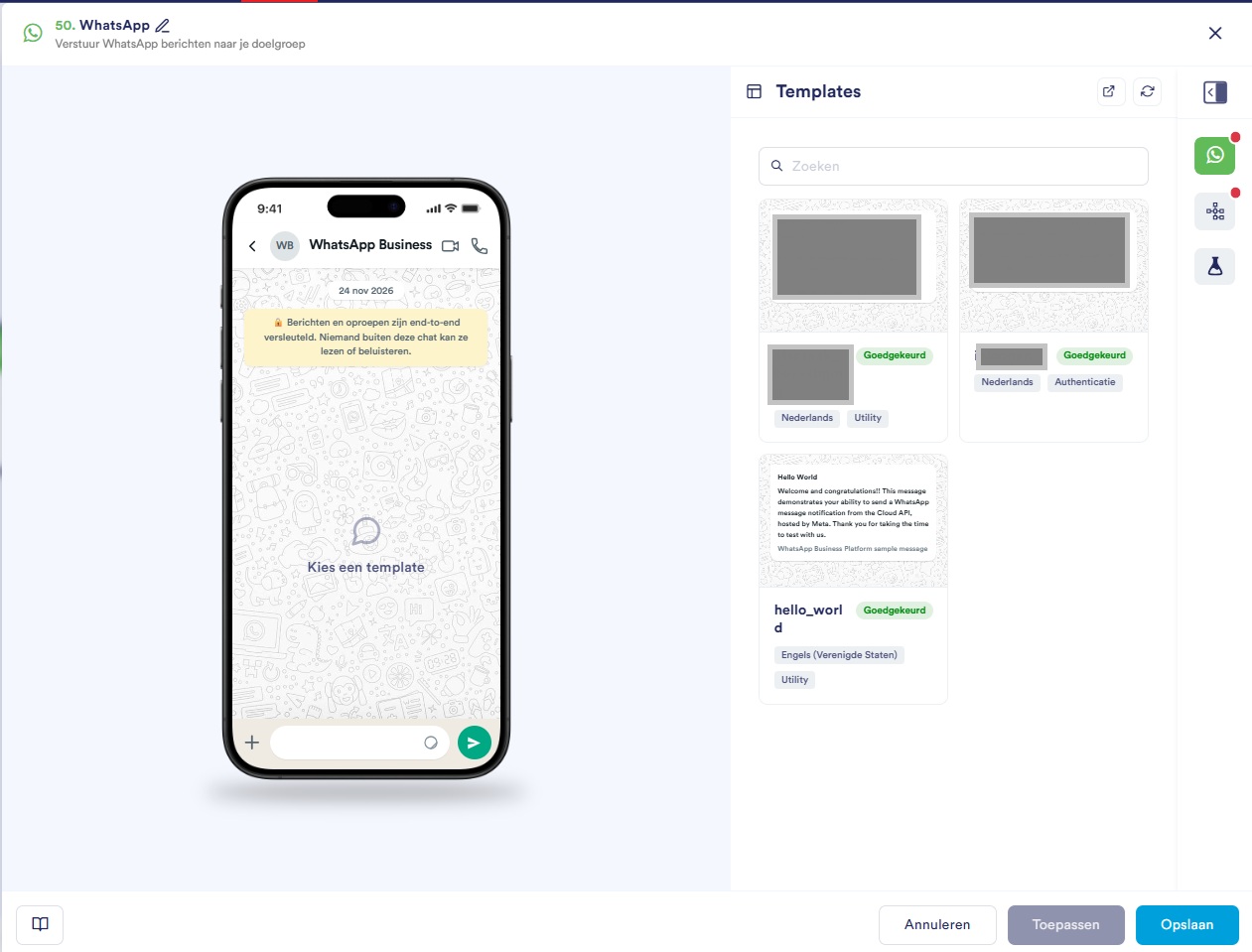
Overview or the Editor
Component | Position |
|---|---|
Title | In the upper-left corner, you'll see the block's title (default: WhatsApp). Click the pencil icon next to the name to edit the title. |
Preview | In the middle, you can see what the message looks like on a smartphone. |
Menu | On the right, you'll find the drop-down menu with the tabs. |
Component | Position |
|---|---|
Templates | Select an approved WhatsApp template. |
Mapping | Link the phone number and the template variables to fields from the target audience. |
Preview & Testing | View the message and send a test message. |
Templates
Mapping
Recipient: Map the field containing the phone number. The number will be sent exactly as it appears in the target group. So make sure the numbers in the target group are formatted correctly.
Template variables: Every variable in the template must be mapped. Want to use a fixed value? Click the pen icon and enter the value.
Media header: Does the template use an image, video, or document in the header? If so, select an existing file or upload a new one.
Authentication templates: The button for copying the code is automatically populated with the code from the message text. That's why you won't see this button in the mapping.
Preview & Test
Testing WhatsApp
Is anything missing? If so, you'll see a single notification telling you what you still need to fill out. Each item links to the appropriate tab.
Profiles with an empty template variable are skipped during a test send. The block shows how many profiles were skipped and which variables are involved.
Error Messages During Testing
Cause | Description |
|---|---|
Rejected by Meta | Meta has rejected the post. Meta's details are included. |
Unknown Phone Number ID | Meta does not recognize the phone number ID that was entered. |
Template missing | The selected template does not exist (anymore). |
Empty template variable | One or more template variables have no value. |
Cause unknown | For example, if your connection is lost. Check your settings by tapping "Test Connection" in the WhatsApp settings. |
Apply / Save / Cancel
Option | Description |
|---|---|
Apply | Save the settings without closing the editor. |
Save | Save the settings and close the editor. If Advanced Mode is enabled, you can also save the block as a template by clicking the three dots. |
Cancel | Close the editor without saving any changes. |
Run WhatsApp Block
Right-click on the WhatsApp block and select Execute. You will be asked to confirm this before the messages are sent.
Connect the WhatsApp block to a Schedule block by drawing a line.